
How to Recover Data from iPhone in DFU Mode? 3 Options [Informative]
"Has anyone actually tried this and can comment on whether downloading the firmware would actually work without deleting the data?" (Updating iPhone firmware failed?) -- from discussions.apple.com
If an iPhone enters DFU mode, it often leaves users unable to access files, making normal browsing or extraction of data impossible. Since users cannot access or extract data directly from DFU mode, recovery depends on backups, system tools, or specialized methods. This guide explains how to recover data from iPhone in DFU mode with 3 clever ways, along with hot tips and helpful FAQs to help you handle the situation more effectively.
Part 1: Recover Data from iPhone in DFU Mode via a Dedicated Tool
MobiKin Doctor for iOS (Windows/Mac) is a straightforward data recovery tool that helps you retrieve lost files from your iPhone, even when the device is stuck in DFU mode. Unlike many competitors, it focuses on a simple, step-by-step process without relying on flashy, AI-driven automation or complex algorithms.
So, if your iPhone 17/16/15/14/13/12/11/X/8 won't boot normally, you can still use this software to recover photos, messages, and contacts directly from DFU mode with just a few manual clicks.
This product provides flexible ways to recover lost iPhone data by supporting both backup-based (iTunes/iCloud) and device-level recovery options. It helps users retrieve important files efficiently without forcing a full restore or risking unnecessary data overwrite.


How to recover data from iPhone with DFU mode using MobiKin Doctor for iOS?
- Download the program and install it on your computer.
- Next, connect your iPhone, which is in DFU mode, to the computer using a USB cable.
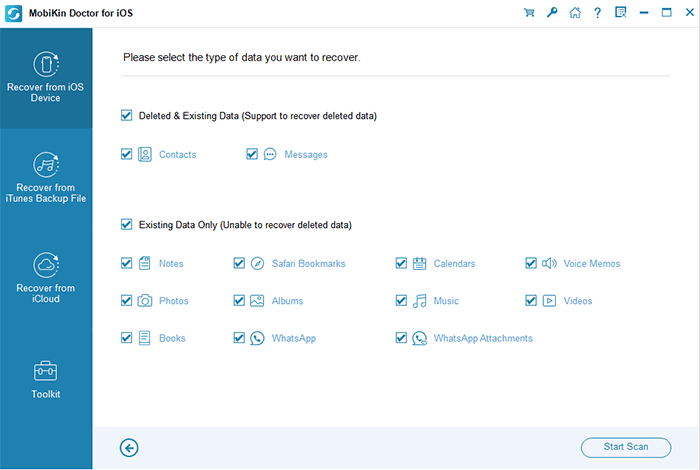
- Once the tool recognizes the device, select the "Recover from iOS Device" mode.
- Choose the types of data you wish to recover and click "Start Scan" to allow the utility to search for deleted iOS files.
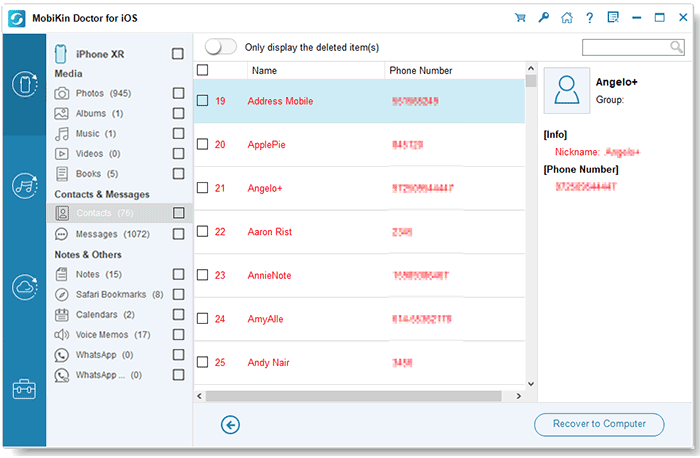
- Subsequently, you will be able to preview the details and select the items you wish to recover.
- Click the "Recover to Computer" button located at the bottom right.
- Finally, save all the selected iOS files onto this computer.
Video Guide:
Part 2: Retrieve iPhone Data in DFU Mode iTunes/Finder
DFU mode itself does not allow direct access to phone data. And iTunes or Finder can only restore data from existing backups (local computer backups), not from the device storage if no backup exists.
Using iTunes (Windows or macOS Mojave and earlier)
- Connect the iPhone to a computer using a USB cable.
- Open iTunes and wait for it to detect the iPhone in DFU mode.
- A message will appear showing the device is in recovery/DFU state.
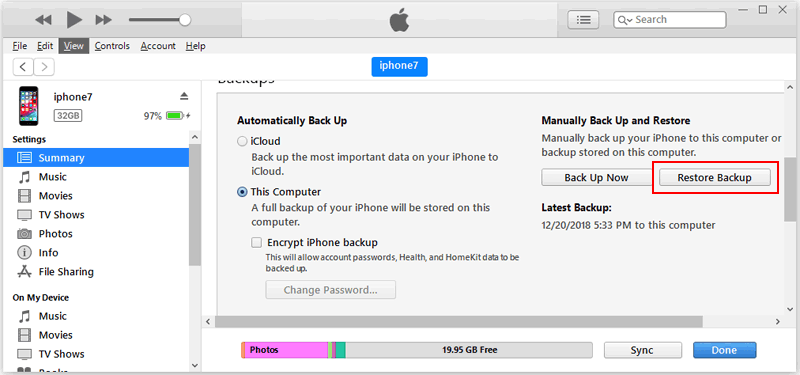
- Click Restore Backup if a backup is available.
- Select the most recent backup from the list.
- Wait for the restore process to complete and sync data back to the iPhone.
Using Finder (macOS Catalina and later)
- Connect the iPhone to a Mac using a USB cable.
- Open Finder and select the iPhone from the sidebar.
- Finder will detect the device in DFU mode automatically.
- Click Restore Backup under the General tab.
- Choose a recent backup stored on the Mac.
- Wait until all data is restored and the iPhone restarts normally.
Part 3: Restore iPhone Data in DFU mode Using iCloud
If your iPhone has been in DFU mode and you had an iCloud backup enabled before the issue, you can restore your data safely during or after the restore process.
- Connect the iPhone to a computer and use Finder (Mac) or iTunes/Apple Devices app (Windows) to restore the device and reinstall iOS.
- After the restore, start setting up the iPhone and follow the on-screen steps until you reach the Apps & Data screen.
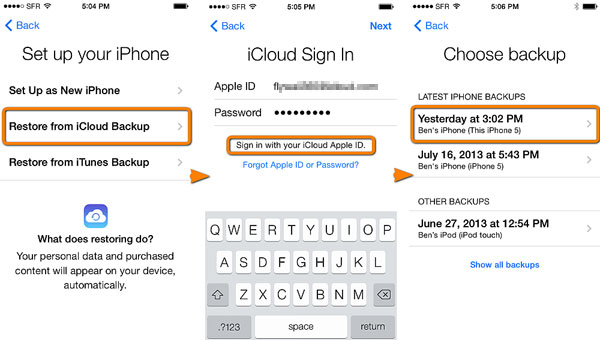
- Select "Restore from iCloud Backup" when prompted.
- Sign in with your Apple ID and password.
- Choose the most recent iCloud backup from the list.
- Keep the iPhone connected to Wi-Fi and power while the restore process completes.
- Wait for apps, photos, contacts, and settings to download and sync automatically.
Another option of using iCloud is to download iPhone data directly from iCloud.com even when the device is in DFU mode. You can sign in with your Apple ID on a browser and access synced data such as photos, contacts, notes, and iCloud Drive files. This method works independently of the iPhone's DFU state, as long as your data was previously synced to iCloud.
Part 4: Get iPhone Out of DFU Mode Skillfully
After restoring iPhone data in DFU mode, the next step is to get the device working normally again. You can then try to get your iPhone out of DFU mode to return the phone to its regular operating state. Below is a basic way:
- Force restart the iPhone using the correct button combination for your model.
- Disconnect it from the computer and try a fresh restart.
- Charge the iPhone for 20–30 minutes, then attempt to restart again.
- Try a different USB cable or port if it was connected to a computer.
- Use iTunes (Windows) or Finder (Mac) to detect DFU mode and restart or update the device.
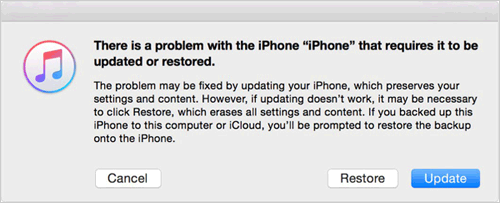
- Select "Update" instead of "Restore" when prompted (to avoid data loss if possible).
- Reinstall iOS firmware via IPSW using iTunes/Finder if the device is still stuck.
- If nothing works, repeat force restart while connected to a stable computer connection.
FAQs for iPhone Data Recovery & DFU Mode
Q1: How to back up iphone in DFU mode?
You cannot directly back up an iPhone while it is in DFU mode because the system is not running and the device storage is inaccessible. To protect your data, you must rely on existing iCloud or iTunes/Finder backups, or exit DFU mode first and then create a new backup.
Q2: Is DFU mode risky?
DFU mode itself is not risky, but it becomes risky if you proceed with a restore without a backup, because it will erase all data on the iPhone. It is mainly a powerful repair state used for fixing serious iOS issues, so it should be used carefully to avoid accidental data loss.
Q3. Does DFU mode erase iPhone data?
DFU mode itself does not erase data, but restoring the iPhone in DFU mode will completely wipe all data.
Q4. What if I don't have any backup?
Without a backup, recovery is very limited, and you may need third-party tools or professional data recovery services.
Q5. Is DFU mode the same as Recovery Mode?
No, DFU mode is deeper than Recovery Mode and allows full firmware reinstallation, while Recovery Mode is less advanced.
Q6. Will restoring iPhone in DFU mode fix all software issues?
In most cases yes, a DFU restore can fix severe iOS problems, but it will also erase all data on the device.
Q7. What is the most desirable option to recover data from iPhone in DFU mode?
The most desirable option to recover data from an iPhone in DFU mode is to use an iOS data recovery tool that can extract data from existing system traces or backups without requiring a full restore.
In many cases, MobiKin Doctor for iOS is used because it can scan the device or iTunes/iCloud data and recover files without needing backup files or overwriting existing data. This makes it a practical choice when you want to attempt recovery while avoiding data loss caused by a full DFU restore.
Related Articles:
[Solved] Data Recovery Cannot be Completed Please Restore Your iPhone from Backup
3 Solutions to Restore iPhone/iPad from Backup (98% Success Rate)
iPhone is Stuck on the Apple Logo? 6 Fixes to Get It Back to Normal
How to Enable or Turn off Safe Mode on iPhone (iOS 26 Supported)
