
How to Recover Lost Voice Memo Files from iCloud Backup? [4 Tactics]
"Was trying to free up space on iCloud and deleted voice memos. I immediately reset phone with iCloud backup but it hasn't worked. Is there anything I can do?" -- from discussions.apple.com
Voice Memos often store important personal notes, meetings, or ideas that can be difficult to replace once lost. When they disappear due to deletion, updates, or device issues, iCloud backup provides a reliable way to recover them.
This topic covers recover lost voice memo files from iCloud backup in 4 simple ways, helping users restore missing audio without complexity. It also helps when your iPhone is damaged, reset, or replaced, since the backup can bring your recordings back to a new device.
- Part 1: Recover Missing Voice Memo Files from iCloud Backup Directly
- Part 2: Recover Lost Audio Recording from iCloud Backup via iCloud Drive
- Part 3: Recover Lost Voice Memo from iCloud Backup via iCloud.com
- Part 4: Recover Lost Voice Memo Files from iCloud Backup Expertly [without Resetting]
- FAQs about Recovering Lost Voice Memo Files
Part 1: Recover Missing Voice Memo Files from iCloud Backup Directly
The direct method restores missing recordings by reinstalling a previous iCloud backup onto the device, bringing back data that existed at the time of backup. This approach can recover voice memos if they were included in that backup snapshot. It requires erasing the iPhone before restoring, and the result is a full system rollback rather than selective recovery.
How to Recover?
- Go to Settings > [Your Name] > iCloud > iCloud Backup and confirm a backup exists from before deletion.
- Navigate to Settings > General > Transfer or Reset iPhone and tap Erase All Content and Settings.
- Restart your iPhone and follow the on-screen setup instructions.
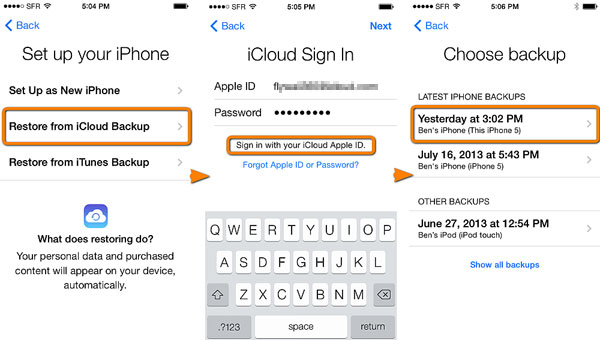
- Connect to Wi-Fi and reach the Apps & Data screen.
- Select Restore from iCloud Backup and sign in with your Apple ID. (Apple account is disabled?)
- Choose the most relevant backup (created before the voice memos were lost).
- Wait for the restore process to complete fully.
- Open the Voice Memos app to check if your recordings are restored.
Note: Will restoring an iCloud backup erase my current data? Yes. A full restore replaces all existing data on your iPhone with the backup content, so it's important to back up current data first.
Part 2: Recover Lost Audio Recording from iCloud Backup via iCloud Drive
Files stored through cloud synchronization can sometimes be retrieved if they were manually saved or synced earlier. iCloud Drive works when recordings were exported into cloud storage rather than remaining only inside the recording app. Users can browse folders and re-download accessible audio files. Recovery depends heavily on whether the data was previously saved to the cloud structure.
How to Recover?
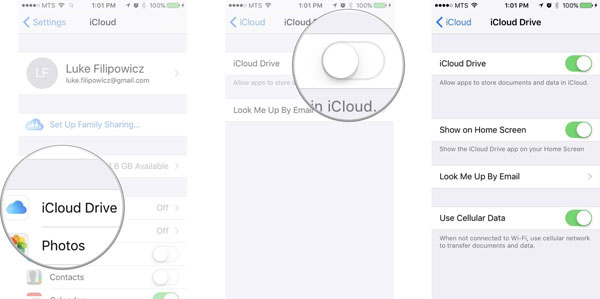
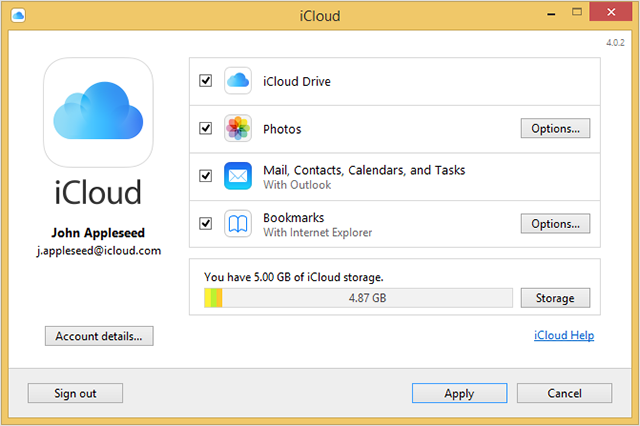
- Open Settings > [Your Name] > iCloud and ensure iCloud Drive and Voice Memos are enabled so recordings can sync or be stored.
- Launch the Files app on your iPhone or iPad.
- Tap Browse > iCloud Drive to access cloud-stored files.
- Look for a folder where you previously saved recordings (voice memos can appear if you used "Save to Files").
- Locate the audio file (usually in .m4a format) and tap to preview it.
- Tap Share or Download to restore the recording back to your device.
- Optionally, re-import it into the Voice Memos app or save it locally for safekeeping.
Part 3: Recover Lost Voice Memo from iCloud Backup via iCloud.com
Accessing data through a web interface allows users to check stored files linked to their Apple account. It can help locate recordings that were saved to cloud storage or shared across devices. However, it does not directly display full backup contents from the device system. The method is mainly useful for retrieving files that were explicitly stored online.
How to Recover?
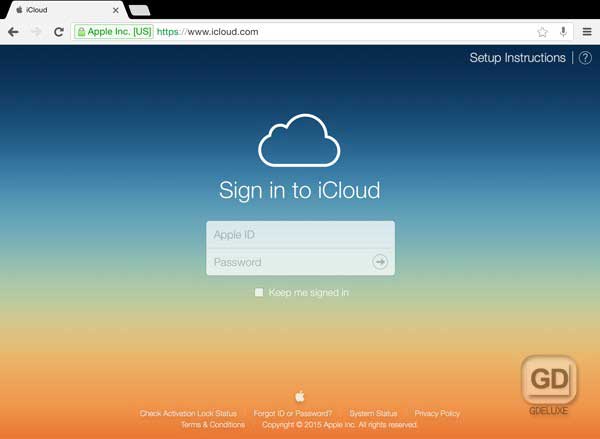
- Open a browser and go to the iCloud website, then sign in with your Apple ID.
- Click your account name and enter Account Settings.
- Scroll down to the Advanced section.
- Select Restore Files to check if any exported audio files are available.
- If your voice memo was previously saved to iCloud Drive, open iCloud Drive and browse folders.
- Use the search bar to locate audio files (e.g., M4A recordings).
- Download the found files to your computer or device.
- Re-import the recording into the Voice Memos app if needed.
Part 4: Recover Lost Voice Memo Files from iCloud Backup Expertly [without Resetting]
Advanced recovery software such as iPhone Data Recovery can scan iCloud backups and extract lost recordings without restoring the entire device. It provides selective recovery, allowing users to preview and recover specific voice memos. This reduces the risk of overwriting existing data during restoration. It is often used when built-in Apple options are not sufficient.
|
iPhone Data Recovery - Main Feature
|
Description
|
|
Multi-mode recovery |
Recovers data from iPhone, iTunes, and iCloud backups efficiently. |
|
Selective iCloud recovery |
Retrieves lost voice memos from backups and device storage. |
|
No reset needed |
Restores specific files without erasing the iPhone. |
|
Preview function |
Shows recoverable data before restoring. |
|
Wide file support |
Recovers photos, messages, contacts, and audio files. |
|
Cross-platform use |
Works on Windows and Mac with almost all iOS devices. |
How to Recover?
- Download and install iPhone Data Recovery on your PC or Mac.
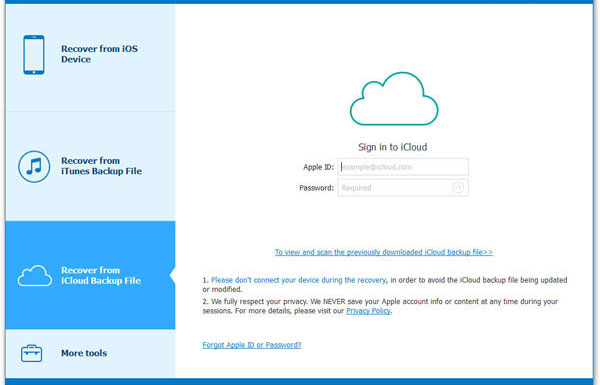
- Launch the program and select "Recover from iCloud Backup File".
- Subsequently, you will need to log in to your iCloud account or Apple ID.
- You are welcome to browse the list of iCloud backups and choose the one you wish to recover. Then, click on "Download".
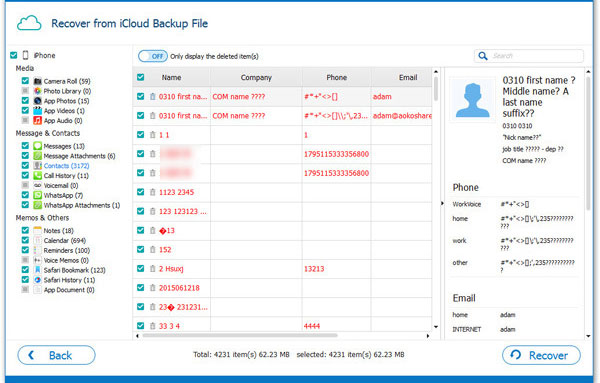
- Following this, a pop-up window will appear, allowing you to select "Voice Memos" > "Next" to initiate the scanning process.
- Afterward, select the voice memos you wish to recover and click the "Recover" button located in the right corner of the interface.


Summary: Lost voice memo files from an iCloud backup can be recovered by restoring a full backup, checking synced data on other Apple devices, or looking in iCloud Drive and shared apps like Messages or Mail. For a safer and more flexible option, iPhone Data Recovery can selectively extract voice memos and other files from iCloud backups without resetting the device.
FAQs about Recovering Lost Voice Memo Files
Q1: How can I make sure I never lose important voice memos again?
- Enable iCloud sync for the Voice Memos app via Settings > [Your Name] > iCloud > Voice Memos.
- Turn on automatic backups in iCloud under iCloud Backup.
- Regularly export important recordings using Share > Save to Files (iCloud Drive or local storage).
- Keep an extra copy on a computer via Finder or iTunes.
- Use multiple storage options (iCloud + external/cloud services) for redundancy.
- Check the Recently Deleted folder before recordings are permanently removed (within 30 days).
- Avoid disabling sync or logging out of your Apple ID without backing up first.
- Periodically review backups to ensure your latest voice memos are included.
Q2: How to recover lost voice memos via Messages/Mail/Notes?
- Open the Messages app and search conversations where you may have sent or received the voice memo (audio messages can be shared directly in chats).
- Tap the audio attachment in the conversation and save or export it back to your device.
- Check your Mail app inbox and sent folder for emails containing the voice memo as an attachment (search keywords like "audio" or file names).
- Download the attached recording and open it to confirm it's the correct file.
- Open the Notes app and look for notes where you may have embedded or attached the voice memo file.
- Tap the audio inside Notes to preview and share/save it again.
- If found in any app, use the Share option to re-save it to Files or re-import it into the Voice Memos app.
- If you can't find it, try searching across apps using keywords or file types (e.g., M4A), since shared voice memos are often stored as audio files.
Q3: Can I recover voice memos using another Apple device?
Yes - if both devices use the same Apple ID and Voice Memos syncing is enabled, recordings can reappear automatically.
Q4: Why are my voice memos missing after restoring from iCloud?
Your voice memos may be missing because the iCloud backup was made after they were deleted, so they weren't included. They can also be missing if Voice Memos iCloud sync was disabled, meaning the files were only stored locally. In some cases, the restore or syncing process in the Voice Memos may still be incomplete.
Q5: Are voice memos stored in iCloud automatically?
Only if iCloud sync for Voice Memos is enabled under Apple ID settings. Without this, recordings stay locally on the device and won't appear in iCloud backups or other devices.
Related Articles:
iPhone Voice Memo Not Working or Recording? Try These 7 Fixes
How to Transfer Voice Memos from iPhone to Mac [2026 Updated]
iCloud Backup vs iTunes Backup: Which One Should We Choose?
How to Recover Deleted Audio/Call Recording from Android Phone? 5 Techniques
