
How to Find Phone Number on iPhone [Step-By-Step Tutorial 2026]
When you get a new iPhone, one of the first things you'll likely try to find is your phone number, especially if your loved ones ask for it. After that, you'll probably want to save theirs on your device, making it easy to locate when needed. Finding phone number on iPhone, whether it's your number or other contacts, is actually straightforward. But if you're new to iPhones, it might not be immediately obvious.
This guide will walk you through the process of finding both existing and deleted phone numbers on your iPhone, so you can always have this info at your fingertips.

Part 1: How to Find Your Phone Number on iPhone
Here are four simple ways to find the phone number registered to your iPhone. These methods are all built into the device, so no app installation is needed.
Method 1: Find Your Phone Number in iPhone Settings
This is the quickest and most reliable option for most users.
- Open the "Settings" app.
- Scroll down and tap "Phone."
- Your number will appear next to "My Number."
- You can tap this field to edit or copy the number if necessary.
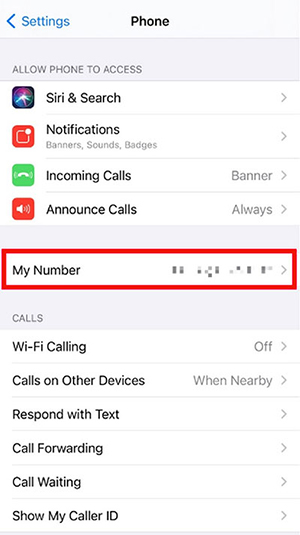
This works for both physical SIMs and eSIMs.
Method 2: Check Your Phone Number in the Contacts App
Another easy method is through the Contacts app.
- Open the "Phone" app.
- Tap "Contacts" at the bottom.
- Scroll to the top of your contact list.
- Your number will be displayed under "My Card."
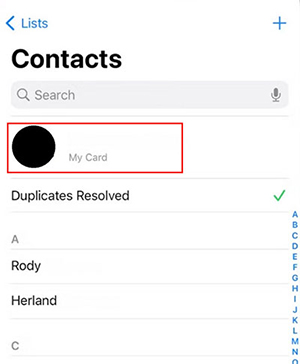
You can also tap "My Card" to add additional information such as your email, address, or company details. (How to edit iPhone contacts?)
Method 3: Find Your iPhone Number in Messages or iMessage Settings
Your phone number is sometimes displayed in the iMessage or SMS settings.
- Open "Settings."
- Tap "Messages."
- Tap "Send & Receive."
- Look under "You can receive iMessages to and reply from."
- Your iPhone number should be checked.
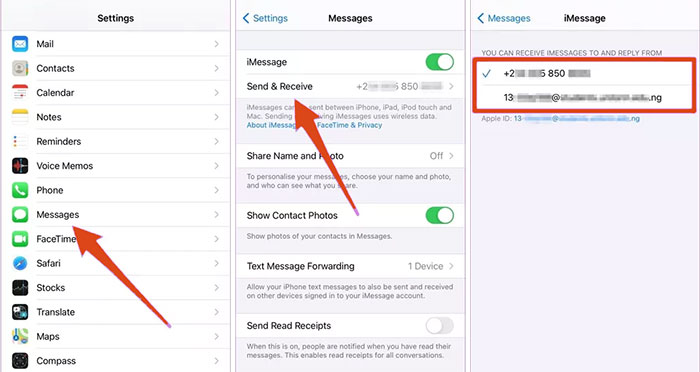
This is especially useful if you have multiple Apple IDs or phone numbers in use, such as in corporate or BYOD environments.
Method 4: Call or Text Another Phone
If all else fails, you can always use the classic method.
- Call or text a friend or another device you own.
- Check the caller ID or SMS header.
- Save the number for future reference.
While simple, this is often the most reliable method, particularly for older devices or unsupported carriers.
Check If You Need:
Part 2: How to Find Phone Number on iPhone Contacts
Now that you've located your phone number, you might be wondering how to find the other contacts on your iPhone. The good news is, it's easy to locate them through either the Contacts or Phone app. This process will be quick and straightforward, especially if you've already followed the steps above. Once you've found the desired phone number, simply tap on it to manage the contact's information, such as the name, email, address, and more.
Follow the steps below to find a phone number in iPhone Contacts:
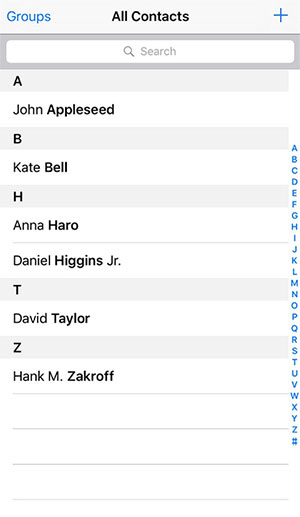
Step 1: From the Home screen, tap the "Contacts" icon to open the app. You can also use the search feature to find it quickly. Alternatively, open the "Phone" app and select "Contacts" at the bottom.
Step 2: Once the contact list appears, scroll down to find the name of your desired contact. When you locate it, tap the contact, and the phone number will be displayed at the top.
Part 3: How to Find Old Phone Numbers on iPhone
Here are several tips that can help you locate old phone numbers on your iPhone. If you're in a rush, feel free to skip to the fourth section to recover lost phone numbers using powerful data recovery software.
Tip 1: Check "Recent Calls"
Go through your recent call history to find old phone numbers you may have contacted in the past. This simple step can help you remember and access numbers you may need.
Tip 2: Use the "Search Contacts" Feature
Utilize the search function in your iPhone's "Contacts" app to find contacts or organizations linked to the old phone number by entering relevant keywords. This makes it easier to locate individuals or entities tied to the number you're looking for. (Contacts Not Showing Up on iPhone?)
Tip 3: Review Old Emails
Many email providers, such as Google and Yahoo, keep your sent emails for several years. If you've ever shared your phone number via email, it may still be there. Make sure to check all of your email accounts, including those you don't use often.
Tip 4: Check Old Bills
Looking through old phone bills is another useful method to recover your old phone numbers. These bills are often sent via messages or emails, so reviewing any archived communications can provide direct access to the numbers you're trying to find.
Tip 5: Review Online Shopping Addresses
When shopping online, you often provide your phone number for shipping purposes. If you've saved these address entries, they could hold the phone numbers you're looking for. Go back through your past shopping history to locate numbers associated with those transactions.
Tip 6: Find Your Old SIM Card
If you've kept your old SIM card, it will still have the phone number linked to it. Simply find the old card and insert it into a compatible device to retrieve the phone number.
Tip 7: Ask Friends or Family
Another helpful option is to reach out to your friends or family members. They might still have your old phone number saved in their contact lists. Asking them can often lead to finding the number you're missing.
Part 4: How to Find Deleted Contacts on iPhone with Doctor for iOS
If your iPhone is filled with numerous contacts and you can't locate the one you're searching for, or if you've accidentally deleted some phone numbers and can't find them in the Recently Deleted folder, MobiKin Doctor for iOS can help. This powerful iOS data recovery tool allows you to recover deleted contacts, whether or not you have a backup.
It scans and filters deleted files from your iPhone, including photos, contacts, call history, Safari history, and media files in apps. With its advanced algorithms, Doctor for iOS can quickly detect all deleted files on your device, allowing you to select and recover the ones you need.
Key features of MobiKin Doctor for iOS:
- Recover deleted contacts directly from your iPhone without needing a backup.
- Selectively retrieve iOS files from iTunes or iCloud backups without affecting your current data.
- Supports a wide range of files, including contacts, messages, photos, videos, call logs, calendars, Safari history, voice memos, notes, and more.
- Allows you to preview and choose the files you wish to recover.
- Compatible with almost all iDevices, including iPhone 17/16/15/14/13/12/11/X/8/7/6, iPad, and others.
- It prioritizes your privacy.


How to retrieve deleted contacts from your iPhone with MobiKin Doctor for iOS?
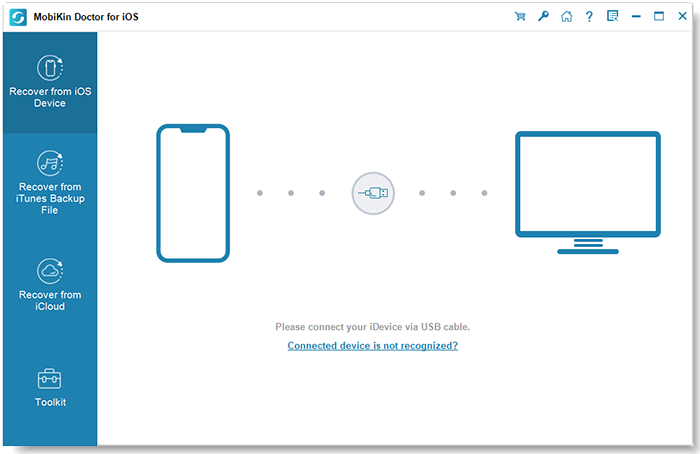
Step 1. Connect Your iPhone to Your Computer
First, download and install the software on your computer. Open the program and select "Recover from iOS Device" on the main interface. Then, connect your iPhone to the PC or Mac via USB and follow the on-screen instructions to allow the tool to detect your device.
Step 2. View and Select the Deleted iPhone Contacts
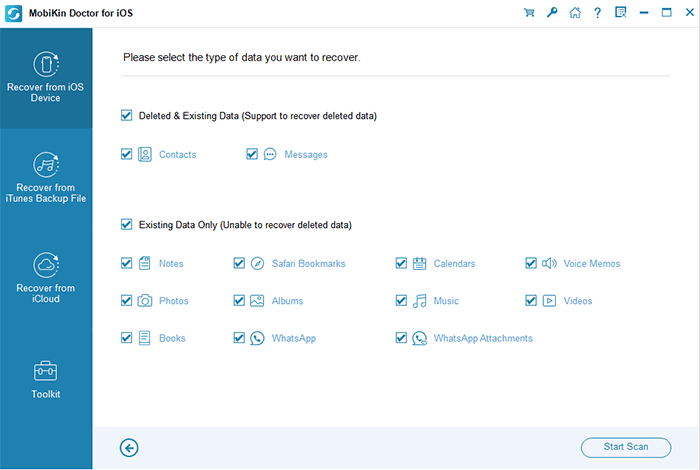
Once the device is recognized, you'll see a list of recoverable file types on the main screen. Select "Contacts" and click "Start Scan" to load detailed information about your iPhone contacts.
Step 3. Recover Deleted Contacts from iPhone
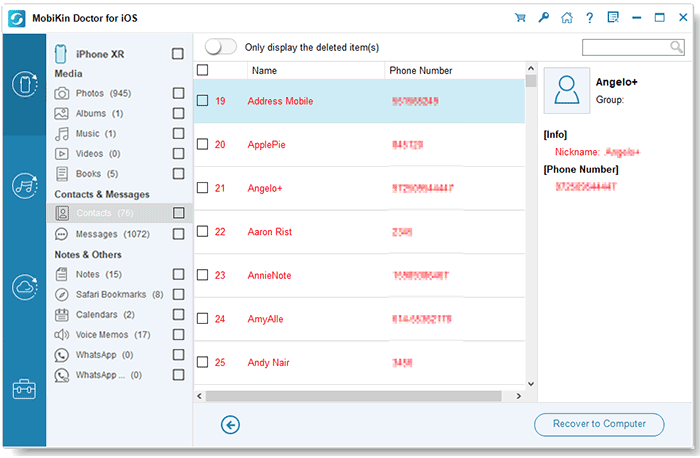
Check the contacts you wish to recover from the right-hand column and click "Recover to Computer" to save them to your computer.
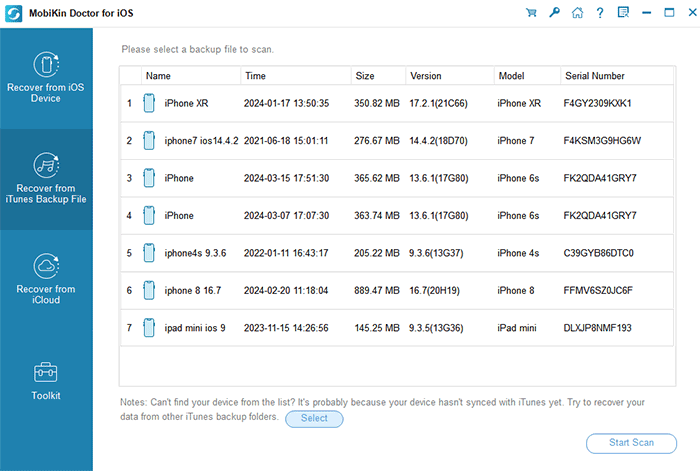
Optional: If you have a backup of your iPhone contacts or other files, you can easily restore the deleted items from the backup. To do so, select "Recover from iTunes Backup File" or "Recover from iCloud" when the program opens on your computer. Choose the backup file you want, click "Start Scan," preview and select the files you wish to recover, and then click "Recover to Computer."
Video Guide:
Know More:
Part 5: FAQs about Finding Phone Number on iPhone
Q1: Can I view my phone number on the SIM card?
Yes, you can. Your phone number is typically printed on the SIM card when you first purchase it. However, checking the number on the SIM card can be a bit inconvenient as it requires removing the card from your iPhone. Therefore, we recommend using the other methods mentioned above.
Q2: Is it possible to edit a contact's phone number?
Yes, it is. When you view a contact's details, their name and phone number will be displayed. You can easily tap on the number and edit it directly in the designated field.
Ending Words
Discover how to locate your phone number or other contacts on your iPhone, including those that may have been deleted, using the proven methods outlined in this article. These techniques are all guaranteed to be effective.
If you're unable to find your lost contacts, we recommend using MobiKin Doctor for iOS to recover them. This powerful tool can help you restore deleted contacts and other important data from your iPhone with ease.
Related Articles:
7 Ways to Transfer Contacts to New iPhone without iCloud
Full Guide 2026: How to Save Contacts to iCloud
4 Simplest Ways to Sync Outlook Contacts with iPhone
Top 6 iPhone Contacts Backup Apps to Back Up Contacts on iPhone
