
ShareMe Review: Is ShareMe Worth My Attention? [Must-read]
Before installing any file-sharing app, many users turn to a ShareMe review to find out how well the app actually performs in real use, especially regarding transfer speed, reliability, and ease of use before installing it. With countless transfer tools on the market, users want clear, real-world insights into whether ShareMe can handle large files, maintain stable connections, and work smoothly across devices.
A detailed ShareMe review here helps answer these concerns, highlighting both its strengths and limitations so users can decide if it truly fits their daily data-transfer needs.
Part 1: What Is ShareMe
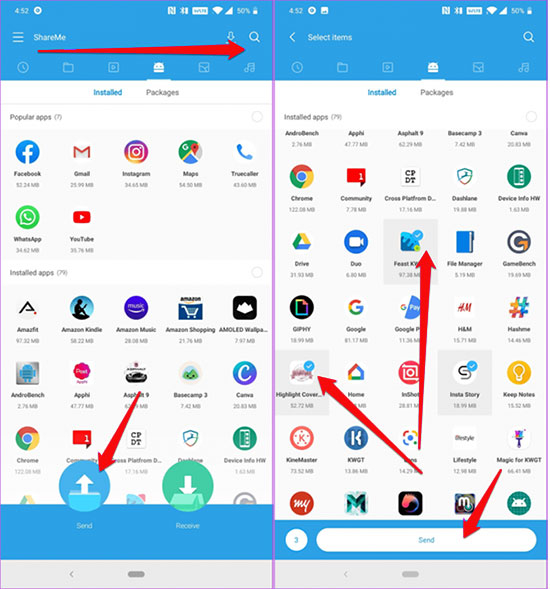
ShareMe is a file-sharing app developed by Xiaomi that allows users to transfer photos, videos, apps, and documents between devices without using mobile data or an internet connection.
It works by creating a direct wireless connection, enabling fast and secure transfers across Android phones and even between Android and other platforms in some cases. Designed for simplicity and speed, ShareMe is commonly used for offline sharing when convenience and efficiency matter most.
|
Feature
|
Key Details
|
|
Offline File Transfer |
Send and receive files without Wi-Fi or mobile data. |
|
Cross-Platform Support |
Works between Android devices and some other systems without compatibility issues. |
|
Fast Transfer Speed |
Uses direct Wi-Fi connection for rapid file sharing. |
|
Wide File Format Support |
Transfers photos, videos, music, apps, documents, and more. |
|
No Internet Required |
Functions entirely without an active internet connection. |
|
Simple User Interface |
Easy to navigate with intuitive send/receive options. |
|
QR Code Connection |
Quick device pairing via QR code scanning. |
|
Group Sharing |
Share files with multiple devices at once. |
You May Also Like: 7 Best ShareMe Alternatives to Transfer Data to New Phone Smoothly
Part 2: ShareMe: Pricing & Security
Summary: ShareMe is completely free to use with no subscription or hidden fees, making it a cost-effective solution for offline file transfers. Its direct peer-to-peer connections and QR code pairing help keep transfers secure without relying on external servers.
Pricing
- Completely free to use with no subscription fees.
- No in-app purchases required for core file-sharing features.
- Works without internet, so there are no data charges when transferring files offline.
Security:
- Uses direct Wi-Fi connection (peer-to-peer) to transfer files securely between devices.
- Transfers occur without storing data on external servers.
- QR code pairing ensures quick and safe device connections, reducing unauthorized access.
You Might Also Enjoy: Compare SHAREit vs. xShare: Which Is Preferable? [Answered]
Part 3: ShareMe: Ratings & Reviews
Summary: Overall, ShareMe receives strong user approval for its fast, offline file transfers and easy-to-use interface. While a small number of users report occasional connectivity issues, the app remains widely trusted and highly rated by millions worldwide.
|
Aspect
|
Details/User Feedback
|
|
Average Rating |
Around 4.6 out of 5 on Android, based on millions of user reviews. |
|
Rating Distribution |
Predominantly 5★ ratings, with fewer 1★-4★ reviews reflecting mixed experiences. |
|
Positive Reviews |
Users often praise its fast transfer speed, simple interface, and offline usability. |
|
Negative Reviews |
Some users mention occasional connection issues or compatibility problems on certain devices. |
|
User Adoption |
Extremely high global usage, with billions of downloads worldwide. |
Part 4: How to Use ShareMe
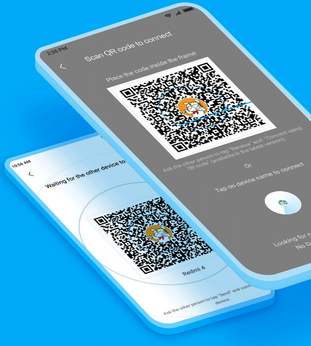
To transfer files with ShareMe, open the app on both phones, select Send and Receive, and connect via the QR code. The chosen files will then transfer quickly to the Received screen on the receiving device. Here are the detailed steps:
- Open ShareMe on the sending phone - Launch the app and select Send.
- Choose data to send - Tap the file types you want to share, such as photos, videos, apps, or documents.
- Initiate sending - Tap the Send button; a QR code scanner will appear to connect with the receiving device.
- Open ShareMe on the receiving phone - Launch the app and select Receive to prepare for incoming files.
- Allow connection - On the QR code screen, tap Allow in the pop-up to establish a local connection.
- Scan QR code - Use the receiving phone to scan the QR code displayed on the sending phone
- Transfer files - Once connected, the selected files are sent from the sender to the receiver.
- Confirm reception - Check the Received screen on the receiving phone to access all transferred files.
Part 5: ShareMe: Pros & Cons
The Good:
- Fast offline transfers without internet or data usage.
- Supports many file types like photos, videos, apps, and documents.
- Simple and intuitive interface for easy use.
- No subscription or fees - completely free.
- Works independently without additional software.
The Bad:
- Occasional connectivity issues reported on some devices.
- Limited advanced features compared to cloud-based sharing tools.
- May struggle with very large files in certain situations.
- UI design isn't as modern as some competitors.
- No built-in cross-platform support for iOS out of the box.
Part 6: Best Replacement for ShareMe
While ShareMe is convenient for quick file sharing, it suffers from connection instability, occasional transfer failures, and limited compatibility across different devices and platforms. It also lacks advanced data-management features and may include ads or restrictions that affect the user experience.
MobiKin Transfer for Mobile (Windows/Mac) can be its best alternative, effectively making up for these shortcomings with stable connections, true cross-platform support, and a more professional, hassle-free transfer process.
Why Pick MobiKin Transfer for Mobile?
|
Key Feature
|
Description
|
|
Cross-Platform Transfer |
Moves data between Android and iPhone, unlike ShareMe which is mainly Android-to-Android. |
|
Direct Phone-to-Phone Connection |
Transfers contacts, messages, photos, videos, and more without needing Wi-Fi or cloud services. |
|
Wide Data Support |
Handles a broader range of data types, including call logs and app data in some cases. |
|
Fast & Stable Transfers |
Maintains high speed and stability during large or multiple file transfers. |
|
Simple User Interface |
Easy to use on a desktop with a clear send/receive workflow. |
|
No Internet Required |
Works offline, similar to ShareMe, but with added compatibility. |
|
One-Click Sync |
Offers quick sync options that simplify whole-device migration. |
How to use the best replacement for ShareMe?
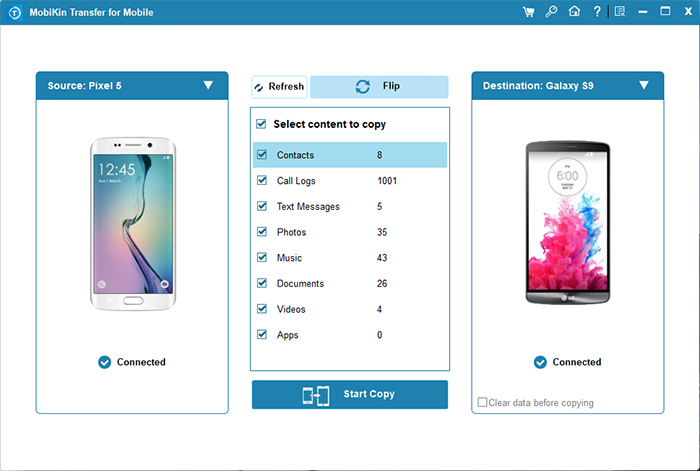
- After downloading and installing the program, open it on your desktop computer to access the main interface.
- Connect both Xiaomi/POCO/Redmi/Android/iOS devices to the computer using USB cables. (What if your Mi/POCO/Redmi phone doesn't connect to a PC?)
- Follow the on-screen instructions to ensure the devices are correctly set as source and destination, and tap "Flip" if they are swapped.
- Select the data types from the middle of the panel, then click "Start Copy" to begin transferring your data.


Video Directions: Here's a video to help you know how this software works in a vivid manner.
Conclusion: Why MobiKin Transfer for Mobile Is the Best Alternative to ShareMe?
- Offers stable and reliable transfers without frequent connection failures.
- Supports true cross-platform data transfer between Android and iOS devices
- Transfers multiple data types (contacts, messages, photos, videos, apps, etc.) in one process.
- No ads or interruptions, providing a clean and professional user experience.
- Simple, guided interface suitable for both beginners and advanced users.
Related Articles:
4 Intelligent Solutions to Transfer Contacts from realme to realme
5 Smart Tactics to Unlock Redmi Phone without Difficulty
How to Hard Reset Xiaomi/Redmi/Mi with/without a Computer? 6 Options
5 Simple Solutions to POCO Contact Backup & Restore [Verified]
