
Transfer SMS from iPhone to Huawei: 3 Easy Working Methods
TL;DR:
Switching from iPhone to Huawei doesn't have to mean losing your important text messages.
- Transfer SMS from iPhone to Huawei with MobiKin Transfer for Mobile (Hot method for quick migration).
- Move messages using Huawei Phone Clone for official data transfer.
- Import iPhone SMS to Huawei via iSMS2droid for selective message restoration.
Switching from an iPhone to a Huawei phone usually sounds straightforward, until you realize your SMS messages don't automatically come along for the ride. Those messages often include more than casual chats, like verification codes, delivery alerts, or important conversations you may still need later. Since iOS and Android handle data differently, there's no direct way to move everything with a single step. The good news is that there are still reliable workarounds. In this guide, we'll go through three practical methods to help you transfer your messages without unnecessary hassle.
Method 1: Transfer SMS from iPhone to Huawei with Transfer for Mobile
If you want a straightforward way to move SMS from an iPhone to a Huawei phone without dealing with complicated backups or file conversions, MobiKin Transfer for Mobile is one of the more convenient options. It's designed to handle cross-platform data migration in a more "one-stop" way, especially for users who just want the job done quickly. It can not only transfer data from iPhone to Huawei, but also switch data between iPhone and iPhone, Android and Android, as well as iPhone and Android.
Main features of Transfer for Mobile:
- Supports cross-platform transfer between iOS and Android devices.
- Allows SMS transfer along with other data types like contacts and media.
- Keeps original message content and thread structure.
- One-click transfer process with a simple interface.
- Supports overall iPhone and Huawei phone series, including the latest iPhone 17 and Huawei Mate 80/P80, etc.


Follow the steps in the below to copy messages from iPhone to Huawei using Transfer for Mobile:
Step 1: Launch Transfer for Mobile program
Download and install MobiKin Transfer for Mobile on your computer. Launch the program after installation. Connect both your iPhone and Huawei device to the computer using USB cables.

Step 2: Switch the two phones to correct positions
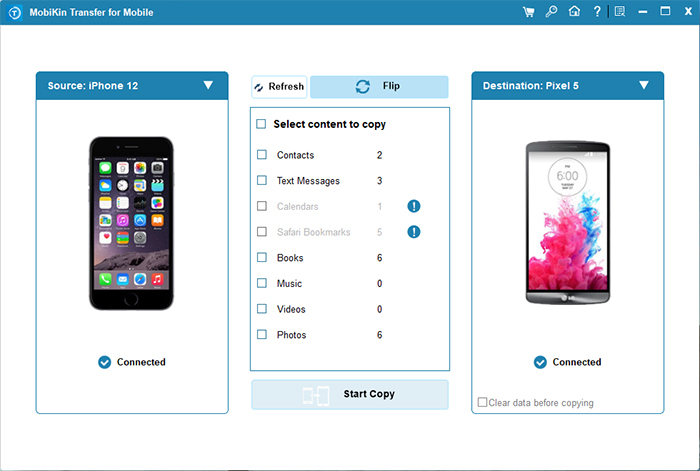
Make sure your iPhone is set as the source device and Huawei as the destination. You can use the "Flip" button if needed.
Step 3: Start to transfer iPhone messages to Huawei
From the data list, select Messages (SMS) and uncheck other items if you only want to transfer texts. Click "Start Copy" to begin the transfer process. Wait until the process is complete, then safely disconnect both devices.
Video Guide:
Check If You Need:
Method 2: Transfer Messages from iPhone to Huawei via Phone Clone
Huawei Phone Clone is Huawei's official data transfer app designed to help users move from iOS or Android to a new device with minimal effort. It's especially useful when you want to transfer SMS without using a computer or dealing with backup files.
Below are the steps to transfer SMS using Phone Clone:
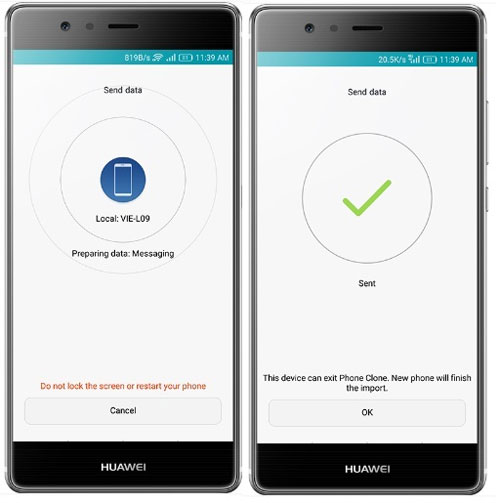
- Install and open Phone Clone on both your iPhone and Huawei device. (Huawei Phone Clone Not Working?)
- On the Huawei phone, select "This is the new phone" and choose iOS as the source system. A QR code will appear on the screen.
- On the iPhone, select "This is the old phone" and use the camera to scan the QR code shown on the Huawei device. If scanning fails, you can also connect both devices through the same Wi-Fi network manually.
- Once the connection is established, you will see a list of data types available for transfer. Select "Messages" (SMS) from the options.
- Tap "Start Migration" to begin transferring your SMS from iPhone to Huawei.
Method 3: Copy iPhone Messages to Huawei Using iSMS2droid
The iSMS2droid app offers a more manual but flexible way to move SMS from an iPhone to a Huawei device. It works by extracting messages from an iTunes backup and importing them into Android. Before starting, it's recommended to put your iPhone on airplane mode or remove the SIM card to avoid new message syncing during the process.
Steps to Transfer Messages Using iSMS2droid:
- Connect your iPhone to a computer and open iTunes.
- Create a local backup of your iPhone. Make sure to choose unencrypted backup, as encrypted backups may block message extraction.
- Once the backup is completed, locate the iTunes backup folder on your computer.
- Find the SMS database file (a long-named file such as 3d0d7e5fb2ce288813306e4d4636395e047a3d28) inside the backup directory.
- Connect your Huawei phone to the computer and copy this file to your device storage. You can rename it for easier identification, such as "SMS_backup".
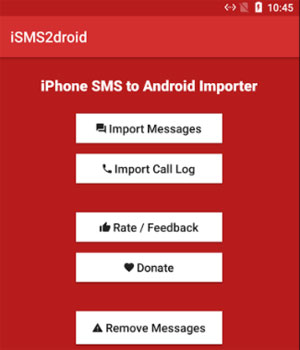
- Install and open iSMS2droid on your Huawei device.
- Tap "Import Messages", then browse and select the file you just transferred.
- Choose whether to import all messages or select specific conversations, then confirm to start the import process.
The Bottom Line
Transferring SMS from an iPhone to a Huawei device may seem complicated at first, but it becomes much easier once you choose the right method. Whether you prefer a one-click solution like MobiKin Transfer for Mobile, the official Huawei Phone Clone app, or a more manual approach using iSMS2droid, each option helps you keep important messages during the switch. The best method depends on how much control and simplicity you need.
Related Articles:
How to Transfer Contacts from iPhone to Android
How to Transfer Music from iPad to iPhone
