
Expert Tips: How to Transfer Contacts from Samsung to OPPO?
TL;DR:
Among all the available options, MobiKin Transfer for Mobile is considered the most efficient and safe method. It uses a stable USB connection, which reduces interruptions and ensures smooth migration of contacts and media. The tool also secures sensitive data, including thumbnail pictures linked to contacts or galleries. Compared to wireless or offline methods, it provides a more complete and reliable transfer process.
"What is the best way to transfer contacts when getting the new OPPO device? Going from Samsung to OPPO. Want to be sure I do this is the simplest way possible." -- from Reddit
Many people search for ways to transfer contacts from Samsung to OPPO when upgrading to a new OPPO phone. Keeping personal and professional connections intact is essential, and contacts are often the most valuable data to preserve during migration.
This page lets you know how to make the transfer via Clone Phone, Google Sync, MobileTrans, Bluetooth/Wi-Fi Direct, or SIM card. Read on to find your desired methods.
- Option 1: Transfer Contacts from Samsung to OPPO in One Touch
- Option 2: Transfer Contacts from Galaxy to OPPO with Clone Phone
- Option 3: Transfer Contacts from Samsung to OPPO Phone via Google Sync
- Option 4: Copy Contacts from Samsung to OPPO via Bluetooth
- Option 5: Move Contacts from Samsung to OPPO Using SIM Card
- FAQs about Transferring Contacts from Samsung to OPPO
Option 1: Transfer Contacts from Samsung to OPPO in One Touch
Recovering thumbnail pictures on Android can be handled in different ways depending on the tool or method chosen. With MobiKin Transfer for Mobile (Widows/Mac) the process goes beyond simple data migration.
It allows users to move contacts, messages, and media between devices. This makes it a practical option when switching phones and wanting to preserve even small image previews in contacts.
|
MobiKin Transfer for Mobile - Function
|
Detailed Features
|
Notes
|
|
Cross-platform transfer
|
Moves data between Android and iOS (8,000+) devices seamlessly. |
Useful when switching from Samsung to OPPO or even across ecosystems. |
|
Contact migration
|
Transfers contacts with full details (names, numbers, emails, photos). |
Ensures complete contact info, including thumbnail pictures, is preserved. |
|
Other data types transfer
|
Moves media and non-media files |
Provides continuity when switching devices without losing communication records. |
|
Selective transfer
|
Allows choosing specific data types to move. |
Ideal for users who only want contacts or certain files. |
|
Secure process
|
Protects data integrity during migration. |
Reduces risks of corruption or loss compared to manual methods. |
|
Samsung to OPPO support
|
Fully supports contact transfer from Galaxy to OPPO Reno15, Find X9, Find N6, A6 5G, etc. |
Provides a reliable alternative to Clone Phone or Google Sync. |
Free & Secure Download:


Quick Guide: How to transfer contact info from Samsung to OPPO via MobiKin Transfer for Mobile?
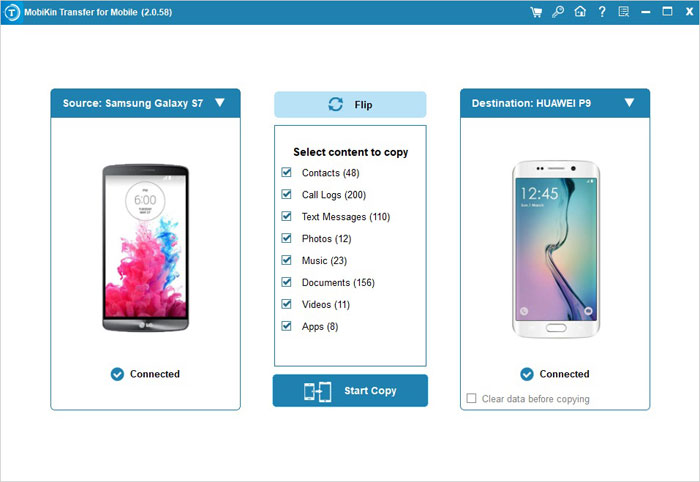
01: Install and Launch Program
- After installing MobiKin Transfer for Mobile on your computer, open the program and prepare both devices.
- Connect Samsung and OPPO to the computer using two USB cables.
- Ensure the program starts successfully.

02: Confirm Device Positions
- The software will automatically detect both phones and assign source and destination roles.
- Verify Samsung is shown on the left as the source.
- Confirm OPPO is on the right as the destination.
- If reversed, click Flip to correct.
03: Select and Copy Data
- Choose the data types you want to move and begin the transfer process.
- Mark contacts or other files you wish to copy.
- Click Start Copy to initiate.
- Wait until the transfer completes and check data on OPPO.
Video Instructions:
My Point of View:
- While efficient and secure, it requires installation on a computer and proper USB cables. Users without access to a PC may find this method less convenient.
You May Like: Unable to find your desired contacts from your Galaxy phone? Follow the guide to learn how to get your contacts back.
Option 2: Transfer Contacts from Galaxy to OPPO with Clone Phone
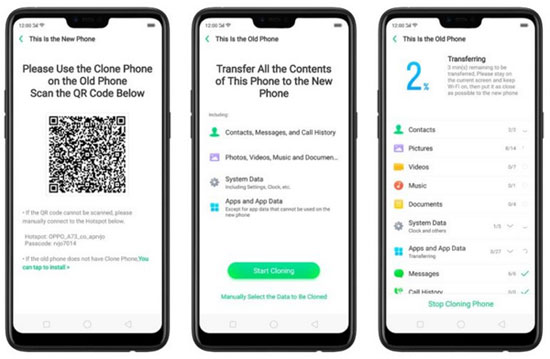
When using Clone Phone, OPPO's official migration app, the emphasis is on copying data directly between devices via QR code and Wi-Fi direct. Alongside contacts, messages, and photos, the app can also bring over thumbnail pictures stored on the old device. This ensures that gallery previews and smaller image files are not lost during the move. The convenience of wireless transfer makes it appealing for those who want a complete migration without cables.
Quick Guide:
- Download Clone Phone: Install the app on both Samsung and OPPO devices from the Google Play Store
- Launch on OPPO: Open the app, select "New Phone" > "Other Android Phone."
- Launch on Samsung: Open the app, choose "Old Phone."
- Connect devices: OPPO shows a QR code; scan it with Samsung to pair both phones.
- Choose contacts: On Samsung, select "Contacts" (and other data if needed).
- Start transfer: Tap "Next > Start Cloning" and wait for the contacts to copy over.
- Verify on OPPO: Check your OPPO phone's Contacts app to confirm successful migration.
Can OPPO use Samsung Smart Switch? No, OPPO phones cannot use Samsung Smart Switch. This tool is designed only to transfer data from Android or iOS devices into Samsung phones or tablets, not the other way around. To move contacts to OPPO, you'll need alternatives like Clone Phone, Google Sync, or a SIM card transfer.
My Point of View:
- This app works only for OPPO devices, limiting its use across other brands. Wireless transfers can sometimes fail due to unstable Wi-Fi connections. Large data sets may take longer to complete compared to USB-based tools.
You Might Also Enjoy:5 Reliable Solutions to Back Up OPPO Phone Contacts to Computer
Option 3: Transfer Contacts from Samsung to OPPO Phone via Google Sync
Through Google Sync, contacts and media can be backed up to the cloud and restored on a new device. Thumbnail images linked to Google Photos or stored in synced albums are included in this process. By signing in to the same Google account on the OPPO phone, users can recover not only full-resolution images but also the thumbnails that help organize and preview content. This method is especially useful for those who rely on cloud storage for safety.
Quick Guide:
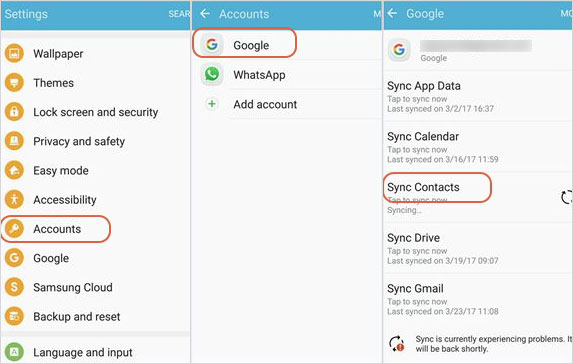
- Enable sync on Samsung - Open the Contacts app > Three dots > Manage Contacts > Sync Contacts. Select your Google account and toggle Contacts ON. Tap Sync to upload contacts to Google
- Log in to Google on OPPO - On your OPPO, go to Settings > Accounts > Google. Sign in with the same account used on Samsung.
- Activate sync on OPPO - In the Google account settings, toggle Contacts ON. Your OPPO will now download all synced contacts.
- Verify contacts - Open the OPPO Contacts app to confirm that all entries have migrated successfully.
My Point of View:
-
Cloud syncing requires a stable internet connection, which may not always be available. Contacts stored locally on the Samsung device may not sync unless manually exported. Duplicate entries can appear if multiple accounts are linked.
Option 4: Copy Contacts from Samsung to OPPO via Bluetooth
Using Bluetooth or Wi-Fi Direct, contacts and files can be shared wirelessly between Samsung and OPPO devices. When exporting media, thumbnail pictures are often packaged within the shared files, allowing them to be recovered on the receiving phone.
Quick Guide:
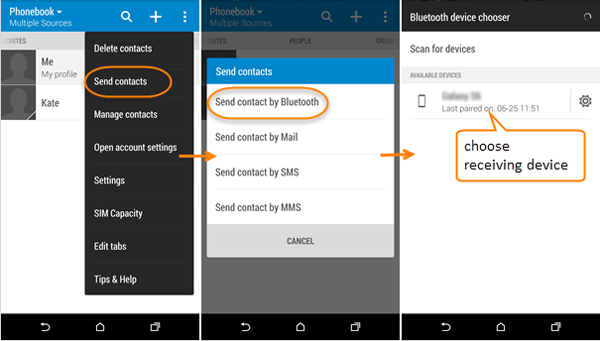
- Enable Bluetooth > Turn on Bluetooth on both Samsung and OPPO.
- Pair devices > Go to Bluetooth settings, search for nearby devices, and pair them.
- Select contacts > On Samsung, open the Contacts app, and choose the contacts you want to transfer.
- Share via Bluetooth > Tap Share > Bluetooth, then select your OPPO device.
- Accept transfer > On OPPO, accept the incoming file. Contacts will be saved automatically.
My Point of View:
- Bluetooth is slow for large contact lists. Thumbnail pictures or detailed contact data may not always transfer correctly. This method lacks the reliability of wired solutions.
Option 5: Move Contacts from Samsung to OPPO Using SIM Card
Finally, the SIM Card method provides a basic offline solution for moving contacts, but it can also carry small amounts of data including thumbnail previews if exported properly. By saving contacts and linked image data to the SIM, then importing them on the OPPO phone, users can recover thumbnails along with essential information. While limited in storage capacity, this approach is straightforward and works without apps or internet.
Quick Guide:
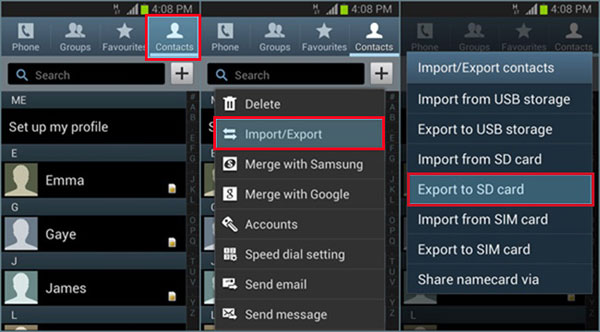
- Export contacts on Samsung - Open the Contacts app > Three dots > Manage Contacts > Export Contacts. Choose SIM card as the destination. Selected contacts will be copied to the SIM. (Your SIM card cannot be detected?)
- Insert SIM into OPPO - Power off both phones, remove the SIM from Samsung, and insert it into your OPPO device.
- Import contacts on OPPO - On OPPO, open Contacts > Three dots > Settings > Import/Export Contacts > Import from SIM 1. All contacts stored on the SIM will be added to OPPO's Contacts app.
- Verify contacts - Check the OPPO Contacts app to ensure all entries are present.
My Point of View:
- Storage capacity is limited, often restricting the number of contacts that can be moved. Contact photos, emails, and other details are usually not included. This method is basic and may result in incomplete transfers.
FAQs about Transferring Contacts from Samsung to OPPO
Q1. What is the easiest official method?
The OPPO Clone Phone app is the most straightforward official solution. It connects both phones via QR code and Wi-Fi direct, allowing you to copy contacts quickly without cables or a computer.
Q2. Can I move contacts without SIM card offline?
Yes. You can export contacts to a SIM card or create a VCF file before importing it to your OPPO phone.
Q3. What if Samsung doesn't detect OPPO?
If Samsung fails to connect, ensure both phones are on the same Wi-Fi network, grant necessary permissions, and update the Clone Phone app. If issues persist, you can switch to Google Sync or MobileTrans as alternatives.
Q4. Does OPPO support merging contacts from multiple sources?
Yes. OPPO's Contacts app can merge entries from SIM, Google, and device storage. This helps avoid duplicates after importing from different methods.
Q5. Do thumbnail pictures linked to contacts transfer too?
In most cases, yes. Clone Phone and Google Sync can migrate contact photos, including thumbnails. SIM card transfers usually only move names and numbers, not images.
Q6. Can I export contacts as a file?
Yes. Samsung allows exporting contacts into a .vcf file, which can be shared via Bluetooth, email, or Wi-Fi Direct. OPPO can then import the file into its Contacts app.
Q7. What if contacts don't appear after transfer?
Check if contacts were stored on the SIM, Google account, or device memory. Re-sync Google Contacts or re-import the VCF file to ensure all entries are visible.
Q8. Can I transfer contacts from a broken Samsung phone?
Yes, if the phone still powers on. Use Google Sync to extract contacts. If the device is completely dead, recovery depends on prior backups.
Q9. Can I transfer contacts using NFC?
Some Samsung and OPPO models support NFC-based sharing. However, it's less common and slower compared to Wi-Fi Direct or Clone Phone.
Related Articles:
How to Recover Contacts from Samsung with Black Screen? 4 Options
Can You Export Samsung Contacts to Excel Spreadsheet? 4 Tactics
9 Practical Techniques to Fix OPPO Phone Not Connecting to PC
