
How to Transfer Messages from Samsung to Google Pixel? 4 Options
TL;DR:
To transfer SMS from a Samsung device to a new Google Pixel, users can choose from four effective methods: using a dedicated desktop tool like MobiKin Transfer for Mobile for a direct, one-click transfer, utilizing the built-in Pixel setup wizard, or employing third-party apps like SMS Backup & Restore and Google Drive for cloud-based restoration.
Each method has its own advantages and limitations, with the choice depending on factors such as whether the Pixel has already been set up, the availability of a computer or USB cable, etc.
"We activated a new Tracfone Google Pixel 10 Pro and followed the setup instructions. But the text message history did not transfer to the new phone." -- from Pixel Phone Help
When moving from their old Samsung device to a brand-new Google Pixel, many users want to bring along all their important data, especially text messages (SMS). However, transferring SMS between different Android brands may involve different backup systems, transfer tools, and setup steps.
This article will explain how to transfer messages from Samsung to Google Pixel in 4 productive ways, covering practical methods that help users move their text messages safely and efficiently.
#1: Transfer Messages from Samsung to Google Pixel in One Tap
Moving text messages between Samsung and Google Pixel can be much easier with MobiKin Transfer for Mobile (Windows/Mac), especially if you want a direct phone-to-phone transfer. It copies SMS without relying on cloud backups and keeps existing conversations intact.
The program also supports contacts, call logs, photos, music, videos, and other files across most Android and iOS devices. After connecting both phones to a computer, you can complete the transfer with just a few clicks.
Overview of MobiKin Transfer for Mobile:
|
Feature
|
Description
|
|
Data Types |
Contacts, SMS, call logs, photos, videos, music, documents, and apps. |
|
Platforms |
Works between Android and iOS devices. |
|
Method |
One-click transfer via USB connection to a computer (no internet required). |
|
Compatibility |
Supports 8,000+ devices, including Samsung and Google Pixel 10 Pro/9/8/7/6/5/4/3/2. |
|
Wipe Option |
Can clear destination phone's data before transfer. |
|
Flip Button |
Swap source/destination positions if detected incorrectly. |
|
Connection Modes |
Supports both USB and Wi-Fi for device pairing. |
|
Selective Transfer |
Preview and choose specific data types to move. |
Free & Secure Download:


User Guide:
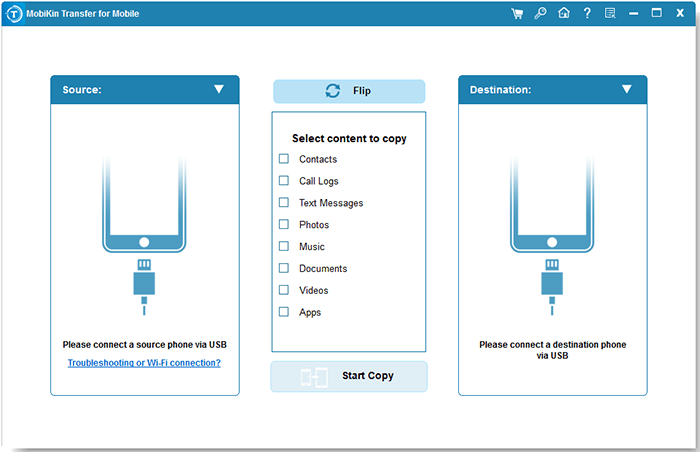
- Launch the software and connect both your old and new phones to the computer.
- Follow the on-screen instructions to ensure both devices are detected.
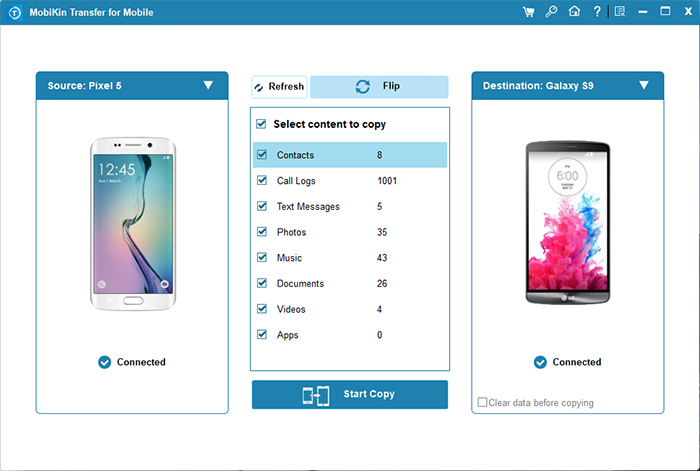
- Confirm that your old phone is set as the source and your new phone as the destination.
- If not, click the "Flip" button to swap their roles.
- Select the file types you wish to transfer (Text Messages or other data types).
- Finally, tap "Start Copy" to begin moving your data to the new device.
Video Guide:
My Point of View:
|
The Good
|
The Bad
|
|
Transfers SMS directly between Samsung and Pixel. |
Requires a Windows or Mac computer. |
|
No need to overwrite existing cloud backups. |
USB cables are needed for both phones. |
|
Supports other data types like contacts, photos, videos, and call logs. |
Full features require a paid license |
You Might Also Like: How to Speed Up Samsung Phone Easily? 17 Tested Solutions
How to transfer Samsung Messages to Google Messages? You can transfer Samsung Messages to Google Messages by first installing Google Messages and setting it as the default SMS app on your Samsung phone. In most cases, existing conversations stored on the device will be recognized automatically after the switch, although some users may need to wait for messages to be re-indexed.
#2: Transfer SMS from Galaxy to Pixel During Initial Pixel Setup
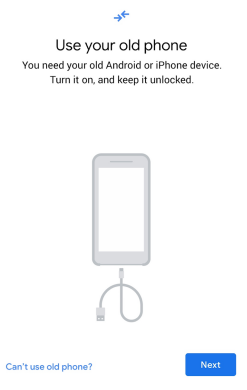
The easiest time to bring text messages to a new Pixel is during Initial Pixel setup. After signing in with your Google account, choose to copy data from your old Samsung device and follow the on-screen instructions. The setup wizard lets you select the content you want to transfer, including SMS, contacts, apps, and media. Once the process finishes, your messages will appear in the Google Messages app.
User Guide:
- Power on Pixel - Start the setup process on your new Pixel.
- Tap Next - When asked to copy apps and data, choose Next.
- Select old phone - Pick "Pixel or Android device" when prompted.
- Scan QR code - Use your Samsung Galaxy to scan the QR code displayed on the Pixel.
- Connect devices - Follow the prompts to link the phones, either wirelessly or with a USB-C to USB-C cable (recommended for speed and attachments).
- Choose Messages - On the data selection screen, make sure "Messages" is checked.
- Tap Copy - Begin the transfer and wait until it completes. (Contact info cannot be copied to new Pixel phone?)
My Point of View:
|
The Good
|
The Bad
|
|
Built into the Pixel setup process. |
Available only during the initial setup (or after a factory reset). |
|
Can transfer multiple data types in one session. |
Requires both phones to be available. |
|
No extra software installation is required. |
Transfer speed depends on the connection type. |
Explore More: 4 Tactics to Export Text Messages from Google Pixel 10/9/8/7/6/5
#3: Transfer Texts from Samsung to Pixel via SMS Backup & Restore
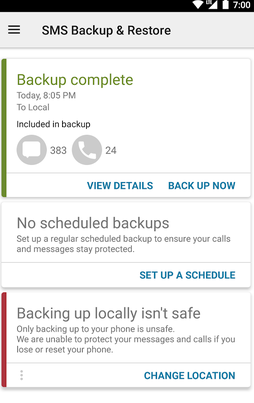
If you've already set up your Google Pixel and the built-in transfer tool is no longer available, SMS Backup & Restore is a practical way to move text messages from a Samsung phone. It backs up your SMS/MMS to local storage or a cloud service, then restores them to your Pixel. (RCS chats are not included because they are handled by Google Messages rather than SMS backup.)
User Guide:
- Install SMS Backup & Restore on both your Samsung phone and Google Pixel.
- Open the app on your Samsung, tap Set Up a Backup, select Messages, choose a backup destination (Google Drive, Dropbox, OneDrive, or local storage), and tap Back Up Now.
- Open the app on your Pixel, sign in to the same cloud account (or copy the local backup file), tap Restore, select the backup, temporarily set SMS Backup & Restore as the default SMS app, and start the restoration.
- After the restore is complete, switch the default messaging app back to Google Messages and check that all your text conversations have been transferred successfully.
My Point of View:
|
The Good
|
The Bad
|
|
Free to use for basic SMS backup and restore. |
Requires separate backup and restore steps. |
|
Supports cloud services and local backups. |
You must temporarily change the default SMS app during restoration. |
|
Useful for creating regular message backups. |
Does not transfer RCS chats. |
#4: Transfer SMS from Samsung Galaxy to Google Pixel via Google Drive
Backing up your Samsung phone before switching is possible with Google Drive if you prefer a wireless method. Your SMS can be included in the device backup and restored when you sign in to the same Google account on the Pixel during setup. A stable Wi-Fi connection and sufficient cloud storage help the backup and restoration run smoothly. This method works well for users who do not have a USB cable available.
User Guide:
- On your Samsung Galaxy, go to Settings > Google > Backup (or Settings > Accounts and backup > Back up data, depending on the model), turn on Backup by Google, make sure SMS & MMS messages are included, and tap Back up now. Wait until the backup is complete.
- Turn on your Google Pixel and sign in with the same Google account used on your Samsung.
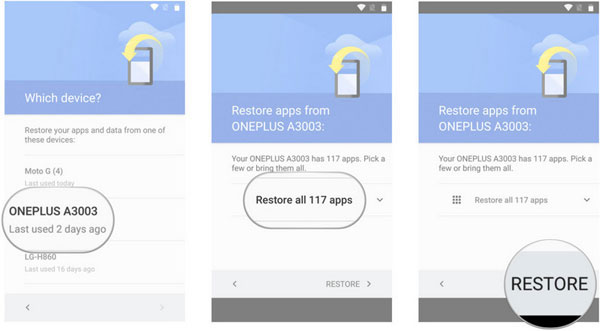
- During the Pixel setup process, choose Restore from a cloud backup or Restore from your Google Account, then select your Samsung backup.
- Check that SMS & MMS messages are selected, then tap Restore. Keep your Pixel connected to Wi-Fi and power until the process finishes.
- Open the Google Messages app on your Pixel to verify that your text messages have been transferred. If you have already finished setting up the Pixel, you may need to use the Android Switch option (available on newer Pixel models) or factory reset the device to restore from a Google backup.
My Point of View:
|
The Good
|
The Bad
|
|
Wireless solution with no computer required. |
Usually works only during Pixel setup or after a factory reset. |
|
Uses your Google account for backup and restore. |
Backup and restore may take a long time for large data sets. |
|
Can restore SMS along with other backed-up data. |
Limited to data included in the Google backup. |
In a Nutshell
Switching to a Google Pixel is more than just replacing one phone with another; it is also about carrying forward the digital records built over time. With the dependable transfer approach, your Samsung SMS history can make the journey to your Pixel instead of becoming a forgotten part of your old device.
Before transferring messages, make sure both devices have enough battery power and keep a backup of your Samsung SMS whenever possible. Checking that your Google Pixel is updated to the latest system version can also help prevent compatibility issues during the transfer process.
Related Articles:
Samsung FRP Helper v0.2 Review: Complete & Insightful Explanation
Top 4 Picks: Mirror Pixel Phone to PC/TV without Difficulty
6 Ways to Add Music to Google Pixel 10/9/8/7/6/5/4/3 from Computer
5 Easy Tactics to Delete Everything on Your Phone Samsung Galaxy
