
How to Fix Smart Switch Not Connecting to WiFi? 12 Uncomplicated Fixes
TL;DR:
Smart Switch not connecting to WiFi often leaves users stuck when important transfers are delayed. When repeated fixes fail, a dependable alternative ensures smooth progress without interruptions. MobiKin Transfer for Mobile uses a stable USB link to move data quickly across Android and iOS, making it a reliable choice whenever Smart Switch struggles.
Hi, I'm looking to move all my apps from my S21 Ultra to my S26 Ultra using Smart Switch. The phones now aren't connecting; reinstalling Smart Switch and connecting via WiFi but to no avail. -- From community.samsung.com
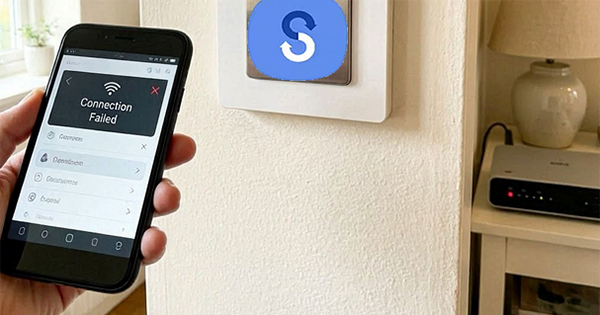
Smart Switch not connecting to WiFi can be baffled, especially when you need to move important data quickly. Many users face this issue when their devices fail to establish a stable wireless link, leaving them unable to complete transfers. If you encounter this problem, you can find step-by-step troubleshooting guides here when you cannot use Smart Switch due to a failed WiFi connection.
Part 1: Why Won't Smart Switch Connect over WiFi
If Smart Switch won't connect over Wi-Fi, don't worry - this is a fairly common issue that can usually be resolved without much effort. Before trying any fixes, it's helpful to understand the possible reasons behind the problem so you can choose the most effective solution.
- Different Wi-Fi networks - The devices aren't connected to the same network.
- Weak Wi-Fi signal - Poor connectivity disrupts the connection.
- Temporary glitches - Software or network bugs block pairing.
- Outdated Smart Switch - An old app version causes compatibility issues.
- Unsupported OS version - The device software isn't fully compatible.
- Mobile data interference - Cellular data interrupts the Wi-Fi connection.
- Battery Saver enabled - Power-saving features restrict Smart Switch.
- Corrupted app cache - Damaged app data prevents connection.
- Router issues - Network problems affect device discovery.
- Hardware problems - Faulty Wi-Fi components stop wireless transfers.
You Might Also Enjoy: How to Transfer WhatsApp Data from iPhone to Samsung? 6 Options
Part 2: Fix Smart Switch Not Connecting to WiFi with 12 Quick Methods
Fix 1: Restart both phones
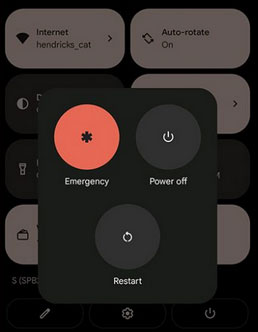
Restarting both phones can often resolve Smart Switch connectivity issues by refreshing their network settings. This clears temporary glitches that may prevent the devices from linking properly to WiFi. After rebooting, try reconnecting Smart Switch to see if the connection stabilizes.
Fix 2: Turn off mobile data
Mobile data should be turned off so Smart Switch can fully depend on WiFi. This action reduces possible conflicts between cellular and wireless networks. With fewer interruptions, the transfer process is more reliable and stable.
Click to Learn: Ultimate Guide: Does Samsung Smart Switch Transfer Everything?
Fix 3: Inspect WiFi Compatibility
WiFi compatibility should be checked because most smart switches only support 2.4 GHz networks, not 5 GHz. Make sure your router's 2.4 GHz band is enabled, your phone is connected to that same band, and the Wi-Fi password is valid without special symbols or spaces. For smoother setup, mobile data or VPN should be disabled to avoid interruptions.
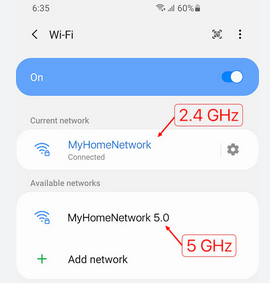
Both devices must be connected to the same WiFi network for Smart Switch to work properly. On your phone, go to Settings > WiFi and select the same GHz network that your router is broadcasting. Once both are on the identical network, Smart Switch can establish a stable link and complete the transfer without interruptions.
Fix 4: Power cycle devices
- Turn off router - Shut down your WiFi router completely to clear cached network data.
- Turn off smart switch - Switch off the smart switch to reset its internal connection state.
- Wait 30-60 seconds - Allow enough time for both devices to discharge and refresh memory.
- Restart router first - Power the router back on before the smart switch so the network is ready.
- Restart smart switch - Turn the switch back on and let it reconnect to the WiFi.
- Reattempt setup in app - Use the correct app (Smart Life, Kasa, SmartThings, etc.) to complete the connection process.
Fix 5: Grant permissions for Smart Switch
- Open Settings - Go to your phone's Settings menu to access app controls.
- Find Apps section - Locate the Apps or Application Manager option.
- Select Smart Switch - Tap Smart Switch from the list of installed apps.
- Open Permissions - Choose the Permissions option to see what the app can access.
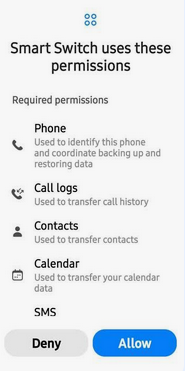
- Enable required permissions - Allow access to Storage, Contacts, Phone, and Location, as these are essential for transfers.
- Confirm changes - Save or exit after enabling permissions to ensure they take effect.
Fix 6: Disable battery saving mode
Battery saving mode should be disabled because it can restrict Smart Switch from running properly in the background. On most Android phones, go to Settings > Battery > Battery Saver and toggle it off to allow full performance. With battery saving disabled, WiFi stays stable and Smart Switch can complete the transfer without interruptions.
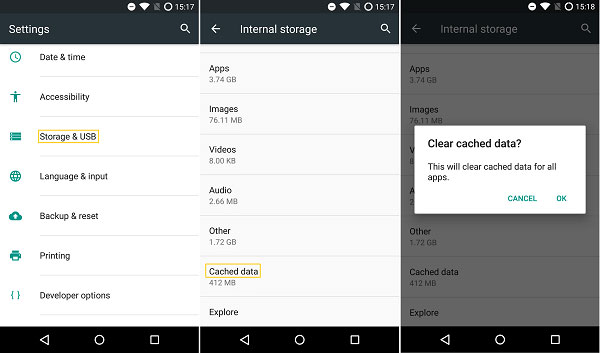
Fix 7: Clear Smart Switch cache
- Open Settings - Go to your phone's Settings menu.
- Find Apps section - Locate the Apps or Application Manager option.
- Select Smart Switch - Tap Smart Switch from the list of installed apps.
- Open Storage option - Choose Storage to view cache and data details.
- Tap Clear Cache - Remove temporary files that may interfere with performance.
- Restart phone - Reboot your device to ensure changes take effect.
Fix 8: Reset Samsung Smart Switch
To reset Samsung Smart Switch, hold down the reset button for 5-10 seconds until the LED blinks rapidly. Once the reset is complete, open your Smart Switch app and follow the in-app setup guide again. This process removes old WiFi data and ensures a clean connection during setup.
If a simple reset doesn't solve the problem, updating Smart Switch can often fix lingering connection issues. Go to the Google Play Store or Galaxy Store, search for Smart Switch, and tap Update if available. Keeping the app updated ensures compatibility with the latest phone software and WiFi standards.
Fix 9: Verify internet connections
- Load a webpage - Open a browser and refresh a site; if it loads quickly, your connection is stable.
- Run a speed test - Use tools like OOKLA Speedtest to check download/upload speeds.
- Restart router - If speeds are low, reboot your WiFi router to refresh the signal.
- Contact provider - If problems persist, reach out to your ISP for troubleshooting.
Fix 10: Check router settings
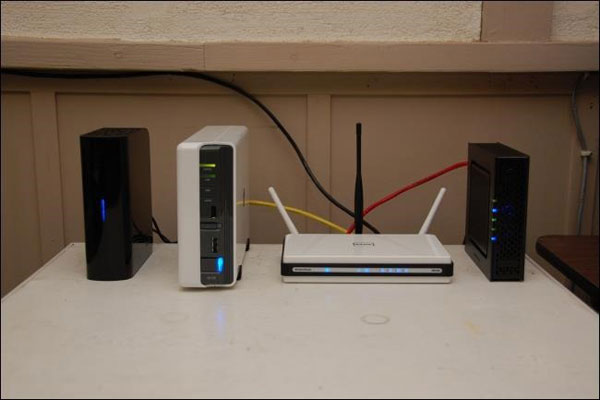
Checking your router settings can help fix Smart Switch connection issues.
- Make sure the 2.4 GHz band is enabled, since most smart switches don't support 5 GHz networks.
- Also confirm that SSID broadcasting, WPA2 security, and MAC filtering are properly configured so the switch can connect without restrictions.
Fix 11: Ensure the correct app & setup mode
- Use the right app - Download the official app for your device brand.
- Check setup WiFi - Some switches need a temporary setup network during installation.
- Follow in-app guide - Complete the instructions shown in the app.
- Avoid mismatches - Correct app and mode prevent pairing errors.
Fix 12: Use a USB cord instead of WiFi
Using a USB cord instead of WiFi with Smart Switch is a reliable way to transfer data when wireless connections fail. Here's a simple step-by-step guide to set it up:
- Prepare USB cable - Use the official Samsung USB cord or a reliable alternative.
- Connect devices - Plug one end into your old phone and the other into your new phone.
- Launch Smart Switch - Open the Smart Switch app on both devices.
- Select USB transfer - Choose the USB option when prompted.
- Allow permissions - Grant access to complete the transfer.
Part 3: Try the Best Smart Switch Alternative [Smooth Connection]
MobiKin Transfer for Mobile (Windows/Mac) offers a smooth USB connection that ensures fast and stable data migration between devices. Unlike Smart Switch, which may struggle with WiFi compatibility, this tool bypasses wireless issues entirely. It's a great Smart Switch alternative when WiFi fails, providing reliable transfers without interruptions.
Key Features of MobiKin Transfer for Mobile:
- Stable USB connection - Provides fast, stable transfers without relying on WiFi.
- Cross-platform support - Works between Android and iOS devices, unlike Smart Switch which is limited to Samsung.
- One-click transfer - Moves contacts, messages, photos, videos, apps, and more in a single step.
- No WiFi dependency - Eliminates common Smart Switch issues with wireless compatibility.
- Wide device compatibility - Supports thousands of phone models across brands, including the latest Samsung Galaxy S26 and iPhone 17 series.
How to Use MobiKin Transfer for Mobile to transfer data to Samsung with ease?


Reference Guide:
01: Launch the program - Start MobiKin Transfer for Mobile on your computer after downloading and installing it. The main interface will appear on your screen.

02: Connect devices via USB - Use USB cables to link your computer with both phones. Enable USB debugging on Galaxy or trust your computer when connecting an iPhone so the tool can detect them, and click "Flip" if the source and destination are reversed.
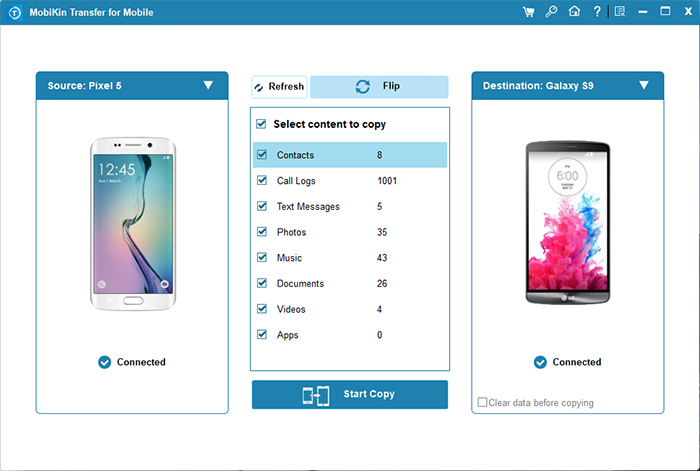
03: Select data types - Choose the categories of files you want to move.
04: Start the transfer - Click "Start Copy" to begin the iPhone/Android/Samsung-to-Samsung data transfer.
Video Guide:
Round Off
Smart Switch not connecting to Wi-Fi doesn't have to stop your progress. Personally, when WiFi fails, don't waste time repeatedly retrying - switch to a USB connection or use a trusted alternative tool like MobiKin Transfer for Mobile for a smooth and stable transfer.
Related Articles:
How to Boot into Samsung Download Mode? 4 Well-tested Strategies
Samsung Experience Service Keeps Stopping? 8 Basic Fixes & 1 Expert Approach
Enter Password to Unlock 30/30 Attempts Remaining? 9 Simple Solutions
Samsung Yellow Screen of Death? Reasons & 18 Feasible Solutions
