
4 Intelligent Solutions to Transfer Contacts from realme to realme
A new realme phone brings excitement, yet moving personal data between devices can be surprisingly tricky. Many users face issues like missing contacts, failed sync, or app errors, so they search for solutions and alternatives that actually work.
Contacts hold years of personal and professional connections, making even minor data loss frustrating. Knowing how to transfer contacts from realme to realme efficiently ensures your connections remain intact without unnecessary hassle. Read on to obtain what you desire now.
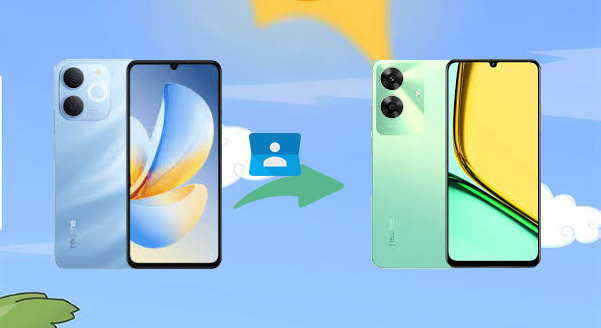
Way 1: Transfer Contacts from realme to realme via MobiKin Transfer for Mobile [Handy]
Designed for people who prefer managing their data on a computer, MobiKin Transfer for Mobile (Windows/Mac)offers a stable way to move contacts between devices without relying on wireless connections. By connecting both phones via USB, users can preview and select what they want to transfer before starting the process.
Its clean interface makes the operation easy to follow, even for those with limited technical experience. In practical use, it should be noted that MobiKin Transfer for Mobile performs reliably when transferring contacts from realme to realme.
|
MobiKin Transfer for Mobile - Core Features
|
Further Explanation
|
|
Supported Platforms |
Transfers data between Android and iOS devices, including realme Number, Narzo, C, GT, & X series. |
|
Selective Transfer |
Allows users to choose specific data types (e.g., contacts, messages, photos) before migrating. |
|
One-Click Migration |
Provides a fast and direct transfer process with minimal steps. |
|
Preview Before Transfer |
Users can view data before starting the process to ensure accuracy. |
|
Transfer Contacts Between realme Devices |
Fully supports transferring contacts from realme to realme with reliable results. |
|
Secure Connection |
Uses a USB connection for stable and secure data movement. |
|
Wide Data Support |
Handles multiple data types, such as contacts, call logs, messages, media files, and more. |
How to Use?
- After downloading and installing the software, launch it directly on your desktop computer.
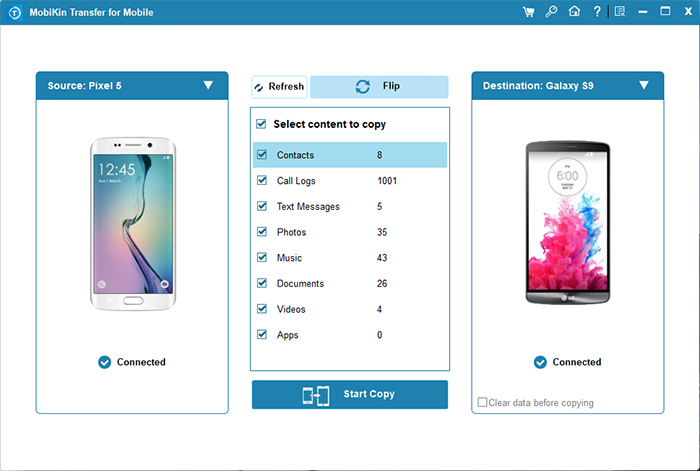
- The main interface will appear as shown below:
- Connect your realme cell phone to the PC using two USB cables.
- Make sure they are properly placed in the designated source and destination areas, following the on-screen instructions for detection.
- If they are not positioned correctly, select 'Flip'.
- Select Contacts" displayed in the center of the panel and click 'Start Copy' to initiate the data transfer between the two realme smartphones.


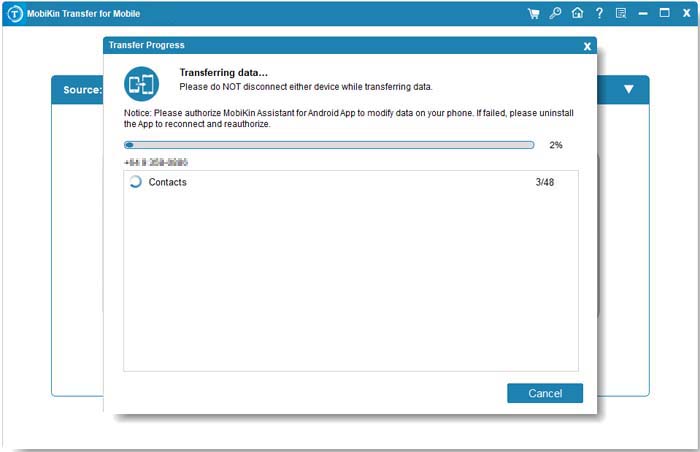
Video Instructions:
Ensure both phones are fully charged and free from background restrictions before starting, and rely on MobiKin Transfer for Mobile to move your contacts safely and accurately in one seamless process. (Is there a MobiKin Transfer for Mobile crack?)
Way 2: Transfer Contacts from One realme Phone to Another via realme Share
Built directly into many realme devices, realme Share allows users to send data quickly without using mobile data or external apps. Once both phones are nearby, a few taps are enough to establish a secure local connection. The transfer speed is usually fast, especially for small files like contact information. In everyday situations, realme Share proves effective for moving contacts from one realme phone to another.
How to Use?
- On both the old and new realme phones, pull down the control center and turn on Wi-Fi, Bluetooth, and realme Share.
- Open the Contacts app on your old realme phone.
- Tap the menu icon (usually three dots) and choose Share or Import/Export > Share contacts.
- Select All Contacts or choose specific contacts you want to send.
- Choose realme Share as the transfer method.
- From the device list, tap on your new realme phone.
- On the new phone, accept the incoming contact file (.vcf).
- Open the received file and import the contacts to your phone storage or Google account.
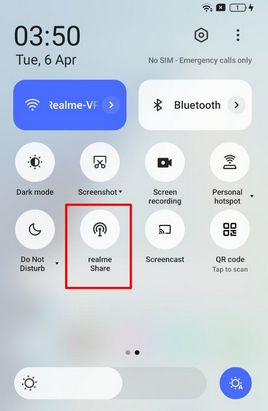
Note: realme Share works over local wireless connection between the phones, so internet access is not required. And if contacts don't appear on the new phone after transfer? Try these solutions: Restart both phones, check that the contacts were selected before sending, and retry the realme Share process.
Way 3: Transfer All Contacts to New realme Phone Using Clone Phone
Often used during the first setup of a new phone, Clone Phone helps users copy personal data from an old device in one smooth process. By scanning a QR code, the two phones are linked and prepared for migration within seconds. Multiple data types can be selected at once, reducing the need for repeated operations. It should be noted that Clone Phone is especially useful for transferring contacts from realme to realme during device upgrades.
How to Use?
- Install the Clone Phone app on both your old phone and your new realme phone (if it isn't already installed).
- Open Clone Phone on the new realme phone and tap "This is the new phone."
- Select the type of your old phone (usually Android).
- A QR code will appear on the new phone's screen.
- Open Clone Phone on the old phone and tap "This is the old phone."
- Use the old phone to scan the QR code shown on the new phone to connect both devices.
- After the connection is established, select Contacts (and any other data you want to transfer).
- Tap Send/Migrate to begin the transfer process.
- Wait until the transfer finishes, then check the Contacts app on your new realme phone to confirm all contacts are moved.
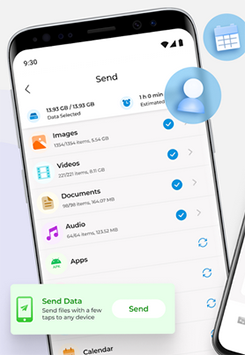
You May Also Like: 6 Best realme Clone App Alternatives [Easy & Reliable]
Way 4: Export Entire Contact List from realme to realme with SIM Card
For those who prefer traditional methods, using a SIM card remains a simple and familiar option. Contacts are first saved to the SIM and then imported on the new phone without any extra software. This approach works well when internet access is limited or unavailable. However, due to storage limits, the SIM card can only handle basic entries, yet it can still transfer contacts from realme to realme in many basic cases.
How to Use?
- Insert the SIM card you want to use into your realme phone (old device).
- Open the Contacts app on the realme phone.
- Go to Settings or the menu within the Contacts app (three dots or "Manage contacts").
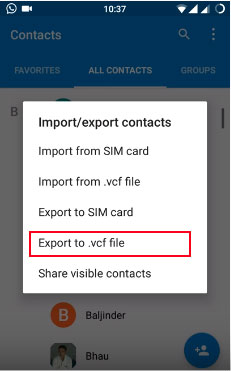
- Look for SIM Card Contacts or an Import/Export option.
- Choose Export to SIM card (or similar) - select all contacts you want to save to the SIM.
- Confirm and wait for the contacts to be written onto the SIM card.
- Once done, remove the SIM card and insert it into the other realme phone.
- On the new phone, open Contacts, find Import from SIM, and import all SIM contacts into the phone or Google account.
In the End
Your contact list represents more than numbers - it preserves relationships and communication that matter most. Among all choices, MobiKin Transfer for Mobile proves to be the most efficient and secure solution for moving contacts between realme phones. With careful preparation and the right tool, your new realme device can start fresh with all your contacts safely transferred.
Related Articles:
How to Hard/Factory Reset realme 11/10/9/8/C21Y/C11 Quickly
4 Ingenious Ways to Retrieve Deleted Text Messages on realme
5 Verified Ways for realme File Transfers [Easy & Secure]
How to Unlock realme Phone with/without Losing Data? 6 Methods Included
