
How to Transfer Call Logs from iPhone to Samsung: 3 Easy Methods
TL;DR:
Switching from an iPhone to a Samsung phone doesn't mean you have to lose your important call history. This guide explains how to transfer iPhone call logs to Samsung with three practical methods:
- Transfer call history using Samsung Smart Switch.
- Move iPhone call logs with Android Backup & Restore.
- Transfer call history through an iCloud backup.
When you switch from an iPhone to a Samsung phone, transferring important data like photos and contacts is usually easy, but moving call history can be more complicated. Since iOS and Android use different systems, traditional transfer methods may not always work. Fortunately, there are several ways to transfer iPhone call logs to Samsung, including Samsung Smart Switch, Android Backup & Restore, and iCloud backup. This guide will walk you through each method and help you choose the right solution.
Method 1: Transfer Call History from iPhone to Samsung Using Smart Switch
Samsung Smart Switch is an official tool developed by Samsung that helps users move data from an iPhone to a Samsung Galaxy device. It supports transferring various types of data, including contacts, messages, photos, videos, and some call history. You can transfer data directly between devices using a cable or import data from an iCloud backup.
Follow the steps below to transfer call history from iPhone to Samsung using Smart Switch:
- Install and open the "Smart Switch" app on your Samsung phone.
- On the Samsung device, select "Receive data" and choose "iPhone/iPad" as the source device.
- Connect your iPhone and Samsung phone using a compatible USB cable, or choose the wireless transfer option if available.
- If prompted, unlock your iPhone and tap "Trust" to allow the connection between the two devices.
- Select "Get data from iPhone" and choose the data types you want to transfer.
- Sign in to your iCloud account if you choose to transfer data from an iCloud backup.
- Select "Call logs" or "Call history" from the available data list and tap "Transfer" to start the process.
- Wait until the transfer process is complete, then open the Phone app on your Samsung device to check whether the call history has been moved successfully.
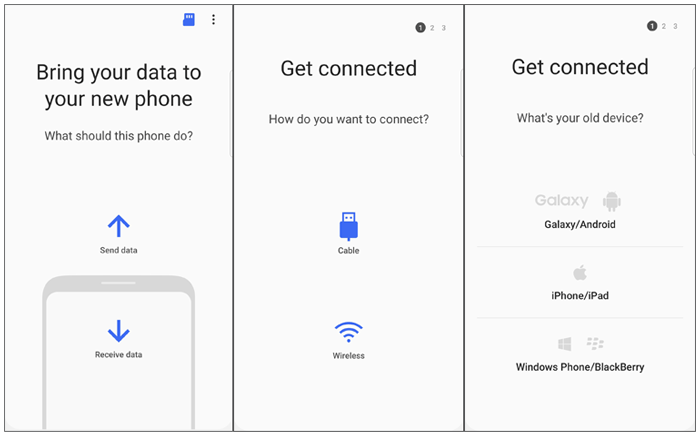
Note: The available data types may vary depending on the iOS version, Samsung device model, and Smart Switch version. If Smart Switch cannot transfer your complete call history, you can try a professional phone transfer tool as an alternative.
Method 2: Transfer Call Logs from iPhone to Samsung with Android Backup & Restore
If Samsung Smart Switch fails to transfer your call history, Android Backup & Restore provides another reliable solution for moving iPhone call logs to a Samsung phone. It allows you to restore iPhone data from iCloud or iTunes backups directly to your Samsung device, helping you transfer call logs and other important files without manually moving data. In addition, you can preview backup contents before restoring and select only the data you need.
Key features of Android Backup & Restore:
- Transfer iPhone call logs to Samsung by restoring iCloud or iTunes backups directly to your Samsung device.
- Back up Samsung and other Android devices selectively.
- Restore backups to Android phones or iPhones whenever needed.
- Support various data types, including call history, contacts, messages, calendars, photos, videos, music, apps, app data, and more.
- Preview backup files and select specific data before restoration.
- Support a wide range of iPhone and Samsung models, including the latest iPhone 17 and Samsung Galaxy S26 series.
- Protect your personal data with a secure offline transfer process.


Steps to transfer iPhone call logs to Samsung via Android Backup & Restore:
Step 1. Create an iCloud backup of your iPhone
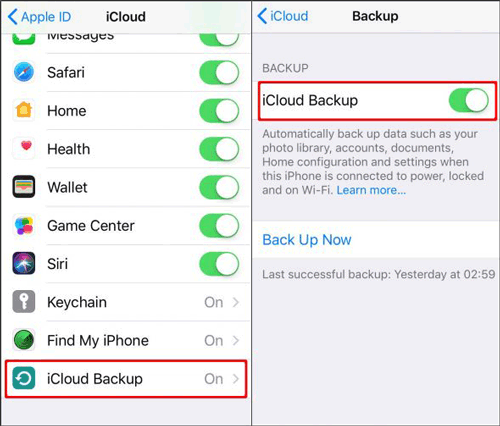
Make sure your iPhone is connected to a stable Wi-Fi network. Open "Settings", tap your name, go to "iCloud" > "iCloud Backup", turn on "iCloud Backup", and select "Back Up Now" to start backing up your iPhone data.
Step 2. Open Android Backup & Restore and connect your Samsung device
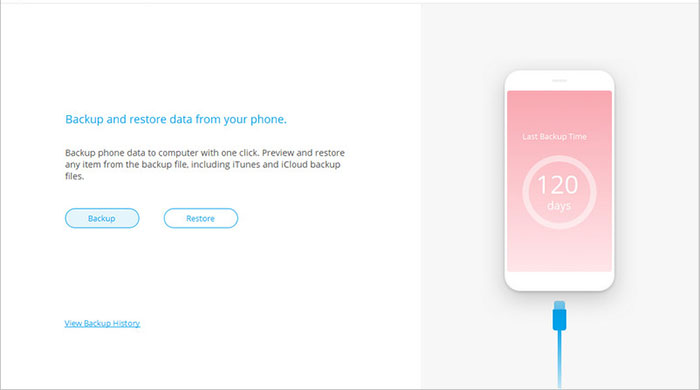
Download and launch Android Backup & Restore on your computer. Select "Phone Backup", connect your Samsung phone using a USB cable, and wait for the software to detect your device. After that, click "Restore" to continue.
Step 3. Select the iCloud backup restore option
From the left-side menu, choose "Restore from iCloud Backup". Then enter your Apple ID and password to log in to your iCloud account.
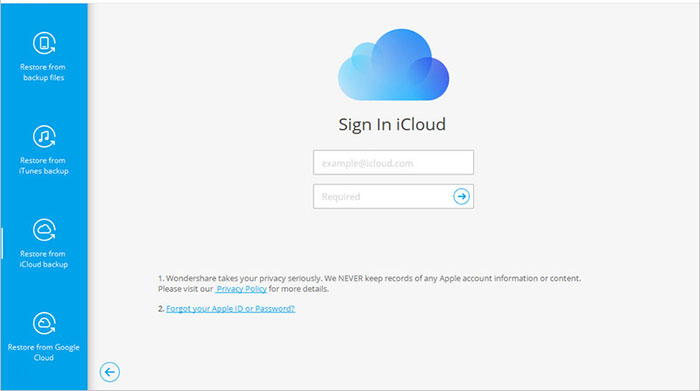
Step 4. Verify your Apple ID
If two-factor authentication is turned on for your Apple ID, enter the verification code received on your trusted device to complete the verification process.
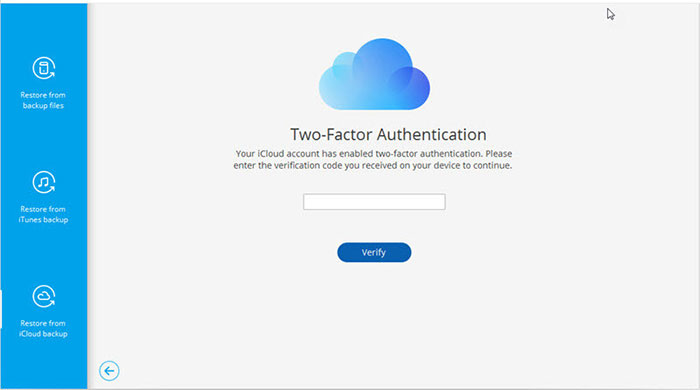
Step 5. Download the required iCloud backup
Once logged in, the program will show all available iCloud backup files. Choose the backup that contains your call history and click "Download" to retrieve the data.
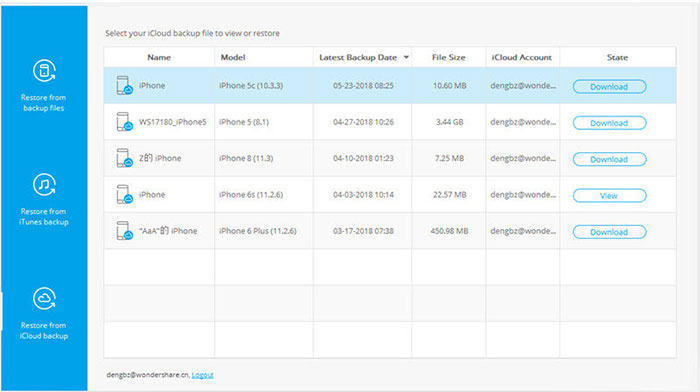
Step 6. Restore iPhone call logs to your Samsung phone
After the backup download is finished, preview the available files and select "Call Logs" or other data you want to transfer. Click "Restore to Device" to move the selected data to your Samsung phone.
Extended Reading:
Method 3: Transfer iPhone Call History to Samsung via iCloud Backup
If you have already backed up your iPhone data to iCloud, you can try transferring call history to your Samsung phone through an iCloud backup. Samsung Smart Switch supports importing some data from iCloud, allowing you to move selected information from your iPhone without connecting both devices directly. However, the available data types may vary depending on your iPhone model, iOS version, and Samsung device.
Follow the steps below to transfer iPhone call history to Samsung via iCloud backup:
- Open "Settings" on your iPhone and tap your name at the top to access Apple ID settings.
- Select "iCloud" and tap "iCloud Backup".
- Tap "Back Up Now" and wait until the iPhone backup process is complete.
- Open the "Smart Switch" app on your Samsung phone and select "Receive data".
- Choose "iPhone/iPad" as the source device, then select "Get data from iCloud".
- Sign in with the same Apple ID used to create your iPhone iCloud backup.
- Select the available backup file and choose the data you want to transfer.
- Tap "Transfer" and wait for Smart Switch to import the selected data to your Samsung phone. (How to Transfer Data from iCloud to Samsung?)
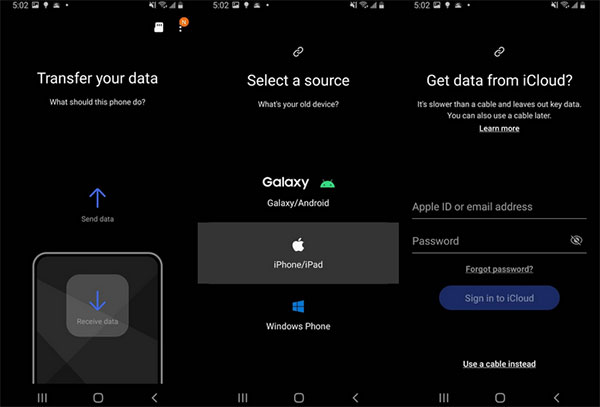
Note: iCloud backups do not always allow complete call history migration from iPhone to Samsung. If you cannot transfer call logs through iCloud, consider using a professional phone transfer tool for a more direct and reliable transfer.
The Bottom Line
Transferring call history from iPhone to Samsung can be challenging, but the right method makes the process much easier. Samsung Smart Switch is a convenient option for basic transfers, while Android Backup & Restore provides a more flexible way to restore call logs from backups. If you already have an iCloud backup, you can also try transferring data through iCloud. Choose the method that best fits your needs.
Related Articles:
[5 Solutions] How to Recover Deleted Call History on Samsung
7 Flexible Ways to Back Up and Restore Samsung Phone
