
How to Transfer Music from iPhone to Huawei: 4 Simple Methods
TL;DR:
Want to transfer music from iPhone to Huawei but don't know where to start? This guide introduces 4 practical methods to help you move your favorite songs successfully:
- Transfer music directly from iPhone to Huawei with MobiKin Transfer for Mobile.
- Use iTunes to sync iPhone music to a computer and move it to Huawei.
- Transfer songs wirelessly with Google Drive.
- Access your music library on Huawei through music apps.
If you have collected a large music library on your iPhone over the years, moving to a Huawei phone does not mean you have to leave your favorite songs behind. However, transferring music between iPhone and Huawei is not as simple as sharing files between two Android devices. Instead of spending time searching for complicated solutions, this guide introduces several practical ways to transfer music from iPhone to Huawei, helping you choose the method that works best for your situation.
Method 1: Transfer Music from iPhone to Huawei via Transfer for Mobile
When switching from an iPhone to a Huawei phone, transferring music can be challenging because iOS and Android use different file management systems. Fortunately, MobiKin Transfer for Mobile (Win and Mac) provides a simple and reliable way to move music directly from iPhone to Huawei without complicated settings or manual operations. It allows you to transfer songs between two phones with just a few clicks while keeping the original audio quality.
Besides music, it also supports transferring other important data, making it a convenient solution for users who want to migrate their content from iPhone to Huawei.
Key Features of MobiKin Transfer for Mobile:
- Transfer music files directly between iPhone and Huawei.
- Transfer data from iPhone to Android, Android to iPhone, Android to Android, and iPhone to iPhone.
- It also supportst ransferring contacts, text messages, call records, photos, documents, videos, apps, and more.
- Complete the transfer process with only a few clicks, even without technical knowledge.
- Works well with a wide range of iOS and Android devices, including the latest iPhone 17 and Huawei Mate 80/P80.
- It never gives away your privacy.


Steps to Transfer Music from iPhone to Huawei via MobiKin Transfer for Mobile:
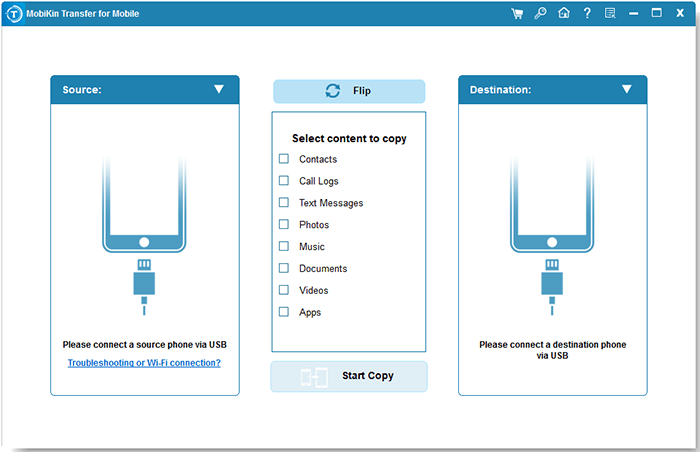
Step 1. Run the program and Connect Your Devices
Download and install MobiKin Transfer for Mobile on your computer. Open the program and use USB cables to connect both your iPhone and Huawei device to the computer. Follow the on-screen instructions to allow the program to recognize both devices.
Step 2. Check the Source and Destination Devices
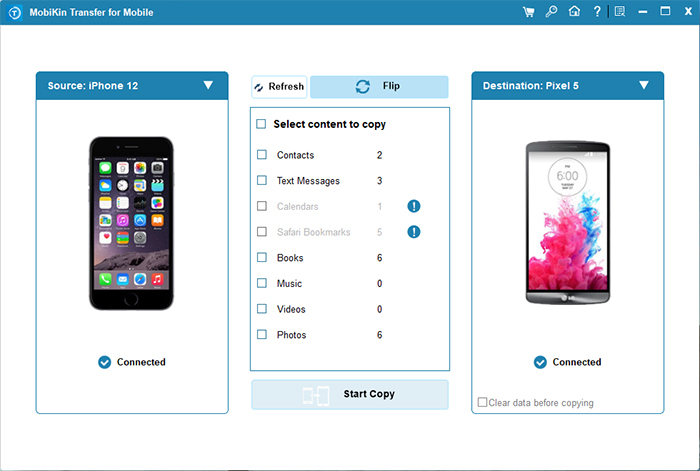
Make sure your iPhone is displayed as the source device and your Huawei phone is shown as the destination device. If they are placed incorrectly, click the "Flip" button to switch their positions.
Step 3. Select Music and Start the Transfer
Select "Music" from the data list in the middle of the interface, then click the "Start Copy" button to transfer music from your iPhone to Huawei.
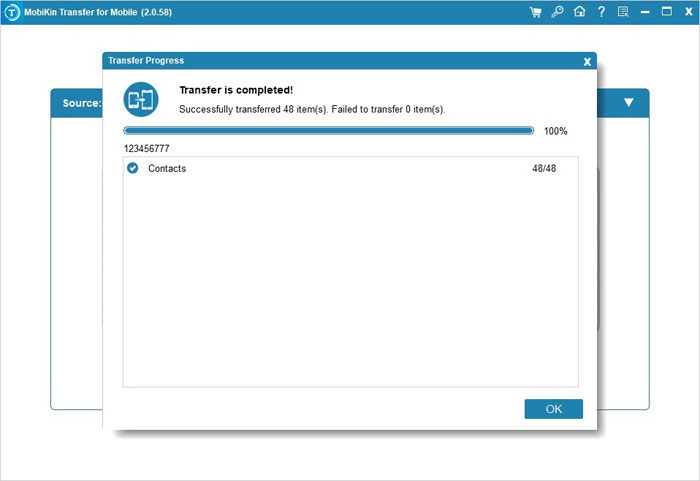
After the process is complete, disconnect your Huawei phone and open the Music app to check the transferred songs. You can now enjoy your iPhone music on your Huawei device.
Video Guide:
Read Also:
Method 2: Transfer iPhone Music to Huawei Using iTunes
iTunes is another free way to move music from iPhone to Huawei. While it cannot transfer songs directly between the two phones, you can use it to sync your iPhone music to a computer first and then copy the available files to your Huawei device. This method is suitable for users who already use iTunes and want to transfer DRM-free music without extra tools.
Steps to Transfer Music from iPhone to Huawei via iTunes:
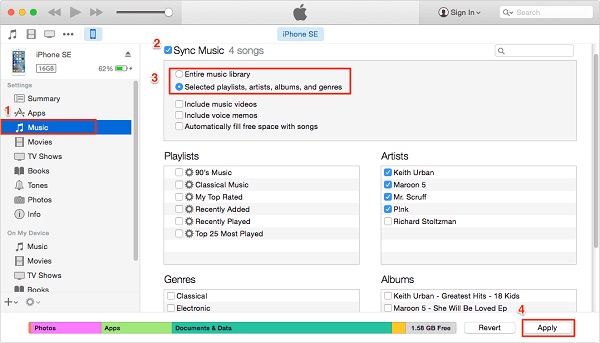
- Install and launch iTunes on your computer. Connect your iPhone via USB, trust the computer if required, and sync your music library with iTunes.
- Open iTunes settings and check the iTunes Media folder location under Preferences > Advanced. Find the synced music files on your computer.
- Connect your Huawei phone using a USB cable. Unlock the device and choose File Transfer (MTP) mode when prompted.
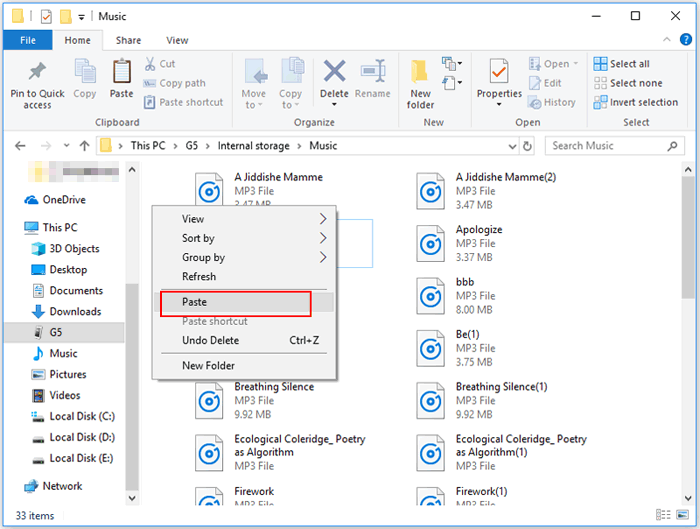
- Open the iTunes music folder, select the songs you need, and drag them to the Music folder on your Huawei phone.
- Disconnect your Huawei phone and open the Music app or file manager to confirm that the transferred songs are available.
Pros:
- Free and easy to use.
- Works well for users with an existing iTunes library.
- Keeps music files stored locally.
Cons:
- Cannot transfer Apple Music downloads due to DRM protection.
- Requires a computer during the transfer process.
- Some songs may not be accessible depending on how they were obtained.
Method 3: Move Music from iPhone to Huawei with Google Drive
If you want to transfer music from iPhone to Huawei without using a USB cable, Google Drive is a convenient choice. You can upload your music files from your iPhone to cloud storage and then download them to your Huawei phone using the same Google account. This method does not require a computer, making it suitable for users who prefer a wireless transfer solution. (How to Transfer Music from iPhone to iCloud for Backup?)
Steps to Transfer Music from iPhone to Huawei via Google Drive:
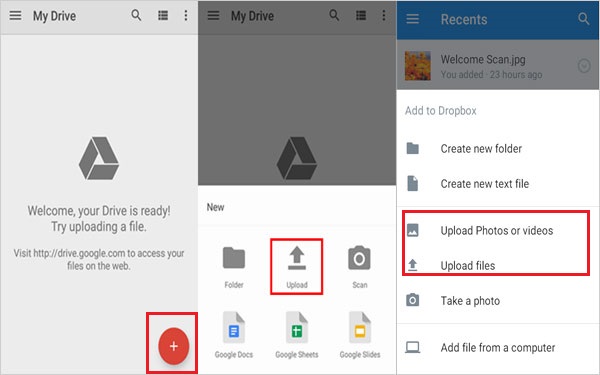
- Download and open the Google Drive app on your iPhone, then sign in with your Google account.
- Tap the "+" button, choose "Upload", and select the music files you want to transfer. Wait until the upload process is complete.
- Install Google Drive on your Huawei phone and sign in with the same Google account.
- Find the uploaded songs in Google Drive, tap the menu icon, and choose "Download" to save them to your Huawei device.
- Open the file manager or music player on your Huawei phone to confirm that the songs have been successfully transferred.
Pros:
- No computer or cable required.
- Simple wireless transfer process.
- Works across iPhone and Huawei devices.
Cons:
- Upload and download speed depends on your internet connection.
- Free Google Drive storage may not be enough for large music libraries.
- Some iPhone music files may not be available for upload due to format or DRM restrictions.
Check if You Need:
Method 4: Transfer Music from iPhone to Huawei via Music Apps
Using music streaming apps is another simple way to access your favorite songs on a Huawei phone. Instead of moving music files manually, you can sign in to the same account on both devices and sync your music library through services like Spotify or YouTube Music. This method is especially useful for users who mainly listen to online music and do not need to transfer local audio files.
Steps to Transfer Music from iPhone to Huawei via Music Apps
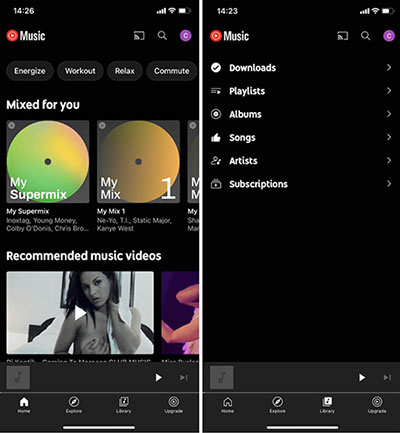
- Download and open a music streaming app, such as Spotify or YouTube Music, on your iPhone and sign in to your account.
- Add your favorite songs or playlists to your account. If supported, upload your local music files to the service.
- Download the same music app on your Huawei phone and log in with the same account.
- Open your library, playlists, or uploaded songs, then stream or download them to your Huawei device if the app supports offline listening.
Pros:
- No computer or cable required.
- Easy access to music across different devices.
- Keeps playlists and listening history synced.
Cons:
- Requires a stable internet connection.
- Some features may need a paid subscription.
- Cannot directly transfer all local music files from iPhone.
In a Nutshell
Transferring music from iPhone to Huawei may seem difficult due to differences between iOS and Android, but there are several effective solutions available. Whether you prefer a direct transfer tool like MobiKin Transfer for Mobile, a free computer-based method, a wireless cloud service, or music apps, you can choose the method that best fits your needs and enjoy your favorite songs on your Huawei phone.
Related Articles:
3 Best Ways to Transfer iPhone Text Messages to Huawei
7 Easy Ways: How to Transfer Data from Huawei to Huawei
