
Transfer Text Messages from Samsung to iPhone: Complete Guide
TL;DR:
Want to transfer text messages from Samsung to iPhone? This guide explains three effective methods to help you move SMS quickly and easily.
- Transfer Samsung messages to iPhone with Move to iOS during the initial setup process.
- Move text messages from Samsung to iPhone using Phone Transfer without factory resetting your device.
- Transfer Samsung messages from a backup file with compatible tools.
- Find answers to common questions about Samsung to iPhone SMS transfer.
Switching from a Samsung phone to an iPhone often means you need to move important text messages to your new device. However, Android and iOS use different systems, making SMS transfer a little complicated. Fortunately, there are several effective ways to transfer messages from Samsung to iPhone. In this guide, we will introduce three practical methods, including Apple's Move to iOS, Phone Transfer, and backup file transfer, helping you choose the right solution for your needs.
Method 1: Transfer Text Messages from Samsung to iPhone with Move to iOS
If you are switching from a Samsung phone to a new iPhone, Apple's Move to iOS app is the easiest official way to transfer your text messages. This free app can help you move important data, including messages, contacts, photos, and more, from your Android device to your iPhone during the setup process.
However, keep in mind that Move to iOS only works when setting up your iPhone for the first time. If you have already completed the iPhone setup, you need to erase your iPhone and start over before using this method.
Here are the steps to transfer messages from Samsung to iPhone with Move to iOS:
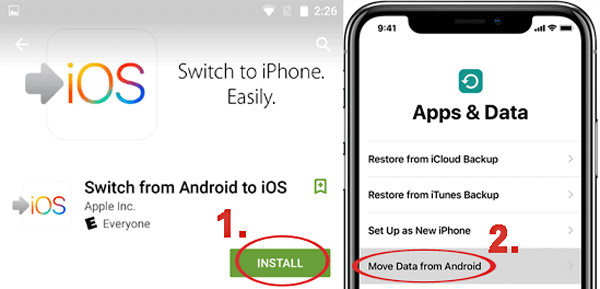
- Download and install the Move to iOS app on your Samsung phone from Google Play Store.
- Turn on your iPhone and follow the setup instructions. When you see the "Transfer Your Apps & Data" screen, select "From Android".
- Open the Move to iOS app on your Samsung phone, tap "Continue", and agree to the terms and conditions.
- A code will appear on your iPhone. Enter this code on your Samsung device to connect both phones.
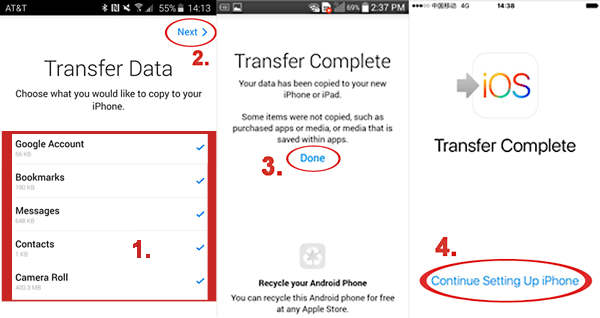
- Select "Messages" from the data transfer list on your Samsung phone, then tap "Continue" to start transferring text messages.
- Wait until the transfer process finishes. After completing the iPhone setup, open the Messages app to check your transferred conversations.
Pros:
- Free and officially provided by Apple.
- Transfers text messages directly from Samsung to iPhone.
- Does not require a computer.
Cons:
- Only works during iPhone setup.
- Requires resetting your iPhone if it has already been set up.
- The transfer process may take a long time if you have a large amount of data.
You Might Also Like:
Method 2: Transfer Messages from Samsung to iPhone with Phone Transfer
If you've been using your Samsung phone for a while and it contains important messages, Method 1 might not be the best choice for you. But don't worry, there's another solution: Phone Transfer!
This tool is designed to help move data between your Samsung phone and iPhone, whether you're switching from Samsung to iPhone or transferring data in the opposite direction. It can scan your text messages, including attachments, and help you transfer important conversations without leaving anything behind.
Key Features of Phone Transfer:
- Transfer text messages from iPhone to Samsung, and vice versa, quickly and easily.
- Besides messages, it can transfer contacts, photos, videos, calendar events, music, and other important files.
- Move messages from Samsung to iPhone without erasing your existing iPhone data.
- Scan your devices and transfers selected data in a short time.
- It works with many Samsung phones and iPhone models, making device switching easier.


Here's how you can transfer text messages from your Samsung phone to your iPhone using Phone Transfer:
Step 1: First, download and install Phone Transfer on your computer. After that, connect both your Samsung phone and iPhone to the computer with USB cables.
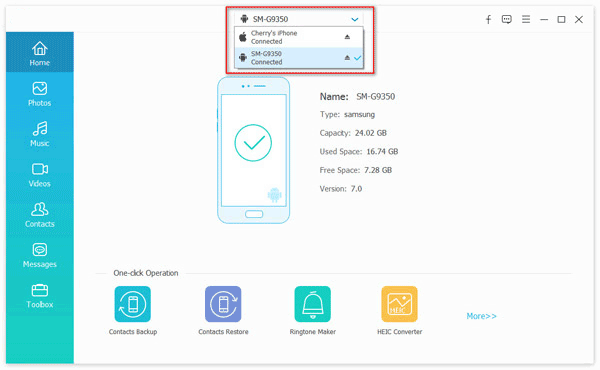
Step 2: Choose your Samsung device as the source phone. The program will display different data categories. Select "Messages" to view the text messages stored on your Samsung phone.
Step 3: Allow the software some time to scan and load your Samsung messages. When the process is complete, select the messages you want to transfer and click "Export to PC." Then, save the exported messages as a CSV file.
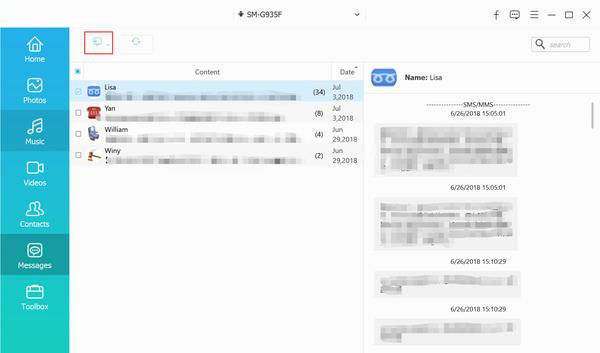
Step 4: Now, switch to your iPhone and set it as the source device. Follow the same steps to export the existing messages from your iPhone and save them as a CSV file.
Step 5: Open both CSV files on your computer after the export process finishes. Copy the messages from the Samsung CSV file and paste them into the iPhone CSV file. Place the Samsung messages directly below the existing iPhone messages and avoid adding extra blank rows.
Step 6: Once the messages from both devices are merged into a single CSV file, you need to import them back to your iPhone. Install iTools on your computer and connect your iPhone.
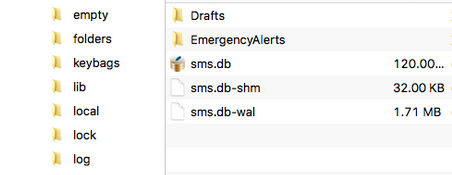
Step 7: After your iPhone is detected, open "Toolbox" and choose "iTunes Backup/Restore." Select your device, go to "Messages" from the left panel, and open the "sms.db" file.
Step 8: Finally, click "Import" and select "Import from CSV." Choose the combined CSV file containing messages from both your Samsung phone and iPhone to finish the transfer process.
Method 3: Transfer Samsung Messages to iPhone from a Backup File
If you have backed up your text messages from your Samsung phone, you can use the backup file to help move your conversations to your iPhone. However, since Samsung and iPhone use different systems, you may need a compatible tool to extract and transfer the messages.
Steps to Transfer Samsung Messages to iPhone from a Backup File:
- Back up the text messages on your Samsung phone using a backup tool or service.
- Save the backup file to your computer or another secure location so it can be accessed later.
- Install a compatible message transfer tool on your computer and connect your iPhone.
- Load the Samsung message backup file into the tool and wait for it to analyze the backup data.
- Select the messages you want to transfer and export them to your iPhone.
- Once the transfer process is finished, open the Messages app on your iPhone to check the transferred conversations.
Pros:
- Allows you to transfer messages even if you no longer use your Samsung phone.
- Keeps a backup of important text messages before moving them.
- Provides an alternative solution when direct transfer methods are unavailable.
Cons:
- Samsung message backups cannot be restored to iPhone directly.
- Requires additional tools to extract and transfer messages.
- The process may be more complicated than direct phone-to-phone transfer.
FAQs about Samsung to iPhone SMS Transfer
Q1. Can Move to iOS transfer messages from Samsung to iPhone?
Yes. Move to iOS can transfer text messages from Samsung to iPhone during the initial iPhone setup process. However, it does not work if your iPhone has already been set up unless you erase the device and start the setup again.
Q2. How can I transfer messages from Samsung to iPhone after setup?
If your iPhone is already in use, you can use a professional phone transfer tool to move messages from Samsung to iPhone without resetting your device. This method can help you keep existing iPhone data while transferring important conversations.
Q3. Can I transfer Samsung messages to iPhone without a computer?
Yes, you can use Move to iOS to transfer messages wirelessly when setting up a new iPhone. However, if your iPhone has already been set up, most reliable transfer methods require a computer and a professional transfer tool.
Q4. Why didn't my messages transfer from Samsung to iPhone?
Messages may fail to transfer due to unstable network connections, insufficient storage, outdated software, or incorrect setup steps. You can try restarting both devices, checking the connection, updating the systems, or using another transfer method.
Q5. Can I restore Samsung message backups directly to an iPhone?
No. Samsung message backups are not directly compatible with iPhone. If you want to move messages from a backup file, you usually need a compatible tool to extract and transfer the message data.
Summary
Transferring text messages from Samsung to iPhone is possible with the right method. Move to iOS is a free option for new iPhone setup, while Phone Transfer is more suitable for users who want to move messages without resetting their device. If you already have a backup file, you can also use compatible tools to extract and transfer your conversations.
Related Articles:
SMS Backup and Restore for iPhone: 3 Best Ways & 7 Programs
15 Ways: Switched from iPhone to Android Not Receiving Texts
