
How to Transfer Data from Pixel to OnePlus? 4 Error-free Ways
TL;DR:
A switch from Pixel to OnePlus makes practical sense given the price difference and the expanding ecosystem, yet the real question remains how to transfer data from Pixel to OnePlus in 4 seamless ways.
- MobiKin Transfer for Mobile gets the job done through a computer with USB cables, copying apps, documents, and media without any size restrictions.
- Unlike other free tools that suffer from wireless dropouts and 5GB limits, this software supplies a stable connection and covers a wider range of data types.
"I'm currently a Pixel user, but I'm extremely frustrated by issues that other Pixel users are having. I really don't have a need to switch to a OnePlus phone." -- from Reddit
OnePlus phones often cost noticeably less than Pixel models, and the growing ecosystem of accessories and linked services adds another layer. This broader environment makes switching feel like a more complete shift rather than just a single phone replacement.
The following guide answers that by showing how to transfer data from Pixel to OnePlus in 4 seamless ways, each with its own balance of speed, cables, and data types.
- Section 1: How to Transfer Data from Pixel to OnePlus in One Tap
- Section 2: How to Transfer Pixel Phone Data to OnePlus via Clone Phone
- Section 3: How to Transfer Files from Pixel to OnePlus via Google Account Backup
- Section 4: How to Switch from Pixel to OnePlus Using Android Switch
- Conclusion - Which Method Is the Best? A Full Comparison
Section 1: How to Transfer Data from Pixel to OnePlus in One Tap
For a full migration, MobiKin Transfer for Mobile (Windows/Mac) provides a distinct path that bypasses typical wireless hurdles. It connects both devices to a computer through USB cables, which maintains a steady data flow without the dropouts seen in WiFi handoffs. This software carries over application files, saved passwords within apps, documents, music collections, and even e-books, facing no artificial ceiling on total gigabytes moved.
MobiKin Transfer for Mobile - Key Features & Benefits
> Seamless transfer: Easily transfer data between Pixel/OnePlus/Android/iOS devices.
> No data loss: Ensures secure and complete data transfer without overwriting or losing existing data.
> Fast transfer speed: Optimized for high-speed performance to minimize transfer time.
> User-friendly interface: Clean, intuitive design suitable for both beginners and advanced users.
> High compatibility: Supports Android devices running Android 6.0 through Android 17, and iOS devices up to iOS 27.
> 100% safe: Reads data from the phone without leaking or damaging it.


Quick Guide:
- Download and install the MobiKin Transfer for Mobile software on your Windows or Mac computer.
- Launch the software on your computer.
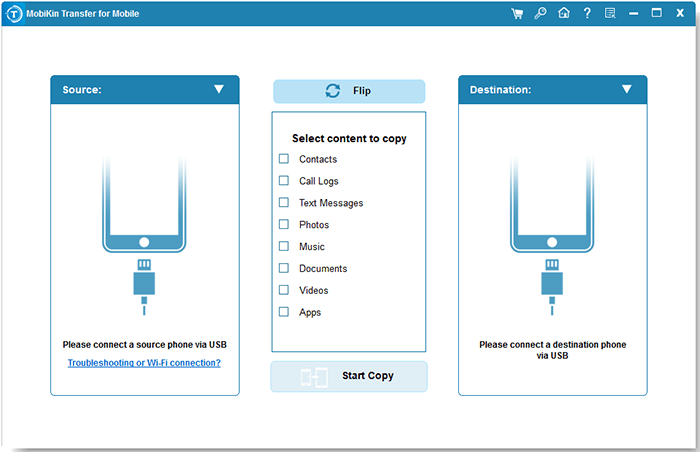
- Connect both phones to your computer using their USB cables.
- Enable USB debugging on both your Pixel and OnePlus if prompted by the software.
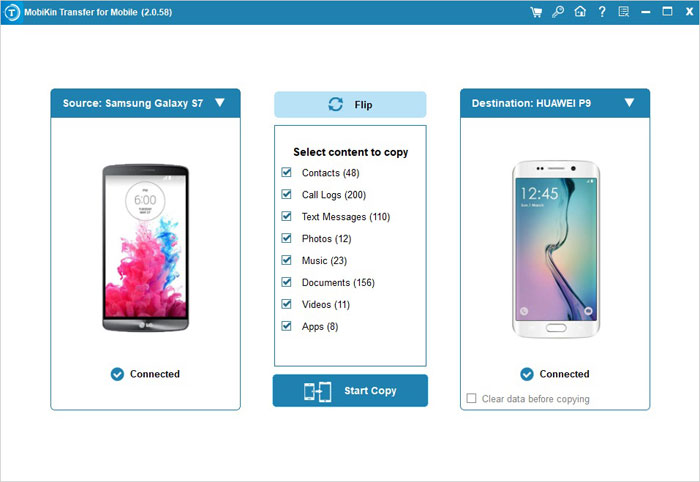
- Wait for the software to detect and recognize both connected devices.
- Select the source device (your Google Pixel) and the target device (your OnePlus) correctly in the software interface.
- Choose the data types you want to transfer - for example, contacts, text messages, call logs, music, photos, videos, apps, and documents.
- Click the "Start Copy" (or similar) button to begin the data transfer process.
- Wait for the transfer to complete. Do not disconnect either phone during this process.
Video Tutorial:
You Might Also Enjoy: Can't find your desired photos from your Pixel phone? Check out the page to learn the 4 simple options.
Section 2: How to Transfer Pixel Phone Data to OnePlus via Clone Phone
OnePlus's own pre-loaded solution, Clone Phone, offers a purely wireless bridge between the Pixel and the new handset. It moves contacts, text threads, call histories, and media items, yet it draws a hard line at 5 gigabytes per session - a limit that fills quickly with modern video clips and high-resolution images.
Numerous accounts point to sudden disconnections or incomplete lists of copied files, turning what should be a quick step into repeated retries.
Quick Guide:
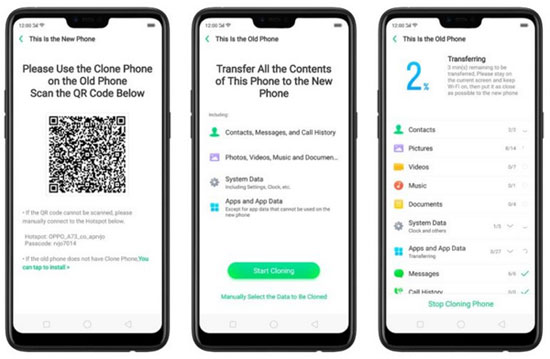
- Open the Clone Phone app on your OnePlus models like 15, Nord CE6, or N6x. (It's usually pre-installed; if not, download it from the Google Play Store.)
- Tap "This is the new device".
- When asked about the old device type, select "Android" (or a similar Android option).
- Your OnePlus will now display a QR code on the screen.
- On your Pixel phone, open the Clone Phone app as well. (If you don't have it, install it from the Play Store.)
- Tap "This is the old device".
- Use your Pixel to scan the QR code shown on the OnePlus screen.
- The two phones will then establish a connection via that QR code.
- After the connection is successful, your Pixel will show a list of data types you can transfer - for example, contacts, SMS, photos, videos, apps, etc.
- Choose what you want to move, then tap "Migrate" or "Start Cloning".
- Wait for the transfer to finish. Do not interrupt the process.
Click to Learn: OnePlus Backup Restore: 4 Tested Ways to Back Up & Restore OnePlus
Section 3: How to Transfer Files from Pixel to OnePlus via Google Account Backup
A cloud-based route, Google Account Backup, requires zero cables and no extra downloads on either phone. Its restore function activates only during the Pixel's first setup wizard; postponing that choice means erasing the OnePlus and starting over to retrieve the backup. Contacts, system preferences, and SMS arrive intact, but locally stored PDFs, downloaded music, and app login credentials never make the journey.
Quick Guide:
- Connect to Wi-Fi. A stable Wi-Fi connection is recommended for uploading large amounts of data.
- Ensure sufficient battery. Keep your phone's charge above 50% to avoid interruption.
- Open Settings on your Pixel.
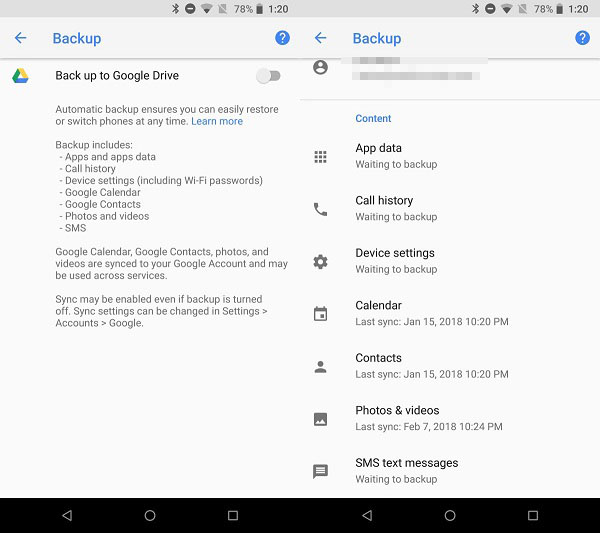
- Navigate to Google > Backup (or System > Backup depending on your Android version).
- Turn on "Back up to Google Drive" if it isn't already enabled.
- Tap "Back up now" to manually start an immediate backup.
- This will back up app data, call history, contacts, device settings, and SMS messages. (* For photos & videos, open Google Photos, tap your profile picture, go to Photos settings > Backup, and make sure backup is turned on. Wait for all media to finish uploading.)
- Turn on your new OnePlus and begin the initial setup.
- Connect to Wi-Fi when prompted.
- Sign in with the same Google Account you used on your Pixel.
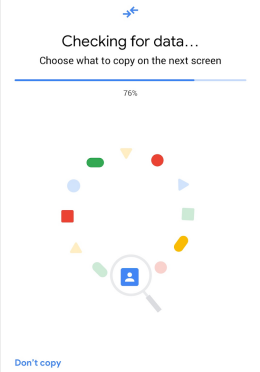
- During the setup, you will be asked if you want to restore data from a backup.
- Select the backup from your Pixel (identified by the device name and date).
- Choose which data to restore - you can select apps, device settings, call history, contacts, and SMS messages.
- Wait for the restore to complete. This may take some time depending on the backup size. (For photos & videos, install Google Photos on your OnePlus and sign in with the same account - your media will sync automatically.)
Section 4: How to Switch from Pixel to OnePlus Using Android Switch
Google's own transfer utility, Android Switch, gives users a pick between a wired USB-C connection and a short-range wireless pairing. It pulls over pictures, recorded clips, text messages, installed applications, and screen layout choices, yet it leaves behind any item saved outside the standard media folders - documents, APK files, or offline maps.
Newer Pixel models include the tool directly inside settings, whereas older units may need a separate download from the store.
Quick Guide:
- Charge both phones and connect them to a stable Wi-Fi network (recommended but not mandatory).
- On your OnePlus (new device), open Settings → Backup or Copy Data → Copy data using Android Switch.
- If you don't see this option, download the Android Switch app from the Google Play Store and open it.
- On your Google Pixel (old device like Pixel 10/9/8/7/6 series), open the Android Switch app.
- If it's not installed, get it from the Play Store, or access it via Settings → Backup or Copy Data → Copy Data → Start.
- On the Pixel, tap "Send data" (or "This is the old device").
- On the OnePlus, a QR code will appear on the screen. Use your Pixel to scan that QR code to establish a wireless connection.
- On the Pixel, choose what to transfer: Express Transfer - moves messages, call logs, apps, and settings that aren't already backed up to your Google Account; Custom Transfer - lets you pick exactly which categories (e.g., only contacts and photos) to move.
- Tap "Start" or "Transfer" to begin the migration.
- Wait for the transfer to finish. You can continue using your OnePlus while data moves in the background.
Conclusion - Which Method Is the Best? A Full Comparison
To help you decide the best transfer tool, here is a side-by-side comparison of all four methods. As you can see, MobiKin Transfer for Mobile offers the most comprehensive data support and a reliable USB connection, making it the top choice for a seamless transfer.
|
Method
|
Best for
|
|
MobiKin Transfer for Mobile |
The most complete, reliable, and flexible solution - ideal if you want to transfer everything (apps, app data, documents, media) without limits or connection issues. |
|
Clone Phone |
A quick, free option for small transfers (under 5GB) if you're willing to risk connection problems. |
|
Android Switch |
A good free option if you prefer a direct phone-to-phone cable transfer and don't need to transfer documents or app data. |
|
Google Account Backup |
A convenient fallback for basic data (contacts, settings, SMS) if you don't have both phones available or prefer a cloud-based approach. |
Related Articles:
OnePlus Screen Mirroring: 4 Easy Ways to Mirror OnePlus to PC/TV
Fix OnePlus Phone Not Connecting to PC/Computer in 11 Ways
How to Transfer WhatsApp from iPhone to Pixel? 3 Options & 7 FAQs
How to Transfer Files from PC to Pixel Phone in 4 Tested Methods
