
How to Transfer Call Logs from iPhone to Huawei: 4 Easy Methods
TL;DR:
When switching from iPhone to Huawei, transferring call history can be challenging, but several practical methods can help.
- Transfer via Huawei Phone Clone for direct device migration.
- Use Android Backup & Restore tools to sync call logs.
- Restore data through Google account backup.
- Request call history from your mobile carrier for full records.
When switching from iPhone to Huawei, many users quickly realize that transferring call history is not as simple as moving photos or contacts. Because iOS and Android systems store call logs differently, direct transfer is usually not supported. Fortunately, there are still several practical solutions available, including Huawei Phone Clone, Android backup and restore tools, Google account syncing through Google, and even mobile carrier support. This guide will walk you through four effective methods to help you keep your call records when changing devices to Huawei.
Method 1: Transfer iPhone Call Logs to Huawei Using Huawei Phone Clone
Huawei Phone Clone is Huawei's official data migration app designed to help users move data from an old phone to a new Huawei device. It supports transferring various types of data, including contacts, messages, photos, videos, calendars, and, on some compatible devices and software versions, call logs. If you're switching from an iPhone to a Huawei phone, this is the easiest method to try first because it doesn't require a computer or cables.
Steps to transfer iPhone call logs to Huawei using Huawei Phone Clone:
- Install Huawei Phone Clone on both your iPhone and Huawei phone if it isn't already pre-installed.
- Open the app on your Huawei phone and select "This is the new device".
- On your iPhone, open Phone Clone and choose "This is the old device".
- Scan the QR code displayed on the Huawei phone with your iPhone to establish a connection.
- Once connected, select the data you want to transfer. If "Call Logs" is available, make sure it is checked along with any other data you want to migrate.
- Tap "Transfer" and keep both devices close together until the process is complete.
- After the transfer finishes, open the Phone app on your Huawei device to check whether your call history has been successfully imported.
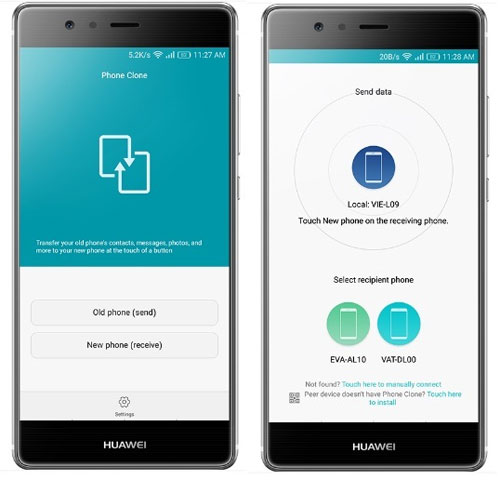
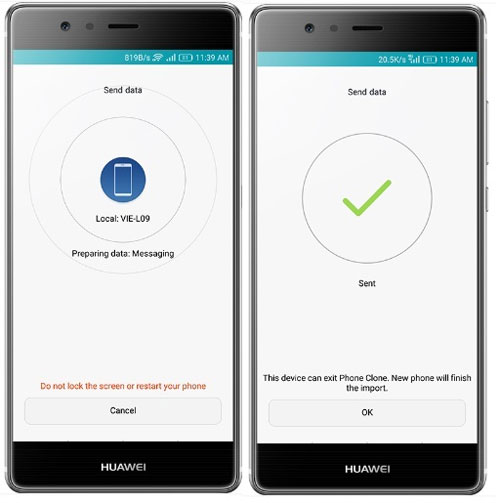
Note: Whether call logs can be transferred depends on the iPhone's iOS version, the Huawei device model, and the version of Phone Clone. If the Call Logs option doesn't appear or no call history is transferred, you'll need to try another method. (Huawei Phone Clone Not Working?)
Method 2: Transfer Call Logs from iPhone to Huawei with Android Backup & Restore
If Huawei Phone Clone doesn't transfer your call history, Android Backup & Restore offers another reliable way to transfer iPhone call logs to your Huawei phone. By restoring an iCloud or iTunes backup directly to your Huawei device, you can migrate call logs along with other important data without manually copying files. The software also lets you preview your backup before restoring, so you can transfer only the data you need.
Key features of Android Backup & Restore:
- Transfer iPhone call logs to Huawei by restoring iCloud or iTunes backups directly to your Huawei device.
- Back up Huawei and other Android devices selectively.
- Restore backups to any Android phone or iPhone.
- Support multiple data types, including call history, contacts, messages, calendars, photos, videos, music, apps, app data, and more.
- Preview and select specific files before restoring.
- Supports overall iPhone and Huawei phone series, including the latest iPhone 17 and Huawei Mate 80/P80, etc.
- Protect your personal data with a secure offline transfer process.


Steps to transfer iPhone call logs to Huawei via Android Backup & Restore:
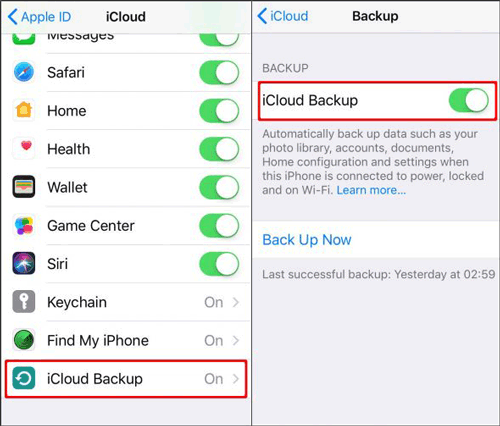
Step 1. Back up your iPhone to iCloud
Connect your iPhone to a stable Wi-Fi network. Go to "Settings" > [Your Name] > "iCloud" > "iCloud Backup", enable "iCloud Backup", and tap "Back Up Now".
Step 2. Launch Android Backup & Restore and connect your Huawei phone
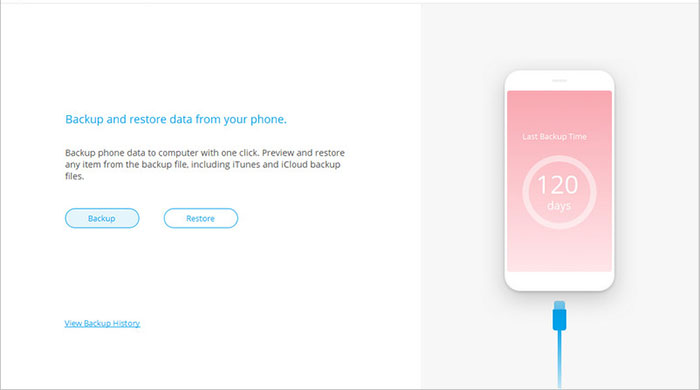
Install and open Android Backup & Restore on your computer. Choose "Phone Backup", connect your Huawei phone via USB, wait until it is recognized, and then click "Restore".
Step 3. Choose "Restore from iCloud Backup"
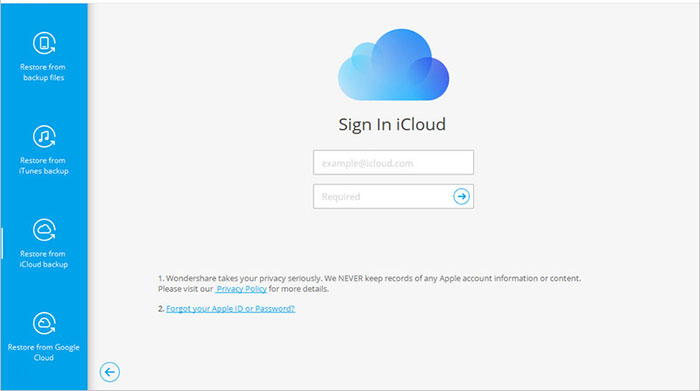
Select Restore from iCloud Backup from the left panel, then sign in with your Apple ID and password.
Step 4. Complete two-factor authentication
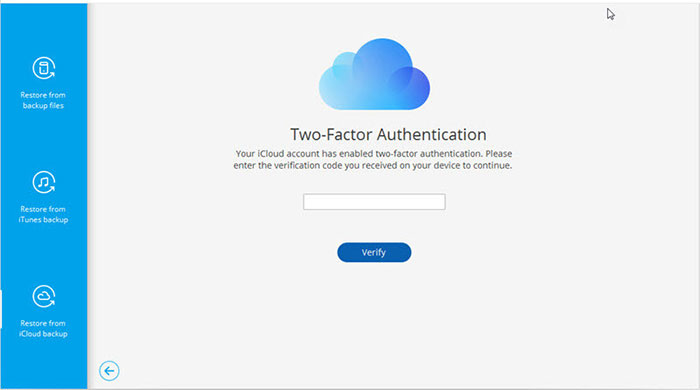
If two-factor authentication is enabled for your Apple ID, enter the verification code sent to your trusted device to continue.
Step 5. Download the iCloud backup
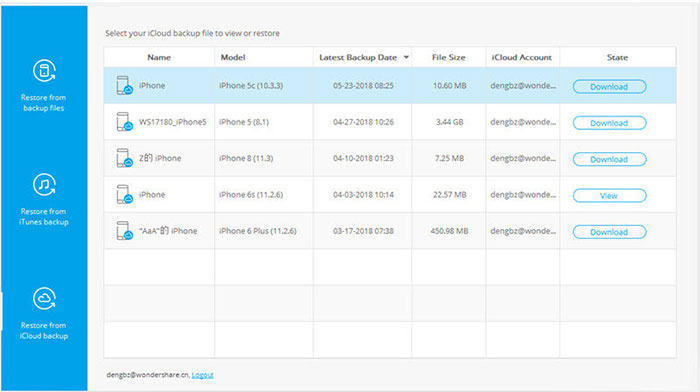
The program will display all available iCloud backups. Select the backup containing your call history and click "Download".
Step 6. Transfer iPhone call logs to your Huawei phone
After the backup is downloaded, preview the available data. Select "Call Logs" (and any other files you want to restore), then click "Restore to Device" to transfer them to your Huawei phone.
Extended Reading:
Method 3: Transfer Call History from iPhone to Huawei via Google Backup
Although iPhone call records are not fully included in Google backups, you can still try syncing available data through a Google account and restore it on your Huawei device, which may help recover part of the information during migration.
Steps to restore call history from a Google Backup:
- Install Google Drive or related Google apps on your iPhone, then sign in with your Google account.
- Go to iPhone settings and turn on sync options (such as contacts and app-related data) under your Google account to ensure data is backed up where possible.
- During the initial setup of your Huawei device, log in using the same Google account used on your iPhone.
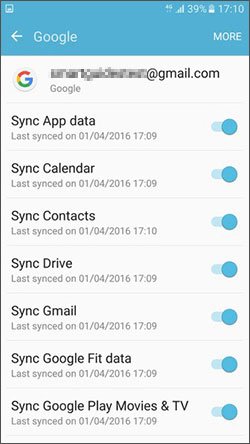
- Go to "Settings" > "Accounts" > "Google" and enable sync for available data types.
- Open the Phone app and review whether any call-related records have been restored.
Method 4: Transfer iPhone Call History to Huawei via Your Mobile Carrier
Many mobile carriers keep records of your incoming, outgoing, and missed calls for billing or account management purposes. If you only need to access or preserve your iPhone call history, you can download your call records from your carrier and save them on your Huawei phone. While this method cannot import call logs into the Huawei Phone app, it provides an easy way to keep a copy of your call history.
Steps to get your iPhone call history from your mobile carrier:
- Visit your mobile carrier's official website or open its mobile app.
- Sign in to your account using your registered phone number or account credentials.
- Navigate to the "Call History", "Usage", or "Billing" section, depending on your carrier's interface.
- Select the date range for the call records you want to view or download.
- Download the call history if your carrier provides an export option, typically in "PDF" or "CSV" format.
- Transfer the downloaded file to your Huawei phone using a USB cable, email, or cloud storage service.
- Open the file on your Huawei device with a compatible document viewer to access your call history whenever needed.
The Bottom Line
Transferring call history from iPhone to Huawei can feel complicated, but it becomes manageable when you choose the right approach. Whether you use Huawei Phone Clone, Android Backup and Restore, Google account sync, or help from your mobile carrier, each method offers a possible way to preserve important call records. Since results may vary depending on system limitations, it’s best to try the method that fits your situation and ensure a smoother transition when moving to a new device.
Related Articles:
[Fixed] How to Transfer Photos from iPhone to Huawei
How to Transfer Contacts from iPhone to Huawei in 2026
