
4 Easy Options: How to Screen Mirror realme to PC [Latest]
Wonder how to screen mirror realme to a PC, but the smaller mobile screen limits productivity or viewing comfort? Need to share screens, presentations, tutorials, or app demonstrations in real time for school, work, or online meetings? Since realme phones run on Android with built-in casting features, you might naturally look for reliable ways to project your phone screen without complicated setups or extra devices.
Here in this article, we dwell on how to smooth the phone screen mirroring with 4 dependable options.
- Option 1: Screen Mirror realme to PC via Screen Mirror [Stable]
- Option 2: Connect realme to PC for Screen Mirroring via Projecting to this PC
- Option 3: Screen Mirror from realme to PC Using LetsView
- Option 4: Screen Mirror realme Phone to PC via Miracast - Wifi Display
- Q&A about Screen Mirroring realme to PC
Option 1: Screen Mirror realme to PC via Screen Mirror [Stable]
Bringing your realme screen onto a PC has never been smoother with Screen Mirror. It allows seamless interaction with your phone using a keyboard and mouse, making tasks like gaming or messaging much easier. The connection is stable and clear, even for extended sessions, ensuring no frustrating lag. Users also enjoy additional features like screen recording and keyboard mapping for enhanced control.
|
Screen Mirror - Salient Features
|
Brief Description
|
|
Screen Mirroring |
Easily share iOS or realme/Android device screens to a computer for viewing in real time. (realme phone doesn't connect to PC?) |
|
Device Control |
Control your realme GT, GT Neo, Number, C, Neo, and Narzo series directly from the PC using a keyboard and mouse. |
|
Multiple Connection Methods |
Supports QR code, USB cable, Wi-Fi, and other connection options for flexible mirroring. |
|
Audio & Video Sync |
Achieves instant sound synchronization while projecting images or videos onto the computer. |
|
Gaming & App Support |
Play mobile games and use social apps on the PC with full screen projection and no delay. |
|
Keyboard Mapping |
Free switching of appearance skins for a more comfortable user experience. |
|
Whiteboard Function (New) |
Supports whiteboard features to enhance teaching, presentations, and collaborative work. |
How-to Guide:
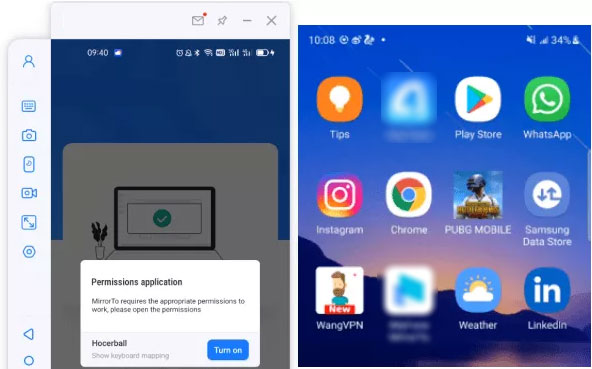
- Download and launch the program on your computer, then connect your realme phone using a USB cable.
- When prompted, select "Transfer files" so the program can detect your device.
- Enable USB debugging on your phone. Go to Settings > About phone > Software information, tap Build number seven times until you see the developer mode message, then return to Settings and turn on USB debugging.
- Allow the program to display its interface on your PC, then click "Turn on" to install the Screen Mirror .apk on your phone.
- Once installed, you can start mirroring your realme screen to your PC.


Note: Do my realme phone and PC need to be on the same Wi-Fi network when using this software wirelessly? Yes. Both devices should be connected to the same Wi-Fi network to ensure smooth, lag-free mirroring and proper device detection, especially for wireless Miracast connections.
Option 2: Connect realme to PC for Screen Mirroring via Projecting to this PC
With Projecting to this PC, you can turn a Windows machine into a wireless display for your realme device. The setup is built into the system, allowing direct screen mirroring without extra software. Permissions and settings can be adjusted for privacy or convenience, letting you manage who can project. Once connected, your phone's apps, videos, and images appear instantly on the PC screen.
How-to Guide:
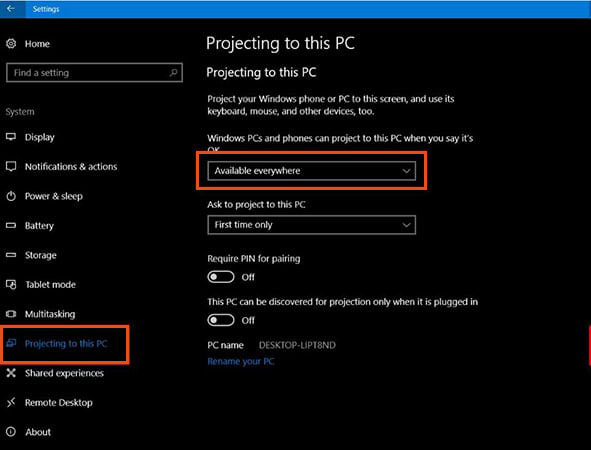
- On your PC, go to Settings > System > Projecting to this PC. Click Optional features.
- Select Launch the Connect app to project to this PC > Add a feature, then search for Wireless Display and install it.
- In the Projecting to this PC settings, configure your preferences (e.g., "Available everywhere" and permissions).
- On your realme phone, swipe down from the status bar, enable Wi-Fi, and tap Screencast.
- Select your PC from the list of available devices. Once connected, your realme screen will appear in the Connect app window on your PC.
Option 3: Screen Mirror from realme to PC Using LetsView
Using LetsView provides a flexible approach to mirror realme phones to computers via Wi-Fi. A connection code or QR scan ensures that only the intended devices are paired, adding a layer of security. The screen is projected in real time, and audio is synchronized for a complete experience. This method works well for gaming, tutorials, or sharing media without delays.
How-to Guide:
- Download and install LetsView on both your realme phone and PC.
- Connect both devices to the same Wi-Fi network for a stable connection.
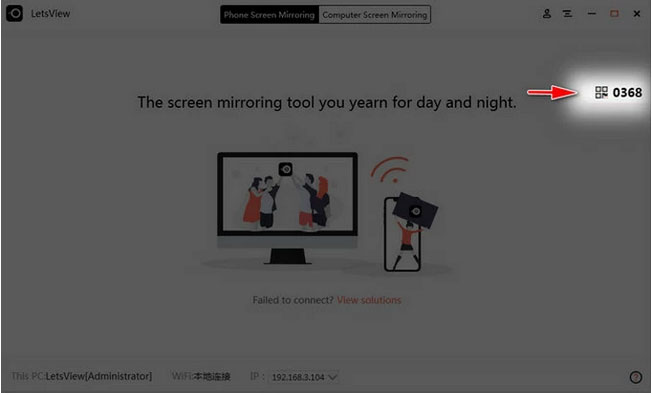
- Open LetsView on your PC and note the connection code displayed on the screen.
- On your realme phone, open LetsView, tap "Enter PIN" or "Connect via code", and input the connection code shown on your PC.
- Select Phone Screen Mirroring and tap Start Now to begin mirroring your realme screen on the PC.
You Might Also Need: LetsView Review 2026: Is It Worth Trusting? [SOLVED]
Option 4: Screen Mirror realme Phone to PC via Miracast - Wifi Display
For devices supporting Miracast - Wi-Fi Display, wireless projection becomes a straightforward process. Your realme phone detects nearby compatible PCs, enabling fast pairing and screen casting. Audio and video are transmitted together, offering smooth playback for movies or presentations. It's a convenient solution for those who want a quick, cable-free connection to a computer.
How-to Guide:
- Check if your PC supports Miracast by pressing Win + P and looking for "Connect to a wireless display".
- On your PC, go to Settings > System > Projecting to this PC and set it to Available everywhere, adjusting permissions as needed.
- On your realme phone, swipe down from the status bar and tap Screencast (or go to Settings > Connected devices > Cast) and enable Wi-Fi.
- Select your PC from the list of available devices and accept the connection request on your PC if prompted.
- Once connected, your realme screen will appear on your PC for real-time mirroring.

How do I check if my PC supports Miracast? Press Win + P and see if the option Connect to a wireless display appears. If it's listed, your PC supports Miracast; otherwise, you will need a third-party app or a Miracast adapter.
Q&A about Screen Mirroring realme to PC
Q1. Can I mirror audio along with video?
Yes. Miracast supports both video and audio streaming, so sounds from your phone, such as music, notifications, or videos, will also play on your PC while mirroring.
Q2. Is screen mirroring laggy?
Wireless mirroring may have slight lag or delays, especially for high-frame-rate videos or games. Using a strong Wi-Fi connection or a direct USB connection can improve performance and reduce lag.
Q3. How do I stop mirroring from my realme phone?
To stop mirroring, open Cast settings on your phone and select Disconnect, or simply close the mirroring app on your PC. This will immediately end the connection and stop screen sharing.
Q4. Can I control my realme phone from PC?
Yes. Certain apps like Vysor allow full remote control, letting you interact with your phone directly from the PC, including opening apps, typing messages, or navigating the interface.
Q5. Does screen mirroring affect phone performance?
Slightly. Screen mirroring consumes battery and processing power, so performance may be affected if you run heavy apps or games while mirroring. It's recommended to keep your phone charged during extended sessions.
Q6. What is the most reliable way to mirror realme to PC?
The most reliable way to mirror a realme phone to a PC is by using Screen Mirror, which provides a stable and high-quality connection with minimal lag. Unlike standard Miracast or other third-party apps, it supports both screen sharing and full control of your phone from the PC.
This product also allows smooth streaming for videos, games, and apps, making it ideal for work or entertainment. For these reasons, it's widely considered the most dependable and recommended solution for realme screen mirroring.
Related Articles:
How to Hard/Factory Reset realme 15/14/13/12/11/10/9/8/C21 Quickly
4 Handy Ways to Transfer Data/Files from realme to realme [Latest]
5 Verified Ways for realme File Transfers [Easy & Secure]
4 Safe Ways to Recover Deleted Photos from Private Safe in realme
