
How to Transfer Files from Android to Samsung Galaxy? 4 Smart Ways
TL;DR:
This guide covers several practical ways to transfer files from Android to Samsung, including USB cable transfer, MobiKin Transfer for Mobile, Smart Switch, and Quick Share. Among these options, users can select the method that best fits their needs, whether they want to move only media files or complete a wider range of personal data.
When switching to a new Samsung Galaxy S26/S25/S24/S23/S22, many users need to move photos, videos, contacts, and other important files from an old Android device to keep their personal data available. This article will introduce 4 smart ways on how to transfer files from Android to Samsung, including wired and wireless methods, to help users choose a suitable solution based on their scenarios.
- Section 1: Transfer Files from Android to Galaxy via USB Cable Only [Media]
- Section 2: Transfer Files from Android to Samsung via MobiKin Software [Quick]
- Section 3: Transfer Files from Android to Samsung Galaxy via Smart Switch
- Section 4: Transfer Data from Android to Samsung with Quick Share
- FAQs for Transferring Files from Android to Samsung
Section 1: Transfer Files from Android to Galaxy via USB Cable Only [Media]
A USB cable offers a direct way to copy media files from an Android phone to a Samsung device without relying on a wireless connection. It is suitable for transferring photos, videos, music, and documents, but it does not migrate contacts, messages, apps, or other personal data. Since the transfer is performed through a physical connection, it is generally stable and works well for large media collections.
How to Transfer?
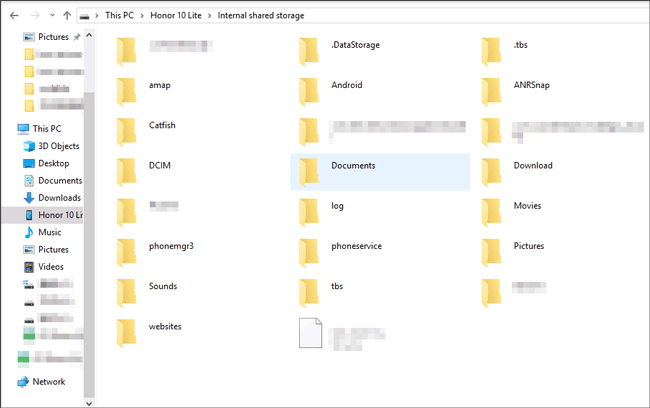
- Connect both phones - Use compatible USB cables to connect your old Android phone and the Samsung Galaxy device to the same computer.
- Allow file transfer - Unlock the old phone and select File Transfer (MTP) or Transferring media files if prompted.
- Choose USB transfer - On the Samsung phone, tap the My Files app and follow the on-screen instructions.
- Select media - Choose the media categories you want to copy, such as Photos, Videos, Music, and Documents.
- Start the transfer - Tap Copy or Move and wait for the process to finish.
- Check your files - Open Gallery, My Files, or Music on the Samsung phone to verify the transferred media.
My Personal Take:
- I find a USB cable a simple way to transfer photos, videos, and music from Android to Samsung without extra apps. However, it only supports media files and requires manual copying.
You May Need: Want to erase your old Android phone before selling it? Here are the smart strategies.
Section 2: Transfer Files from Android to Samsung via MobiKin Software [Quick]
When the goal is to move nearly everything between two phones, MobiKin Transfer for Mobile (Win and Mac) provides a straightforward solution. It supports contacts, text messages, photos, videos, music, call logs, and other commonly used data types in one transfer. The program works with many Android brands, including Samsung, and copies data without overwriting existing files by default. A computer is required to complete the process.
Brief Overview of MobiKin Transfer for Mobile:
|
Characteristics
|
Key Details
|
|
Android to Samsung Transfer |
Move contacts, SMS, call logs, photos, videos, music, apps, and documents directly from Android to Samsung devices. |
|
Cross-Platform Support |
Works across Android to/from iOS, Android to/from Android, iOS to/from iOS, and iOS to/from Android. |
|
Selective Transfer |
Choose specific data types (contacts, photos, apps, etc.) instead of transferring everything. |
|
Fast & Secure |
Provides 20–30% faster transfer speeds compared to competitors, with zero data loss. |
|
Wide Compatibility |
Supports 8,000+ Android (Android 17 included) devices (Samsung, Xiaomi, Huawei, OnePlus, etc.) and all major iOS versions up to iOS 27. |
|
Simple 3-Step Process |
1. Install software → 2. Connect devices → 3. Start transfer. No technical skills required. |
|
Clean & Safe Software |
100% free of spyware, malware, or ads; ensures privacy protection during transfers. |
|
Multi-Network Support |
Works with devices on different carriers (AT&T, Verizon, T-Mobile, Sprint, etc.). |
Free Download


How to Transfer?
- Download & install MobiKin Transfer for Mobile on your computer. (Is there a crack version of this tool?)
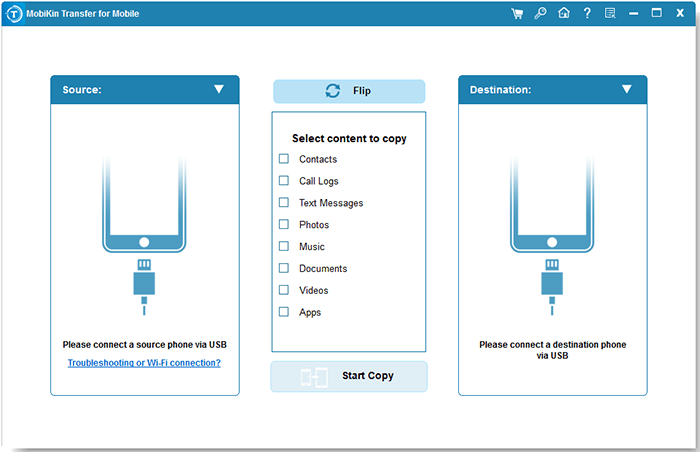
- Connect both Samsung/Android phones via USB cables.
- Enable USB debugging on both devices so the program can detect them.
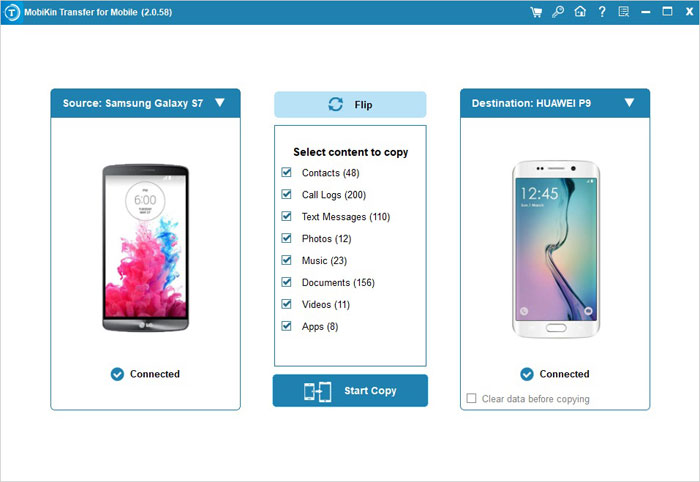
- Make sure your old Android phone is set as "Source" and Samsung as "Destination."
- Select the data types you want to move (contacts, SMS, photos, videos, apps, etc.).
- Click Start Copy to begin the migration.
- Once done, your Samsung will have the selected files.
Video Directions:
My Personal Take:
- I think MobiKin Transfer for Mobile is a convenient choice for moving different data types between Android and Samsung. Although it needs a computer, it saves time when transferring large amounts of data.
Further Reading: How to Transfer WhatsApp from Xiaomi to Samsung? 3 Error-free Methods
Section 3: Transfer Files from Android to Samsung Galaxy via Smart Switch
For users changing to a Samsung phone, Smart Switch makes it easy to transfer data from another Android device. It can copy files and selected settings using either a USB cable or a wireless connection. The app comes pre-installed on most Samsung Galaxy phones, reducing the need for additional setup. It is a practical choice for moving most of your data during device migration.
How to Transfer?
- Install Smart Switch - Open Smart Switch on your Samsung phone. Install it from the Play Store on your old Android phone if needed.
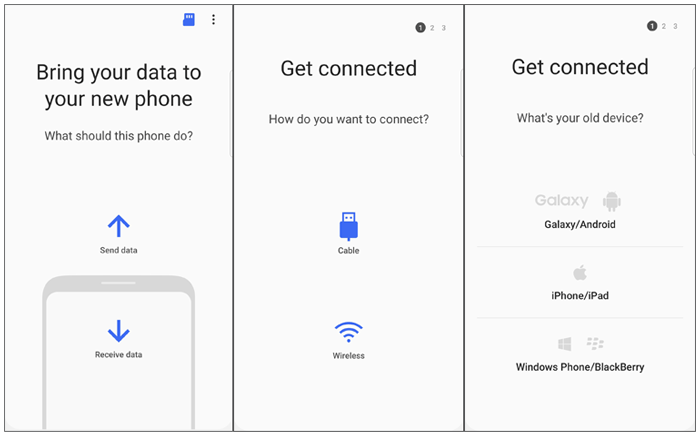
- Connect the phones - Choose Receive data on the Samsung phone and Send data on the old Android phone, then connect them with a USB cable or wirelessly.
- Select your old device - On the Samsung phone, choose Galaxy/Android as the source device.
- Choose all data - Select Everything or mark all available categories, including contacts, messages, photos, videos, music, documents, apps, and settings.
- Start the transfer - Tap Transfer and keep both phones connected until the process is complete.
- Finish setup - Tap Done on both devices and verify that your files have been copied to the Samsung phone. (Can I transfer all files from Android to Samsung via Smart Switch?)
My Personal Take:
- I consider Smart Switch an easy tool for moving data to a Samsung phone, especially Galaxy devices. However, some data may not transfer fully, and large transfers can take time.
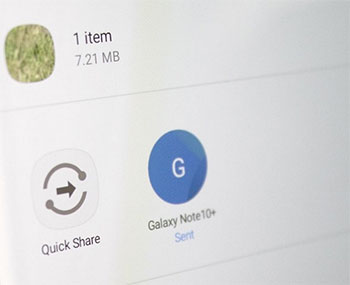
Section 4: Transfer Data from Android to Samsung with Quick Share
If both phones support nearby sharing, Quick Share allows files to be sent without using cables. It is commonly used for photos, videos, documents, and other individual files, making it convenient for everyday transfers. The transfer speed is usually faster than Bluetooth when the devices are close together. However, it is intended for file sharing rather than transferring all phone data at once.
How to Transfer?
- Enable Quick Share - Turn on Bluetooth, Wi-Fi, and Quick Share on both phones, and make sure the Samsung phone is in Receive mode.
- Select the files - On the Android phone, open the photos, videos, documents, or other files you want to transfer and tap Share > Quick Share.
- Choose the Samsung phone - Tap the nearby Samsung device from the list of available devices.
- Accept the transfer - On the Samsung phone, tap Accept when prompted to start receiving the files.
- Wait for completion - Keep both phones nearby until the transfer finishes. The received files will appear in the appropriate app, such as Gallery or Downloads.
My Personal Take:
- I use Quick Share for quickly sending individual files between nearby Android devices. It is not suitable for full phone transfers because it does not move apps, settings, or all personal data.
FAQs for Transferring Files from Android to Samsung
Q1: Does Smart Switch transfer apps?
Yes. It can transfer supported apps along with app data for compatible devices, though some apps may require you to sign in again.
Q2: Will transferring files erase data on my old Android phone?
No. The transfer copies your data to the Samsung phone without deleting the original files.
Q3: Why isn't my Samsung phone detecting the Android device?
Check the USB cable, enable Bluetooth and Wi-Fi (for wireless methods), and ensure both devices are unlocked and compatible.
Q4: How long does the transfer take?
It depends on the amount of data, the transfer method, and the connection speed. Large transfers may take several minutes or longer.
Q5: What file types can I transfer?
You can transfer photos, videos, music, documents, contacts, messages, calendars, and other supported files, depending on the method used.
Q6: Can I transfer files to a Samsung phone that has already been set up?
Yes. You can use Smart Switch, Quick Share, or other transfer methods even after completing the initial setup.
Q7: Why did some files fail to transfer?
The transfer may fail due to an unstable connection, insufficient storage, unsupported file types, or software compatibility issues.
Q8: What should I do if the transfer is interrupted?
Reconnect the devices, ensure both phones remain unlocked, and restart the transfer. If the issue persists, try a different USB cable or transfer method.
Q9: Will my file quality be reduced during the transfer?
No. Methods like MobiKin Transfer for Mobile, Smart Switch, Quick Share, and USB transfer preserve the original file quality.
Related Articles:
10 Solutions to Fix Process System Isn't Responding on Android
How to Boot into Samsung Download Mode? 4 Well-tested Strategies
Top 7 Samsung Device Managers You Wish You Knew Sooner [Updated]
