
10 Solutions to Fix Process System Isn't Responding on Android
Are you experiencing the "Process System Isn't Responding" error on your phone, as this error can suddenly disrupt your phone usage, causing the device to freeze repeatedly? Many users search for practical solutions to restore normal device functionality quickly without losing important data, but pinpointing the underlying cause is not always easy.
This article will talk about the common reasons behind this error and provide 9 quick solutions to help you fix process system isn't responding on Android efficiently.
- Part 1: Why Is the Process System Not Responding on Android
- Part 2: How to Fix Process System Not Responding on Android [9 Solutions]
> Way 1: Restart your device
> Way 2: Free up storage
> Way 3: Reset app preferences
> Way 4: Update the app
> Way 5: Enter the safe mode
> Way 6: Wipe cache partition
> Way 7: Update Android
> Way 8: Verify your SD card
> Way 9: Hard reset your phone - Part 3: Fix Process System Isn't Responding on Android in an Ultimate Way
Part 1: Why Is the Process System Not Responding on Android
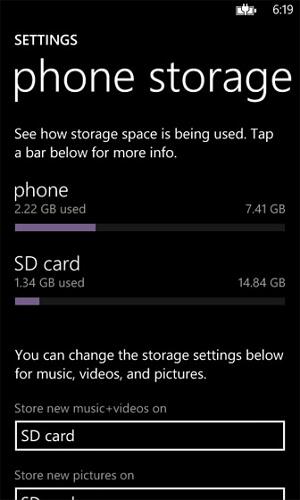
The "Process System Not Responding" error on Android can occur due to a variety of reasons, ranging from insufficient RAM and storage to corrupted system files or outdated software. Other common causes include faulty apps, cache issues, SD card problems, malware, or even underlying hardware malfunctions. Here are the details:
- Insufficient RAM or Storage - Low memory or full storage can cause system processes to freeze.
- Corrupted System Files - Damaged or missing system files can lead to process failures.
- Outdated Software - Using an outdated Android version or firmware may trigger errors.
- Faulty Apps - Third-party apps or updates that conflict with the system can cause crashes.
- Cache Issues - Corrupted system or app cache may lead to the "not responding" error.
- SD Card Problems - A corrupted or incompatible SD card can interfere with system processes.
- Malware or Viruses - Malicious apps or files can disrupt Android system operations.
- Hardware Issues - Problems with internal storage or RAM may trigger repeated system errors.
Part 2: How to Fix Process System Not Responding on Android [9 Solutions]
> Way 1: Restart your device
- Press and hold the Power Button on your Android device.
- Select "Restart" from the menu that appears.
- If "Restart" isn't available, choose "Power off" and then turn the device back on after a few seconds.
- Wait for the device to reboot completely; this clears temporary system glitches and frees up RAM.
- Check if the error persists; often, a simple restart resolves temporary system process issues.
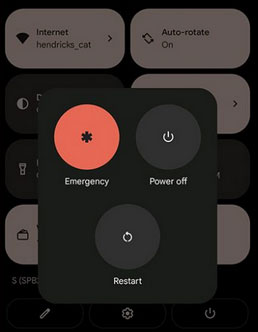
If a simple restart doesn't fix the "Process System Not Responding" error, you can force restart your Android phone by pressing and holding the Power button and Volume Down button simultaneously for about 10-15 seconds. This forces the device to shut down and reboot, clearing temporary system glitches that may be causing the error. After the phone restarts, check if the system is functioning normally.
> Way 2: Free up storage
- Check Storage Usage: Go to Settings > Storage to see which files or apps are taking up the most space.
- Delete Unnecessary Files: Remove old photos, videos, downloads, or documents you no longer need.
- Uninstall Unused Apps: Remove apps that you rarely use to free up system resources.
- Clear App Cache: Go to Settings > Apps > [App Name] > Storage > Clear Cache to free temporary data.
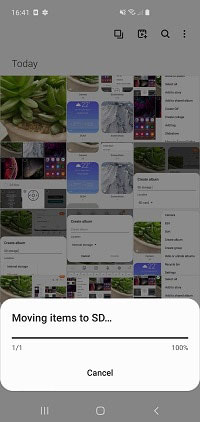
- Move Files to SD Card or Cloud: Transfer large files to an SD card or cloud storage to reduce internal storage load.
> Way 3: Reset app preferences
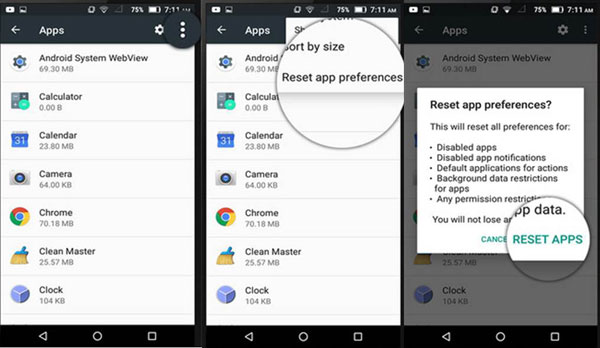
- Open Settings on your Android phone.
- Go to Apps & Notifications (or simply Apps, depending on your device).
- Tap the three-dot menu (usually at the top-right corner) and select Reset App Preferences.
- Confirm the action when prompted. This will reset disabled apps, default apps, background restrictions, and permissions without deleting your app data.
- Restart your phone and check if the error is resolved.
> Way 4: Update the app
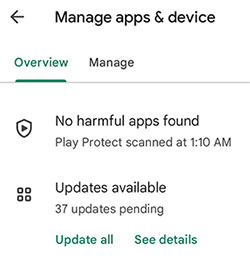
Sometimes, background apps that stop working properly can trigger the "Process system isn't responding" error. Updating all your apps to the latest versions can fix bugs causing this issue. To do this, open the Google Play Store, go to Profile > Manage apps & device > Updates Available, and tap Update (or Update all) for the apps that need it.
> Way 5: Enter the safe mode
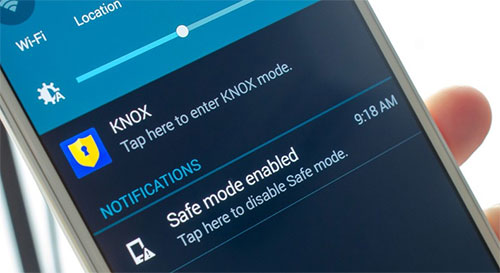
- Press and hold the Power Button until the power menu appears.
- Tap and hold "Power Off" until a prompt appears asking if you want to Reboot to Safe Mode.
- Confirm by tapping OK; your phone will restart in Safe Mode, disabling all third-party apps temporarily.
- Check if the error persists; if it doesn't, the problem is likely caused by a third-party app.
- Uninstall recently installed or problematic apps and then restart normally to exit Safe Mode.
> Way 6: Wipe cache partition
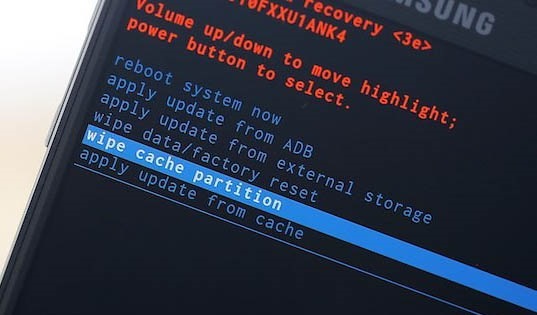
To fix the "Process system isn't responding" error, you can wipe the cache partition on your Android device. Turn off your phone, then press and hold Power + Volume Up (or Down, depending on the device) to enter Recovery Mode, navigate to Wipe Cache Partition, and confirm. Once the cache is cleared, restart your phone, which can resolve system glitches without deleting personal data.
> Way 7: Update Android
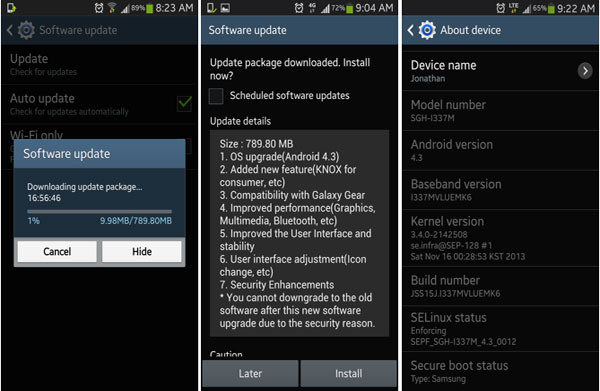
Updating Android can fix system bugs and improve stability, which often resolves the "Process system isn't responding" error:
- Open Settings on your Android phone.
- Scroll down and tap "System" (or About Phone on some devices).
- Select "Software Update" or System Update.
- Check for Updates to see if a new Android version is available.
- Download and install the update if one is available.
- Restart your phone after the update completes to apply changes.
> Way 8: Verify your SD card
If the error persists, your SD card might be corrupted or low on free space, so consider replacing it with a healthy card. Also, move apps from the SD card to internal storage via Settings > Application Manager > [App] > Move to device storage to resolve the issue.
If checking or replacing the SD card doesn't fix the challenge, you can try removing the SD card entirely. Power off your Android phone, carefully eject the SD card, and then turn the phone back on. Running your phone without the SD card can help determine if the card is causing the system error and prevent further crashes.
> Way 9: Hard reset your phone
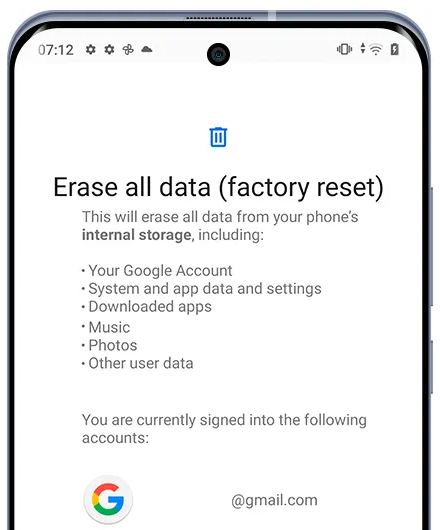
To tackle the problem, you can factory reset your Android phone as a last resort. Go to Settings > System > Reset options > Erase all data (factory reset) and confirm the action. This will erase all data and restore your phone to its original settings, often resolving persistent system errors.
Part 3: Fix Process System Isn't Responding on Android in an Ultimate Way
Android Repair is the ultimate solution to fix the dreaded "Process System Isn't Responding" error on Android devices. This product efficiently restores your phone's system without causing data loss, resolving crashes, freezes, and other software glitches. With its user-friendly interface, even beginners can repair their Android devices quickly and safely, making it the go-to tool for system issues.
Why Pick Android Repair?
- Fix Various Android System Issues: Resolves problems like black screen of death, boot loops, and other system errors
- Quick Access to Download Mode (Odin) on Samsung Devices: Allows fast entry to Download Mode for Samsung phones and tablets.
- Wide Device Support: Repairs Samsung, Xiaomi, Redmi, and POCO phones and tablets, restoring them to normal.
- No Skills or Root Required: User-friendly interface makes it accessible for anyone without technical knowledge.
- 100% No Data Loss Guarantee: Ensures Android devices retain all data during the repair process.
- Fast and Efficient Repair Process: Quickly diagnoses and fixes system issues without lengthy waiting times.
- Safe and Reliable: Protects your device from further damage while repairing critical Android system errors.

How to fix process system isn't responding on Android phones with Android Repair?
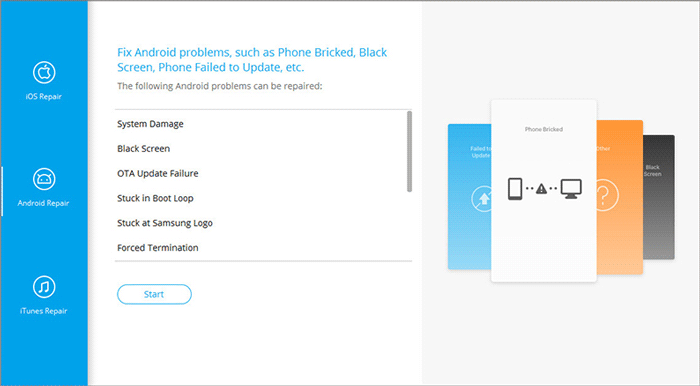
- Open the software that has been installed on your computer and navigate to the "System Repair" section found on the main interface.
- Connect your Android device to the computer using a USB cable and choose the "Android Repair" option.
- Review the information displayed and click "Start."
- Provide the details of your device and click "Next." After that, enter "000000" and select "Confirm."
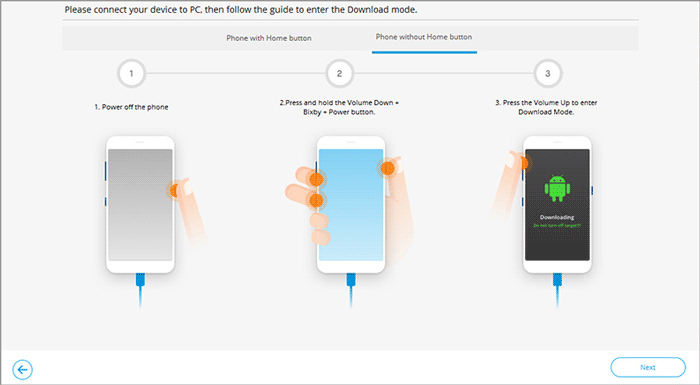
- (Optional) For devices equipped with a "Home" button: power off your phone, then simultaneously press the "Home," "Power," and "Volume Down" buttons for 10 seconds. Release all buttons, then press "Volume Up" to access download mode.
- (Optional) For devices lacking a "Home" button: turn off your phone, then press the "Bixby," "Power," and "Volume Down" buttons for about 10 seconds before releasing them. Finally, press "Volume Up" to enter download mode.
- After successfully entering download mode, click "Next" to download the necessary firmware.
- The tool will then initiate the process to resolve the not responding error.
Concluding Thoughts
Among the various methods to resolve this persistent issue, Android Repair is undoubtedly the most reliable and user-friendly tool. This software can repair Android system errors without causing data loss, quickly restoring your device to normal functionality. For anyone looking to fix process system isn't responding on Android with minimal hassle and maximum safety, it could be the ultimate choice.
Related Articles:
3 Most Marvelous Means to Back Up Android Phone with Broken Screen
How to Recover Data from Phone That Won't Turn on? Solved with 4 Solutions
Fix "Android Touch Screen Not Working - Can't Unlock" Issues in 12 Methods
Unfortunately Android Process Acore Has Stopped? 9 Reasons & 10 Fixes
