
How to Transfer WhatsApp from Xiaomi to Samsung? 3 Error-free Methods
"So, my Xiaomi Mi 11s screen is completely broken, I got a Samsung, and I'm trying to restore my WhatsApp from Google Drive, but there are no backups found." -- from Reddit
When upgrading from a Xiaomi to a Samsung Galaxy, the excitement of a new device often comes with a looming question: How do I keep my WhatsApp conversations intact? For many, WhatsApp isn't just an app; it's a vault of precious messages, photos, videos, and memories that need to transfer WhatsApp from Xiaomi to Samsung without disruption.
This guide will help you navigate the steps to ensure that all your WhatsApp data - your conversations, group chats, and media files - remain intact when switching from Mi to Galaxy, so you don't lose a single memory along the way.
- Way 1: Transfer WhatsApp from Xiaomi to Samsung via Social App Transfer [All at Once]
- Way 2: Transfer WhatsApp Messages from Xiaomi to Samsung via Google Account
- Way 3: Transfer WhatsApp Chats from Xiaomi to Samsung via WhatsApp Official Tool
- FAQs about Transferring WhatsApp Data from Xiaomi to Samsung
Way 1: Transfer WhatsApp from Xiaomi to Samsung via Social App Transfer [All at Once]
Transferring WhatsApp data between Android devices can be a complex process, especially when the data involves important chats, media, and even deleted information. The ability to recover deleted data adds significant value to the experience, as users often find themselves wanting to retrieve lost messages or media.
Social App Transfer simplifies this task by offering a comprehensive solution that can restore WhatsApp chats even from Android phones with broken screens or malfunctioning storage. It ensures a smooth transfer of data while also allowing users to recover deleted WhatsApp messages, photos, and videos with ease.
|
Feature
|
Core Details of Social App Transfer
|
|
Cross-Platform Support |
Transfer WhatsApp between Android and iPhone devices directly (iOS 26/Android 16 Support). |
|
Selective Chat Restoration |
Restore specific chats or media instead of entire histories. |
|
Fast and Reliable Transfers |
Offers faster transfers with almost no errors. |
|
Easy Backup & Export Options |
Supports multiple formats for easy backup and export of WhatsApp data. |
|
Secure and Private |
Ensures encrypted and safe transfers for WhatsApp data. |
|
WhatsApp and LINE Support |
Transfer, back up, and restore WhatsApp/LINE chats, including audio, photos, and videos. |
|
Google Drive Integration |
Restore WhatsApp info from Google Drive to iPhone with ease. |
|
Data Preview & Export |
Simple and Intuitive Interface: Has a user-friendly design for both beginners and experts. |
How can I transfer WhatsApp conversations from Xiaomi to Samsung Galaxy S25/S24/S23/S22/Note/Tab using Social App Transfer? Here are the detailed steps:
- Download and install the Social App Transfer software on your computer, then open the application.
- On the left sidebar, click on the WhatsApp icon.
- Use USB cables to connect both mobile phones to the computer.
- Ensure USB debugging is enabled on both devices, or follow the on-screen instructions to allow your computer to detect them.
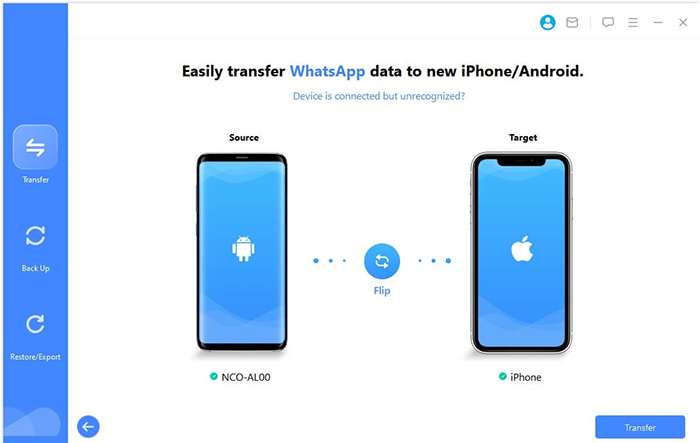
- The tool will automatically detect and display the connected devices, designating one as the source and the other as the target.
- If the devices are swapped, simply click the "Flip" button to correct the assignment.
- Click "Transfer" in the lower right corner to begin the transfer.


The Good:
- Supports cross-platform transfer between Android and iPhone, as well as Android to Android.
- Can transfer WhatsApp data, including deleted messages and media, directly between devices.
- Offers backup and restore features for safe data handling.
- Allows preview and selective data export (e.g., specific chats or media).
The Bad:
- Requires a computer to perform the transfer process.
- Paid software, which may be a limitation for some users.
Way 2: Transfer WhatsApp Messages from Xiaomi to Samsung via Google Account
When using a Google Account, restoring WhatsApp data becomes seamless, as it backs up all essential chat histories to the cloud. This backup system is highly effective at preserving important WhatsApp data and allows for quick recovery, even if a device is wiped or factory reset.
The Google Account backup system is especially useful for users who need to restore data after accidental deletion, as the cloud backup keeps copies of everything. Although it's a reliable way to protect your chats, the system doesn't recover everything.
How-to Guide:
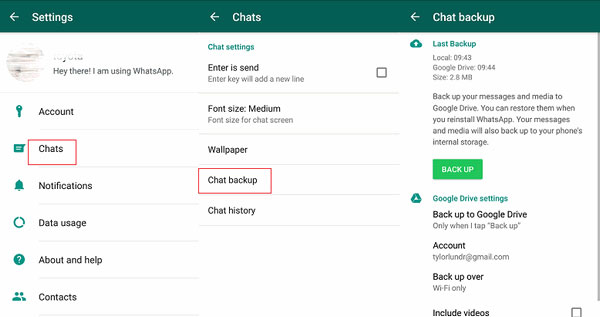
- On your Xiaomi phone, open WhatsApp.
- Tap More > Settings > Chats > Chat backup.
- Tap Back up to save your chats to your Google Account.
- On your Samsung phone, install WhatsApp from Google Play (if not already installed).
- Sign in to WhatsApp using the same phone number as on your Xiaomi device.
- When prompted to restore, choose Transfer from old phone to restore via Wi-Fi.
- Or choose Restore from backup to restore from Google Drive.
- Make sure you're logged into the same Google Account on both phones.
- If you have a recent cloud backup, restoring from backup is recommended.
- Keep both devices connected to a stable network until the restore is complete.
The Good:
- Easy and reliable backup system integrated within WhatsApp.
- Completely free to use with no need for third-party software.
- Automatically restores all chat histories and media from the cloud backup.
- Can be done directly through WhatsApp during device setup with no need for a PC.
The Bad:
- Doesn't support recovery of deleted WhatsApp data unless previously backed up.
- Limited by available Google Drive storage (if you have too much data, you may need extra space).
- May require stable internet to complete the restore, making it slower with large backups.
- Doesn't work if you change phone numbers or use a different Google account than the one used for the backup.
Way 3: Transfer WhatsApp Chats from Xiaomi to Samsung via WhatsApp Official Tool
WhatsApp's official transfer service allows users to transfer WA data directly between devices. It's convenient for those who want to recover WhatsApp content after switching phones or if they accidentally lost their data.
However, while it can handle regular data transfer, it may not support recovery of deleted messages without prior backup, making WhatsApp official transfer less effective for users seeking to recover lost chats compared to Social App Transfer.
How-to Guide:
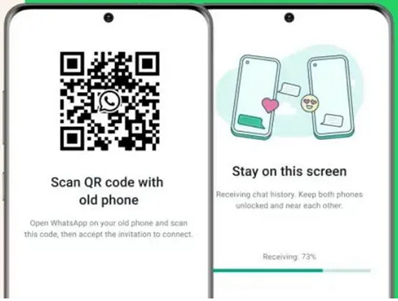
- On your Xiaomi phone, open WhatsApp > Settings > Chats > Transfer chats to Android.
- Tap the Start button to begin the transfer process.
- On your Samsung phone, install WhatsApp and register your WhatsApp number.
- Tap Continue and grant WhatsApp access to the local network.
- From your Samsung, scan the QR code displayed on your Xiaomi phone.
- Keep both devices undisturbed during the scanning process.
- Once scanning is complete, tap Next on your Samsung.
- Enter your WhatsApp name to continue with the setup and complete the chat transfer.
The Good:
- Simple and straightforward process for transferring WhatsApp data directly between two Android devices.
- No third-party software needed; it's a built-in WhatsApp feature.
- Allows data transfer without needing a PC or external tools.
- Supports transferring chats and media easily via Wi-Fi or local connection.
The Bad:
- Only works if the device is set up correctly with WhatsApp and connected to the same phone number.
- Doesn't support transferring deleted messages unless they were previously backed up.
- Limited to certain Android versions, which may not work on all devices.
FAQs about Transferring WhatsApp Data from Xiaomi to Samsung
Q1: Why can't my Samsung phone detect the WhatsApp backup?
This usually happens when one of the following applies:
- You logged into a different Google account than the one used on your Xiaomi phone.
- The phone number changed between devices.
- No recent backup was created.
- WhatsApp doesn't have storage or account permissions.
- Your Google Drive sync is disabled.
Q2: Will my media files (photos/videos) transfer to Samsung too?
In most cases, yes. When you restore WhatsApp from a Google Drive or local backup, the backup normally includes messages as well as media such as photos, audio files, videos, voice messages, GIFs, and documents. Media may continue downloading in the background after the chats are restored, so a good Wi-Fi connection is recommended to avoid delays or data charges.
Q3: Can I transfer WhatsApp Business chats as well?
Yes. WhatsApp Business supports the same backup and restore process as regular WhatsApp. You can move all conversations, labels, contacts, and attachments from Xiaomi to Samsung in a similar way. Just ensure you're installing WhatsApp Business on the new device (not standard WhatsApp), and that you sign in with the same number.
Q4: Will transferring WhatsApp delete my chats?
No - as long as you create a successful backup before moving to your Samsung device, your chats will not be deleted. The restore process simply copies your existing chat history onto the new device. However, if you skip the restore step or restore using the wrong account or number, you may not see your previous chats. That's why backing up beforehand is so important.
Q5: What is the most efficient way to transfer WhatsApp from Xiaomi to Samsung?
The most efficient approach to transfer WhatsApp from Xiaomi to Samsung is using Social App Transfer, as it offers a fast and direct transfer process without relying on cloud backups. It supports both Android-to-Android and cross-platform transfers, ensuring that all your chats, media, and even deleted data are restored accurately.
This is recommended for its reliability, ease of use, almost the highest success rate, and ability to handle large WhatsApp data transfers quickly, all without requiring internet connectivity.
Related Articles:
Xiaomi File Transfer: 7 Options to Transfer Files from Xiaomi to Computer
How to Hard Reset Xiaomi/Redmi/Mi with/without Computer? 6 Options
Screen Mirroring Samsung: 7 Ways to Mirror Samsung to 3 Platforms
