
How to Boot into Samsung Download Mode? 4 Well-tested Strategies
"Hello everyone, I am trying to install lineageOS on a reconditioned Samsung Galaxy S25 following the instructions found on the wiki, and I need your help now!" -- from Reddit
When a Samsung device encounters system glitches or requires software changes, knowing how to boot into Samsung Download Mode becomes essential. Users often need this mode to install official or custom firmware using tools like Odin to fix bugs, upgrade the OS, or roll back to a previous version. Now, focus on this tutorial to learn how to put your phone into this mode without trouble.
- Part 1: How to Boot into Download Mode on Samsung via Key Combinations
- Part 2: How to Boot into Samsung Download Mode without Errors
- Part 3: How to Boot Galaxy into Download Mode Using WebADB
- Part 4: How to Boot into Samsung Downloading Screen via ADB Commands
- Part 5: How to Boot into Download Mode on Galaxy via Samsung 300K Tool
Part 1: How to Boot into Download Mode on Samsung via Key Combinations
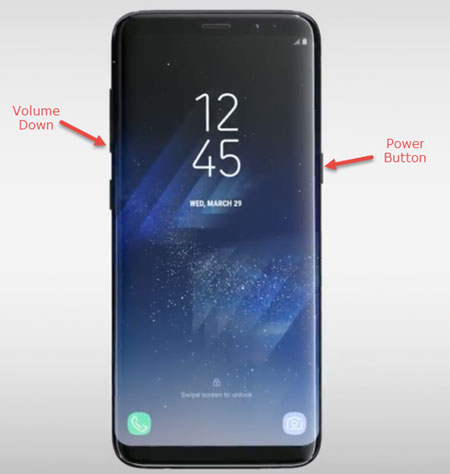
Using physical buttons is one of the most direct ways to boot a Samsung device into Download/Odin Mode. Key Combinations involve pressing specific keys such as Volume Down, Power, Home, or Bixby simultaneously, depending on the model. This method allows users to enter Download Mode without connecting to a computer. While simple, it requires precise timing to avoid entering Recovery Mode or causing the phone to reboot normally.
How-to Guide:
- To boot a Samsung phone with a Home button into Download Mode, first power it off completely, then press and hold Volume Down + Power + Home together until the warning screen appears, release the buttons, and press Volume Up to confirm and enter Download Mode.
- For models with a Bixby button, turn off the device, press and hold Volume Down + Power + Bixby at the same time, wait for the blue warning screen to show up, release the keys, and press Volume Up to access Download Mode.
- On newer Samsung devices without a Home or Bixby button, power off the phone, press and hold Volume Up and Volume Down together, connect the phone to a computer using a USB cable while holding the buttons, release them when the warning screen appears, and press Volume Up to enter Download Mode.
Further Reading: 1. The code *#9900# opens the System Dump menu to manage logs and debug files. It is useful for clearing system data before or after using Download Mode. The code *#0*# opens Samsung's hardware test menu. It helps check phone components before flashing firmware in Download Mode.
You Might Also Enjoy: [Fixed] Samsung Phone Stuck on Odin Mode, How to Fix It?
Part 2: How to Boot into Samsung Download Mode without Errors
Android Repair is a professional tool designed to fix various Samsung system issues, such as boot loops, black screens, and system crashes. It can guide users to enter Samsung Download Mode automatically, helping avoid common mistakes caused by wrong key combinations. With its clear instructions and automated process, it ensures a smooth and error-free transition into Download Mode for safe system repair.
|
Android Repair - Core Features
|
What It Does
|
|
Fix Android System Issues |
Repairs common problems like boot loops, black screens, frozen or unresponsive devices, and failed system updates. |
|
One-Click Download/Exit Download Mode |
Lets you enter and exit Samsung Download Mode (Odin Mode) easily without manual button combinations, reducing errors. |
|
Supports Multiple Brands |
Works with Samsung, Xiaomi, Redmi, and POCO devices (Android 5.0+; including the latest Galaxy S26/S25/S24). |
|
No Technical Skills Required |
Guided on-screen steps make it easy for beginners to repair system issues without technical knowledge. |
|
High Success & Automated Firmware |
Automatically provides matching firmware and completes repairs with a high success rate. |
|
Safe & Data-Aware Repair |
Designed to fix software problems with minimal risk to user data on supported devices. |
How-to Guide:
- Install and launch Android Repair on your computer after downloading it from below.
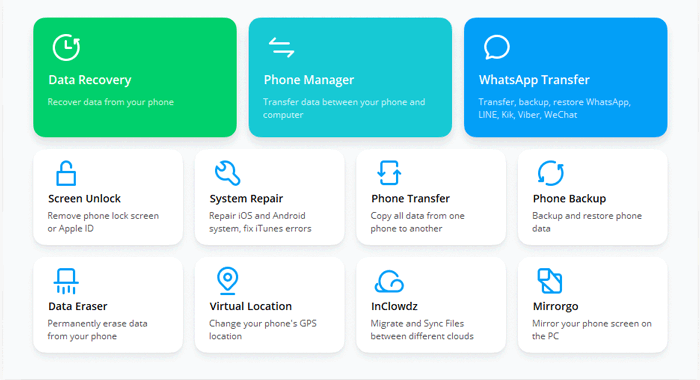
- Next, click on "System Repair" in the program window and connect your Galaxy device to the computer using a USB cable.
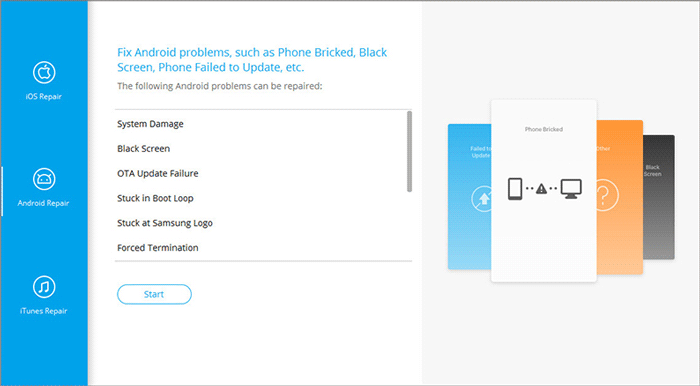
- Select "Android Repair" from the left panel. This tool will display all the Android issues it is capable of resolving.
- Simply browse through the options and click on "Start".
- Input your Galaxy information on the subsequent screen and press "Next" to proceed.
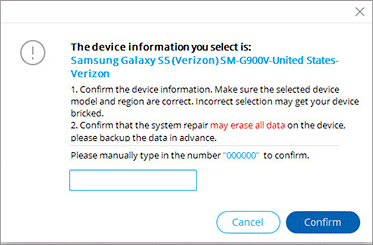
- Manually enter "000000" into the empty field and click on "Confirm". (Please be aware that this repair process may result in the erasure of your Samsung phone. So, consider backing up your phone beforehand.)
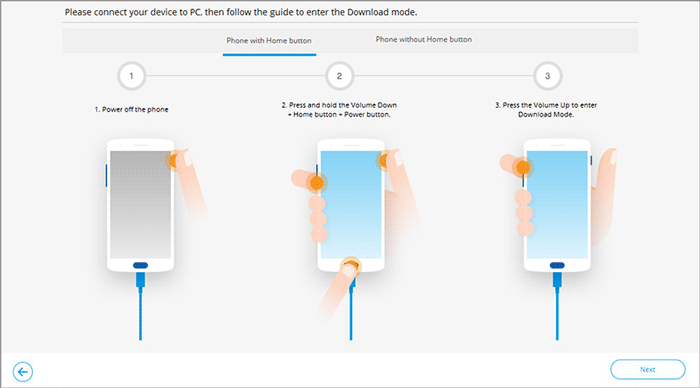
- For Samsung devices with a "Home" button, power off the device and simultaneously press the "Sprint, Home, Power, and Volume Down" buttons for approximately 10 seconds. Release all buttons and then hold down "Volume Up" to enter download mode.
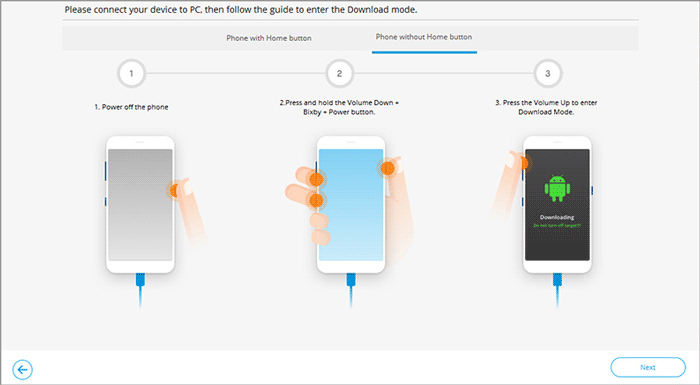
- For Samsung without a "Home" button, power off the device and press the "Power, Bixby, and Volume Down" buttons for about 10 seconds. After that, release all buttons and press "Volume Up" to enter download mode.

Part 3: How to Boot Galaxy into Download Mode Using WebADB
A browser-based solution can also help enter Download Mode efficiently. WebADB connects the Samsung phone to a computer through USB and uses a web interface to send commands that reboot the device. (What if your device keeps restaring?) It eliminates the need to memorize key sequences. Users can safely navigate into Download Mode with just a few clicks, reducing the chance of errors.
How-to Guide:
- Open WebADB in a Chromium-based browser (like Chrome or Edge) on your computer.
- Enable USB debugging on your Galaxy device under Developer options and connect it to the computer via USB.
- In WebADB, click Connect when your device's serial number appears and authorize the USB debugging prompt on your phone.
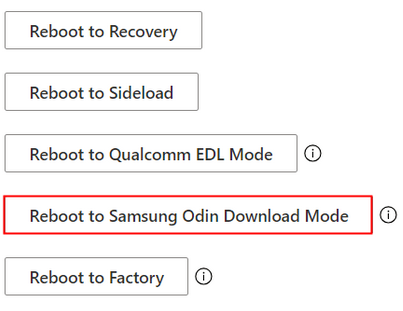
- Once connected, go to Power Menu > Reboot to Samsung Odin/Download Mode in the WebADB interface.
Part 4: How to Boot into Samsung Downloading Screen via ADB Commands
Command-line control provides a flexible approach to system access. ADB Commands allow a Samsung Galaxy S26/S25/S24/S23/S22/S21/Note/Tab to reboot directly into Download Mode by sending the adb reboot download instruction after enabling USB Debugging. This method works on most Android models without pressing any hardware keys. It is particularly useful when physical buttons are damaged or hard to reach.
How-to Guide:
- Install ADB tools on your computer by downloading and extracting the Android Platform-Tools package.
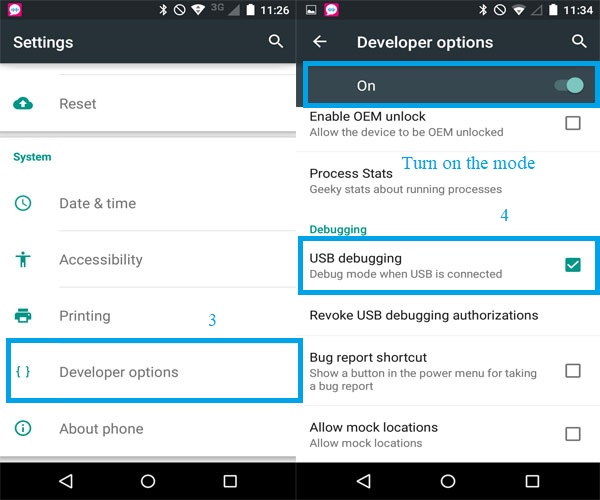
- Enable USB Debugging on your Galaxy: go to Settings > About Phone > Software Information, tap Build Number seven times to unlock Developer Options, then switch on USB Debugging.
- Connect the phone to your PC with a USB cable and unlock the phone's screen so the computer can communicate with it.
- Open a Command Prompt/Terminal in the folder where ADB is installed (e.g., by Shift-right-clicking and selecting "Open in Terminal").
- Run adb devices to ensure your phone is detected, then enter adb reboot download, and your Galaxy will reboot directly into Download Mode.
Part 5: How to Boot into Download Mode on Galaxy via Samsung 300K Tool
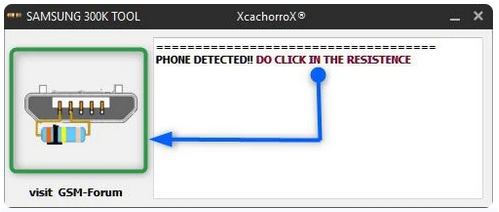
Certain specialized software offers a fully automated way to enter Download Mode. Samsung 300K Tool detects a connected Galaxy device and forces it into Download Mode with a single click. This approach removes manual intervention and the risk of pressing the wrong key combination. It is ideal for technicians who frequently need to flash firmware or repair devices efficiently.
How-to Guide:
- Download and install the Samsung USB drivers on your Windows PC, then download and extract the Samsung 300K Tool .exe file.
- Power off your Galaxy, then turn it back on until you see the Samsung logo on the screen; this gets the device ready.
- Connect your phone to the PC via a USB cable so the tool can automatically detect the device.
- In the 300K Tool window on your computer, click the resistance icon once - this forces the phone to enter
- Download Mode without using physical buttons.
- Once the phone boots into Download Mode, you can confirm the connection in Odin or other flashing software, then proceed with firmware flashing or repair tasks.
Calling It a Wrap
In a word, for users looking for a smoother experience, Android Repair offers a guided process to access Download Mode safely and repair software issues without unnecessary risk. With clear instructions, the tool ensures the device enters Download Mode correctly and handles system repairs efficiently.
Before going any further, always back up your important data when intending to flash firmware or performing repairs and ensure the phone has sufficient battery to prevent interruptions during the process.
Related Articles:
Samsung Recovery Mode: Tips to Boot into, Exit, and Fix Recovery Mode on Samsung
How to Recover Data from Samsung Phone That Won't Turn on? 5 Tactics
5 Most Popular Methods to Factory Reset Samsung Phone When Locked
How to Fix Samsung Galaxy Phone Stuck in Safe Mode? 11 Simple Solutions
