
4 Simple Methods to Transfer Huawei Videos & Movies to iPhone
TL;DR:
Upgrading from a Huawei phone to an iPhone can be tricky, especially when transferring large videos without losing quality. Here are four practical methods to ensure safe and smooth video migration:
- Phone Transfer Software: Allows offline, uncompressed video transfer directly between Huawei and iPhone, supporting large video files transfer with minimal quality loss.
- Move to iOS: Apple's official migration app transfers videos during initial iPhone setup, but may be slower for very large libraries.
- Google Drive: Preserves original video quality over Wi-Fi, though limited by 15GB free storage and requires manual download on iPhone.
- Email: Simple for small files, but automatically compresses videos and is unsuitable for large clips.
You've just switched from a Huawei phone to a shiny new iPhone, but now the tricky part hits: how to move all those videos without losing quality? Transferring files between Android and iOS isn't always straightforward-some videos won't play, formats may clash, and slow transfers can test your patience. Luckily, you don't have to worry. In this guide, we'll show four reliable ways to move your Huawei videos to iPhone smoothly.
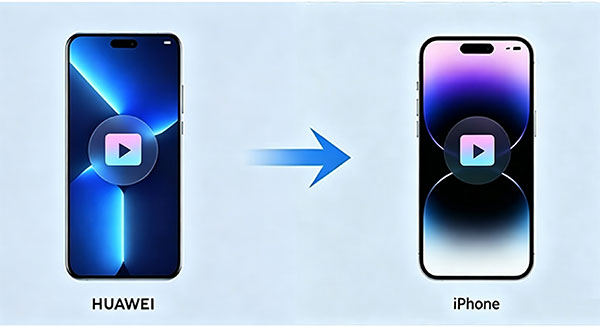
Way 1: Transfer Huawei Videos to iPhone with Phone Transfer
Phone Transfer is a powerful phone transfer tool designed to help users move data between Android and iOS devices with ease. It allows you to transfer videos from a Huawei phone to an iPhone directly through a computer without relying on cloud limits or file compression. With its simple interface and fast detection, it is especially useful for users who want to keep original video quality while switching from Android to iPhone.
Key Benefits of Using Phone Transfer:
- Cross-platform transfer – Supports Huawei (Android), iPhone, iPad, and PC.
- Lossless video transfer – Keeps original quality without compression.
- One-click transfer – Easily move videos and other files in bulk.
- Video conversion - Automatically convert media files that aren't compatible with iOS.
- Multiple data support – Transfers videos, photos, music, contacts, and messages.
- Supports a wide range of models, including iPhone 17/16/15/14/13/12/11/X/8/7/6 and Huawei Mate 80/70/60, P80/70/60, Nova 15/14/13/12/11, and Y series devices.


How to transfer videos from Huawei to iPhone with Phone Transfer:
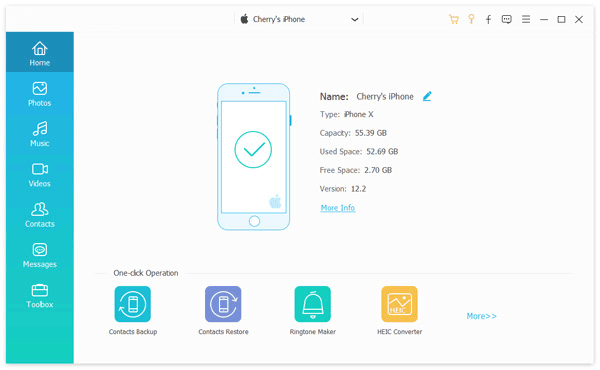
Step 1.Download and install Phone Transfer on a Windows or Mac computer, then launch the program. Use USB cables to connect both your Huawei phone and iPhone to the computer. The software will automatically detect both devices.
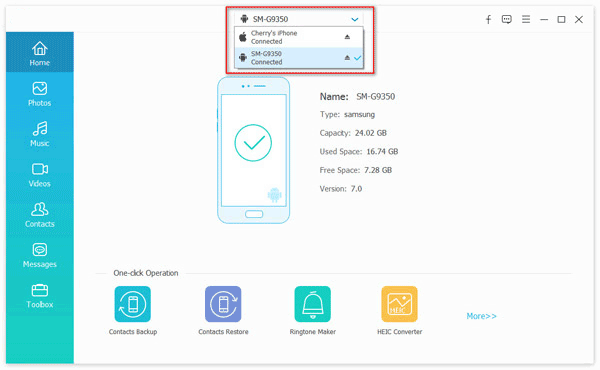
Step 2. From the device list, select your Huawei phone so that its data appears in the interface. Click the "Videos" tab on the left panel to view all video files stored on your Huawei device.
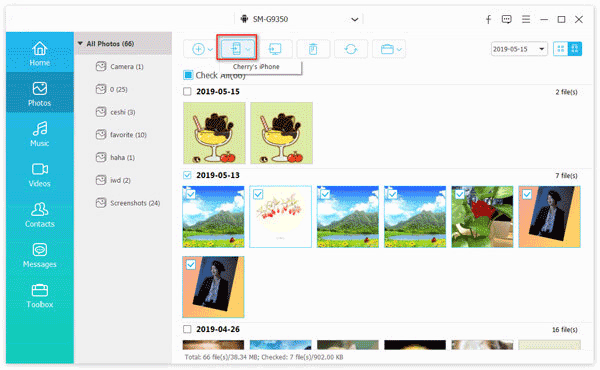
Step 3. Choose the videos you want to transfer. You can preview them before selecting to ensure accuracy. Click the "Export to Device" button and select your iPhone as the target device. The transfer will start immediately.
You May Also Like:
Way 2: Transfer Videos from Huawei to iPhone Using Move to iOS
If you want to move videos from a Huawei phone to an iPhone without using a computer, Apple's Move to iOS app is a simple and official solution. It helps you wirelessly transfer videos, photos, contacts, messages, and more from an Android device to a new iPhone during the setup process. Just make sure both devices are connected to power and a stable Wi-Fi network before starting.
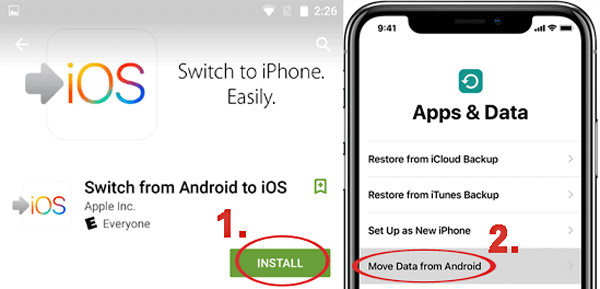
- Turn on your new iPhone and begin the setup process. When you reach the "Apps & Data" screen, select "Move Data from Android".
- On your Huawei phone, download and install the Move to iOS app from the Google Play Store (or a trusted APK source if Play Store is unavailable).
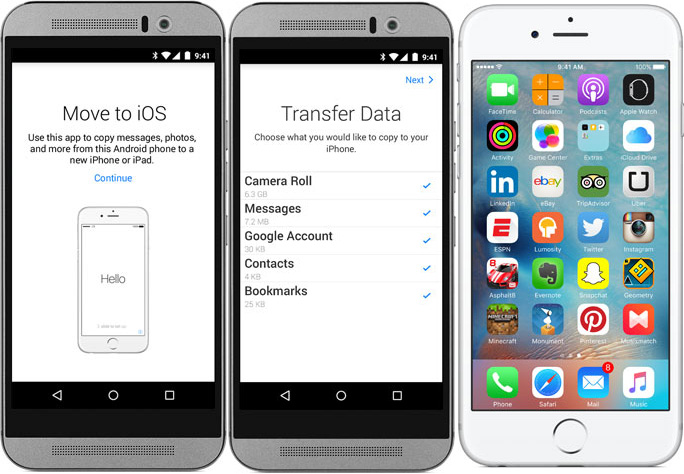
- Launch the app on your Huawei phone, tap "Continue", and agree to the terms. A code will appear on your iPhone - enter it on your Huawei device.
- Choose Videos (and other data if needed) from the list of content you want to move, then tap "Next".
- Keep both devices close and connected to power. The transfer time depends on the size of your video files.
- Once the transfer is done, complete the iPhone setup process. Your videos will appear in the Photos app automatically.
Way 3: Transfer Huawei Videos to iPhone Using Google Drive
If you prefer a cloud-based method, Google Drive is a convenient way to move videos from your Huawei phone to your iPhone. This method does not require cables and works even if the devices are not physically close. All you need is enough storage space in your Google account and a stable internet connection.
- Make sure the Google Drive app is installed on your Huawei phone. Sign in with your Google account if you haven't already. (Google Drive Not Working?)
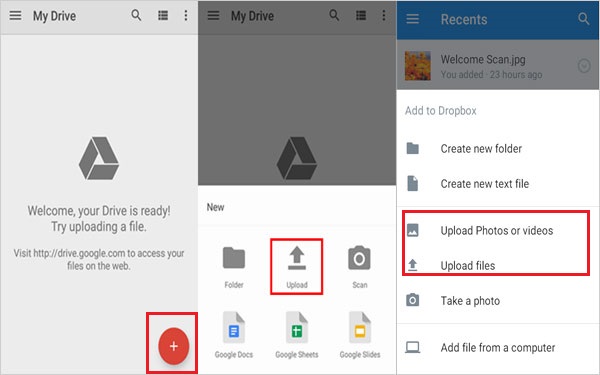
- Open the app, tap the "+" button, select Upload, then choose the videos you want to transfer. Wait for the upload to complete.
- On your iPhone, download and install Google Drive from the App Store. Sign in with the same Google account used on your Huawei device.
- Open Google Drive on your iPhone, navigate to the folder where your Huawei videos were uploaded, and check that all files are available.
- Tap the three-dot menu next to each video and select Download. The videos will be saved to your iPhone's Photos app.
- After downloading, you can organize your videos in albums or playlists on your iPhone for easy access.
Way 4: Transfer Videos from Huawei to iPhone via Email
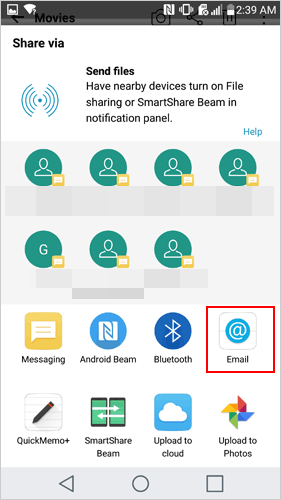
If you only need to transfer a small number of videos, email is one of the quickest and simplest options. It works without any extra apps or cables, making it ideal for sharing short clips or a few important files between a Huawei phone and an iPhone.
- Launch Gmail or any email app on your Huawei device and sign in to your account.
- Tap "Compose" and enter your own email address in the recipient field.
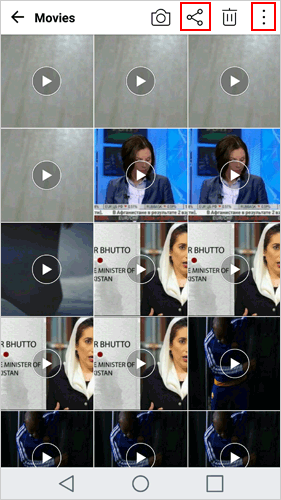
- Tap the attachment icon, select the videos you want to transfer, and attach them to the email. Note that most email services have a file size limit (usually around 20–25MB per email).
- Once the videos are attached, tap Send and wait for the upload process to finish.
- On your iPhone, open the Mail app or Gmail app and log in with the same email account.
- Open the email, tap the video attachments, and choose Save Video or download them to your iPhone's Photos app.
- After saving, your videos will appear in the Photos app where you can view and organize them easily.
The Bottom Line
Transferring videos from Huawei to iPhone doesn't have to be complicated. Whether you use Phone Transfer, Move to iOS, Google Drive, or email, each method offers a practical way to move your videos safely. Choose the option that fits your needs and enjoy your favorite videos on your new iPhone without hassle.
Hot Articles:
6 Error-free Ways: How to Back Up & Restore Huawei Phone
How to Transfer Contacts from iPhone to Huawei in 2026
