
How to Transfer Messages from Huawei to iPhone: 3 Easy Methods
Transferring text messages from a Huawei phone to an iPhone is not as simple as moving photos or contacts, mainly due to system differences between Android and iOS. Many users find that SMS cannot be transferred directly, especially when switching to a new device or keeping an existing iPhone. Fortunately, there are still several practical methods that can help you move or preserve your messages. In this guide, we'll walk you through the most effective ways to transfer SMS from Huawei to iPhone step by step.
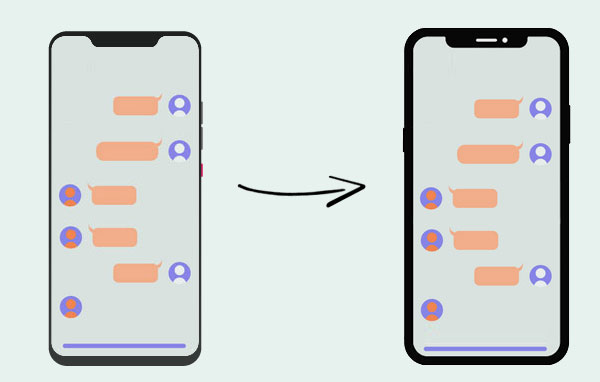
Part 1: Transfer Messages from Huawei to iPhone with Phone Transfer
Transferring text messages from Android to iPhone can be challenging, as most tools do not support direct SMS transfer between the two systems. However, you can still achieve this with the help of a couple of desktop programs. One practical approach is to use Phone Transfer to back up text messages from both your Huawei device and iPhone to a computer, then merge them into a single file. After that, you can use iTools to import the combined messages back to your iPhone.
Phone Transfer is a versatile tool that allows you to move data like photos, music, contacts, and more between mobile devices and computers, or even across Android and iOS platforms. Although it supports many data types, it does not directly transfer text messages.
Key Features of Phone Transfer:
- Transfer various types of files between Android and iPhone, including photos, music, contacts, and more.
- Easily back up data from Android or iOS devices.
- Move files between your phone and computer in either direction.
- Back up and restore data on both Android and iPhone with one click.
- Convert HEIC photos and create custom ringtones.


How to Use Phone Transfer to Move Text Messages from Huawei to iPhone::
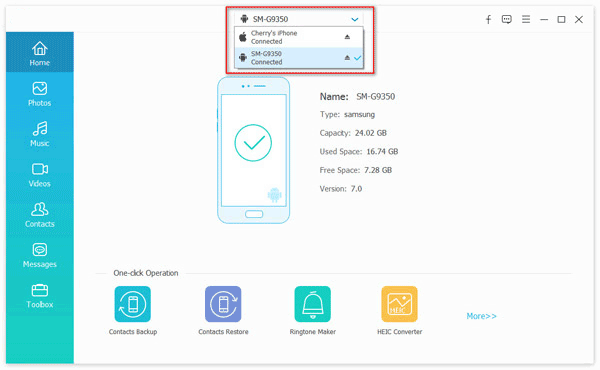
Step 1: Export SMS from Huawei and iPhone to Your PC
- First, download and install Phone Transfer on your computer. Then connect both your Huawei phone and iPhone using USB cables.
- Set your Huawei phone as the source device. Once connected, your files will be displayed by category. Click on "Messages" to preview your text messages.
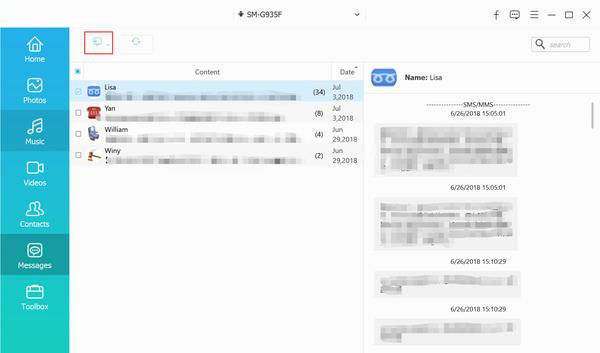
- Wait until all messages are loaded. Select the conversations you want, then click "Export to PC." Choose CSV as the export format (recommended).
- Next, switch to your iPhone as the source device and repeat the same steps to export its messages in CSV format.
Step 2: Merge the SMS Files from Huawei and iPhone
After exporting both files, open the CSV files on your computer. Copy the messages from the Huawei file and paste them into the iPhone CSV file.
Tips:
- Paste the Huawei messages below the existing iPhone messages without leaving empty rows in between.
- After merging, save the file with a new name and keep the CSV format. This is important for the next step.
Step 3: Transfer the Combined Messages Back to Your iPhone
Now that you have merged the messages into one file, you can import the CSV file back to your iPhone using iTools:
- Install iTools on your computer and connect your iPhone.
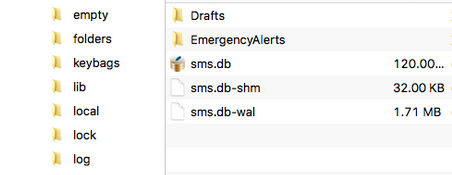
- Once detected, go to "Toolbox" > "iTunes Backup/Restore."
- Select your device and locate "Messages" in the sidebar. Double-click on "sms.db."
- Click "Import" > "Import from CSV" and choose the merged file.
While this method may seem a bit complex at first, it becomes much easier once you get familiar with the steps. With a little patience, you'll be able to transfer messages between Huawei and iPhone more smoothly.
Part 2: Transfer SMS from Huawei to iPhone Using Move to iOS App
If you're setting up a new iPhone, using Move to iOS is the easiest and most official way to transfer SMS from a Huawei phone. This app is developed by Apple and is designed to securely move data from Android to iPhone, including messages, contacts, photos, and more. (Move to iOS Taking Forever?)
What You Need Before Starting:
- Your iPhone must be new or reset to factory settings.
- Both devices should be connected to Wi-Fi.
- Keep both phones charged during the process.
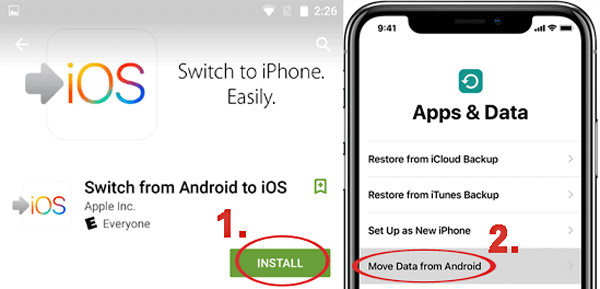
- Install Move to iOS on your Huawei phone from Google Play.
Here's how to use Move to iOS to transfer messages from Huawei to iPhone:
- Turn on your iPhone and follow the setup steps until you reach the "Apps & Data" screen. Then tap "Move Data from Android."
- Open Move to iOS on your Huawei phone and tap "Continue." Agree to the terms and tap "Next."
- On your iPhone, a verification code will appear. Enter this code on your Huawei device to establish a connection.
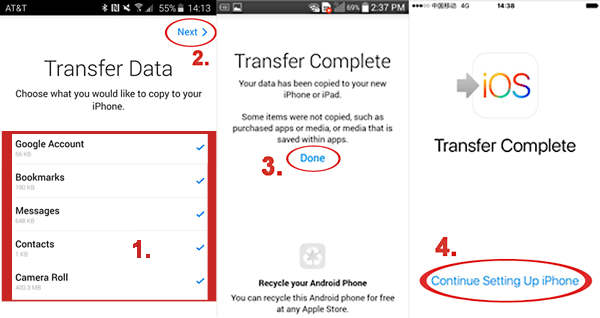
- Once connected, choose "Messages" (you can also select other data if needed). Tap "Next" to begin the transfer.
- Keep both devices close together and wait until the loading bar completes.
- After the transfer is finished, tap "Done" on your Huawei phone. Continue setting up your iPhone, and your SMS messages should appear in the Messages app.
You Might Also Like:
Part 3: Transfer Messages from Huawei to iPhone with SMS Backup & Restore
If you want a simple way to keep your Huawei messages safe and accessible, this method works well by backing them up into a readable file. Although it cannot directly import SMS into the iPhone Messages app, it allows you to store, transfer, and view your messages anytime.
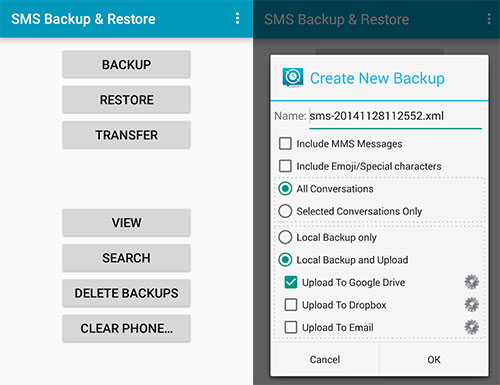
- Install and open SMS Backup & Restore on your Huawei phone, then tap "Get Started".
- Tap "Back Up" and select "Messages" as the data type.
- Choose a storage location like Google Drive, Dropbox, or local storage, then tap "Back Up Now".
- After the backup finishes, transfer the XML file to your computer or upload it to cloud storage.
- Open the XML file on your iPhone using a browser or compatible viewer to read your messages.
Summary
In conclusion, transferring messages from Huawei to iPhone can be tricky due to system limitations, but the right tool makes a big difference. Among all the methods, Phone Transfer stands out as the most flexible option, especially if your iPhone is already in use and you don't want to reset it. It allows you to back up, manage, and organize your data efficiently on a computer. While it requires a few extra steps, it offers greater control and reliability compared to other solutions.
Related Articles:
How to Transfer Text Messages from Android to Android? 7 Latest Options
5 Simple Tactics: How to Delete Text Messages on Android Phone
[3 Methods] How to Backup Text Messages on iPhone Effectively?
