
How to Transfer Data from realme to Redmi? 5 Dependable Strategies
TL;DR:
A successful phone transition depends on how well data is preserved and moved without affecting daily usage or important information. Among all available options, MobiKin Transfer for Mobile remains the most desirable tool because it enables direct, stable, and complete transfer between devices with minimal manual effort.
It provides a more consistent experience compared to cloud-based or partial transfer methods, making it a reliable choice for users who value completeness and simplicity.
A new Redmi phone often brings better features, improved performance. In this situation, changing between brands for better performance or features becomes a practical reason behind the upgrade. At the same time, most users prefer to transfer data simply for convenience and continuity.
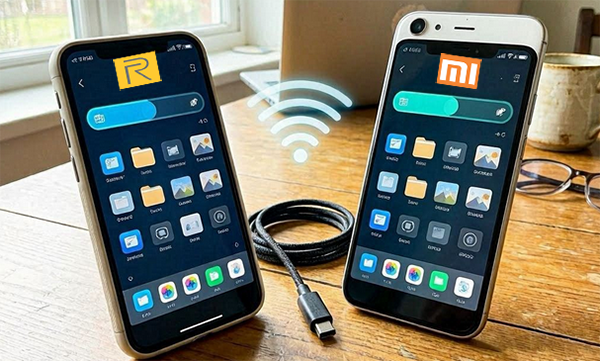
This article explains how to transfer data from realme to Redmi with 5 most clever strategies. After that, you can complete the process in a clear and efficient way.
- Way 1: How to Transfer Data from realme to Redmi via MobiKin Transfer for Mobile [Smooth]
- Way 2: How to Transfer Data from Old realme to New Redmi via Mi Mover
- Way 3: How to Transfer Files from realme to Redmi via Google Backup & Restore
- Way 4: How to Copy Data from realme to Redmi Using Quick Share
- Way 5: How to Move Data from realme to Redmi with SD Card
- FAQs about Transferring Data from realme to Redmi
Way 1: How to Transfer Data from realme to Redmi via MobiKin Transfer for Mobile [Smooth]
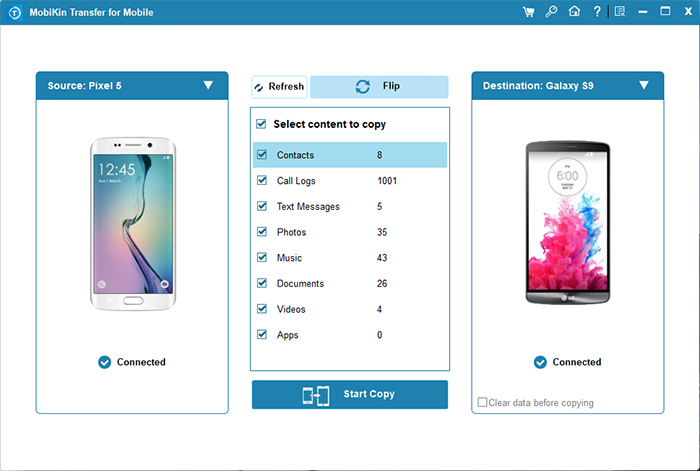
A computer-based migration tool like MobiKin Transfer for Mobile (Windows/Mac) can move data from a realme phone to a Redmi device through a direct USB connection. It supports transferring contacts, messages, photos, videos, and music in a single session.
Instead of relying on cloud syncing, it creates a stable local bridge through a computer, which helps when handling large files. Users can also preview data before selecting what to move, making the process more controlled.
Core Functions of MobiKin Transfer for Mobile:
- One-click phone-to-phone transfer from realme to Redmi via computer.
- Cross-platform Android-to-Android data migration support.
- Full device data transfer, including contacts, messages, photos, videos, and music.
- Selective transfer option to move only chosen data types.
- Fast media transfer for large photos and video files.
- Secure USB connection for stable and direct data movement.
- Offline transfer without requiring internet connection.
Install this tool on your computer before transferring content from realme to Redmi with MobiKin Transfer for Mobile:
- Verify that this program has been downloaded and installed.
- Following that, open it on your computer.
- You will receive a prompt to connect both realme and Redmi to your computer.
- Once your phones are connected to the computer, activate USB debugging to enable the software to detect both devices.
- If you have mistakenly swapped the source and destination devices, simply click the "Flip" button.
- Next, choose the specific types of data you wish to clone, and then press the "Start Copy" button.



Video Guide:
People Also Like: 4 Methods: Transfer Photos from realme Phone to USB Flash Drive
Way 2: How to Transfer Data from Old realme to New Redmi via Mi Mover
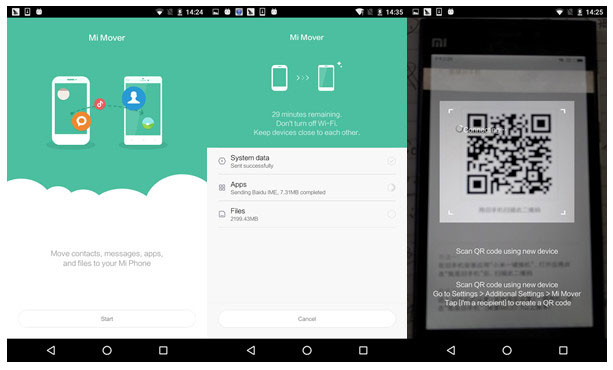
A built-in Xiaomi utility such as Mi Mover makes realme to Redmi transfer more straightforward by using a wireless hotspot connection. After pairing both phones, it allows migration of contacts, apps, photos, and other files without needing cables. The process runs directly between devices, which reduces dependence on external storage or internet access. Its interface focuses on full-device switching rather than partial file handling.
User Guide:
- On your new Redmi phone, open Mi Mover from Settings > Additional Settings > Mi Mover (the path may vary slightly depending on the MIUI or HyperOS version).
- Tap "I'm a new phone" on the Redmi device.
- On your realme phone, install and launch Mi Mover if it is not already available.
- Select "I'm an old phone" on the realme device.
- Use the realme phone to scan the QR code displayed on the Redmi phone.
- Once the devices are connected, choose the data you want to transfer, such as contacts, messages, photos, videos, apps, and documents.
- Tap Send or Transfer to begin the migration.
- Keep both phones unlocked and close together until the transfer is complete. (Mi Mover won't work?)
- After the process finishes, check the Redmi phone to ensure all selected data has been successfully migrated.
Way 3: How to Transfer Files from realme to Redmi via Google Backup & Restore
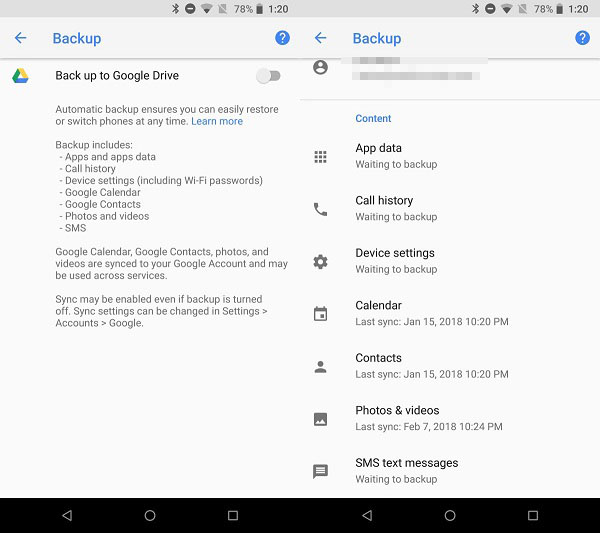
Cloud-based syncing through Google Backup & Restore offers a different approach by storing realme data in a Google account first. Once the Redmi phone is set up with the same account, the saved backup can be pulled down during initial setup or later through system settings.
This method is useful for contacts, SMS, app data, and settings, while media files often rely on Google Photos. The transfer depends heavily on internet speed and available cloud storage space.
User Guide:
- Connect your realme phone to a stable Wi-Fi network.
- Open Settings and go to Google.
- Tap Backup.
- Turn on Backup by Google One (or Back up to Google Drive, depending on your Android version).
- Tap Back up now and wait for the backup process to finish.
- Power on your Redmi phone.
- Follow the on-screen setup instructions.
- Connect the Redmi device to Wi-Fi.
- Sign in with the same Google account used on the realme phone.
- When prompted, select Copy apps & data.
- Choose A backup from the cloud.
- Sign in to your Google account if necessary.
- Select the latest backup created from your realme phone.
- Choose the data categories you want to restore.
- Tap Restore and wait for the process to complete.
Click to See: 4 Easy Options: How to Screen Mirror realme to PC [Latest]
Way 4: How to Copy Data from realme to Redmi Using Quick Share
Another simple wireless option involves Quick Share, which moves files directly between realme and Redmi devices. It is commonly used for sending photos, videos, and documents in small or medium batches. The connection works through Bluetooth and Wi-Fi, avoiding cables or accounts. Transfers happen quickly when both devices are nearby and properly set to discoverable mode.
User Guide:
- Turn on Wi-Fi, Bluetooth, and Quick Share on both realme and Redmi.
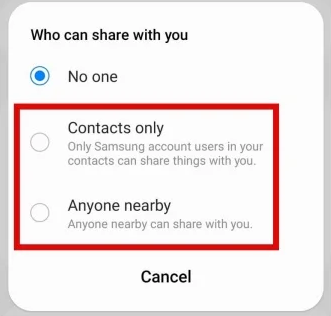
- Set Quick Share visibility to Everyone (or Contacts only).
- Open File Manager or Gallery on realme.
- Select the files you want to send.
- Tap Share.
- Choose Quick Share from the share menu.
- Select your Redmi device from the list.
- Tap Accept on the Redmi phone.
- Wait until the transfer completes and files appear on Redmi.
Way 5: How to Move Data from realme to Redmi with SD Card
Offline physical storage methods like an SD card provide a direct way to shift data from realme to Redmi. Files are copied onto the memory card from the realme device and then accessed on the Redmi phone. This approach is especially practical for media files such as photos, videos, and music. It does not require apps, internet access, or device pairing, though it depends on SD card compatibility with the Redmi modle.
User Guide:
- Insert an SD card into your realme phone.
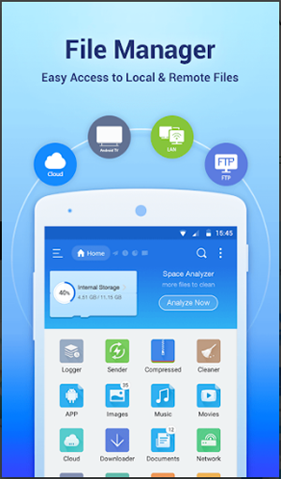
- Open File Manager on the realme device.
- Select the files you want to move (photos, videos, music, documents, etc.).
- Tap Move or Copy.
- Choose the SD card storage as the destination.
- Wait until all files are fully transferred to the SD card.
- Safely eject the SD card from the realme phone.
- Insert the SD card into your Redmi phone (if supported).
- Open File Manager on Redmi.
- Copy or move the files from the SD card to internal storage if needed.
FAQs about Transferring Data from realme to Redmi
Q1. What is the easiest way to transfer data from realme to Redmi?
The easiest method is using MobiKin Transfer for Mobile or Mi Mover. Both allow direct phone-to-phone transfer, but Mi Mover is more common on Redmi devices while MobiKin works on a computer for full migration.
Q2. Can I transfer all apps and app data from realme to Redmi?
Not completely. Some methods like Mi Mover or Google Backup can move installed apps, but app data depends on compatibility and Android restrictions. Banking apps and secure apps usually need to be set up again manually.
Q3. Will photos and videos lose quality after transfer?
No, photos and videos keep their original quality when transferred through SD card, USB cable, or Mi Mover. Cloud services may compress files depending on settings, so quality can vary there.
Q4. Is it safe to transfer data between realme and Redmi phones?
Yes, it is generally safe as long as official tools or trusted methods are used. Avoid unknown apps to reduce risks of data leaks or corruption.
Q5. How long does a full transfer usually take?
It depends on the amount of data. Small transfers may take a few minutes, while full phone migrations with large media files can take 30 minutes or more.
Q6. What should I do if the transfer gets interrupted?
Restart both phones and begin the process again. For large transfers, ensure both devices are fully charged and connected to a stable network or cable.
The Bottom Line
A smooth transition from realme to Redmi depends less on the phone itself and more on the method used to carry over personal data. When contacts, photos, messages, and apps are moved properly, the new device feels familiar from the very first setup.
Before starting any transfer, clear unnecessary files on your realme phone and ensure both devices have at least 50% battery. A clean and stable starting point helps avoid interruptions and makes the transfer faster and more reliable, especially when moving large amounts of data.
Related Articles:
4 Practical Techniques to Export Redmi Contacts to Excel [2026]
How to Fix Black Screen on Redmi Phone? 8 Basic Ways & 1 Expert Fix
4 Practical Ways to Recover Deleted Photos on realme Internal Storage
