
How to Fix xShare Not Working? Don't Miss Out on the 8 Simple Fixes
Have you ever encountered the frustrating situation of xShare not working, leaving them experiencing issues during file transfers and wanting solutions or guidance. Whether the app fails to open, freezes mid-transfer, or doesn't detect nearby devices, these problems can disrupt smooth data sharing between smartphones.
This passage outlines the possible reasons behind xShare's failures and provides 8 practical methods to make file transfers a lot smoother.

- Part 1: What Is xShare Not Working
- Part 2: How to Fix xShare Not Working in 8 Easy Ways
> Solution 1. Check Network Connection
> Solution 2. Update the xShare App
> Solution 3. Clear App Cache
> Solution 4. Reinstall xShare
> Solution 5. Check Bluetooth and Wi-Fi Settings
> Solution 6. Disable Battery Saver Mode
> Solution 7. Ensure Sufficient Storage Space
> Solution 8. Enable Permissions for xShare - Part 3: Share Files from One Device to Another with a Professional Tool
Part 1: What Is xShare Not Working
When xShare fails to work as expected, users often notice a range of abnormal behaviors that disrupt normal file sharing. These situations usually appear during app launch, device pairing, or the file transfer process itself. Here are the underlying causes:
- App fails to open or launch.
- Nearby devices not detected.
- Unable to establish a connection.
- File transfer stuck or cancelled. (What if your iPhone transfer gets stuck?)
- Files fail to send or receive.
- App freezes or crashes.
- Permission errors (storage, Bluetooth, location).
- Very slow or unstable transfer speed.
- Connection drops during transfer.
- Incompatibility with certain devices or Android versions.
You May Also Need: Top 6 xShare Alternatives That Provide Faster & More Stable Transfers
Part 2: How to Fix xShare Not Working in 8 Easy Ways
Solution 1. Check Network Connection
A weak or unstable Wi-Fi or mobile data connection can interrupt file transfers. Make sure both devices are connected to a strong, reliable network. If you're on Wi-Fi, try restarting the router or switching to a different network to see if it improves the transfer speed and stability.
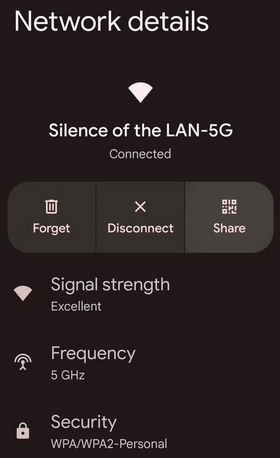
A quick restart can clear temporary system glitches that may interfere with the app's operation. Restarting the devices can resolve connection issues, clear the RAM, and allow the app to start fresh. This often works for fixing minor software bugs or conflicts.
Solution 2. Update the xShare App
App developers frequently release updates to fix bugs and improve performance. Check the Google Play Store for the latest version of xShare and install any available updates. This will ensure you have the most stable version with the latest features and fixes.
Solution 3. Clear App Cache
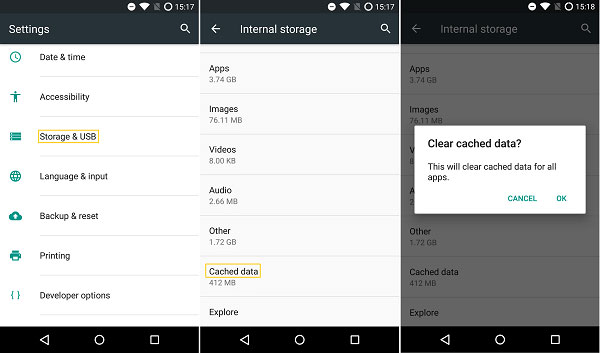
Cached data can sometimes get corrupted and cause apps to freeze or behave erratically. Go to Settings > Apps > xShare and tap on Clear Cache. This action can help resolve performance issues without affecting your saved data or files.
You Might Also Like: Compare SHAREit vs. xShare: Which Is Preferable? [Answered]
Solution 4. Reinstall xShare
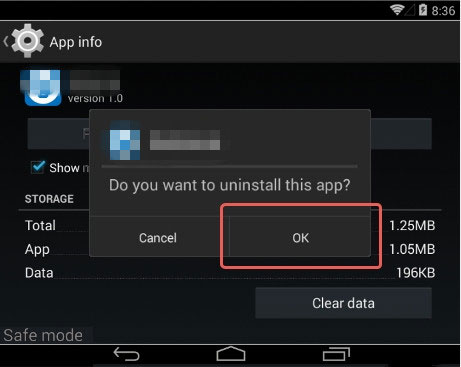
If the app continues to malfunction, reinstalling xShare may fix any underlying problems with the app's installation. Uninstall the app, restart your device, and then reinstall it from the Play Store to get a fresh copy that may work better.
Solution 5. Check Bluetooth and Wi-Fi Settings
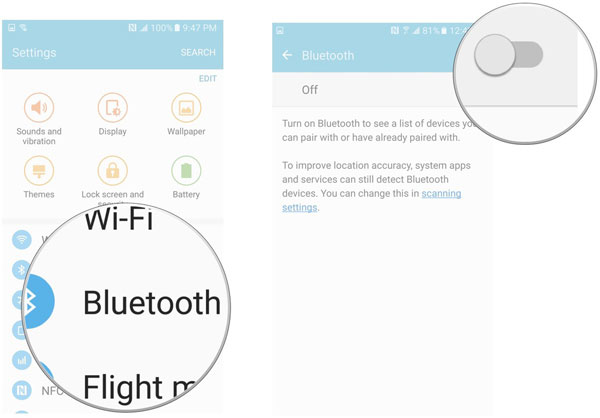
xShare relies on Bluetooth or Wi-Fi Direct for device-to-device communication. Double-check that both features are enabled and functioning correctly. Try toggling them off and on, or make sure that no other apps are interfering with the connection.
Solution 6. Disable Battery Saver Mode
Battery optimization features often restrict background activity and may prevent xShare from functioning properly.
- Go to Settings > Battery > Battery Saver and turn it off.
- Alternatively, you can exclude xShare from battery optimization in the app's settings for smoother file transfers.
Solution 7. Ensure Sufficient Storage Space
Before starting the transfer, verify that both devices have enough available storage to accommodate the files. If storage is low, try deleting unnecessary apps, files, or cached data to free up space. You can also move files to external storage or cloud storage to make room for the transfer.
Solution 8. Enable Permissions for xShare
For xShare to function properly, it needs specific permissions, such as access to your files, camera, and storage.
- Open Settings > Apps > xShare > Permissions and ensure that all necessary permissions are enabled.
- Denying permissions can cause the app to fail when trying to send or receive files.
Part 3: Share Files from One Device to Another with a Professional Tool
If xShare still isn't working, try using an alternative file transfer app like MobiKin Transfer for Mobile (Windows/Mac). This program offers similar functionality and might have better performance or fewer issues on your devices. All in all, this method can also help you rule out app-specific problems.
What makes MobiKin Transfer for Mobile the best alternative to xShare?
|
Feature
|
MobiKin Transfer for Mobile
|
Advantage Over xShare
|
|
Transfer Speed
|
Fast, stable, reliable |
Avoids slow or interrupted transfers |
|
Platform Support
|
Android to/from Android, iOS to/from Android, iOS to/from iOS |
Works across multiple devices |
|
File Types
|
Contacts, SMS, photos, videos, music, apps |
Supports more data types than xShare |
|
Connection
|
USB or Wi-Fi |
USB ensures stable and secure transfers |
|
Reliability
|
Rarely crashes, smooth operation |
More consistent than xShare |
|
Security
|
Direct transfer, no cloud needed |
Keeps data private and safe |
|
User Experience
|
Intuitive, ad-free |
Smoother and cleaner interface |
How to use the more reliable xShare alternative when this app doesn't work?
- First, download and install the free trial of MobiKin Transfer for Mobile.
- After installation, launch the program on your computer.
- Use USB cables to connect both Android devices to your computer.
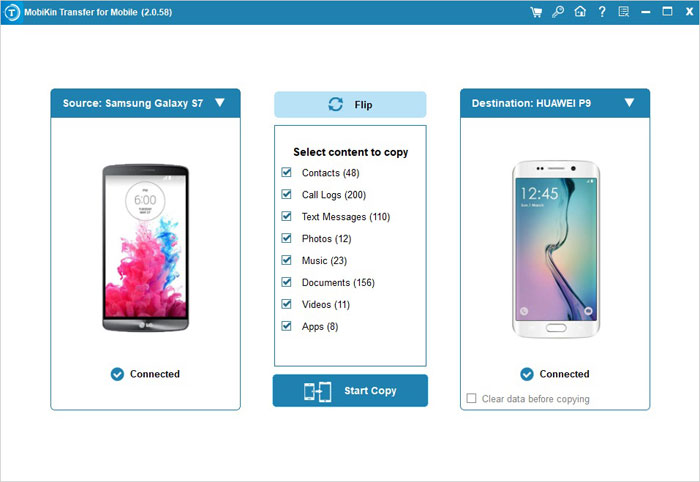
- The software will automatically recognize the connected phones, displaying all transferable data in the main interface. (Follow the on-screen prompt to get the devices identified, if necessary.)
- Select the types of data you want to move, then click the "Start Copy" button in the center panel to begin the transfer immediately.


Video Guide:
Words in the End
By following the methods discussed, you can overcome common transfer problems when using xShare and enjoy faster, more stable connections. For users seeking an even smoother experience, using a professional alternative app like MobiKin Transfer for Mobile (Windows/Mac) can simplify cross-device transfers and expand the range of supported file types.
Ultimately, a side note here - for the fastest and most reliable transfers, always ensure both devices are fully charged, connected via USB when possible, and that all app permissions are granted before starting the process. This prevents interruptions and maximizes transfer speed.
Related Articles:
Step-by-Step Guide: How to Transfer Data from Tecno to iPhone
[4 Solutions] How to Sync Calendars Between Two Android Phones?
How to Transfer WhatsApp Messages to New Phone without Backup? 3 Ways
How to Back Up Android Phone to PC/Mac/SD Card/Chromebook/Cloud in 9 Ways
