
Step-by-Step Guide: How to Transfer Data from Tecno to iPhone
Moving from a Tecno phone to an iPhone doesn't have to be complicated. Whether this is your first time switching from Tecno to iOS or you've just picked up the latest iPhone 17, this in-depth guide walks you through the entire process. We introduce 5 reliable ways to transfer data from Tecno to iPhone, including free solutions for moving contacts, photos, messages, WhatsApp chats, and apps. With practical explanations and easy-to-follow steps, you'll learn how to complete a Tecno-to-iPhone data transfer safely and without data loss.
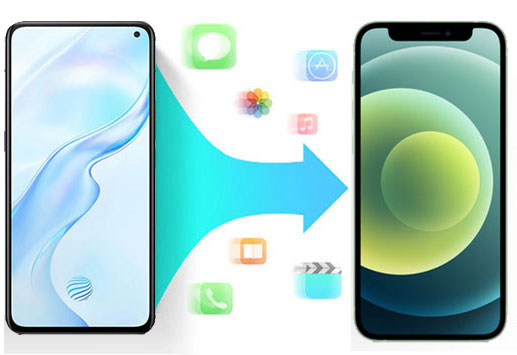
Way 1: Transfer Data from Tecno to iPhone Using Move to iOS App
Apple's Move to iOS app is one of the most common ways to move data from a Tecno phone to an iPhone. It supports transferring contacts, messages, photos, videos, and more, but it does not move apps themselves. This method works well if you're setting up a new iPhone running iOS 26 or later (How to Transfer Data from iPhone to iPhone after Setup?). Although the process is guided, following the steps carefully is still important.
- Turn on your iPhone and begin the setup process until you reach the "App & Data" screen.
- Choose "Move Data from Android" on your iPhone.
- On your Tecno phone, open the Google Play Store and search for Move to iOS.
- Download and install the app on your Tecno device.
- Launch the app, accept the terms and conditions, and continue.
- Tap "Continue", "Agree", and "Next" on both devices when prompted.
- A 12-digit code will appear on your iPhone. Enter this code on your Tecno phone to establish a connection.
- Select the data you want to transfer, and the Tecno-to-iOS migration will start automatically.
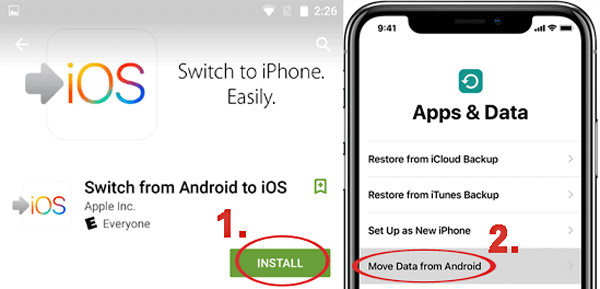
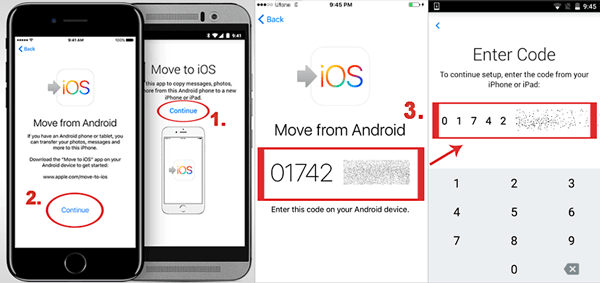
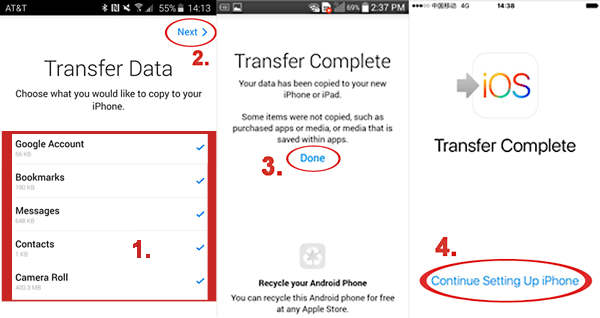
Once the code is verified, your selected files will be copied from the Tecno phone to the iPhone without further manual action. (Move to iOS Taking Forever?)
Way 2: Copy Data from Tecno to iPhone with Transfer for Mobile
MobiKin Transfer for Mobile (Win and Mac) offers a fast and hassle-free way to move data from Android to iPhone, making it an ideal solution for users who want an all-in-one transfer tool that fully supports the newest iPhone devices and iOS systems. Built with data integrity in mind, it preserves the original quality, format, and resolution of your photos, videos, contacts, and other essential files throughout the transfer.
In addition, the MobileTrans App handles multiple data categories while keeping your personal information protected with strong security measures. This makes it a reliable option for anyone who values privacy and safety when switching to a new phone.
Core features and usability of Transfer for Mobile:
- Supports transferring over 10 types of mobile data between iOS and Android.
- Move photos, videos, contacts, messages, and more in just one click.
- Works wirelessly without using mobile data or cables.
- Secure, encrypted transfers with no third-party cloud storage involved.
- Apply to various mobile phones, including including iPhone 17/Air/17 Pro/17 Pro Max/16/15/14/13/12/11/X/8/7/6 and Tecno CAMON 40/40 Pro/40 Premier/30/20, PHANTOM V Fold/V Flip, POVA 7/6/5/4/3/2, SPARK 30/20/10, POP 9/8/7/6/5, etc.
- It won't give away your privacy.


How to Transfer Data from Tecno to iPhone Using Transfer for Mobile:
Step 1. Download and open Transfer for Mobile on your computer. Use USB cables to connect your Tecno phone and iPhone. Follow the on-screen instructions until both devices are successfully detected.

Step 2. Once connected, you'll see the two phones shown side by side. Confirm that Tecno is set as the source device and iPhone as the target. If the positions are incorrect, just click "Flip" to switch them.
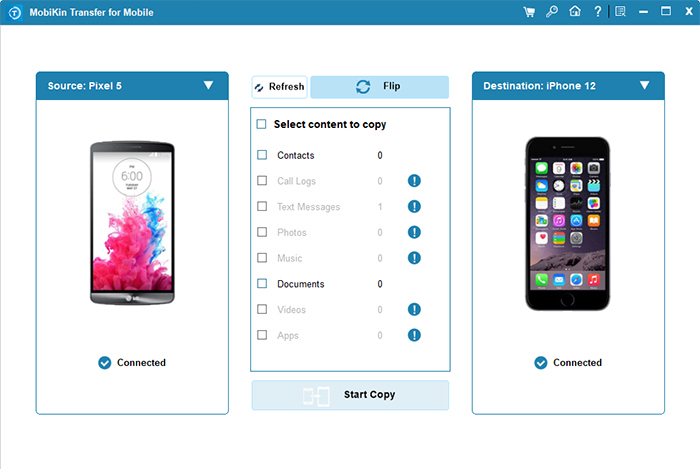
Step 3. Choose the data types you want to move, such as contacts, photos, videos, or messages. When ready, click "Start Copy" to transfer everything from Tecno to iPhone safely and seamlessly.
Video Guide:
Related Pages:
Way 3: Move Data from Tecno to iPhone via iTunes
If you want a more hands-on way to switch from a Tecno phone to an iPhone, iTunes is a classic option worth considering. This approach gives you full control over your media files, letting you decide exactly what gets moved. By using your computer as an intermediate step, iTunes helps transfer music, videos, and photos from your Tecno device to your iPhone in an organized way.
- Download and install the newest version of iTunes on your computer.
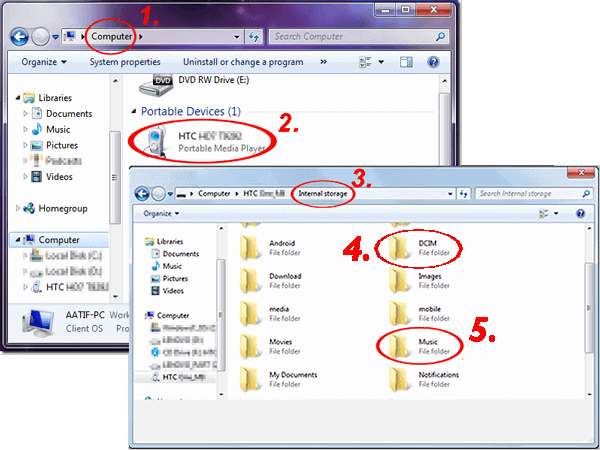
- Connect your Tecno phone to the computer and copy the files you want to keep-such as photos, videos, or music-to a local folder.
- Disconnect the Tecno device, then plug in your iPhone and launch iTunes.
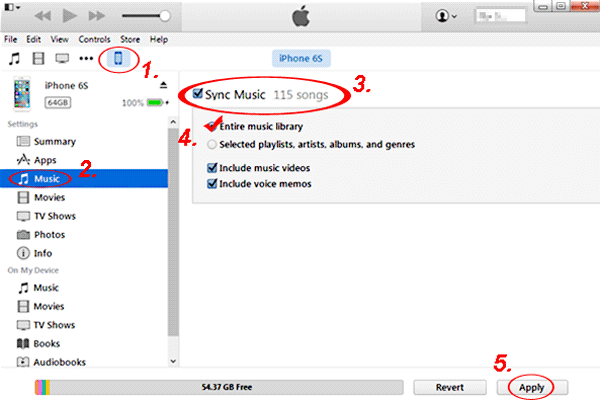
- Select your iPhone in iTunes and sync the copied files to your device to complete the transfer. (iTunes Won't Sync Music to iPhone?)
Way 4: Transfer Data from Tecno to iPhone with Google Drive
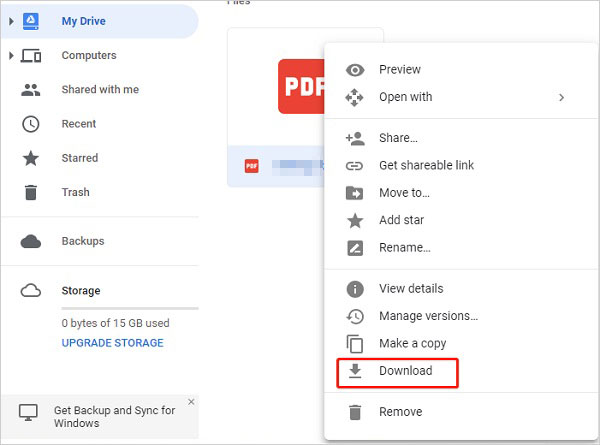
If you want a wireless and platform-neutral solution, Google Drive is a practical choice for moving data from a Tecno phone to an iPhone. It works as a cloud bridge between Android and iOS, allowing you to back up important files on your Tecno device and then access them easily on your iPhone-no cables or computer required.
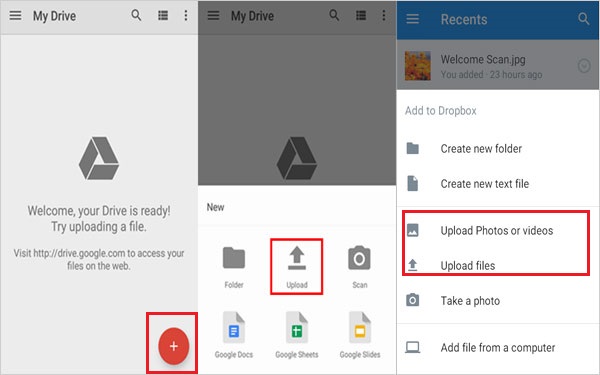
- Install and open Google Drive on your Tecno phone, then sign in with your Google account.
- Upload the data you want to transfer, such as photos, videos, documents, and other supported files, to Google Drive.
- On your iPhone, download Google Drive from the App Store and log in using the same Google account.
- Browse your uploaded files in Google Drive and download them to your iPhone as needed.
Hot Topics:
Way 5: Copy Data from Tecno to iPhone with Email
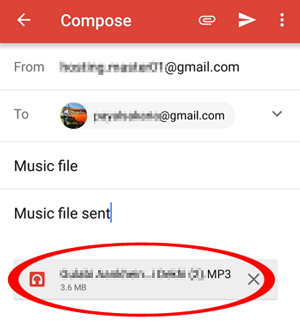
If you're figuring out how to move data from a Tecno phone to an iPhone, email is an easy option that's often underestimated. It works especially well when you only need to transfer a small number of photos or important documents and don't want to install extra tools. For quick, no-frills transfers, this method gets the job done with minimal effort.
- On your Tecno phone, open the app that contains the files you want to transfer, such as Photos or File Manager.
- Select the items, tap Share, and send them to your own email address.
- On your iPhone, open the email you just sent.
- Now, select the items and add them as email attachments.
- Tap each attachment and save or download it directly to your iPhone.
Roundup
Finishing a Tecno to iPhone data transfer doesn't need to be stressful or time-consuming. You can rely on tools like MobiKin Transfer for Mobile for an all-in-one solution, use Move to iOS for Apple's official and secure migration, or choose free options such as Google Drive if you only need to move essential files. Each method suits different needs, so pick the one that matches your data size, available time, and comfort level to enjoy a seamless switch from Tecno to iPhone.
Related Articles:
10 Tried-and-true Ways to Fix Copy My Data App Not Working
How To Back Up Android Phone Before Factory Reset
