
LDPlayer Review: Can I Trust This Android Emulator? [Objective Analysis]
TL;DR:
- Overall, LDPlayer is a capable Android emulator for Windows users who want to enjoy mobile games and apps with desktop controls, flexible settings, and multi-instance support.
- However, its resource demands, occasional compatibility issues, and lack of macOS support may leave some users looking for another solution.
- If you prefer mirroring and controlling your actual Android phone on a computer rather than running a virtual Android system, Screen Mirror is worth considering as an alternative.
Looking for a way to enjoy Android games and apps on a bigger screen? LDPlayer is one of the popular Android emulators designed to bring mobile experiences to Windows PCs, with features such as keyboard mapping, multi-instance support, and customizable performance settings.
But is it really worth installing, and how well does it perform in everyday use? In this LDPlayer review, we'll examine its key features, latest versions, pros and cons, safety, and possible alternatives.
Section 1: What Is LDPlayer
LDPlayer is a free Android emulator designed for Windows PCs, allowing users to run Android apps and games on a larger desktop screen. It offers gaming-oriented features such as keyboard mapping, gamepad support, customizable CPU and RAM settings, and multiple emulator instances for running different games or accounts simultaneously.
With its performance optimizations and broad app compatibility, LDPlayer provides a convenient way to enjoy the Android experience without relying solely on a smartphone.
You May Also Like: MuMuPlayer Review: A Complete & Objective Analysis [Latest]
Section 2: LDPlayer: Latest Versions & Main Updates
LDPlayer continues to receive regular updates to improve Android game compatibility, emulator stability, graphics performance, and overall user experience. According to its official version history, LDPlayer 14 is the latest major Android 14-based generation, while its 9.x branch remains available for users who prefer the established Android 9 environment. The following table highlights the three latest LDPlayer 14 releases as of November 26, 2026.
|
Release date
|
Version
|
Main updates
|
|
November 13, 2026
|
14.0.36.0 |
Fixed blank-screen issues in Low Resources mode, optimized game stuttering, resolved AMD graphics black-screen problems, and improved KernelSU compatibility. |
|
November 2, 2026
|
14.0.34.1 |
Improved disk cleanup and storage management, fixed window resizing problems, and optimized multi-instance arrangement. |
|
October 20, 2026
|
14.0.32.0 |
Fixed keymapping customization issues, addressed leftover files after uninstallation, and improved overall stability. |
My recommendation: Go with LDPlayer 14.0.36.0 for the latest improvements. However, if you depend on a particular Android game or application, check its compatibility before upgrading.
Further Exploration: How to Install Android Apps from PC? 3 Simple Options & FAQs
Section 3: Is LDPlayer Safe to Use
LDPlayer is generally considered safe to use when downloaded directly from its official website, rather than from unverified third-party sources that may distribute modified or bundled installers.
According to its official security information, it supports Google account authentication, follows GDPR-related privacy requirements, and has AppEsteem certification to provide additional assurance about its software distribution and security practices. (Forgot your Gmail account?) However, users should still review its privacy policy, keep the emulator updated, and use trusted sources when installing Android apps.
Section 4: How to Use LDPlayer
Getting started with LDPlayer is relatively simple, even for first-time users. Follow the steps below to install the emulator, set up your Android environment, download games, customize controls, and optimize performance for a smoother experience:
- Download and Install LDPlayer: Visit the official LDPlayer website, download the installer, and complete the setup.
- Set Up the Emulator: Launch LDPlayer and configure basic settings, such as screen resolution, CPU cores, and RAM allocation.
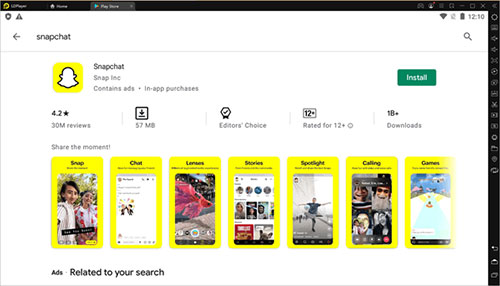
- Sign In to Google Play: Log in with your Google account to access and download Android apps and games.
- Install Android Games: Search for your favorite games in Google Play or LD Store, then click Install.
- Customize Keyboard Controls: Open Keyboard Mapping to assign keys to in-game actions and customize your gaming experience.
- Adjust Performance Settings: Modify CPU, RAM, graphics, and resolution settings to suit your computer's hardware.
- Manage Multiple Instances: Use LDMultiplayer to create, clone, and run multiple Android emulator instances simultaneously.
- Start Playing: Launch your installed games or apps and enjoy the Android experience on your Windows PC.
Section 5: LDPlayer: Pros & Cons
LDPlayer is a popular Windows Android emulator offering keyboard mapping, multi-instance support, gamepad controls, and customizable settings. However, it also has drawbacks, including compatibility issues, high resource usage, ads, and privacy concerns. Here are its main pros and cons.
|
Pros
|
Cons
|
|
Smooth gaming: Optimized for Android gaming on PC. |
High resource usage: Can consume considerable CPU and RAM. |
|
Custom controls: Supports keyboard, mouse, and gamepad mapping. |
Compatibility issues: Some games may crash or glitch. |
|
Multi-instance: Runs multiple Android instances simultaneously. |
Occasional bugs: Certain features may not work properly. |
|
Easy to use: Offers a relatively user-friendly interface. |
Advertisements: Free version includes ads. |
|
App support: Supports Google Play and APK installation. |
Windows only: No native macOS version. |
|
Flexible settings: Allows CPU, RAM, and resolution adjustments. |
Privacy concerns: Collects certain usage and advertising data. |
|
Automation tools: Supports macros and operation recording. |
Hardware demands: Older PCs may struggle with demanding games. |
Section 6: Is There a Better Emulator than LDPlayer
If you want a more direct way to manage Android apps on your computer, Screen Mirror provides phone mirroring and remote control without creating a virtual Android environment. It lets you operate mobile apps, play games, and share your phone screen through a larger display. Compared with LDPlayer, it may be a better choice for those who prefer working with their actual smartphone instead of running a simulated Android system.
It also supports keyboard and mouse control, allowing users to type messages, navigate apps, and handle mobile games from their computers. Screen recording and screenshot capture add further convenience for creating tutorials, saving gameplay footage, or sharing on-screen activities.
Safe & Clean Download: no ads, bundles, or background uploads.


How to mirror Android screen on PC via USB using the best LDPlayer alternative?
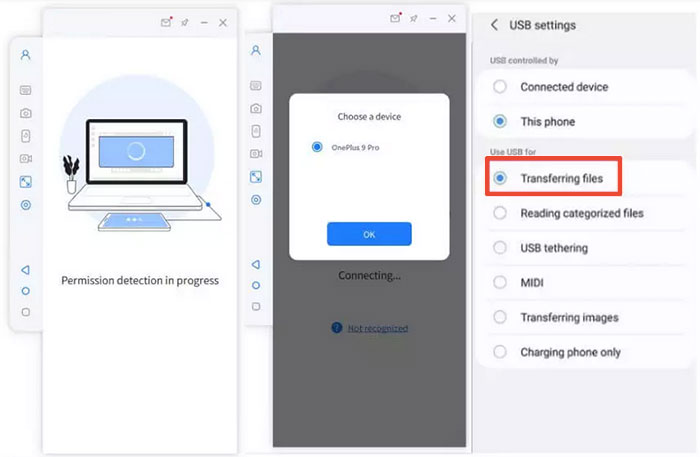
Step 1. Download and Launch the Software - Download and install Screen Mirror on your computer, then launch the program. Connect your Android phone using a USB cable, select your device when prompted, and choose Transfer files as the USB connection mode. (Can I use this tool to mirror an iPhone screen to a PC?)
Step 2. Enable Developer Options and USB Debugging - On your phone, navigate to Settings > About phone > Software information and tap Build number seven times to unlock Developer options. Return to Settings, open Developer options, and enable USB debugging to establish the required connection.
Step 3. Install the Screen Mirroring App - Follow the on-screen prompts to grant the necessary permissions. Once the software displays your device information, click Turn on to download and install the Screen Mirror APK on your Android phone or tablet.
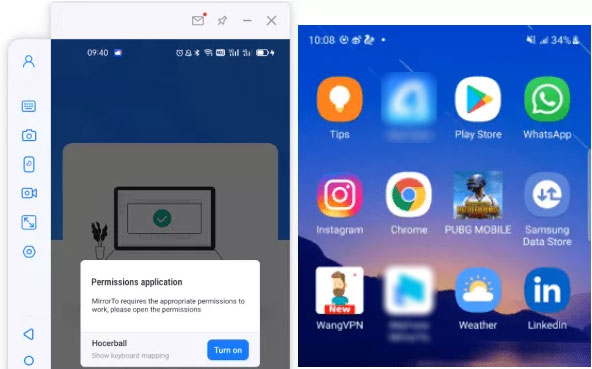
Step 4. Mirror and Control Your Android Device - Once the connection is established, your Android screen will appear on your computer. You can then view, access, and operate supported mobile apps directly from your PC without constantly switching between devices.
FAQs about LDPlayer
Q1. Does LDPlayer work on Mac?
No. LDPlayer is designed for Windows PCs and does not offer a native macOS version.
Q2. Can I use Google Play Store on LDPlayer?
Yes. You can sign in with your Google account, browse Google Play, and download compatible Android apps and games.
Q3. Does LDPlayer support 32-bit and 64-bit games?
Yes. LDPlayer offers different Android instances to support compatible 32-bit and 64-bit applications.
Q4. Why is LDPlayer running slowly?
Slow performance may result from insufficient RAM, outdated graphics drivers, disabled virtualization technology (VT), or demanding emulator settings.
Q5. Can I install APK files on LDPlayer?
Yes. You can install compatible APK files directly through the emulator, including apps that are unavailable in Google Play.
Q6. Does LDPlayer require virtualization?
Hardware virtualization (Intel VT-x or AMD-V) is recommended to improve emulator performance and stability.
Q7. Will I lose my game progress if I uninstall LDPlayer?
You may lose locally stored guest-account progress. To protect your game data, link your game to a Google or supported third-party account before uninstalling.
Related Articles:
How to Back Up Android Phone to PC without Google Drive? [With FAQs]
How to Fix Screen Mirroring Not Working? 16 Smart Strategies Here
How to Mirror Android to Mac without Obstacle? 8 Desirable Ways
3 Tested Methods to Back Up Android Game Data to Computer/PC