
How to Back Up Android Data Before Flashing ROM in Minutes? [HOT]
TL;DR:
Flashing a ROM can refresh your Android system, but proper preparation and post-flash checks help prevent data loss and system problems.
- MobiKin Backup Manager for Android lets you save contacts, messages, call logs, photos, videos, and other supported data to your computer before flashing.
- Its USB or Wi-Fi connection options make backing up and restoring data more convenient, with broad Android device compatibility.
- If you prefer a local backup over cloud storage, it offers a practical way to keep your important files accessible before changing your ROM.
"I have decided to flash crDroid on my Redmi Note 15. Unlocking the bootloader wipes the data so I want to back up my data. How should I back up my data before flashing ROMs?" -- from Reddit
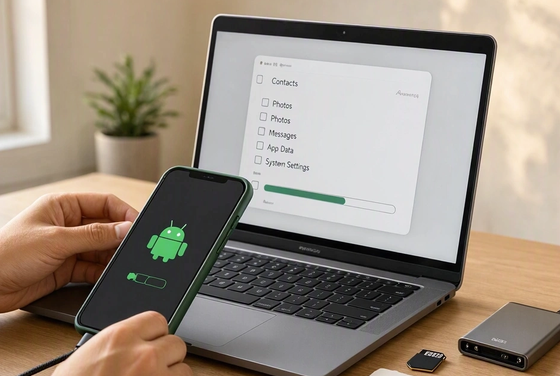
Flashing a custom ROM can change how your Android phone looks and works, but one mistake may cost you important data. Since the flashing process may erase personal files, apps, settings, and other important information, it is wise to back up Android data before flashing ROM. This guide covers practical backup methods, key precautions, and ways to prepare your phone for a smoother installation.
- Section 1: What to Do Before Flashing ROM
- Section 2: Back Up Android Data Before Flashing ROM Expertly
- Section 3: Back Up Android Phone Data Before Flashing ROM via Google One
- Section 4: Back Up Android SMS Before Flashing ROM via SMS Backup & Restore
- Section 5: Back Up Android Phone Data Before Flashing ROM with TWRP
- Section 6: Tips to Flash ROM Efficiently
- Conclusion - What to Do After Flashing ROM
Section 1: What to Do Before Flashing ROM
Flashing a custom ROM can give an Android phone a new system or additional features. However, the process may erase personal files, cause boot loops, or leave the device unusable if the ROM or installation steps are incorrect. A few checks before flashing can help protect your data and reduce the chance of problems.
- Back Up Your Data: Save contacts, messages, photos, videos, documents, and app data to a computer or secure location.
- Check ROM Compatibility: Confirm the ROM matches your exact device model and variant.
- Charge Your Phone: Keep the battery at 70-80% or higher.
- Unlock the Bootloader: Follow the manufacturer's instructions and prepare for possible data loss.
- Prepare Required Tools: Install ADB/Fastboot and USB drivers if needed.
- Verify ROM Files: Download from trusted sources and check file integrity.
- Read Installation Instructions: Check reset requirements, firmware versions, and extra packages.
- Prepare a Recovery Plan: Keep the correct stock firmware and restoration instructions ready.
- Save Recovery Details: Store authentication codes, encryption keys, and essential account information safely.
- Check Known Issues: Look for possible problems with banking apps, cameras, or fingerprint sensors.
- Test Your Backup: Open backed-up files and confirm they are accessible.
- Use a Stable Connection: Keep your USB connection reliable and follow each step carefully.
Further Exploration: [2026] 5 Easy Options to Back Up WhatsApp Chat without Google Drive
Section 2: Back Up Android Data Before Flashing ROM Expertly
Before flashing a ROM, MobiKin Backup Manager for Android (Win and Mac) lets you back up essential phone data to a computer, reducing the risk of losing important files during system changes. It supports multiple data types and offers a straightforward backup and restore process without relying on cloud storage.
With USB-based transfers and broad Android device compatibility, it provides a practical way to keep your data accessible before flashing.
Supported Data Types: Contacts, SMS, call logs, photos, videos, music, documents, and other supported phone data types.
Safe Download: No ads, bundled software, or background uploads.


How to Back Up?
Step 1: Install - Start by downloading and installing the tool on your computer. After installation, open the program and connect your Android phone via a USB cable or WiFi. Be sure to enable USB debugging if prompted.
Step 2: Select - Once your device is detected, go to the main interface and choose the "Backup" option to open the Android backup window. Then, select the types of files you want to back up.
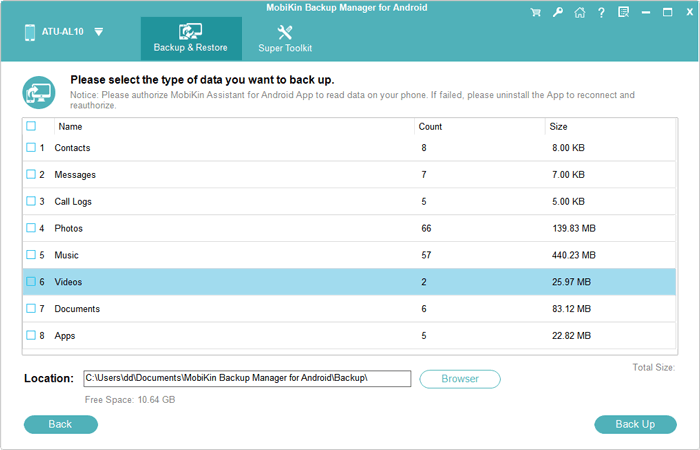
Step 3: Save - After choosing the desired data types, click "Browse" to specify where the backup files should be saved. Finally, start the backup by clicking the "Back Up" button in the bottom right corner.
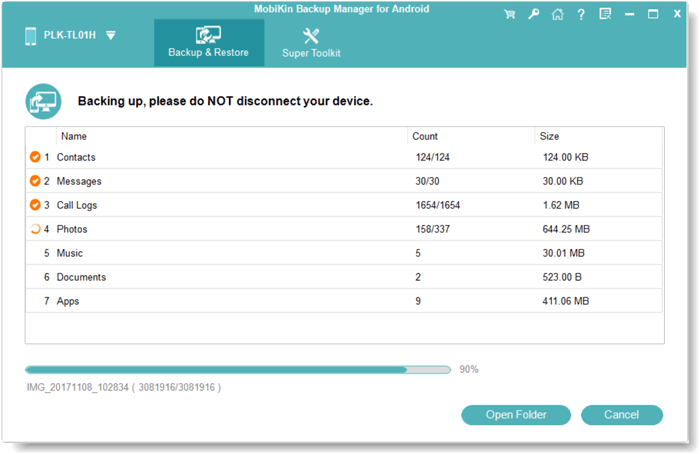
- To restore the backup to any Android device, connect the device to your computer. In the interface, click the "Restore" button and follow the on-screen instructions carefully to complete the restoration.
Video Guide:
Section 3: Back Up Android Phone Data Before Flashing ROM via Google One
Google One can back up supported Android data to your Google Account before you flash a ROM. Since flashing may erase internal storage, check that your backup is complete and accessible before proceeding.
Supported Data Types: Apps and app data (where supported), contacts, call history, SMS/MMS messages, device settings, and selected Google Account data.
Steps to Back Up Android Data with Google One:
- Open Settings: Connect your phone to Wi-Fi and open the Settings app.
- Find Backup: Go to Google → All services → Backup. Menu names may vary by device.
- Enable Backup: Turn on Google One backup if it is not already enabled.
- Check Backup Details: Review the available categories, such as apps, call history, contacts, device settings, and SMS/MMS.
- Start a Backup: Tap Back up now and wait for the process to finish.
- Verify the Backup: Check the last backup time and confirm that the relevant data categories are included.
- Confirm Account Access: Make sure you know your Google Account credentials before flashing.
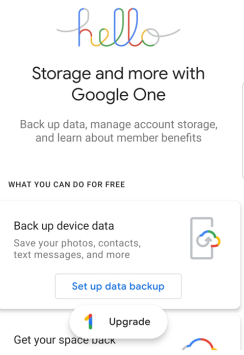
Important: Google One may not save every file or app setting, and a backup can take up to 24 hours. Copy important files separately to a computer or external drive, and check your backup details before flashing.
Section 4: Back Up Android SMS Before Flashing ROM via SMS Backup & Restore
SMS Backup & Restore lets you save text messages and MMS as XML files before flashing a ROM. You can store the backup locally or upload it to cloud storage.
Supported Data Types: SMS text messages, MMS messages, and supported MMS attachments.
How to back up?
- Install the App: Download SMS Backup & Restore from Google Play.
- Set Up a Backup: Open the app and tap Set up a backup.
- Select Data: Enable Messages and include MMS attachments if needed.
- Choose a Location: Select local storage, Google Drive, Dropbox, or OneDrive.
- Start the Backup: Tap Back up now and wait for completion.
- Copy the File: If saved locally, transfer the XML backup to your computer or an external drive.
- Verify the Backup: Confirm that the file exists and contains the messages you need before flashing.
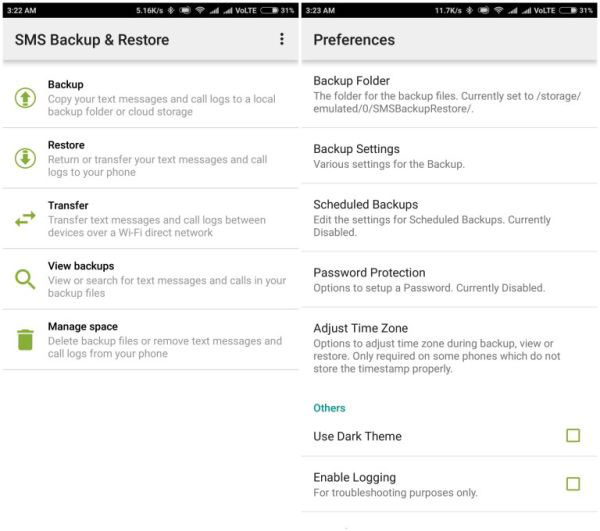
Keep a copy outside your phone, because flashing a ROM may erase internal storage. RCS message support can vary, so verify that important conversations are included.
Section 5: Back Up Android Phone Data Before Flashing ROM with TWRP
TWRP (Team Win Recovery Project) lets you create a Nandroid backup of selected Android partitions, helping you restore your previous system if a new ROM causes problems.
Supported Data Types: Selected system partitions, such as Boot, System, and Data, plus other supported partitions depending on the device and recovery version.
How to back up?
- Enter TWRP Recovery: Power off your phone and use the device-specific key combination to boot into TWRP.
- Open Backup: Tap Backup on the main screen.
- Select Partitions: Choose Boot, System, and Data. Select other partitions only when appropriate for your device.
- Choose Storage: Save the backup to an external SD card or USB storage if supported.
- Create the Backup: Swipe the confirmation bar and wait for the process to finish.
- Copy the Backup: Transfer the backup folder to a computer or another safe location.
- Verify the Files: Check that the backup files exist before flashing the ROM.
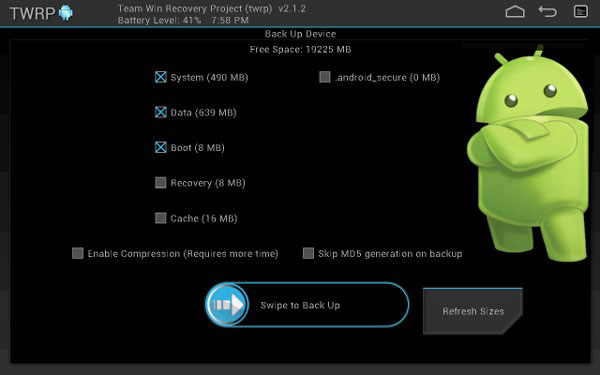
Important: A TWRP backup of the Data partition generally excludes photos, downloads, and other files in internal shared storage. Copy those files separately. Also, confirm that your TWRP version supports your device and can decrypt its data before relying on the backup.
Section 6: Tips to Flash ROM Efficiently
- Close Unnecessary Programs: Free up computer resources before starting the flashing process.
- Use the Correct Flashing Method: Choose Fastboot, custom recovery, or the manufacturer's official tool as required.
- Keep Drivers Updated: Ensure your computer recognizes the phone correctly.
- Follow the Required Wipe Procedure: Avoid wiping partitions that the ROM installation guide does not specify.
- Allow the First Boot to Finish: Initial startup may take longer than usual, so avoid interrupting it prematurely.
- Avoid Unnecessary Modifications: Flash only the packages needed for your intended setup.
- Check System Performance: After installation, confirm that the phone starts normally and responds properly.
- Consider Android Repair: If you have no better option for fixing Android system problems, this tool may simplify the repair process. Check device compatibility first; it repairs certain system issues but is not a universal custom-ROM flashing tool.
Safe Download: No ads, bundles, or hidden uploads.
Never assume that a ROM is safe just because it installs successfully. Confirm that essential hardware works and keep a verified backup available in case you need to restore your previous system.
Conclusion - What to Do After Flashing ROM
A successful flash is only the beginning. Follow these steps to get your phone back in shape:
- Wait for the First Boot: Give the phone time to start; the first boot may take longer than usual.
- Complete Initial Setup: Connect to Wi-Fi, sign in to your Google Account, and configure basic settings.
- Restore Your Data: Recover backed-up contacts, messages, photos, and other files as needed.
- Check Essential Functions: Test calls, mobile data, Wi-Fi, Bluetooth, cameras, and fingerprint recognition.
- Update Apps: Install compatible app versions and apply available system updates.
- Monitor Battery and Performance: Watch for unusual heat, rapid battery drain, crashes, or repeated restarts.
- Check Root and Security Settings: If applicable, verify root access, screen locking, encryption, and app permissions.
- Keep Your Backup: Do not delete your original backup until you have confirmed that your data and the new ROM work as expected.
Related Articles:
Top 11 Android Flashing Software for PC/Mac You Wish You'd Known Sooner
[Stepwise Guide] Do I Need to Back Up My iPhone? How to Back It Up?
How to Back Up Calendars on Android Phone? 4 Simple Techniques
8 Best Android File Transfer Apps for Mac to Copy Data Easily
