
How to Back Up Android Phone to PC without Google Drive? [With FAQs]
TL;DR:
Backing up an Android phone to a PC without Google Drive can be done through several methods, including MobiKin Backup Manager for Android, USB file transfer, Phone Link, and Bluetooth.
- Each option differs in what it can save, as USB and Bluetooth transfers handle accessible files but skip app data, messages, and system settings.
- Phone Link offers convenient access to supported content, though it also falls short of a complete backup.
- For contacts, text messages, call logs, and other important data, dedicated software like MobiKin Backup Manager for Android provides the most thorough local solution.
Want to keep important files safe without depending on cloud storage? If you do not use a Google account or prefer fewer Google services, you may want an alternative backup method; go through this guide on how to back up Android phone to PC without Google Drive before choosing a suitable option based on your data types, storage needs, and privacy preferences.
- #1: Back Up Android Phone to PC without Google Drive with MobiKin Software [Handy]
- #2: Back Up Android to PC without Google Cloud via USB File Transfer
- #3: Back Up Android Phone to PC without Google Service via Phone Link
- #4: Back Up Android Phone to PC without Google by Bluetooth
- FAQs about Backing Up Android to PC without Google Drive
#1: Back Up Android Phone to PC without Google Drive with MobiKin Software [Handy]
Backing up an Android phone to a PC without Google Drive is possible with MobiKin Backup Manager for Android (Windows/Mac), which lets you save supported phone data directly to your computer through a USB connection.
Termed MobiKin Android Backup & Restore, this program can back up contacts, text messages, call logs, photos, videos, music, documents, and other supported content to a local folder without relying on cloud storage. You can also restore the saved data to your Android device when needed, making it useful before a factory reset or when switching phones.
It prioritizes user privacy and does not track users' private information during backup operations. With broad compatibility across Android devices (8,000+) from various brands and multiple Android versions, it offers a practical option for local data backup.
Safe Download (Clean):


How to Use?
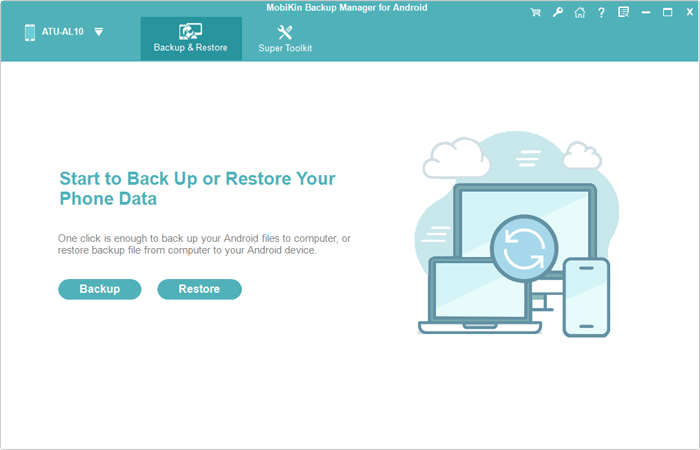
- First, download and install MobiKin Backup Manager for Android on your computer.
- Launch the program and connect your Android phone to the same computer using a USB cable.
- Once your mobile phone is detected successfully, click "Backup" in the main interface to continue.
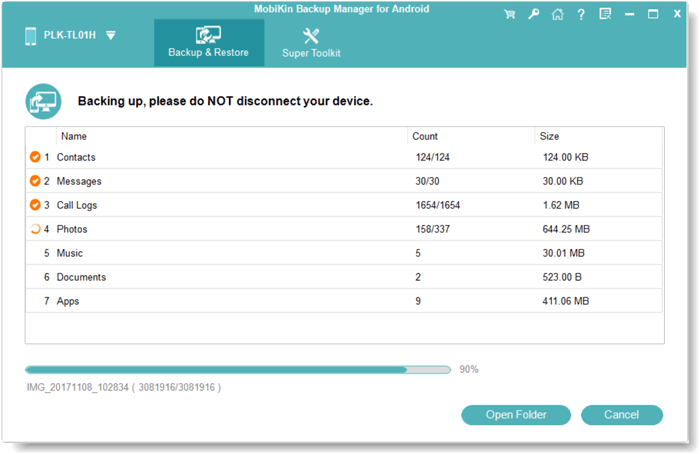
- Simply check the file types you want to back up.
- If you want to back up all data, just check the box next to "Name" to select all file types at once.
- Click "Browse" to choose a location to save the backup files, then click "Back Up."
- The backup process begins when you click the "Back Up" button.
Video Instructions:
My Personal Take: In my experience, MobiKin Backup Manager for Android makes it easy to back up various types of Android data to a PC without relying on Google Drive. The only minor nuisance is that you need to install the software and connect your phone before starting the backup.
#2: Back Up Android to PC without Google Cloud via USB File Transfer
USB file transfer is a straightforward way to back up Android files to a Windows PC without using Google Drive or other cloud services. It lets you copy photos, videos, music, documents, and other accessible files to your computer for local storage. However, this method generally does not back up all app data, SMS messages, call logs, or system settings.
How to Use?
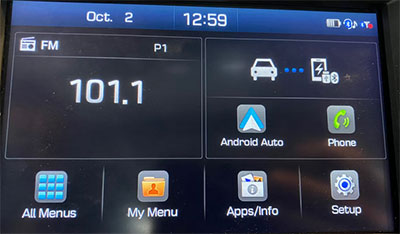
- Use a compatible USB data cable to connect your phone to your computer. Unlock the phone and tap the USB notification.
- Select File Transfer/Android Auto or Transferring files from the USB preferences. Choose Allow if your phone asks for permission.
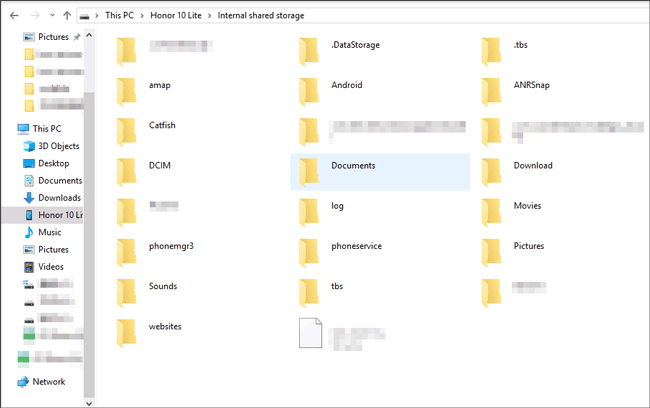
- On Windows, open File Explorer, select This PC, and double-click your Android device. Open Internal shared storage or the SD card, if available.
- Copy folders such as DCIM, Pictures, Movies, Music, Documents, and Download. Some apps store accessible media in the Android/media folder.
- Create a folder such as Android Backup on your computer, then paste the copied files into it. Wait for the transfer to finish and open several files to verify that the backup is usable.
Note: Folder names and accessibility vary by Android device and version. USB file transfer copies accessible files rather than creating a complete system backup.
My Personal Take: I find this method convenient for transferring photos, videos, documents, and other accessible files directly to a computer without an internet connection. However, it requires a compatible cable, and some data types cannot be copied directly through File Explorer.
#3: Back Up Android Phone to PC without Google Service via Phone Link
Windows users can also turn to Phone Link to access supported Android content and move accessible files to their computers without using Google Drive. After pairing the phone with the PC, you can use compatible mobile-device integration features or file access options to copy available content into a local folder.
Its convenience depends on the Windows version and phone model, and some features require an internet connection. Keep in mind that Phone Link is not a full backup solution for app data, messages, and system settings.
How to Use?
- Open Phone Link on your PC. Search for Phone Link in the Windows Start menu. On your Android phone, open or install Link to Windows if needed.
- Pair your Android phone with your PC. Follow the on-screen instructions, scan the QR code if prompted, and grant the requested permissions.
- Enable mobile-device file access if supported. On compatible Windows 11 systems, open Settings > Bluetooth & devices > Mobile devices > Manage devices and enable Show mobile device in File Explorer if the option is available.
- Open your phone's files. Launch File Explorer, select your connected phone, and browse the accessible folders. This integration is separate from the Phone Link app itself, and not all Android devices support it.
- Copy files to your PC. Select the photos, videos, documents, or other accessible files you want to preserve. Copy them into a local folder, such as Android Backup, and wait for the transfer to finish.
- Check the copied files. Open several files on your PC to confirm they are accessible and intact. Keep the backup folder on your computer or another local storage device. (Phone Link won't work?)
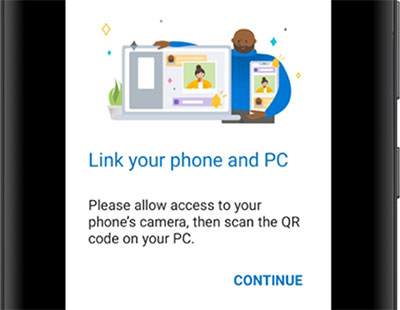
Note: Phone Link is not a full Android backup utility. Its features vary by device and Windows version, and some functions require an internet connection. For a more comprehensive backup of contacts, messages, call logs, and other supported data, consider dedicated Android backup software.
My Personal Take: I like Phone Link for accessing and transferring certain phone content from a Windows PC without relying on Google Drive. However, its features depend on the phone model and connection, and it is not a complete backup solution for even main Android data types.
#4: Back Up Android Phone to PC without Google by Bluetooth
For a simple wireless option, Bluetooth lets you send selected Android files to a PC without Google services, a USB cable, or cloud storage. Pair the two devices, set Windows to receive files, and use the Share option on your phone to send photos, videos, and documents.
This approach suits occasional transfers of small files, although its slower speed can make backing up large collections tedious. It also cannot create a complete phone backup or preserve most app data and system settings.
How to Use?
- On your PC, open Settings > Bluetooth & devices and enable Bluetooth. On your Android phone, open Settings and turn on Bluetooth.
- Select Add device > Bluetooth on Windows. Choose your Android phone from the available devices, then confirm that the pairing code matches on both devices.
- Go to Settings > Bluetooth & devices > Devices and select Send or receive files via Bluetooth under Related settings. Choose Receive files and keep the receiving window open.
- Open your phone's Gallery or File Manager, select the photos, videos, documents, or other files you want to back up, tap Share, and choose Bluetooth. Select your paired PC.
- Accept the incoming transfer on your PC if prompted. Choose a destination folder, such as Android Backup, and finish the Bluetooth transfer. Open the saved files to make sure they were copied successfully.
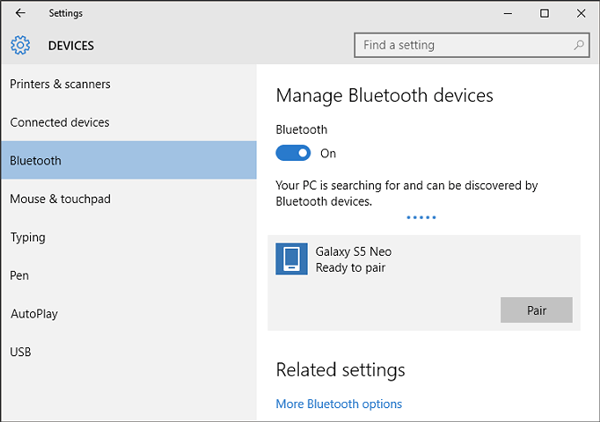
My Personal Take: Bluetooth is useful for sending a few files to a PC without a cable or internet connection. The main drawback is its slow transfer speed, which makes it impractical for backing up large amounts of data.
FAQs about Backing Up Android to PC without Google Drive
Q1: How do I back up my entire Android phone to a PC without Google?
You generally need dedicated backup software that supports your phone and the data types you want to save. Copying files through USB or Bluetooth usually does not include app data, messages, or system settings.
Q2: Can Phone Link back up all Android data to a PC?
No. Phone Link provides access to supported phone content and certain file-transfer features, but it does not create a complete backup of Android apps, SMS messages, call logs, and system settings.
Q3: Can I back up Android app data to a PC without Google services?
Some third-party tools can back up certain app-related data, but Android restrictions and individual app security settings may prevent access. Copying an app's APK file alone does not preserve its data, accounts, or settings.
Q4: Is backing up Android to a PC safer than using Google Drive?
A local backup keeps the copied files on storage you control, reducing reliance on cloud services. However, you should protect your PC with a strong password and, ideally, encrypt sensitive backup files.
Q5: How much PC storage do I need to back up my Android phone?
The required space depends on how much data you want to save. Check your phone's storage usage before starting and ensure your PC has enough free space for the selected files, preferably with some extra room.
Q6: Can I back up Android to a PC without USB debugging?
Yes. Basic USB File Transfer generally requires you to unlock the phone and select File Transfer mode, not enable USB debugging. Bluetooth and compatible wireless transfer methods can also copy supported files without USB debugging.
Q7: What is the fastest way to back up Android to a PC without Google Drive?
A USB connection is usually the most practical choice for transferring large collections of photos, videos, and documents. The actual speed depends on the USB standard, cable, phone, and PC.
Additional Tips:
- Before starting a backup, check your PC's available storage and make sure your phone has enough battery power. Save the copied files in a clearly labeled folder and open a few of them to confirm the backup is complete. If you need to preserve contacts, text messages, call logs, or app data, choose a backup method that explicitly supports those data types, since ordinary file transfers may not include them.
Related Articles:
[2026] How to Back up iPhone to External Hard Drive without iTunes?
How to Back Up Android to SD Card? 3 Desirable Methods 2026
How to Back Up Calendars on Android Phone? 4 Simple Techniques
[2026] 5 Easy Options to Back Up WhatsApp Chat without Google Drive
