
MuMuPlayer Review: A Complete & Objective Analysis [2026]
TL;DR:
This MuMuPlayer review helps you weigh its gaming performance, compatibility, features, and drawbacks before installing it, while also checking whether the emulator is safe, how it handles your data, and what security risks a download might carry.
- If MuMuPlayer feels too heavy or limited for your needs, Screen Mirror offers a lighter alternative.
- It lets you run Android apps straight from your phone on a PC screen, with keyboard and mouse control. That approach sidesteps Android emulator compatibility problems and resource drain, since your phone does the actual work.
NOTE: Before proceeding with MuMuPlayer or its alternative, please make sure that you are the rightful owner of the PC and phone, or that you have received the appropriate authorization to use them. Thank you for your cooperation.
If you are considering installing MuMuPlayer on your PC, reading a MuMuPlayer review can help you understand its gaming performance, compatibility, key features, and potential drawbacks. But is MuMuPlayer safe to use? Find out whether the emulator is trustworthy, how it handles user data, and whether downloading it poses security risks in this article, along with its pros and cons and how it compares with other Android emulators.

Section 1: MuMuPlayer - Key Features
MuMuPlayer offers a range of features that make it easier to run Android apps and games on Windows and macOS computers. From customizable performance settings and keyboard mapping to multi-instance management and ADB support, it caters to both everyday users and gamers who want greater control over their Android experience.
|
Feature
|
Description
|
|
Multi-Instance Manager |
Creates and runs multiple Android instances to use different apps or game accounts simultaneously. |
|
GPU Acceleration |
Uses GPU resources to improve graphics rendering and gaming performance. |
|
Vulkan and DirectX Support |
Allows users to switch graphics APIs based on hardware compatibility and performance needs. |
|
Performance Customization |
Adjusts CPU cores and RAM allocation to match computer specifications. |
|
Resolution and Display Settings |
Customizes resolution, DPI, and aspect ratio. |
|
Keyboard and Mouse Controls |
Enables PC-style controls for playing Android games. |
|
Multi-Tab Support |
Makes it easier to switch between multiple apps and games. |
|
Batch Operations |
Manages multiple emulator instances at once. |
|
Lightweight Operation |
Offers resource-management options for users with different PC hardware configurations. |
|
Ad-Free Interface |
Provides a clean interface without intrusive advertisements, according to the referenced review. |
|
Windows and macOS Support |
Enables users to run Android apps and games on supported desktop systems. |
You Might Also Like: 9 Best BlueStacks Alternatives in 2026 [Ultimate Guide]
Section 2: Is MuMuPlayer Safe & Stable
User reports suggest that MuMuPlayer can run games smoothly for extended periods. However, its safety and stability depend on the version, computer hardware, and game being used.
- Security: Download MuMuPlayer from its official website to avoid fake installers and bundled malware.
- Privacy: Sesame Disk raised concerns about MuMu Player Pro running system-information commands in the background, but this does not prove data misuse.
- Stability: Reddit users report smooth gameplay and occasional crashes, depending on hardware, games, and emulator versions.
- Data Collection: MuMuPlayer collects device, network, usage, and diagnostic data to operate and improve its services.
Verdict: MuMuPlayer's privacy policy and documentation have drawn scrutiny because an independent report found that its macOS version reportedly runs 17 system-information commands every 30 minutes without notifying users. Although this raises concerns about transparency and data collection, the report does not establish that the collected information is sent to external servers or misused.
Click to Explore: [2026 Latest] Top 6 Android Emulators for iOS Devices like iPhone/iPad
Section 3: How to Install & Use MuMuPlayer
Follow these steps to install MuMuPlayer and run Android apps or games on your computer.
- Install the Emulator: Open the downloaded installer, follow the on-screen instructions, and choose an installation location if prompted.
- Launch MuMuPlayer: Open the emulator and wait for the Android environment to initialize.
- Install Apps or Games: Search for your preferred game in the available app store, or drag a compatible APK file into the emulator.
- Sign In if Needed: Log in to your Google account to access Google Play and download supported apps.
- Customize Settings: Adjust the resolution, CPU, memory, and graphics options to suit your computer.
- Configure Controls: Customize keyboard and mouse mappings for supported games, then launch a game and start playing.
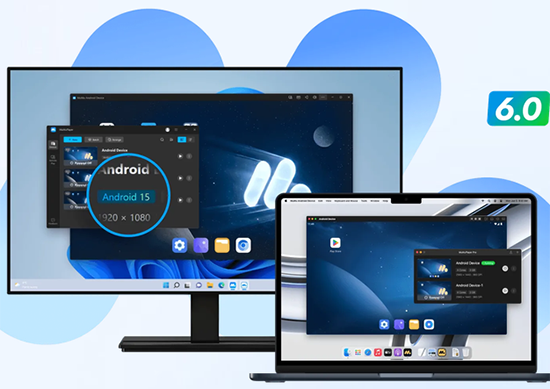
On Windows, enabling hardware virtualization (VT) can improve emulator performance. If you encounter installation or startup issues, consult the official MuMuPlayer Help Center.
Section 4: MuMuPlayer - Pros & Cons
MuMuPlayer offers several advantages for Android gaming, but it also has limitations related to performance, compatibility, and privacy. The table below examines its main pros and cons in detail to help you decide whether it suits your needs.
|
The Good
|
The Bad
|
|
Supports Android gaming on Windows and macOS. |
Some versions may experience crashes or loading issues. |
|
Offers customizable keyboard and mouse controls. |
Performance depends on hardware and game compatibility. |
|
Supports multiple emulator instances for running several games or accounts. |
Running multiple instances can consume substantial system resources. |
|
Provides graphics and performance settings for smoother gameplay. |
Setup may require virtualization and troubleshooting. |
|
Offers an interface without intrusive in-emulator ads in some versions. |
Pricing and features may vary between Windows and Mac versions. |
|
Supports app installation and Android game testing. |
Does not support every Android app or game. |
|
Provides useful features for gamers and developers. |
A security report raised concerns about undocumented system-information commands in the macOS Pro version. |
Section 5: How to Fix MuMuPlayer Not Working on PC
MuMuPlayer may fail to launch, get stuck on the loading screen, crash during gameplay, or display a black screen due to virtualization settings, graphics driver problems, corrupted files, or insufficient system resources. Try the following fixes one by one, starting with the simplest solutions:
- Restart Your PC and MuMuPlayer: Close MuMuPlayer and its background processes in Task Manager, restart your computer, and relaunch the emulator.
- Enable VT in BIOS: Enable Intel VT-x, AMD-V, or SVM Mode in BIOS/UEFI to improve emulator compatibility and performance.
- Check Hyper-V Conflicts: Check for conflicts between MuMuPlayer and Windows virtualization features, and follow the emulator's version-specific troubleshooting instructions.
- Update Your Graphics Driver: Install the latest compatible GPU driver to resolve black screens, crashes, and rendering problems.
- Run MuMuPlayer as Administrator: Right-click the emulator shortcut and select Run as administrator to resolve potential permission issues.
- Free Up Disk Space: Delete unnecessary files and ensure sufficient storage is available for MuMuPlayer and its Android instances.
- Switch Graphics Rendering Mode: Try another available rendering option, such as DirectX or OpenGL, if the emulator displays a black screen or crashes.
- Close Unnecessary Background Programs: Use Task Manager to close resource-intensive applications and free up CPU and RAM for MuMuPlayer.
- Update MuMuPlayer: Download the latest compatible version from the official website to address bugs and compatibility issues.
- Reinstall MuMuPlayer: Back up important emulator data, uninstall the existing version, restart your PC, and reinstall MuMuPlayer from its official website.
Section 6: What Could Be Better than MuMuPlayer
For users seeking a more direct way to run Android apps on a PC, Screen Mirror lets you mirror and control an Android/Apple device on a larger screen without relying on a full Android emulator. It avoids almost all of MuMuPlayer's drawbacks, such as emulator compatibility issues and heavy resource use, while letting you operate apps on your actual phone.
This software lets you mirror and control mobile apps on your PC, with keyboard and mouse control. By running apps directly from your phone instead of a virtual Android environment, it can replace MuMuPlayer for users who want to avoid emulator compatibility issues and resource demands.
Safe Download (No ads, no bundles, no background uploads):


How can you mirror a mobile phone to a PC via Screen Mirror (Taking an Android device as an example here)?
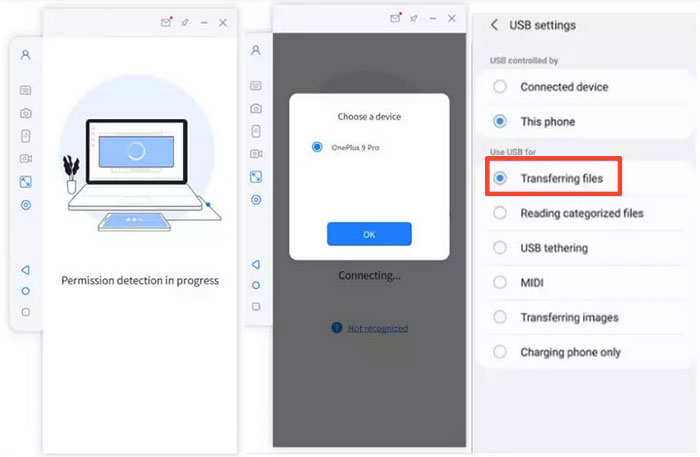
Step 1: Install and connect the device
- Download and install Screen Mirror on your PC Windows or macOS.
- Once the installation is complete, launch the program.
- Use a USB cable to connect your Android smartphone.
- When prompted, select your device and choose "Transfer files" mode.
Step 2: Enable Developer Options and USB debugging
- Open Settings on your mobile device.
- Navigate to About phone > Software information.
- Tap "Build number" seven times to unlock Developer options.
- Go back to Settings, open Developer options, and turn on USB debugging while the device is still connected.
Step 3: Allow access and complete setup
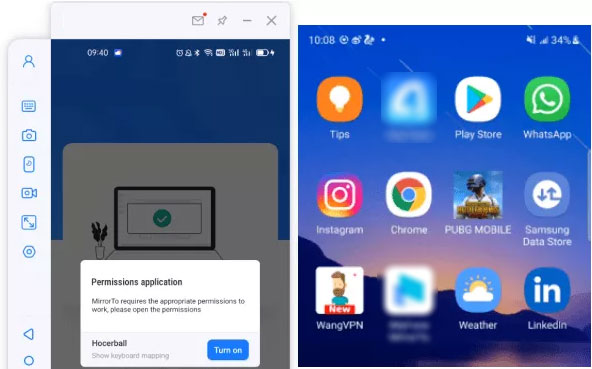
- Approve the permission request on your phone.
- Grant the app permission to access and display your phone screen.
- Tap "Turn on" to install the Screen Mirror APK.
- Once the installation is complete, you can control Android apps from your computer.
FAQs about MuMuPlayer
Q1: Is MuMuPlayer free to use?
Yes, MuMuPlayer offers a free version for running Android apps and games on a PC, although specific features and services may vary by platform and version.
Q2: Why is MuMuPlayer not working on my PC?
Common causes include disabled virtualization, outdated graphics drivers, insufficient system resources, corrupted installation files, and compatibility conflicts.
Q3: Does MuMuPlayer support Google Play?
Supported versions may provide access to Google Play, allowing users to sign in and install compatible Android apps and games.
Q4: Does MuMuPlayer require virtualization?
Hardware virtualization is recommended for many configurations because it can improve performance and compatibility. Requirements may vary by version and system setup.
Q5: Does MuMuPlayer work on low-end PCs?
MuMuPlayer may run on lower-spec PCs, but performance depends on CPU, RAM, graphics hardware, and the requirements of the apps or games being used.
Q6: Can MuMuPlayer access my computer files?
MuMuPlayer may access files through shared folders and other enabled permissions. Review its permissions and avoid sharing sensitive files unnecessarily.
Additional Tips:
- MuMuPlayer is a good option for gamers who prefer a lightweight interface, high frame rates, and fewer in-emulator ads, while BlueStacks offers broad game compatibility and extensive gaming features.
- BlueStacks may be more suitable if you prioritize compatibility, whereas MuMuPlayer is worth trying if you want a streamlined gaming experience. Compare both emulators with your favorite games and PC specifications before deciding.
Related Articles:
How to Access PC/Computer Files from Android Phone Remotely? 5 Ways
Android Blue Screen of Death? Try the 12 Troubleshooting Tips
How to Mirror Android to Mac without Obstacle? 8 Desirable Ways
How to Screen Record Android Phone Fluently? 4 Optimal Ways
6 Best Android Lock Screen Removal Software to Unlock Your Phone Easily
