
How to Transfer Music from PC/Computer to OnePlus? 4 Options
TL;DR:
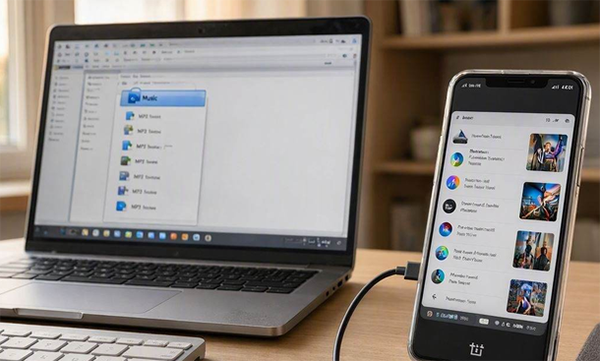
A routine copy process often stalls or breaks when moving large music files, so the following four methods offer reliable wired and wireless alternatives to get the job done.
- MobiKin Assistant for Android provides a stable wired transfer over USB that avoids wireless network limits and keeps all music metadata intact.
- For large music collections, its batch-transfer capability and extra tools for managing contacts and messages make it a more practical choice than basic file copying.
"I connect my phone to the computer via USB C and nothing happens. How to move files (movies, music, etc) from PC to OnePlus 15 via USB." -- from Reddit
Moving a few songs from a computer to a OnePlus phone may seem simple, yet some users experience stuck progress bars, interrupted copies, or complete freezes when transferring large numbers of tracks or large audio files. USB connections, wireless tools, and transfer settings can all affect how smoothly the process goes.
This guide explains how to transfer music from PC to OnePlus in 4 ways without a hitch, covering several practical options so you can choose the one that fits your situation.
- Way 1: Transfer Music from PC to OnePlus via MobiKin Software [All-in-one]
- Way 2: Transfer Music from PC to OnePlus Phone with File Explorer
- Way 3: Transfer Music from Computer to OnePlus via Quick Share for Windows
- Way 4: Send Songs from PC to OnePlus Using LocalSend
- People Also Ask about Transferring Music from PC to OnePlus
Way 1: Transfer Music from PC to OnePlus via MobiKin Software [All-in-one]
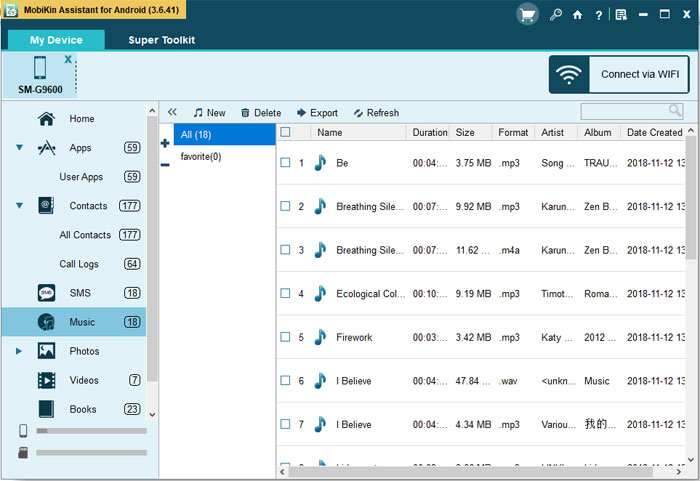
A USB connection lets MobiKin Assistant for Android (Windows/Mac) move music from a computer to a OnePlus phone with only a few steps. After connecting the phone, you can select individual songs or multiple tracks and transfer them to the desired storage location. It also supports managing other Android content, so music can be handled alongside photos, videos, contacts, and other files.
Core Features of MobiKin Assistant for Android:
|
Feature
|
Description
|
|
Music Transfer (PC → OnePlus) |
Select songs from your PC and add them directly to your OnePlus device via USB. The transfer is fast, retains ID3 tags (artist, album, cover), and works without cloud uploads or extra apps. |
|
Contacts Management |
Import/export/edit/delete contacts on PC; supports CSV, VCF, HTML, XML, and BAK formats. |
|
SMS Management |
Send/reply to messages from PC, and export SMS as HTML, XML, CSV, TEXT, or BAK. |
|
One-Click Backup & Restore |
Back up main data types (contacts, messages, call logs, photos, videos, music, apps) to PC and restore from backups with a single click. |
|
Photos & Videos Management |
Transfer media bidirectionally, export photos by album, and preview files on your computer. |
|
App Management |
Install/uninstall APKs from PC, and back up app files to your local drive. |
|
Data Export in Multiple Formats |
Export contacts, call logs, messages, and other data as readable files for printing or archiving. |
|
Wide Device Support |
Compatible with most Android devices, including OnePlus (15/13/12/11/10/9/8/7/Nord/Open/N/R, etc.,), Samsung, Huawei, Xiaomi, and more, and supports the latest Android versions. |
Quick Steps - How to copy songs from PC to OnePlus with MobiKin Assistant for Android?
- Download and install the MobiKin Assistant for Android software on your computer.
- Connect your OnePlus phone to your computer using a USB cable.
- Enable USB debugging on your OnePlus device. This allows the software to detect your phone automatically.
- Launch the software on your computer and wait for it to recognize your OnePlus phone.
- Select the "Music" option from the left-hand panel of the software interface.
- Click the "New" button (or "Add"/"Import" for other data types) located at the top of the screen.
- Browse your computer to locate the song files or folders you wish to transfer.
- Select the desired songs and click "Open" to begin the migration.


Video Tutorial:
You Might Enjoy: Can I retrieve my songs from my OnePlus phone? Yes. Try out the 5 easy methods here.
Way 2: Transfer Music from PC to OnePlus Phone with File Explorer
For a simple wired method, File Explorer lets you copy songs directly from a PC to OnePlus. Connect the phone with a USB cable, choose File Transfer on the device, and open its internal storage from This PC in Windows. You can then drag the selected music files into the Music folder without installing another program.
Quick Steps - How to move music from PC to OnePlus with File Explorer?
- Use a USB data cable to connect the phone to an available USB port on your computer.
- Unlock the phone, swipe down from the top of the screen, tap Android System or the USB notification, choose
- Tap for more options, and select File Transfer.
- Press Windows + E, then find your OnePlus phone under This PC or the connected devices section.
- Open the phone's internal storage and select an existing Music folder, or create one if necessary.
- Open the folder containing your songs on the PC, select the desired music files, and drag or copy them into the phone's Music folder.
- Locate the required folders and moving or copying the selected files to the desired location.
- After the transfer finishes, eject the OnePlus phone from Windows and unplug the USB cable.
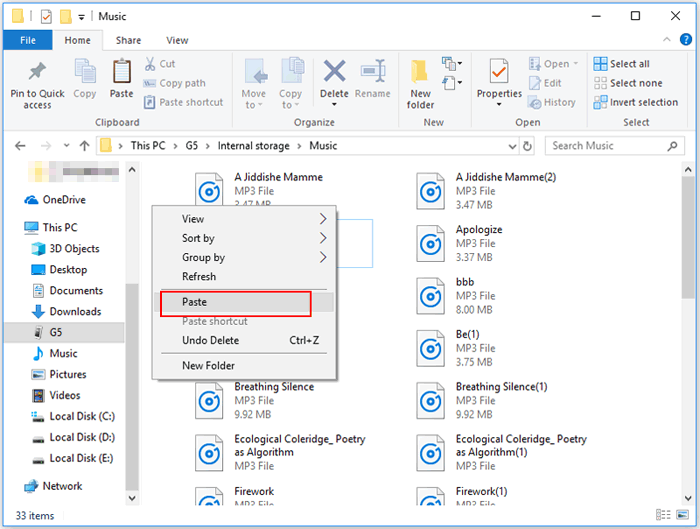
If the OnePlus phone does not appear in File Explorer, make sure it is unlocked and that File Transfer rather than Charging only is selected. Google's Android support also confirms that USB file transfer requires connecting the phone, selecting File transfer, and then dragging files through the computer's file-transfer window.
Further Exploration: Fix OnePlus Phone Not Connecting to PC/Computer in 11 Ways
Way 3: Transfer Music from Computer to OnePlus via Quick Share for Windows
Wireless transfers are also possible with Quick Share for Windows, which sends music from a PC to a nearby OnePlus phone. Open the app, select or drag the songs into its window, choose the OnePlus device, and accept the request on the phone. Both devices should have Wi-Fi and Bluetooth enabled for the transfer to work properly.
Quick Steps - How to share songs from PC to OnePlus with Quick Share for Windows?
- Download and install the Quick Share app on a compatible 64-bit Windows 10 or newer PC. Make sure Wi-Fi and Bluetooth are enabled.
- Launch the app and sign in if prompted. Set Device visibility according to your preference so your OnePlus phone can be discovered.
- Open Quick Settings on your OnePlus phone and enable Quick Share. Keep the phone close to the computer; Google recommends keeping the devices within about 5 meters.
- In the Quick Share window, click Select files or drag and drop the songs directly into the app.
- Select your OnePlus device from the available devices. The phone will display a request to receive the files.
- Tap Accept on your phone. The music files will then be transferred wirelessly to the device.
- After the transfer finishes, open the Files app on your OnePlus and check the received files, typically under Downloads > Quick Share.
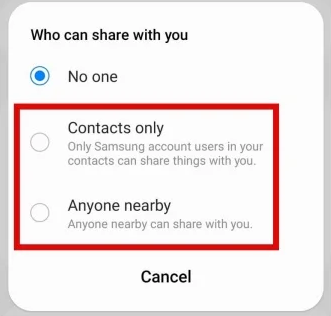
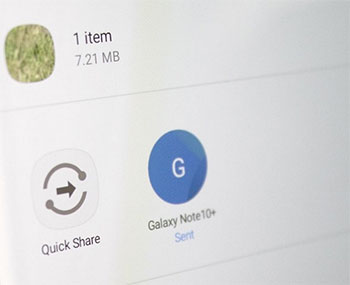
Note: Quick Share is already available on Android 6 and later, so you generally do not need to install a separate Quick Share app on the OnePlus phone; the Windows computer does require the Quick Share app.
Way 4: Send Songs from PC to OnePlus Using LocalSend
LocalSend provides a convenient way to send music from a computer to a OnePlus phone over the same local Wi-Fi network. It supports Windows and Android, works without an internet connection or account, and uses encrypted transfers.
Quick Steps - How to copy music from PC to OnePlus with LocalSend?
- Download LocalSend on your Windows PC and OnePlus phone, then open the app on both devices. It supports Windows and Android.
- Make sure your PC and OnePlus phone are connected to the same local network. LocalSend transfers files directly over the local network rather than through the cloud.
- Open LocalSend on Windows, select Send, and choose the songs you want to transfer. LocalSend supports any file type, so common formats such as MP3, WAV, and FLAC can be sent.
- When your phone appears among the nearby devices, click its name to start the transfer. LocalSend does not require an account or login.
- Tap Accept on your phone when the transfer request appears. The files will then be transferred directly over the local network.
- By default, received files are saved in the device's Downloads folder, although the storage location can be changed in LocalSend's settings.
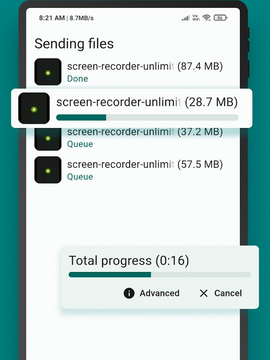
If your OnePlus phone does not appear, check that both devices are on the same Wi-Fi network and that LocalSend is allowed through the Windows firewall. LocalSend notes that firewall restrictions or router settings such as AP isolation can prevent devices from discovering each other.
People Also Ask about Transferring Music from PC to OnePlus
Q1. Can I transfer music from PC to OnePlus using Bluetooth?
Yes. Pair your OnePlus phone with the PC through Bluetooth, then select the desired songs and use the Send via Bluetooth option. This works best for smaller music files because Bluetooth transfers can be relatively slow.
Q2. Will transferring music from PC delete the existing songs on OnePlus?
No. Copying music to your OnePlus normally adds the new files without removing songs already stored on the phone. Make sure you choose Copy rather than Cut if you want to keep the originals on your PC.
Q3. What audio formats can OnePlus phones play?
OnePlus phones can handle common formats such as MP3, AAC, WAV, and FLAC, although exact playback support can vary by the music player and phone model.
Q4. Why is my OnePlus phone not showing on my PC?
Check whether the phone is unlocked and whether File Transfer is selected under the USB options. You can also try another USB cable, USB port, or computer if the device remains undetected.
Q5. Where should I put music files on my OnePlus phone?
You can place them in the Music folder in the phone's internal storage. If that folder does not exist, you can create it with a file manager.
Q6. Can I transfer an entire music folder from PC to OnePlus?
This depends on the transfer method. USB file transfer can be used to copy folders, while wireless tools may have different folder-transfer limitations.
Q7. Which is the fastest way to transfer a large music collection?
For a large collection, a wired USB connection via MobiKin Assistant for Android is generally a practical choice because it avoids wireless-network limitations. For smaller batches, Quick Share or LocalSend can be more convenient.
Related Articles:
How to Wipe a OnePlus Phone? 4 Tried-and-true Ways [Latest]
OnePlus Screen Mirroring: 4 Easy Ways to Mirror OnePlus to PC/TV
How to Transfer WhatsApp from iPhone to OnePlus? 4 Established Ways
How to Recover Deleted WhatsApp Messages in OnePlus? 4 Approaches
