
How to Fix Xperia Companion Not Detecting Phone? 12 Trusted Solutions
TL;DR:
No single failure of Xperia Companion has to leave you without a workable path to your phone's content. When you're unable to fix the failed connection when using this tool:
- MobiKin Assistant for Android runs on Windows and Mac and takes over the core functions of Xperia Companion without extra complexity.
- The software handles backups, restores, and file organization across thousands of Android models, so it remains useful well beyond a single connection problem.
An Xperia phone that works normally can still fail to connect with a computer through Sony's software. This guide covers practical ways to fix Xperia Companion not detecting phone and offers other software for backing up, transferring, or managing Xperia data if Xperia Companion cannot detect the device.
Whether the problem comes from the connection, software, or device settings, the following methods can help you get Xperia data management back on track.
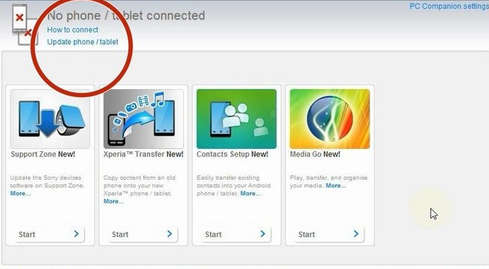
Part 1: A Quick Fix to Xperia Companion Not Detecting Phone
When you want to troubleshoot this quickly, try these five steps first:
- Unlock the Xperia.
- Connect it with a data-capable USB cable.
- Select File Transfer (MTP) from the USB notification.
- Try another USB port without a hub.
- Update/reinstall Xperia Companion.
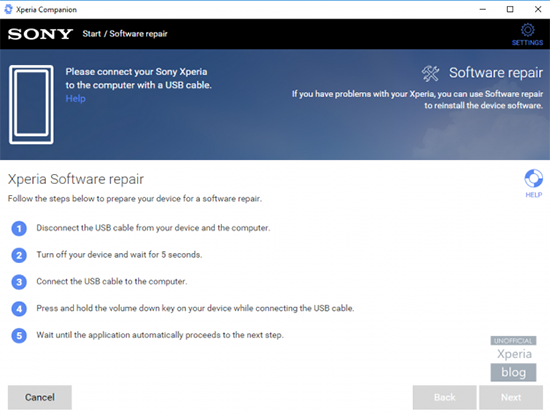
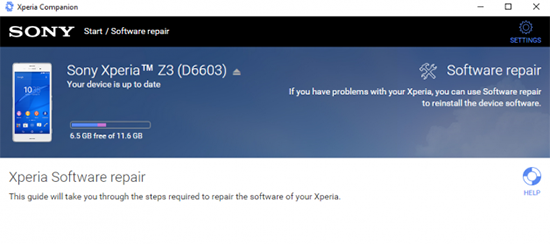
Assuming your goal is to use Xperia Companion's Software Repair, the procedure is different:
Sony officially instructs you to open Xperia Companion first and connect the phone only when prompted, generally while the phone is powered off. A software repair can erase personal data, so it should not be treated as an ordinary connection fix.
Further Reading: Can I factory or hard reset an Xperia phone? Yes. Here are 4 hassle-free ways.
Part 2: Other 11 Fixes to Xperia Companion Not Detecting Phone
Fix 1. Unlock the Xperia and select File Transfer
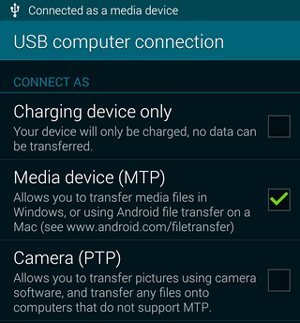
Connect the phone to the computer, unlock the screen, then swipe down the notification panel. Tap USB charging/Charging this device via USB and select File Transfer/Transfer files (MTP) instead of charging only. This is particularly important because the default USB mode is generally charging.
Fix 2. Try another USB cable
Some USB cables are intended only for charging and cannot transfer data. Use the original Sony cable or a known data-capable USB cable. Also try another USB port directly on the computer. Avoid USB hubs, docks, and extension cables while troubleshooting.
Fix 3. Check the Xperia USB port
Dust, lint, or moisture in the USB-C port can interfere with detection. Make sure the port is clean and completely dry before reconnecting the phone. Sony specifically warns that moisture can disable USB detection on some Xperia models.
Learn More: How to Transfer Data to SD Card on Sony Xperia in 4 Easy Ways?
Fix 4. Restart both devices
Disconnect the Xperia, restart both the phone and computer, then open Xperia Companion and reconnect the phone. Sony recommends checking whether the issue is resolved after each troubleshooting step.
Fix 5. Reinstall Xperia Companion
Make sure you're using the latest Xperia Companion. Sony says versions older than 24.9.1.202408201019 are no longer supported and won't automatically update, so older installations should be uninstalled and replaced with the latest version.
Download Xperia Companion from Sony Support.
Fix 6. Check the Windows MTP driver
If Windows itself doesn't recognize the Xperia, the MTP USB driver may not have loaded correctly. Open Device Manager → Portable Devices, locate the Xperia device, choose Update driver, and select MTP USB Device when available.
Fix 7. Windows N/KN users: Install Media Feature Pack
If you're running Windows 10/11 N or KN, MTP file transfer may not work without Microsoft's Media Feature Pack. Sony specifically recommends installing it for these Windows editions.
Fix 8. Try another computer
Connect the Xperia to another Windows PC or Mac. If it works there, the problem is more likely related to the original computer's USB port, driver, security software, or Xperia Companion installation rather than the phone itself. Sony also recommends trying another computer when USB detection fails.
Fix 9. Temporarily disable antivirus or firewall
Security software can sometimes interfere with the connection. Temporarily disable third-party antivirus/firewall software and reconnect the phone. Re-enable it afterward if it isn't the cause.
Fix 10. Clear Media Storage data
If the Xperia still isn't detected, Sony recommends clearing the Media Storage system app's data on supported Android versions, then restarting the phone. This does not delete your photos, music, or other media, although related information such as playlists may be affected.
Fix 11. Update the Xperia software
Check Settings → System → Software update and install any available update. Sony recommends keeping the Xperia software up to date when troubleshooting computer-connection problems.
Part 3: Try the Best Alternative to Xperia Companion
When Xperia Companion falls short for device backup and management, MobiKin Assistant for Android (Windows/Mac) provides a practical replacement for handling Xperia phones as well as other Android devices. It can back up contacts, messages, photos, videos, apps, and other data to a computer while also supporting file transfer, app management, and data organization.
With support for a wide range of Android brands, it offers a convenient way to manage Xperia devices without being tied to Sony's companion software. Here are its main features:
- Data Backup: Back up Android data to a computer.
- Backup & Restore: Restore selected data when needed.
- File Transfer: Move files between Android and PC/Mac flexibly.
- Phone Management: Manage Android content from a computer.
- App Management: Install, uninstall, and organize apps.
- SMS/Call & Contacts: Manage and back up messages/call records and contacts.
- Wide Compatibility: Supports Xperia and other 8,000+ Android phones/tablets as an Xperia Companion replacement.
Free & Safe Download:


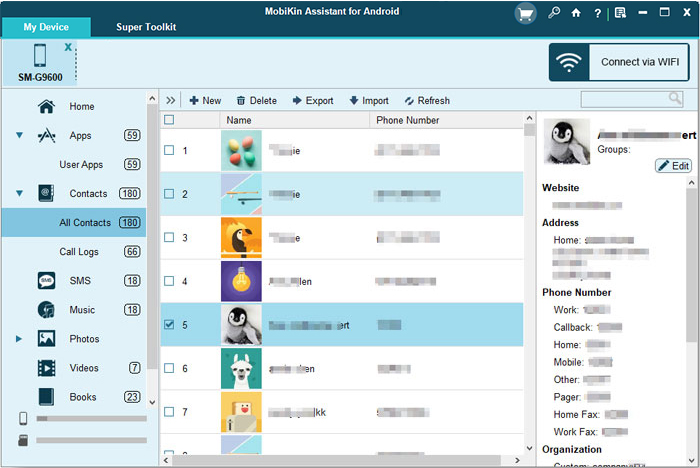
Download and install MobiKin Assistant for Android on your computer, then launch the program. Connect your Android phone to the computer with a USB cable, and follow the on-screen instructions to allow the software to recognize and identify your device. Once your phone is recognized, select a data category from the left panel or open "Super Toolkit" to back up, import, export, and manage your Xperia phone with ease.
Video Guide:
Roundup
A failed Xperia Companion connection does not mean your phone or its data is out of reach. After checking the connection and software settings, you can either restore the link or turn to another Android management tool when Xperia Companion still refuses to recognize the device. In the end, the best solution is the one that gets your Xperia data safely backed up and within your control.
Related Articles:
4 Handy Ways to Retrieve Deleted Messages from Sony Xperia Phone
4 Most Amazing Methods for Successful Sony Xperia FRP Bypass
Sony Xperia Broken/Dead Screen Data Recovery: 4 Solutions & Extra Tips
7 Solutions to Unlock Sony Xperia When Locked by Various Locks
