
How to Play Pokémon GO on PC? 5 Easy Tactics & 6 Popular FAQs
TL;DR:
If a larger screen and keyboard-and-mouse controls feel more comfortable than a phone touchscreen, and you would rather not hold or check a smartphone all the time. Luckily, it's possible to let Pokémon GO run on a PC; this article explains Android emulators and screen-mirroring tools for this purpose. To conclude:
- Screen Mirror keeps Pokémon GO on your phone while the display appears on your PC, so GPS and sensors keep working.
- A keyboard and mouse plus a bigger view can make play easier, and no emulator setup is required.
Reminder: We sincerely recommend using the products mentioned in this article only for gaming activities on an authorized computer (It's best if it's your own PC). This helps protect the privacy of the content stored on your phone and reduces the risk of unauthorized data exposure.
"Greetings, everyone. Is there anyone who can help me? I have a broken smartphone, so I would like to play Pokemon GO on my Windows PC. Could anyone please help me?" -- from forum.pokemongohub.net
A larger screen and familiar computer controls can make Pokémon GO more convenient for some players. If you want to use a keyboard and mouse instead of a phone touchscreen, or play without constantly holding or checking a smartphone, you may be wondering whether you can play Pokemon GO on PC.
This article covers several practical options, including Android emulators and screen-mirroring tools, along with their basic steps, advantages, and possible limitations.
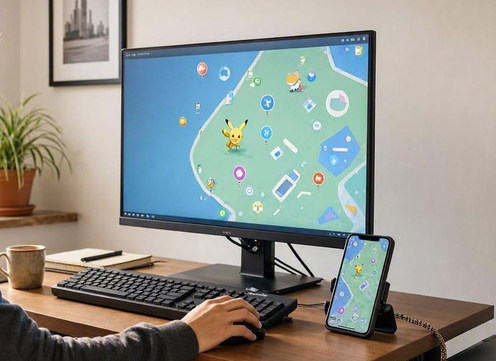
Method 1: Play Pokémon GO on PC via Screen Mirror [Risk-free]
Playing Pokémon GO on a larger screen can be achieved through different tools that bridge mobile gameplay with PC environments. With Screen Mirror, users can mirror their phone display directly onto their computer, allowing them to interact with Pokémon GO using a keyboard and mouse.
This setup makes catching Pokémon and navigating the map more comfortable, while still maintaining the mobile app's original features. It's particularly useful for players who want to enjoy the game without being restricted to a small phone screen.
Screen Mirror - Main Features:
> Play Pokémon GO on PC - Mirror and control Pokémon GO on a larger screen (100% Safe).
> Screen mirroring - Mirror Android or iPhone to PC via USB or Wi-Fi.
> Keyboard mapping - Control supported games with customizable keys.
> Mouse control - Use your PC mouse to interact with the phone screen.
> High-quality display - Supports up to 1080p/60 FPS.
> Screen recording - Record your mirrored screen and gameplay.
> Live streaming - Stream mobile gameplay to platforms like YouTube and Twitch.
> File transfer - Move files between Android devices and PC.
> Audio synchronization - Sync phone audio with the mirrored screen.
> Wide device support - Supports many Android and iOS devices.
> No emulator needed - Runs Pokémon GO on your phone while mirroring it to PC.
Free & Safe Download:


How-to Guide:
01 Install Screen Mirror
- Download and install Screen Mirror.
- Launch the program after installation.
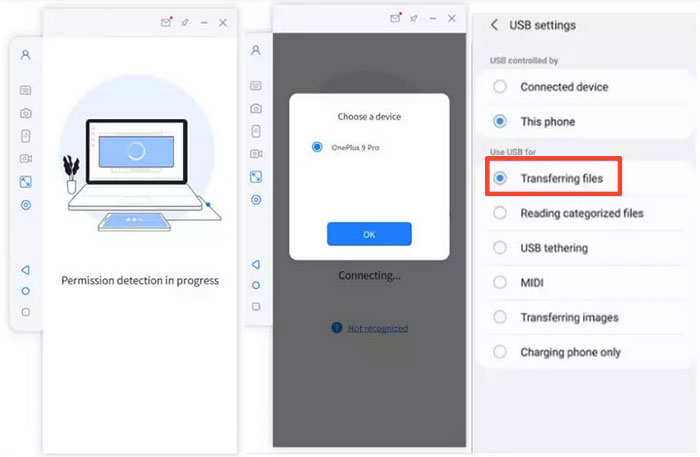
- Connect your device via a USB cable (Assuming you're using an Android phone).
- Select your device from the prompt and choose Transfer files.
02 Enable Developer Options
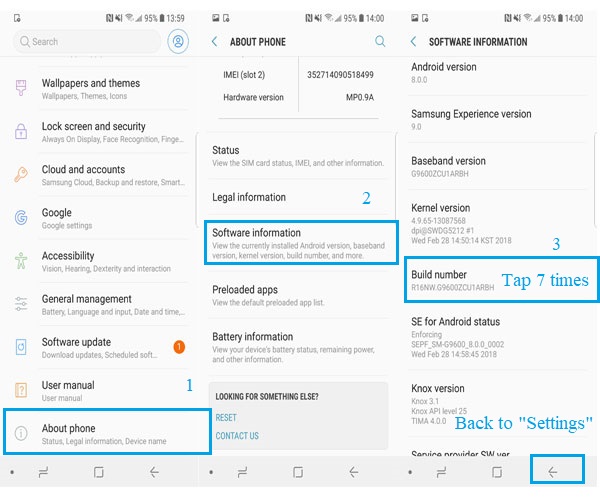
- Go to Settings → About phone → Software info.
- Tap Build number several times.
- Unlock Developer options.
- Turn on USB debugging.
- Confirm the prompt with Always allow USB debugging from this computer → OK.
03 Grant Permissions
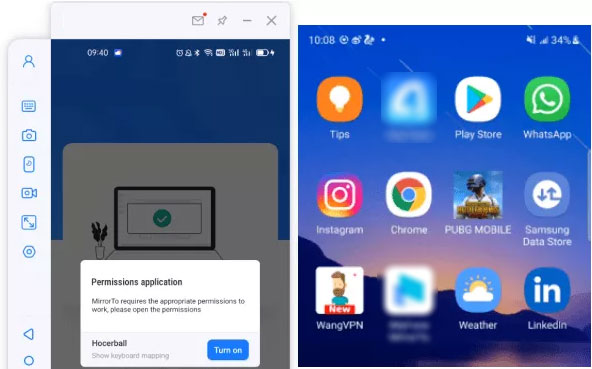
- Allow the app to display items at the top.
- Click Turn on to enable automatic APK download.
04 Start Mirroring
- Wait for the APK download to finish.
- Your device screen is mirrored.
- Use keyboard and mouse to control and play Pokemon GO on your PC.
You Might Also Like: Pokemon Go Routes Not Working? Causes & 11 Workable Methods
Method 2: Play Pokémon on My PC via BlueStacks
Another popular option is BlueStacks, which functions as an Android emulator on PC. By installing Pokémon GO within BlueStacks, players can simulate a mobile environment and access the game as if they were using a smartphone. The emulator provides customization options, such as mapping controls to the keyboard, which can enhance gameplay efficiency. However, it requires careful setup to ensure compatibility with location-based features of Pokémon GO.
How-to Guide:
- Download BlueStacks from its official website and install the emulator on your Windows PC.
- Launch BlueStacks and sign in with your Google account to access the Google Play Store.
- Install Pokémon GO by searching for it in the Play Store, then download and open the game.
- Configure location settings in BlueStacks if available, since Pokémon GO requires GPS features to detect locations.
- Customize controls by adjusting keyboard shortcuts, game controls, graphics settings, and performance options for smoother gameplay.
- Enable virtualization (VT) in your PC's BIOS if BlueStacks runs slowly or experiences performance issues.
- Open Pokémon GO in BlueStacks, log into your account, and start playing with a larger PC display.
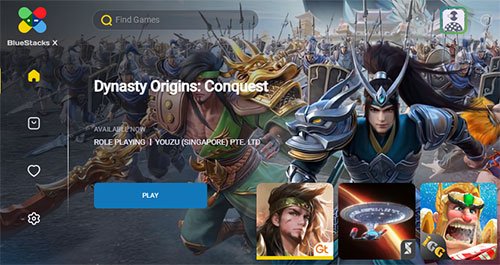
Consider screen mirroring instead of emulation if you want more stable GPS and sensor support, as playing through an emulator may cause compatibility problems or conflict with Pokémon GO's policies.
Click to Learn: 3 Tested Methods to Back Up Android Game Data to Computer/PC
Method 3: Play Pokemon on PC/Computer via MuMuPlayer
For those seeking a lightweight emulator, MuMuPlayer offers a streamlined way to run mobile games on a computer. Pokémon GO can be installed and played within this emulator, giving users a smooth experience with minimal resource consumption. Its interface is simple, making it accessible for players who want quick access without complex configurations. MuMuPlayer is often praised for stability and responsiveness during extended gaming sessions.
How-to Guide:
- Download and install MuMuPlayer from the official website, then complete the setup process on your Windows computer.
- Open MuMuPlayer and sign in with your Google account to access Android services and the built-in app store.
- Install Pokémon GO by searching for the game in MuMuPlayer's app center or Google Play Store, then download and launch it.
- Configure GPS settings in MuMuPlayer, as Pokémon GO requires location access to display the map, nearby Pokémon, PokéStops, and Gyms.
- Adjust emulator settings such as CPU, RAM, resolution, and graphics mode to improve game performance and reduce lag.
- Set up keyboard controls in MuMuPlayer to customize movement, clicks, and other actions for a PC gaming experience.
- Open Pokémon GO and log in with your account, then start playing on your computer using MuMuPlayer's emulator environment.
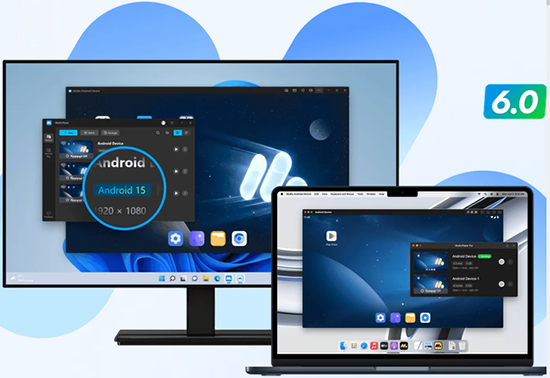
Note: Keep in mind that Pokémon GO relies on real-world location and movement, so emulator-based gameplay may have limitations or may not follow Niantic's intended usage policies. Using screen mirroring from your phone can be a more reliable option if you want to keep your device's GPS and sensors active.
Method 4: Play Pokémon on PC Windows via Phone Link
Microsoft's Phone Link provides a different approach by connecting a smartphone directly to a Windows PC. Instead of emulating, it mirrors the phone's screen, enabling Pokémon GO to be played in real time on the computer.
This method ensures that the game runs exactly as it does on the mobile device, while offering the convenience of larger visuals and easier multitasking. It's a practical solution for players who prefer direct integration rather than emulation.
How-to Guide:
- Install the Phone Link app on your Windows PC and make sure your Android phone supports screen mirroring features (such as compatible Samsung Galaxy devices).
- Set up the Phone Link connection by opening Phone Link on your PC and Link to Windows on your phone, then follow the pairing steps using your Microsoft account.
- Enable phone screen mirroring in Phone Link to display your Android phone screen directly on your Windows computer.
- Open Pokémon GO on your phone after the connection is established, allowing the game to continue using your phone's GPS, camera, and motion sensors.
- Control Pokémon GO from your PC by using your mouse and keyboard to tap, swipe, and interact with the mirrored phone screen.
- Adjust Phone Link settings such as window size, connection preferences, and notifications to improve the experience while playing.
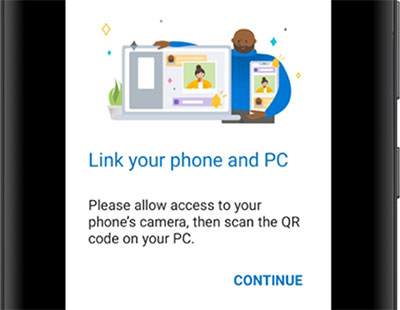
NOTE: Keep your phone connected and active because Phone Link only mirrors the game from your mobile device rather than running Pokémon GO natively on the PC.
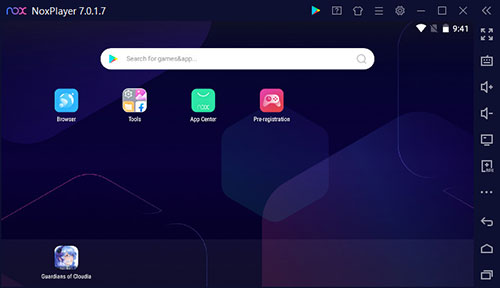
Method 5: Play Pokemon on Desktop Using NoxPlayer
Finally, NoxPlayer is another emulator that supports Pokémon GO on PC. It allows users to install the game and configure controls for a more tailored experience. Nox is known for its versatility, offering advanced settings that can optimize performance depending on the computer's hardware. Many players appreciate its balance between functionality and ease of use, making it a reliable choice for extended Pokémon GO sessions.
How-to Guide:
- Download and install NoxPlayer from its official website, then complete the installation process on your desktop computer.
- Launch Nox App Player and sign in with your Google account to access the Google Play Store
- Install Pokémon GO by opening the Play Store in Nox, searching for the game, and downloading it to the emulator.
- Set up location settings in Nox App Player, as Pokémon GO requires GPS access to load maps, nearby Pokémon, PokéStops, and Gyms.
- Configure emulator controls by customizing keyboard and mouse settings for taps, swipes, and other in-game actions.
- Adjust performance settings such as CPU, RAM allocation, graphics mode, and resolution to improve Pokémon GO's stability on your desktop.
- Open Pokémon GO in Nox App Player, log into your account, and play the game using your computer's screen and controls.
FAQs about Playing Pokémon GO on PC
Q1: Does PokeGo++ still work?
No. The original PokeGo++ is no longer available through official channels and is not actively maintained. It was a modified Pokémon GO client associated with Global++, which stopped operating after legal action from Niantic. Any PokeGo++ files found online should be treated carefully because unofficial downloads may contain security risks or outdated versions.
Q2: Can I use PGSharp on PC?
Yes, but not as a native Windows program. PGSharp is an Android-based application, so PC users need to run it through a compatible Android environment or emulator. Compatibility may vary depending on the emulator, Android version, PC hardware, and Pokémon GO updates.
Q3: Is playing Pokémon GO on PC safe?
Using screen mirroring is generally closer to normal mobile gameplay because Pokémon GO still runs on your actual phone. Emulator use and modified clients may cause compatibility issues or violate Pokémon GO's rules, so players should understand the possible account risks before using them.
Q4: Can I use PGSharp with BlueStacks or MuMuPlayer?
PGSharp itself is built for Android, not Windows, so using it on a PC requires an Android environment. However, emulator compatibility can change after Pokémon GO or PGSharp updates, and some users may experience loading failures or crashes.
Q5: Does Pokémon GO have an official PC version?
No. Pokémon GO is officially available for mobile devices and does not provide a dedicated Windows or macOS desktop version.
Q6: Why is Pokémon GO not working on my PC emulator?
Common reasons include outdated emulator versions, unsupported Android versions, GPS problems, insufficient PC resources, or compatibility changes after Pokémon GO updates.
In a Nutshell
Pokémon GO was made with mobile play in mind, but a PC can offer a different way to enjoy the game. Emulators or Screen Mirror provide an Android environment, while screen mirroring lets the game remain on your phone while appearing on your computer.
For a smoother experience, check Pokémon GO's current rules before using emulators or modified game tools. If GPS or compatibility becomes a headache, screen mirroring from your actual phone can be a simpler route while keeping the game running on the device it was made for.
Related Articles:
6 Easy Ways to Download/Install Apps on Android from Different Sources
10 Best iPhone Manager Software to Transfer and Manage iOS Files
Pokemon GO Fest Ticket Not Showing Up? 7 Quick Solutions & FAQs
How Does GO/Tour Pass Deluxe Pokémon GO Work [Full Analysis]
