
12 Fixes for Google Pixel Not Connecting to PC/Computer [Verified]
TL;DR:
Your Pixel may fail to connect to a PC due to a charge-only cable, the wrong USB mode (charging instead of file transfer), outdated drivers, or temporary software glitches. Work through the basic fixes and 1 more reliable program to fix the challenge. And if it still fails on multiple computers, suspect a hardware issue and seek repair.
Recommended Troubleshooting Order: Start with the cable, USB mode, and phone unlock status. Next, restart both devices and check Windows drivers. Only then move on to Developer options, USB preference resets, MobiKin Assistant for Android or repair support.
"When my phone is connected to my PC by USB, it shows on the phone that it's connected but doesn't show on the PC no matter what type of cable I use." -- from Pixel Phone Help
Why can't I connect my Google Pixel to my PC?
Your Google Pixel may not connect to your PC due to a faulty USB cable, an incorrect USB connection mode, outdated drivers, or temporary software issues. Sometimes, Windows fails to recognize the phone even when it is charging normally.
This guide to Google Pixel not connecting to PC covers 11 basic fixes to help you identify and resolve the connection problem. It also introduces one more effective solution for making the connection smoother and managing your Pixel data more conveniently.
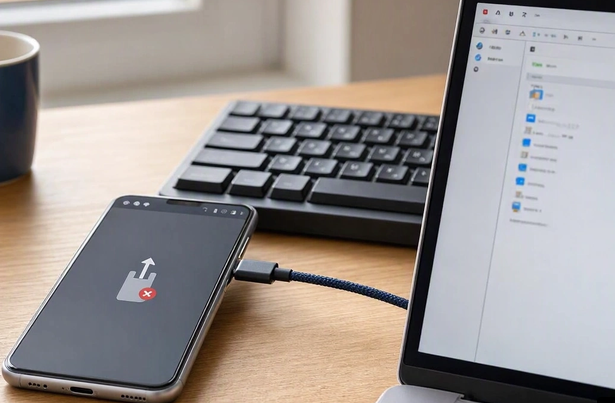
Part 1: Fix Google Pixel Not Connecting to PC in 11 Basic Ways
Solution 1: Unlock Your Google Pixel Before Connecting
Windows may not show your Pixel's files until you unlock the phone and allow access to its data. Connect the phone to your PC, unlock it with your PIN, pattern, or fingerprint, and check whether a USB notification appears. If prompted, allow file access.
Solution 2: Check the USB-C Port and Cable
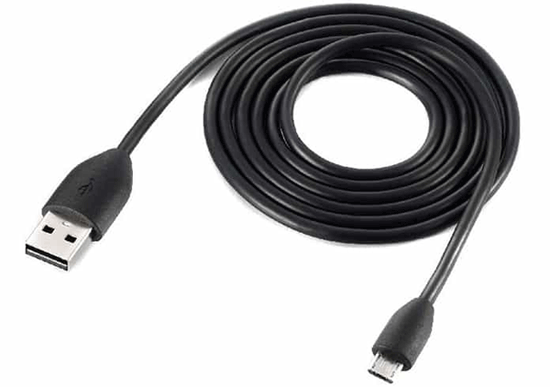
A USB-C cable that supports charging may not support data transfer. Try the original Pixel cable or another known data-capable cable, and connect it directly to a different USB port on your computer rather than through a hub. Check both USB-C ports for dust or debris, and avoid forcing a connector into place.
Solution 3: Check the USB Connection Mode
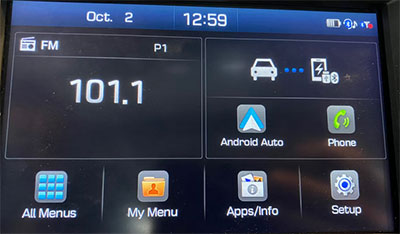
Your Pixel may default to charging instead of transferring files. To change the setting:
- Connect your Pixel to the PC using a data-capable USB cable and unlock the phone.
- Swipe down from the top of the screen to open the notification panel.
- Tap the Charging this device via USB notification.
- Under USB preferences, select File transfer/Android Auto. The wording may vary by Android version.
- Open File Explorer again and check whether your Pixel appears under This PC.
Solution 4: Activate Developer Options and USB Debugging
USB debugging is mainly intended for Android development and advanced troubleshooting. It is not required for ordinary file transfers, but enabling it may help with certain connection or debugging issues. Here's how:
- Open Settings > About phone and tap Build number seven times.
- Enter your screen lock if prompted, then return to Settings.
- Open System > Developer options and switch on USB debugging.
- Reconnect your Pixel and accept the authorization prompt if one appears.
- Turn USB debugging off when you finish troubleshooting if you do not need it.
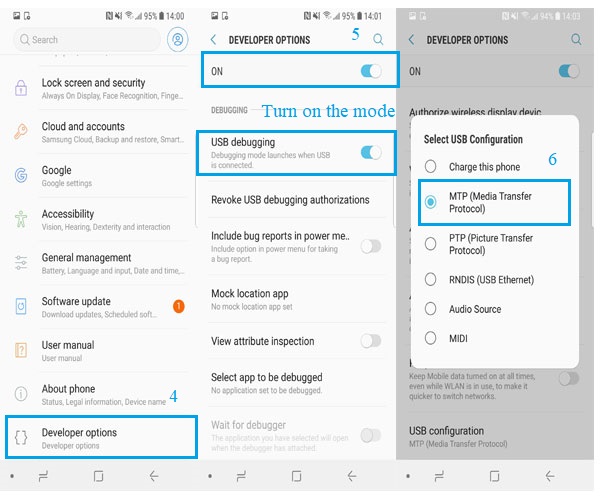
If your Pixel repeatedly defaults to charging, you can set its preferred USB mode in Developer options. Open Settings > System > Developer options > Default USB configuration, then select File transfer if that option is available. (File transfer doesn't work?) Disconnect and reconnect the cable to test the change. Menu names and availability may vary by Android version.
Solution 5: Update or Reinstall the USB Driver
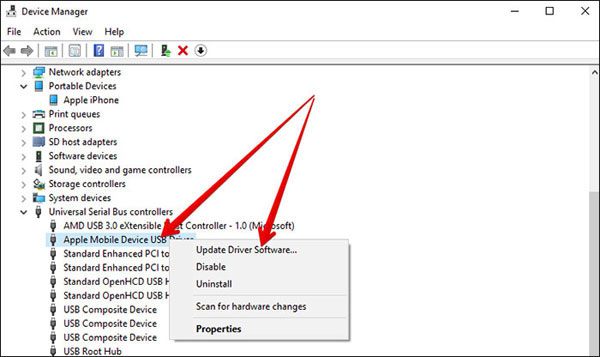
A faulty or incompatible Windows driver can prevent your Pixel from appearing as a portable device. Use Device Manager to refresh the driver before trying a manual installation. To do so:
- Connect your Pixel, then right-click the Windows Start button and select Device Manager.
- Expand Portable Devices, Other devices, or Universal Serial Bus controllers and look for your phone or an unrecognized device.
- Right-click the relevant entry and select Update driver > Search automatically for drivers.
- If the problem remains, select Uninstall device, disconnect the phone, restart Windows, and reconnect it so Windows can attempt to reinstall the driver.
You can also install the official Google USB Driver if needed for a supported manual installation. Keep in mind that this driver is primarily intended for developer connections, so it may not resolve every MTP file-transfer issue.
You May Also Like: 5 Smart Ways for Google Pixel FRP Bypass [Based on Our Tests]
Solution 6: Install the MTP USB Device Driver Manually
If your Pixel appears in Device Manager but Windows cannot access its storage, try selecting the generic MTP driver. This approach is particularly relevant when the phone is detected but does not show up correctly in File Explorer. To do this:
- Open Device Manager while your Pixel is connected and unlocked.
- Find the Pixel or the unknown device, right-click it, and choose Update driver.
- Select Browse my computer for drivers, followed by Let me pick from a list of available drivers on my computer.
- If available, choose MTP USB Device from the compatible hardware list and proceed with the installation.
- Unplug the phone, reconnect it, and check File Explorer.
If MTP USB Device is not listed, do not force an incompatible driver onto the device. Return to the compatible driver list or use Windows Update to look for a suitable driver.
Solution 7: Restart or Force Restart Your Pixel
A temporary Android or USB service glitch may stop your Pixel from communicating with Windows. Restart the phone and PC, then reconnect the cable after both devices have fully booted.
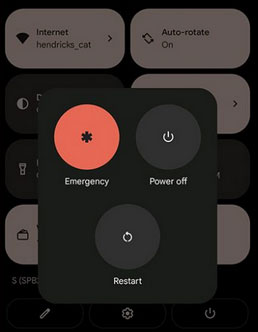
If the phone freezes or a normal restart does not help, try a force restart using the button combination for your specific Pixel model. For the Pixel 10, hold Power + Volume Up for about 10 seconds until the Google logo appears. Button combinations can differ between generations, so check the instructions for your model before proceeding.
Solution 8: Check File Explorer Accurately
Sometimes Windows detects the phone, but you may be checking the wrong location. Open File Explorer with Windows + E, select This PC, and look for your Pixel under Devices and drives or Portable Devices. Double-click the phone, then open Internal shared storage to view its folders.
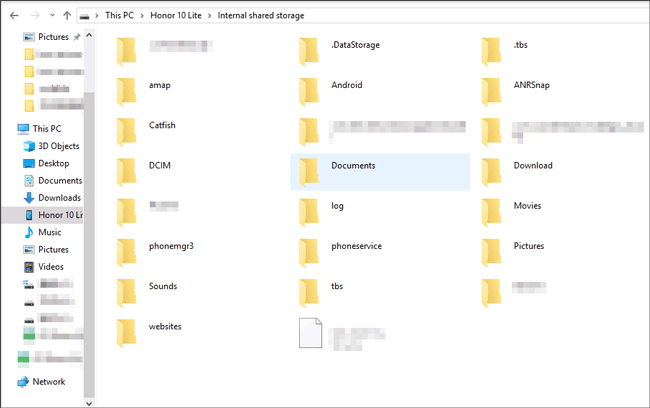
If it is missing, unlock the phone and select File transfer in the USB notification again. Wait several seconds for Windows to refresh the device list, then disconnect and reconnect the cable. If you only need pictures, selecting PTP (Photo Transfer) may also help determine whether the issue affects all file transfers or just the MTP connection.
Solution 9: Reset USB Preferences
Saved USB settings may be preventing your Pixel from presenting the expected connection options. Resetting USB preferences, if your Android version provides that option, can give you a fresh start without deleting your photos, contacts, or other personal files. To do it:
- Open Settings and search for USB preferences or USB.
- If available, open the USB settings or the relevant connection preferences menu.
- Look for an option to reset USB preferences or forget previous USB connections.
- Confirm the reset, reconnect the cable, and select File transfer when prompted.
- Not every Pixel model or Android version includes a dedicated reset button. If you cannot find it, skip this step rather than resetting all network or phone settings unnecessarily.
Solution 10: Run the Windows Hardware and Devices Troubleshooter
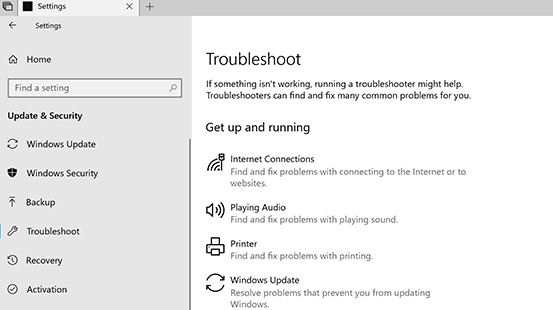
Windows may have a problem with its USB hardware configuration or connected devices. Although the traditional Hardware and Devices troubleshooter is hidden or unavailable on some newer Windows versions, you can try these checks. To do this:
- Press Windows + R, type msdt.exe -id DeviceDiagnostic, and press Enter if your Windows version supports the troubleshooter.
- Follow the on-screen instructions to detect and fix hardware-related problems.
- If the troubleshooter is unavailable, open Settings > Troubleshoot > Other troubleshooters and run any relevant available troubleshooter.
- Restart your PC, reconnect your Pixel, and check whether it appears in File Explorer.
Solution 11: Install Pixel and Windows Updates
Outdated software can sometimes cause compatibility problems between your phone and computer. Check both devices for pending updates before moving on to more complicated troubleshooting. Here's the user manual:
- On your Pixel: Open Settings > System > Software updates and check for Android updates. (What if the system update failed?)
- On Windows: Open Settings > Windows Update and select Check for updates. Install available updates, including relevant driver updates, and restart the PC if requested.
- After updating: Unlock the Pixel, connect it with a data-capable cable, select File transfer, and check whether Windows recognizes it.
- If the issue started immediately after an update, note the Android version and any Device Manager error codes. Those details can help narrow down whether the fault is software-related.
NOTE: If your Pixel still refuses to connect, test it on another Windows PC or a compatible Mac using a cable known to support data transfer. If the phone works on the second computer, focus on the original PC's USB ports, drivers, and operating system. If it fails on multiple computers with different cables, inspect the Pixel's USB-C port and consider contacting Google support or an authorized repair provider.
Part 2: Use Two Alternative Methods to Connect Pixel to PC Smoothly
> 2.1 Using MobiKin Assistant for Android
Connecting your Google Pixel to a PC is easier with MobiKin Assistant for Android, which lets you manage phone data through a direct USB connection. To avoid interruptions, use a reliable data cable, keep the phone unlocked, and ensure the connection remains stable throughout the process. Contacts, text messages, photos, videos, and other files can then be transferred or managed from your computer with less hassle.
This program is pretty safe to use and boasts broad compatibility, covering Pixel Pro, standard, a-series, foldable, and legacy models, including the Pixel 11, 10, 9, 8, 7, 6, 5, and earlier generations.
Safe Download (No ads, no bundles, & no background uploads):


How to Connect a Pixel Phone to a Computer via USB Using MobiKin Assistant for Android?
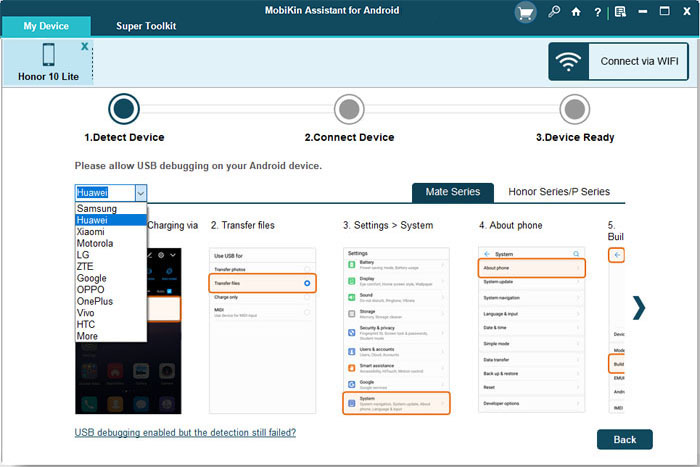
- Launch the software and use a USB cable to connect your Google Pixel device to the computer.
- If USB debugging is disabled, a pop-up window will appear. Follow the on-screen prompts to enable USB debugging on your Google device.
- The tool will check whether the necessary drivers are installed on your computer. If they are not found, it will begin downloading them.
- Once the download is complete, follow the prompts to install the driver. (For help with driver installation problems, see the troubleshooting guide: What to Do If Driver Installation Fails?)
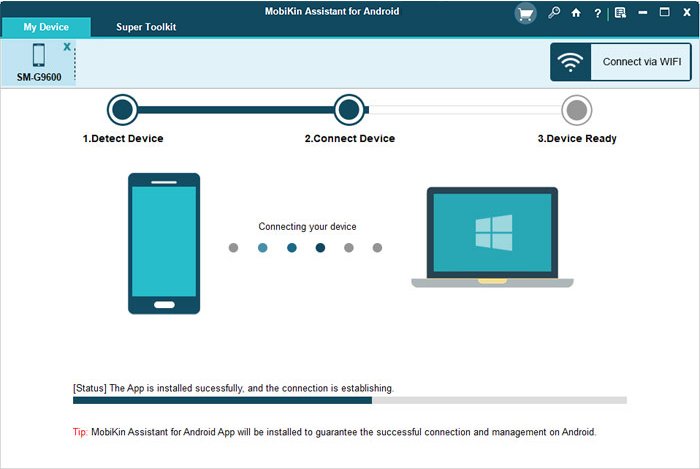
- The program will automatically install Assistant for Android (Android Version) on your Pixel phone. If your device asks for authorization, complete that step.
- If it does not, click "OK" on the computer. Wait for the automatic installation to finish, and then you can transfer data from your Pixel with ease.
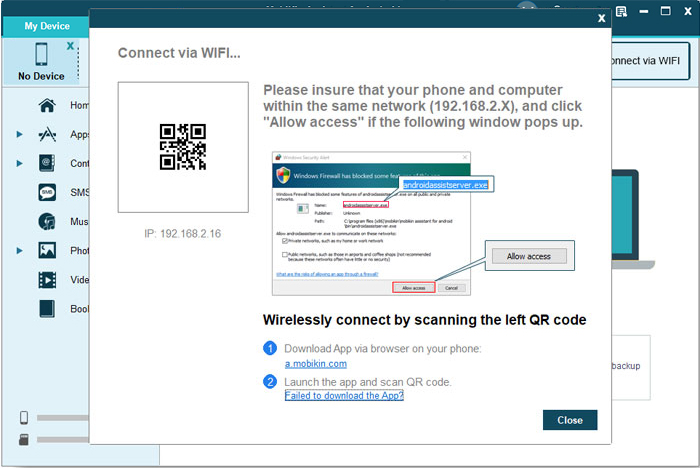
You can also connect your Pixel phone to your PC via WiFi. Enable the "WiFi" feature on your Android phone and connect to a stable WiFi network. Open the program on your computer and select "Connect via WIFI" in the upper-right corner. Step 2: Download MobiKin Assistant for Android (Android Version) on your Pixel device. Open the APK file, tap "Scan QR Code," and use your Samsung device to scan the QR code displayed on your PC. Make sure both your Pixel and computer are on the same network. Your Pixel is now connected to the PC.
Video Guide:
> 2.2 Using Quick Share for Windows
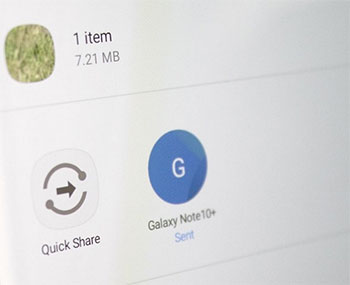
Transferring files between a Google Pixel and a computer is convenient with Quick Share for Windows, which sends photos, videos, and documents wirelessly without a USB cable. For fewer interruptions, keep Bluetooth and Wi-Fi enabled on both devices, place them close to each other, and maintain a stable connection. Once paired and detected, you can share files without repeatedly plugging in your phone or dealing with a loose cable.
Part 3: When to Send Google Pixel for Repair
If your Pixel still cannot connect to a PC after trying the troubleshooting methods above, consider professional repair. The following signs suggest a possible hardware fault:
- Damaged USB-C port: The cable feels loose, the connector does not fit properly, or the port shows visible damage.
- Intermittent connection: Your Pixel repeatedly disconnects when the cable is moved slightly, even when you use a known working data cable.
- Charging problems: The phone also struggles to charge through the USB-C port, which may indicate a port or internal hardware issue.
- Failure on multiple computers: Your Pixel remains undetected by different computers despite trying several data-capable cables and selecting File transfer mode.
- Physical or liquid damage: The phone has been dropped, exposed to liquid, or developed USB-related problems after an accident.
Related Articles:
How to Recover Deleted Contacts on Google Pixel? 4 Reliable Options
Switching from Google Pixel to OPPO? 3 Worry-free Ways & Valuable Tips
How to Back Up & Restore Google Pixel in 6 Easy & Popular Ways
How to Factory Reset Google Pixel 11/10/9/8/7/6/5? 5 Creative Ways
