
10 Easy Solutions to O+ Connect/OPPO Connect Not Working
TL;DR:
O+ Connect can run into connection, compatibility, permission, or network problems, but most issues can be addressed by checking the basic settings and updating the app. If these fixes still do not work, switching to a reliable alternative such as MobiKin Assistant for Android for data management or Screen Mirror for OPPO-to-PC screen mirroring can provide a smoother way to handle your tasks.
Why Is O+ Connect/OPPO Connect Not Working?
- Poor Wi-Fi - Use the same Wi-Fi network.
- Bluetooth off - Enable Bluetooth on both devices.
- Missing permissions - Allow required app permissions.
- Outdated app - Update O+ Connect.
- Incompatible devices - Check device support.
- PC client issues - Reinstall the desktop app.
- QR pairing failure - Try QR-code pairing again.
- Temporary glitches - Restart both devices.
- VPN interference - Disable the VPN temporarily.
- Feature limitations - Check whether your device supports the desired feature.
After figuring out the possible causes of this issue, let's now illustrate how to fix it with 10 most practical solutions.
Section 1: How to Fix O+/OPPO Connect Not Working
Fix 1. Check Device Compatibility
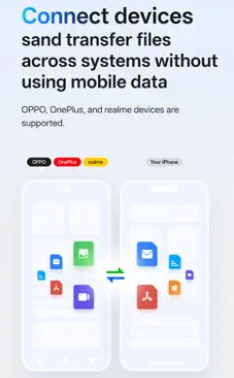
When your OPPO phone doesn't link to your PC, make sure both devices are supported by O+ Connect/OPPO Connect. The service supports connections involving OPPO, OnePlus, and realme devices, as well as Apple devices for supported functions.
Fix 2. Update O+ Connect
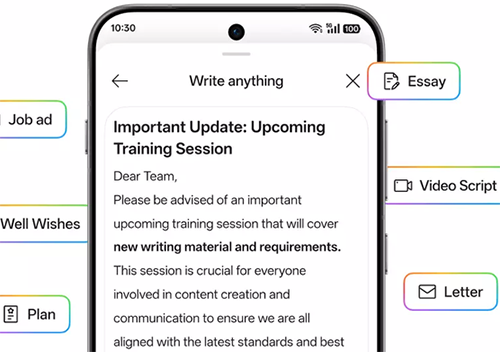
An outdated version can cause connection failures. The iOS version has received multiple updates containing bug fixes, with version 1.4.8 listed as the latest version in the available App Store information.
If you are using the desktop version, download the latest version from the official website rather than an unofficial APK or installer.
Further Exploration: How to Transfer Files from OPPO to USB Flash Drive in 4 Easy Ways
Fix 3. Turn On Wi-Fi and Bluetooth
O+ Connect relies on wireless communication between devices. Turn on Wi-Fi and Bluetooth on both devices, then reopen the app.
If the connection remains stuck:
- Turn Wi-Fi and Bluetooth off on both devices.
- Wait about 10 seconds.
- Turn them back on
- Open O+ Connect again.
- Try pairing the devices again.
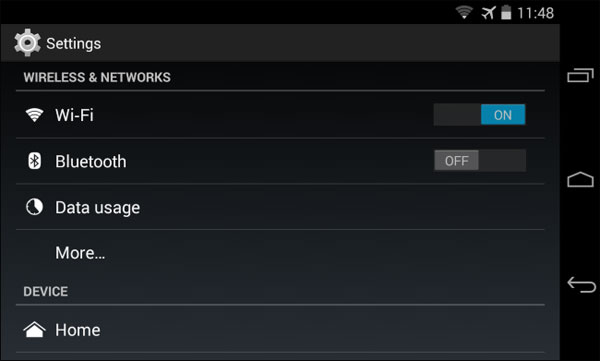
Some users have reported connection problems even after enabling Bluetooth and using a hotspot, so simply turning on these features may not always be enough.
Fix 4. Put Both Devices on the Same Network
For file transfers, connect the devices to the same Wi-Fi network when possible. O+ Connect/OPPO Connect has added support for transferring files between devices on the same network without requiring a hotspot connection.
If you are currently using a hotspot, try switching to a normal Wi-Fi network.
You May Also Like: How to Retrieve Deleted Text Messages on OPPO? 4 Ingenious Ways
Fix 6. Restart O+ Connect
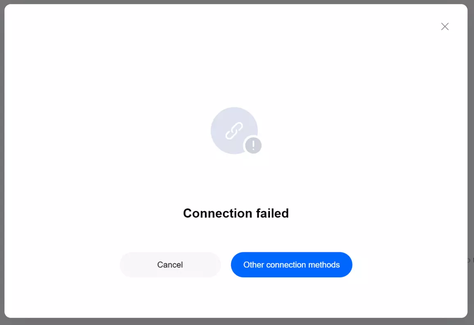
Completely close O+ Connect/OPPO Connect on both devices and launch it again. For computer connections, restarting the O+ Connect application can resolve cases where a Mac fails to detect a OnePlus phone. (You can also restart both devices before trying again.)
Fix 5. Enable iPhone Cross-Device Connectivity
If you are connecting an iPhone/iPad to an OPPO, OnePlus, or realme phone, check: Settings > Cross-device connectivity > iPhone. The App Store listing specifically indicates that this setting needs to be enabled on the phone being connected.
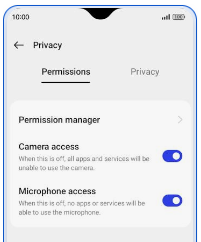
Fix 7. Allow Necessary Permissions
Check the app's permissions and allow access to the features required for your task, such as:
- Bluetooth;
- Local network;
- Photos and videos;
- Files and media;
- Notifications, if you need notification synchronization.
On Android, check Settings > Apps > O+ Connect/OPPO Connect > Permissions. On iPhone/iPad, check Settings > Privacy and the O+ Connect app settings.
Fix 8. Clear O+ Connect's Cache
If O+ Connect opens but freezes at "Connecting", clearing its temporary data can help. On Android, go to:
- Settings > Apps > O+ Connect/OPPO Connect > Storage > Clear Cache.
- Then reopen the application.
- Avoid Clear Data initially because it may remove the app's saved settings.
Fix 9. Disconnect Other Wireless Connections
Temporarily disconnect VPNs, other Bluetooth devices, or another phone/tablet that may be competing for the connection. Then try pairing O+ Connect/OPPO Connect again.
This is particularly useful if the app can see the other device but cannot complete the connection.
Fix 10. Reinstall O+ Connect/OPPO Connect
If none of the above works:
- Uninstall O+ Connect/OPPO Connect from the affected device.
- Restart the device.
- Install the latest version.
- Grant the required permissions.
- Enable Wi-Fi/Bluetooth.
- Try connecting again.
Section 2: Top 2 Best Alternatives to O+/OPPO Connect
> 2.1 Using MobiKin Assistant for Android
When transferring or managing Android data across different platforms, MobiKin Assistant for Android (Windows/Mac) provides a practical alternative to O+/OPPO Connect, with support for contacts, messages, photos, videos, music, apps, and other files.
It can move data between Android devices and computers, while also giving users direct control over backing up, restoring, exporting, and managing phone content. Compared with O+/OPPO Connect, it offers broader data-management options, making it a strong choice when cross-platform transfer and detailed Android data management are the main concerns.
MobiKin Assistant for Android - Core Characteristics:
|
Key Features
|
What It Offers
|
Advantage over O+ Connect
|
|
Cross-Platform Transfer
|
Transfers contacts, messages, media, apps, and files. |
Broader data-transfer options. |
|
PC Data Management
|
Manages Android data directly from a computer. |
Provides deeper file control. |
|
Selective Transfer
|
Transfers only chosen data or files. |
Gives users more control. |
|
Backup & Restore
|
Backs up and restores various Android data. |
Adds dedicated backup tools. |
|
Phone-to-Phone Transfer
|
Moves selected data between Android phones. |
Useful for phone switching. |
|
Contact Management
|
Adds, edits, deletes, and transfers contacts. |
Offers more contact controls. |
|
SMS & Call Log Management
|
Views and transfers messages and call logs. |
Provides broader communication-data management. |
|
App Management
|
Installs, uninstalls, and exports apps. |
Gives greater app control. |
|
File Management
|
Manages photos, videos, music, and documents. |
Better for detailed storage management. |
|
One-Click Management
|
Handles multiple data types from one interface. |
Simplifies Android data management. |
Free & Safe Download:


Step 1. Connect your Android device. Launch the program and connect your Android phone to the PC with a USB cable. If prompted, enable USB debugging and follow the on-screen instructions until the program detects your device.
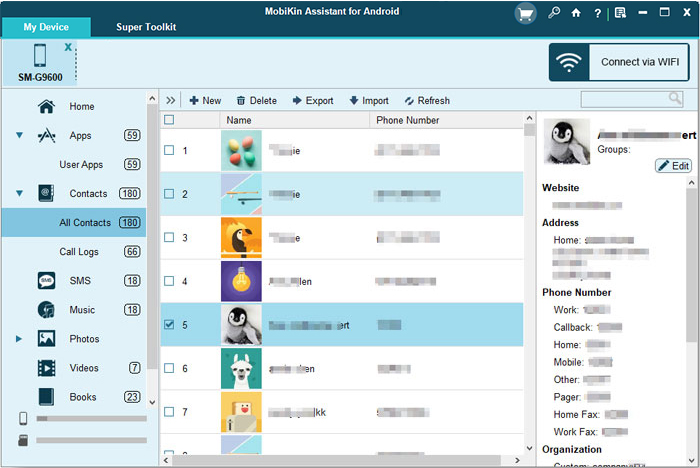
Step 2. Transfer or manage your data. Once the device is recognized, select the desired data folders from the left panel, or open "Super Toolkit" at the top to access the available transfer and management options.
Video Tutorial:
> 2.2 Using Screen Mirror
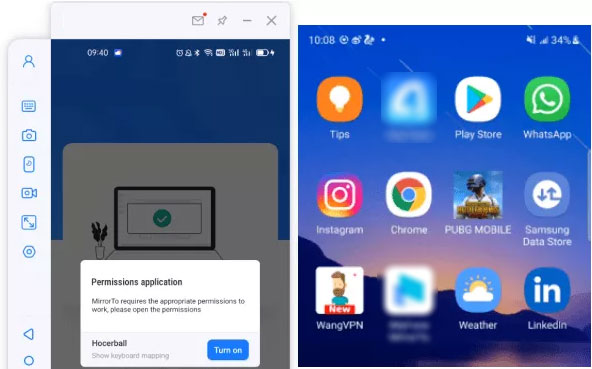
For OPPO users who need to mirror their phone screen on a PC, Screen Mirror offers a capable alternative to O+ Connect/OPPO Connect with flexible connection methods and smooth screen sharing.
This tool supports iOS and Android screen mirroring to Windows PC and Mac through USB or Wi-Fi, with up to 1080p/60 FPS, audio synchronization, and responsive performance. It also adds keyboard and mouse control, screen recording, game support, and live streaming, making it more than a basic phone-to-PC mirroring tool.
In Conclusion
The connectivity problem with O+ Connect/OPPO Connect typically stems from common technical factors like mismatched Wi-Fi networks, disabled Bluetooth, missing permissions, outdated software, or temporary system glitches.
To resolve it, systematically apply the ten troubleshooting steps-prioritizing network consistency and permission checks-or, if persistent, switch to robust alternatives like MobiKin Assistant for comprehensive data management or Screen Mirror for effective display mirroring.
Related Articles:
How to Hard/Factory Reset OPPO Phone? 4 Options You'd Better Know
7 Latest Methods to Unlock OPPO Phone without Password [2026]
How to Back Up OPPO to MacBook? 4 Simple Options [Helpful]
How to Transfer Data from OPPO to OPPO? 5 Easy Ways You Should Never Miss
