
POCO Backup Restore: 5 Smart Strategies to Back Up & Restore POCO
TL;DR:
A reliable backup before any major phone operation is the simplest way to avoid permanent data loss, and the methods below offer different levels of convenience and control for POCO users.
- MobiKin Backup Manager for Android provides a direct PC-based solution that works around the limitations of cloud storage and manual file transfers.
- Its selective backup and restore options let you handle specific data types, such as contacts, messages, and apps, without overwriting the entire device.
"I had bought my POCO Phone a month ago. Yesterday I made a backup with Google Account. The problem is that now I cannot restore my backup at all." -- from Reddit
POCO phones can hold years of contacts, messages, photos, apps, and personal settings, making it important to keep a copy of this data before a hard reset, system update, repair, or device switch. With POCO backup restore, you can use options such as Google Backup, Xiaomi Cloud, a PC, or TWRP to create a full backup in case something goes wrong.
This article explains several practical ways for POCO backup and restore, along with key points to check before starting.
- Section 1: Conduct POCO Backup & Restore via MobiKin Software
- Section 2: Back Up & Restore POCO via PC Directly [Copy & Paste]
- Section 3: Back Up POCO & Restore Data after Backup via Google Service
- Section 4: Back Up & Restore POCO Device via Xiaomi/Mi Cloud
- Section 5: Back Up POCO & Restore Content via TWRP
- FAQs for POCO Backup & Restore
Section 1: Conduct POCO Backup & Restore via MobiKin Software
For users who need a straightforward way to manage Android backups, MobiKin Backup Manager for Android (Windows/Mac) lets you save contacts, messages, photos, videos, apps, and other supported data to a computer. Termed MobiKin Android Backup & Restore, it can also back up POCO devices and restore the saved content when needed. With its selective backup and restore options, you can choose specific data types instead of handling the entire phone at once.
MobiKin Android Backup & Restore - Core Features:
- POCO Backup & Restore - Easily back up and restore POCO data.
- Selective Backup - Choose specific data to save.
- Multiple Data Types - Support contacts, SMS, apps, photos, videos, and more.
- Quick Restoration - Restore selected data to POCO devices.
- PC Storage - Keep backup files safely on your computer.
- Wide Compatibility - Support POCO and many other Android devices, such as POCO C, M, X, and F series, including the C75, M7 Pro, X7 Pro, and F7 Ultra.
Back Up POCO via MobiKin:
- Download and install the software on your computer, launch it, and connect your POCO phone to the computer with a USB cable. (How can I link my POCO to my Mac?)
- Enable USB debugging on your POCO phone if required so the software can recognize the device.
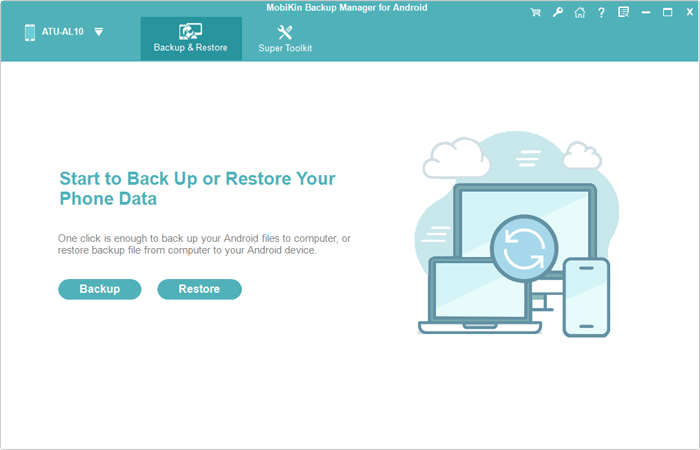
- Once connected, select "Backup" from the "Backup" and "Restore" options.
- Select the data types you want to back up, choose a storage location on your computer, and click "Back Up" to save the selected POCO data.


Restore Backup from POCO via MobiKin:
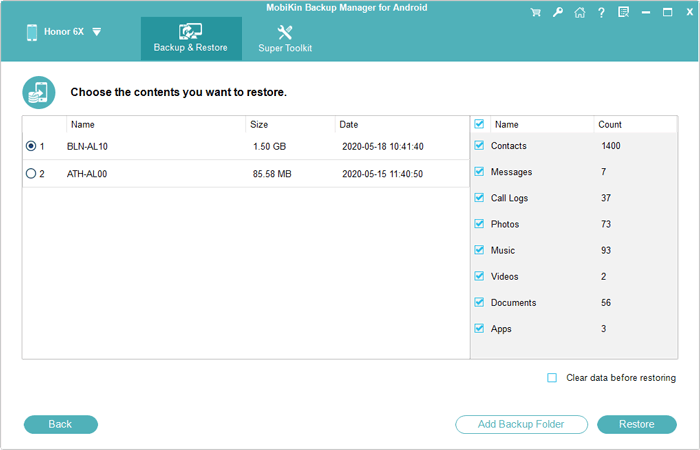
- Once the software detects your POCO phone, select "Restore" from the main interface and review the backup files you created previously.
- Choose the file types you want to recover, then click "Restore" again to transfer the selected data to your connected POCO device.
Video Tutorial:
You Might Also Enjoy: How to Export POCO Contacts to Excel Spreadsheet? 4 Tried-and-true Ways
Section 2: Back Up & Restore POCO via PC Directly [Copy & Paste]
A direct PC backup is a practical way to keep a separate copy of important POCO data without relying entirely on cloud storage. According to the available guides, you can either create a local backup on the POCO phone and copy its backup folder to your computer, or use a PC-based backup utility when supported.
Back Up POCO to PC via Local Backup:
- Open Settings on your POCO phone.
- Go to Additional settings or About phone, depending on your HyperOS/MIUI version.
- Tap Backup & restore or Backup.
- Select Local backups and tap Create backup or a similar option.
- Choose the data you want to back up, such as apps, SMS, and settings.
- Tap Start and wait until the backup is completed.
- Open File Manager and go to Internal storage > MIUI > backup > AllBackup.
- Connect the POCO phone to your PC using a USB cable.
- Select File Transfer (MTP) on the phone.
- Open the phone's internal storage on your PC and locate MIUI/backup/AllBackup.
- Copy the dated backup folder to a safe location on your computer.
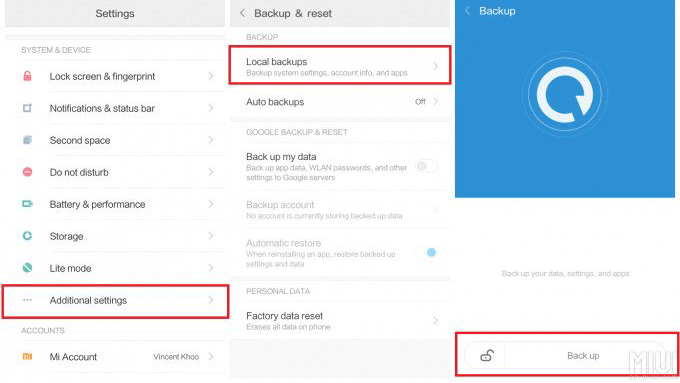
The local backup is stored in the MIUI/backup/AllBackup directory. Note that photos, videos, and music are not included in this local backup, so copy those media files separately if needed.
Restore the POCO Backup from PC:
- Connect your POCO phone to the computer with a USB cable.
- Select File Transfer (MTP) on the phone.
- Open the backup location on your PC.
- Copy the previously saved backup folder back to Internal storage > MIUI > backup > AllBackup.
- On your POCO phone, open Settings > Backup & restore.
- Choose Local backups.
- Select the available backup and tap Restore.
Tip: Keep the copied backup folder on your PC even after restoring it. Having a second copy gives you another recovery option if something goes wrong during a reset or system update.
Extended Reading: How to Recover Deleted Contacts on POCO? 4 Tried-and-true Approaches
Section 3: Back Up POCO & Restore Data after Backup via Google Service
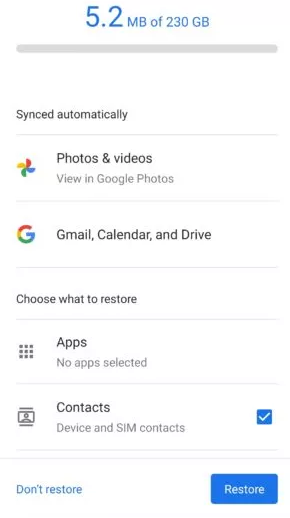
Google's backup service provides a convenient way to save important data from a POCO phone to your Google Account before a factory reset, phone replacement, or other major changes. According to Xiaomi's official instructions.
Back Up POCO via Google Service:
- Open Settings on your POCO phone.
- Tap About phone.
- Select Back up and restore.
- Tap Backup (Another route is Settings > Google > Backup).
- Choose the data you want to save, such as Photos & videos or Other device data.
- Tap Confirm.
- Select Manage backup to check your backup status and manage the stored data.
Once enabled, POCO can automatically back up data over Wi-Fi when the phone has been idle and charging for about two hours. If you allow backups over mobile or metered Wi-Fi, additional data charges may apply.
Restore POCO Data After Backup:
- Turn on your POCO phone after the reset.
- Follow the on-screen setup instructions.
- Connect the phone to a Wi-Fi network.
- Sign in with the Google Account that contains your backup.
- When the setup process detects an available backup, select it.
- Choose the data you want to restore.
- Follow the on-screen instructions and wait for the restoration to complete.
- After setup, check your contacts, apps, settings, photos, and other restored content.
Section 4: Back Up & Restore POCO Device via Xiaomi/Mi Cloud
Xiaomi Cloud provides a convenient way to keep selected POCO data online and restore it when needed. The exact menu names can vary between MIUI and HyperOS versions, but the general process is similar.
Back Up POCO to Xiaomi/Mi Cloud:
- Open Settings on your POCO phone
- Tap About phone.
- Select Back up and restore.
- Tap Xiaomi Cloud.
- Select Backups.
- Tap Back up now.
- Enter your screen-lock password, PIN, or pattern if prompted.
- Wait for the backup to finish. (Mi Cloud backup failed?)
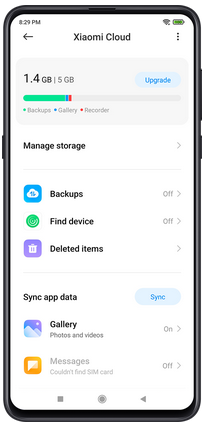
A stable Internet connection and a Xiaomi Account signed in on the phone are required for Xiaomi Cloud backup. The backup time depends on your connection speed and the amount of data being saved.
Restore POCO Data from Xiaomi/Mi Cloud:
- Open Settings.
- Go to About phone > Back up and restore > Xiaomi Cloud.
- Look for the available cloud backup.
- Select the backup you want to use.
- Tap Restore or Restore from Cloud.
- Select the required backup copy and confirm the restoration.
- Wait for the process to complete. Your phone may restart during restoration.
- Restore the POCO Home Screen and Related Settings.
Section 5: Back Up POCO & Restore Content via TWRP
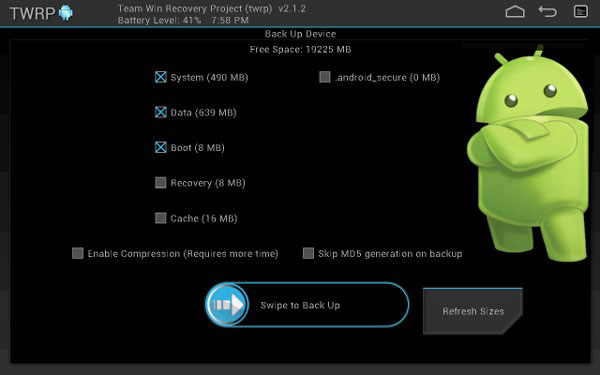
TWRP is a custom recovery that can create a more comprehensive backup of a POCO device, including key system partitions and user data. The method is mainly useful for users who already have TWRP installed and are comfortable working with custom recovery.
Back Up POCO via TWRP:
- Charge your POCO phone to a sufficient level before starting.
- Turn off the device.
- Press and hold the Power + Volume Up buttons to enter TWRP recovery.
- Tap Backup on the TWRP main screen.
- Select the partitions you want to save. For a basic system backup, Boot, System, and Data are commonly selected.
- Select the storage location where you want to save the backup.
- Swipe the slider to start the backup.
- Wait until TWRP reports that the process has completed.
- If possible, copy the resulting TWRP backup folder to a PC, external drive, or other separate storage for additional protection.
Restore POCO Content via TWRP:
When your POCO has a problem after flashing a ROM, installing modifications, or making other system changes, you can restore a previously created TWRP backup.
- Turn off the POCO device.
- Press Power + Volume Up to boot into TWRP.
- Tap Restore.
- Select the TWRP backup you previously created.
- Choose the partitions you want to restore, such as Boot, System, and Data.
- Swipe the slider to begin restoration.
- Wait until TWRP finishes restoring the selected partitions.
- Tap Reboot System.
- Allow the phone to boot normally and check your apps, settings, and personal data.
FAQs for POCO Backup & Restore
Q1: Does Google Backup save everything on my POCO?
No. Google notes that not every app can back up or restore all of its settings and data. Supported Google backup content can include apps and app data, contacts, call history, device settings, and SMS/MMS.
Q2: Can I restore a Google backup to another POCO phone?
Yes. You can restore backed-up information to the original phone or another Android phone using the same Google Account. However, Google warns that restoring to a device running an older Android version may result in incomplete data transfer.
Q3: How often should I back up my POCO?
For important data, it is best to make a backup before a factory reset, major system update, ROM modification, or other risky operation. Xiaomi Cloud also supports automatic backups, with the frequency depending on the account/service level.
Q4: Is a TWRP backup safe to restore on any POCO phone?
No. TWRP backups are device- and partition-dependent, so restoring an incompatible backup can cause serious system problems. TWRP also advises against restoring special partitions unless you are certain they are required.
Q5: What should I do if my POCO loses data and I have no backup?
First check Xiaomi Cloud, Google backup, Google Photos, and any local or PC copies you previously created. If the data existed only locally and was not previously synchronized or backed up, Xiaomi states that it may not be recoverable.
Q6: Why can't I find my POCO backup after a factory reset?
The backup may be linked to a different Google or Xiaomi Account, or the backup process may not have completed before the reset. Sign in with the same account used to create the backup and check the available backup records.
Q7: Will restoring a POCO backup delete my existing data?
It depends on the restoration method. A factory-reset setup restores backed-up data as part of the initial configuration, while some Xiaomi Cloud or local restoration options may replace or overwrite specific existing content.
Q8: How can I check whether my POCO backup was successful?
Open the relevant Google Backup, Xiaomi Cloud, or Local Backup section in Settings and check the latest backup time or available backup record. You can also verify that the expected data appears in the backup list.
Related Articles:
How to Transfer WhatsApp from POCO to POCO? 4 Trustworthy Ways
How to Transfer Text Messages from POCO to POCO? 4 Viable Methods
How to Transfer Photos from Computer/PC to POCO Phone? 5 Ways
POCO Phone Frozen? Let's Fix It with 12 Clever Methods [2026]
