
How to Transfer Music from PC to Huawei Phone? 4 Ways & Their Comparison
TL;DR:
Years of favorite songs can fill a PC quickly, and moving many tracks to a Huawei phone in one batch often makes more sense than downloading each song again or clearing files one by one; this guide covers USB, Huawei Share, LocalSend, and a dedicated Android manager.
- For batch transfers, MobiKin Assistant for Android is a practical choice, and it moves music from a PC to Huawei over USB or Wi-Fi.
- Using this product, you can manage your phone files from a computer, which keeps a large music library from turning into a tedious task.
A large music collection can take up plenty of space on a PC, especially when you have years of favorite songs saved locally. If you want to transfer music from PC to Huawei, you may also hope to transfer many songs at once rather than downloading tracks individually or move some files to your phone to free up PC storage.
This guide covers several practical ways to transfer music from PC to Huawei, including USB, Huawei Share, LocalSend, and a dedicated Android management tool.
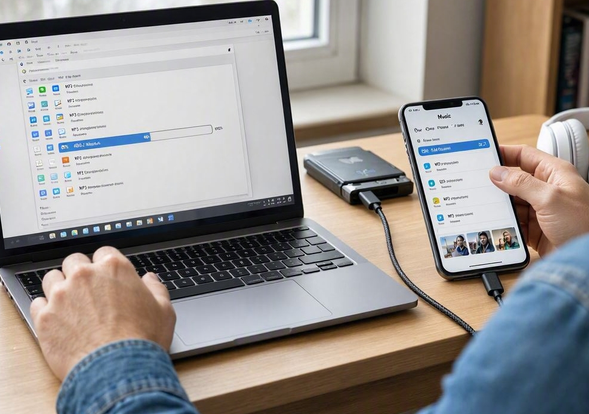
- Option 1: Transfer Music from PC to Huawei Phone via USB Cord Only
- Option 2: Transfer Music from PC to Huawei with MobiKin Tool Expertly
- Option 3: Transfer Music from Computer to Huawei via Huawei Share
- Option 4: Download Music to Huawei from Computer via LocalSend
- Summary - Comparison of 4 Methods Above
Option 1: Transfer Music from PC to Huawei Phone via USB Cord Only
You can transfer music from a PC to a Huawei phone using a USB cord without Bluetooth, Wi-Fi, or cloud storage. The process is straightforward: connect your phone, select File Transfer mode, and copy your songs into the phone's music folder.
Requirements
- A Huawei phone with a working USB port.
- A USB cable that supports data transfer, not charging only.
- A Windows PC or Mac with music files.
- Enough free storage on your Huawei phone.
User Manual
- Connect your Huawei phone to the PC using a USB data cable.
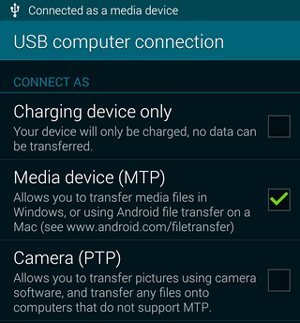
- Unlock your Huawei phone and select File Transfer/MTP from the USB notification.
- Open File Explorer on your PC and click This PC.
- Select your Huawei phone and open Internal storage.
- Open the Music folder or create one if it doesn't exist.
- Locate the music files on your PC.
- Select the songs you want to transfer, right-click, and choose Copy.
- Open the Music folder on Huawei, right-click, and select Paste.
- Wait for the transfer to finish, then disconnect the USB cable.
- Open the Files or Music app on Huawei to check the transferred songs.
Further Exploration: How to Transfer Music from iPhone to Huawei: 4 Simple Methods
Option 2: Transfer Music from PC to Huawei with MobiKin Tool Expertly
Requirements
- A Windows PC or Mac with MobiKin Assistant for Android (Windows/Mac) installed.
- A working USB data cable for a wired connection, or a supported Wi-Fi connection for a wireless connection.
- USB debugging enabled on the Huawei phone when using USB.
- Enough free storage space on the Huawei phone for the music files.
Main Features:
|
Feature
|
Description
|
|
PC-to-Huawei Music Transfer |
Transfer music directly from a PC to Huawei phones via USB or Wi-Fi. |
|
Broad File Support |
Manage and transfer music, photos, videos, contacts, messages, apps, and other Android data. |
|
Selective Transfer |
Choose specific music files instead of transferring an entire music library. |
|
File Management |
Add, delete, export, import, and organize files directly from your computer. |
|
USB & Wi-Fi Connections |
Connect your Huawei phone to the PC through a USB cable or supported wireless connection. |
|
Backup & Restore |
Back up Android data to a computer and restore it when needed. |
|
Privacy Protection |
We promise that our software will never collect users' private data during music transfers or other device-management operations. |
|
Huawei Compatibility |
Works with many Huawei Android phones for convenient PC-based data management. |
Free & Safe Download:


User Manual
- Before connecting your Huawei device to the software via Wi-Fi or USB, install and launch the program on your computer.
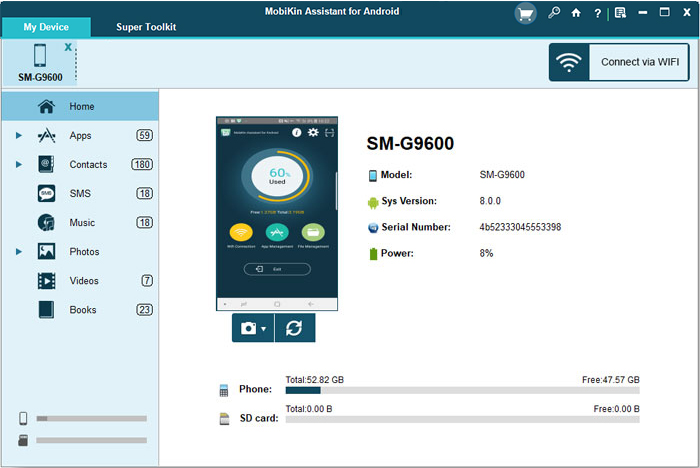
- Follow the screen prompt to get your phone recognized.
- When the software detects your Huawei phone, its main interface will appear.
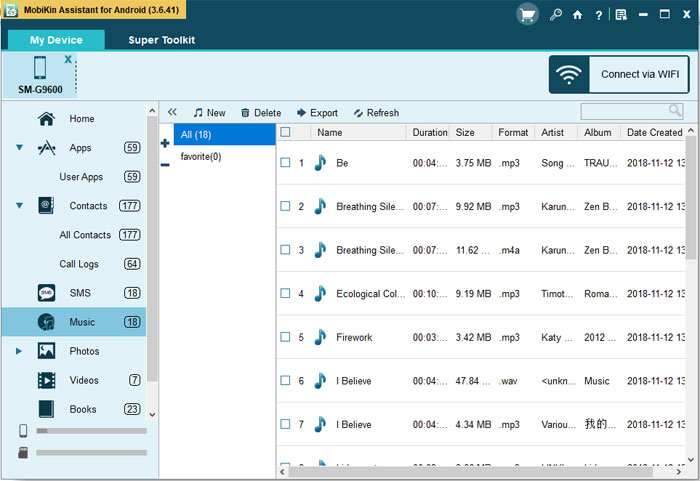
- In the left panel, select "Music," then click "New" in the top menu.
- Next, choose the songs you want from your computer.
- After selecting all the music you need, click "Open" to begin transferring it from your computer to your Huawei phone.
Video Guide:
Option 3: Transfer Music from Computer to Huawei via Huawei Share
If you want to transfer music from your computer to Huawei without dealing with cables, Huawei Share provides a convenient wireless option. It lets you send songs directly between compatible Huawei devices over the same Wi-Fi network.
Requirements
- A compatible Huawei phone with Huawei Share support.
- A compatible Huawei computer with Huawei PC Manager installed.
- Huawei PC Manager 11.1 or later, depending on the Huawei Share feature used.
- Huawei Share enabled on both devices.
- Both devices connected to the same Wi-Fi network.
- Music files stored locally on the computer.
- Sufficient storage space on the Huawei phone.
User Manual
- Connect your Huawei phone and computer to the same Wi-Fi network.
- Swipe down from the upper-right corner on your Huawei phone to open the Control Panel.
- Tap Huawei Share to enable it.
- Open Huawei PC Manager on your computer and enable Huawei Share.
- Find the music files you want to transfer on your computer.
- Right-click the selected songs and choose Huawei Share.
- Select your Huawei phone from the available devices.
- Tap Accept on your Huawei phone when the transfer request appears.
- Wait for the transfer to complete.
- Open Files on your Huawei phone and locate the received music files.
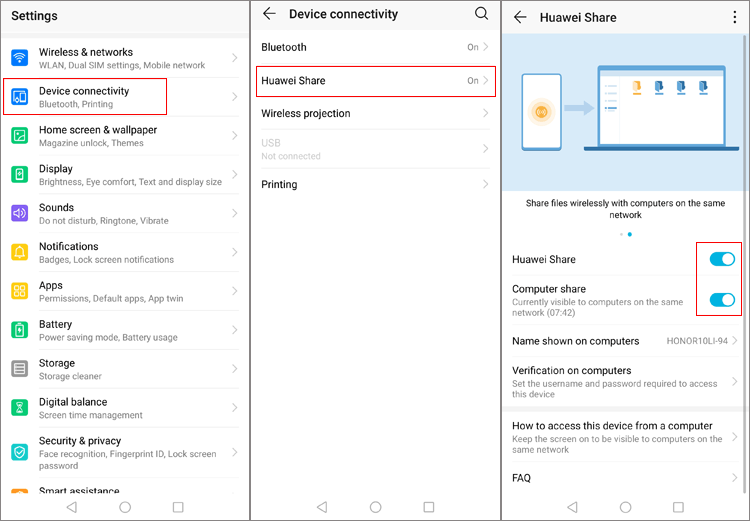
Note: Huawei Share computer-to-phone transfer requires a compatible Huawei phone and PC Manager setup. If Huawei Share is unavailable on your computer, use a USB cable instead.
Option 4: Download Music to Huawei from Computer via LocalSend
When you prefer a wireless way to move music from your computer to Huawei, LocalSend is a practical option. It transfers files directly over the local network, so you don't need a USB cable or cloud storage.
Requirements
- A Huawei phone with LocalSend installed.
- A Windows PC, Mac, or Linux computer with LocalSend installed.
- Both devices connected to the same Wi-Fi network.
- Sufficient storage space on the Huawei phone.
- Music files stored locally on the computer.
- LocalSend is allowed to access the local network on both devices.
User Manual
- Install LocalSend on both your computer and Huawei phone.
- Connect both devices to the same Wi-Fi network.
- Open LocalSend on your computer and Huawei phone.
- On the computer, click Send.
- Select the music files you want to transfer.
- Choose your Huawei phone from the list of nearby devices.
- Tap Accept on your Huawei phone when the transfer request appears.
- Wait for the music files to finish transferring.
- Open Files on Huawei and locate the received songs, usually in the LocalSend folder or Downloads.
- Move the songs to the Music folder if you want them to appear more easily in your music player.
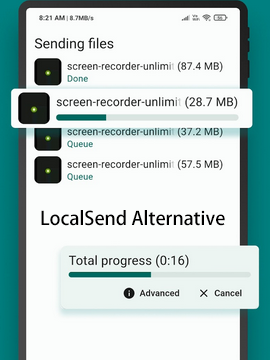
LocalSend transfers files rather than converting them, so common formats such as MP3, WAV, FLAC, and AAC can be transferred. Whether a particular format plays depends on the music player on your Huawei phone. The received files are typically saved in a LocalSend or Downloads folder. You can use the Files app to locate them and move them to the Music folder if needed.
Further Reading: Top 7 Best LocalSend Alternatives to Help You Move Data Smoothly
Summary - Comparison of 4 Methods Above
Your music does not have to stay tied to your computer. Whether you prefer a USB connection, wireless sharing, or a more flexible phone-management solution, these methods make it easier to bring your favorite tracks to Huawei and enjoy them wherever you go.
For a large music library, choose MobiKin Assistant for Android that supports batch transfers so you can move dozens or even hundreds of songs in one go instead of handling each track separately.
For more information, check out the table below that compares their connection requirements and ideal use cases to help you choose the right method:
|
Method
|
Connection & Internet
|
Best For
|
|
MobiKin Assistant for Android
|
USB or Wi-Fi; no internet required for USB |
Large music transfers and file management |
|
USB Cable Only
|
USB; no internet required |
Simple and direct transfers |
|
Huawei Share
|
Wi-Fi; no internet required |
Wireless transfer between compatible Huawei devices |
|
LocalSend
|
Same Wi-Fi; no internet required |
Wireless, cross-platform transfers |
Related Articles:
Top 6 Best Huawei Data Recovery Tools That You Should Know
Top 8 Best Android Music Managers You Should Never Miss [Updated]
How to Transfer Data from Huawei to Huawei? 7 Clever Tactics
Top 9 Options to Unlock Huawei Phone without Resetting/Password
