
OnePlus Screen Mirroring: 4 Easy Ways to Mirror OnePlus to PC/TV
"I have a OnePlus and it had screen Mirroring feature. But after the update to OS 16, I cannot seem to do screen Mirroring." -- from Reddit
Today, OnePlus screen mirroring has become increasingly popular among users who want more flexibility with their devices. Many people seek to mirror mobile games to a PC or TV for a larger display and better controls, enhancing both gameplay and viewing experience. This guide will explore 4 ways for OnePlus screen mirroring, helping users easily share content, enjoy games on bigger screens, and stream seamlessly.
Part 1: Mirror OnePlus to Computer via Built-in Screen Cast Feature
Wireless display is easily handled through the Built-in Screen Cast Feature, allowing a OnePlus phone to mirror its screen directly to a compatible PC or TV without extra apps. It works via Miracast or Google Cast, making it suitable for quick connections on the same Wi-Fi network.
Users can stream videos, presentations, or gameplay onto a larger display with minimal setup. However, compatibility depends on the receiving device and system support for wireless display.
Quick User Guide:
- Connect your OnePlus phone and PC to the same Wi-Fi network.
- On your PC, go to Settings > System > Projecting to this PC and enable it (install Wireless Display if needed), then open the Connect app.
- On your OnePlus phone, swipe down and tap Screen Cast/Cast (or go to Settings > Bluetooth & device connection > Cast).
- Select your PC from the available devices list.
- Tap Start now to begin mirroring.
- Your phone screen will appear on your computer.
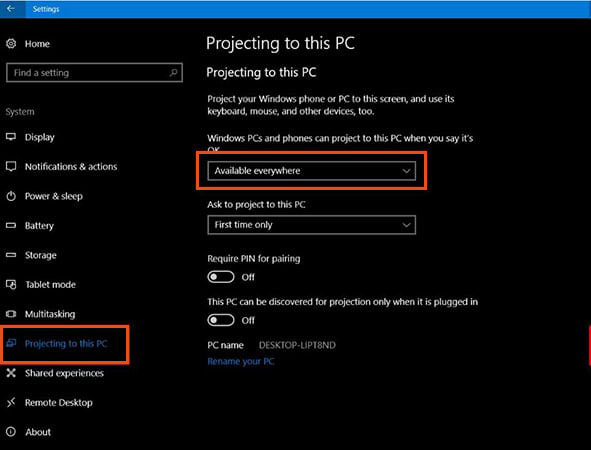
Most OnePlus phones from the OnePlus 5 series onward support the built-in Screen Cast/Cast feature for wireless mirroring. This feature relies on Miracast or Google Cast, allowing you to mirror your phone to a compatible PC or TV. However, actual performance and availability may vary depending on the OxygenOS version, device model, and whether the receiving device supports wireless display.
Learn More: 6 Most Desirable Ways to Transfer Data from OnePlus to OnePlus
Part 2: Perform OnePlus Screen Mirroring via Dedicated Program
Screen mirroring can also be achieved with Screen Mirror, which connects a OnePlus device to a PC using USB or Wi-Fi for more stable performance. It enables real-time control of the phone from the computer, making it useful for gaming or demonstrations. High-quality display and low latency are maintained during mirroring sessions. Additional features like screen recording and keyboard input further expand its usability.
Main Features of Screen Mirror:
> Keyboard Mapping - Customize game controls on PC.
> Live Streaming - Broadcast to YouTube, Twitch, or Zoom.
> Flexible Connection - Connect via QR code, AirPlay, USB, or Wi-Fi.
> High-Quality Mirroring - 1080P at 60 FPS with synced audio.
> Annotation Tools - Draw or mark directly on the screen.
> File Transfer - Move contacts, photos, and media quickly.
> Stable Connection - Lag-free performance on any PC.
> Versatile Use - Ideal for gaming, work, or streaming.
> Work for 8,000+ Android devices, including, OnePlus Number, Nord, and Ace/R series phones across flagship and mid-range segments, among others.


Quick User Guide:
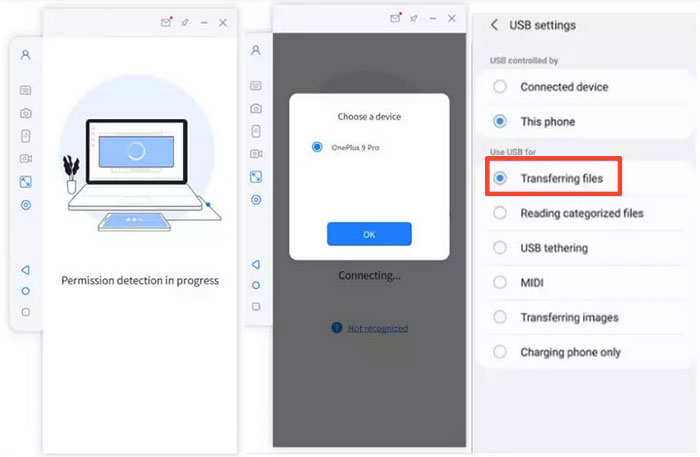
- Download and install the application on your computer, then connect your OnePlus smartphone via a USB cable.
- When prompted, choose "Transfer files" to enable the tool to recognize your OnePlus device.
- Navigate to Settings > About phone > Software information, and tap on Build number seven times until the developer mode notification appears, then go back to Settings and enable USB debugging.
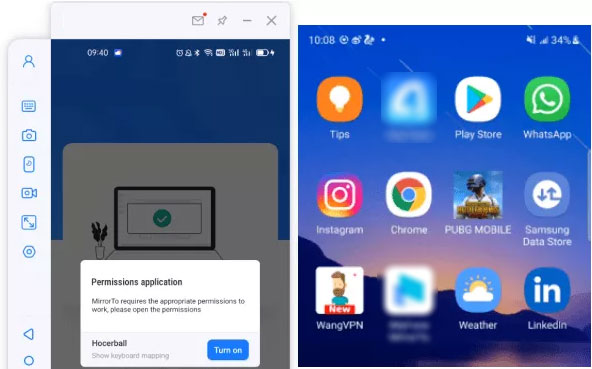
- Permit the program to show its interface on your PC, then click "Turn on" to install the Screen Mirror .apk on your device.
- After installation, you can begin mirroring the screen of the connected OnePlus to your PC.
Part 3: Cast from OnePlus to PC Using StarzMirror
A flexible mirroring solution is offered by StarzMirror, which supports casting a OnePlus screen to a PC or TV through QR code scanning or wireless connection. It simplifies the pairing process and avoids complicated setup steps. The mirrored display remains smooth enough for media playback and app usage. It also supports audio transmission, improving the overall viewing experience.
Quick User Guide:
- Download and install StarzMirror on both your OnePlus phone and computer.
- Launch the app on both OnePlus 15/13/12/11/10/Nord/Ace/R/N, etc and the PC.
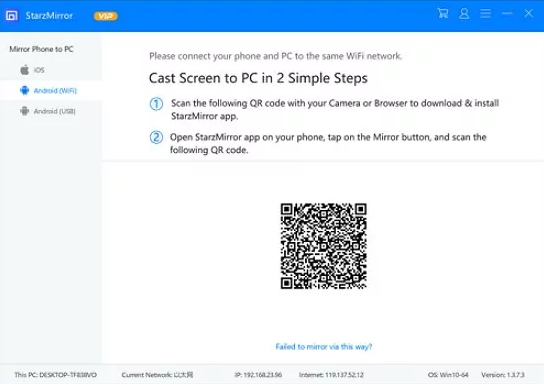
- On your computer, a QR code will appear on the main screen.
- Open StarzMirror on your OnePlus and scan the QR code shown on the PC.
- Tap "Start now" on your phone to begin screen mirroring.
- Your OnePlus screen will be displayed on your computer.
Part 4: Mirror OnePlus Phone to TV/PC via Link to Windows
Seamless integration between devices is possible through Link to Windows, enabling a OnePlus phone to connect with a PC for content access and limited screen interaction. Instead of full duplication, it focuses on syncing messages, photos, and apps to the computer.
Notifications and calls can be managed directly from the desktop interface. While full screen mirroring may be restricted on some models, it still provides convenient cross-device functionality.
Quick User Guide:
- Open Phone Link (Your Phone) on your Windows PC. (What if Phone Link doesn't work?)
- Install and open Link to Windows on your OnePlus phone.
- Connect both devices to the same Wi-Fi network.
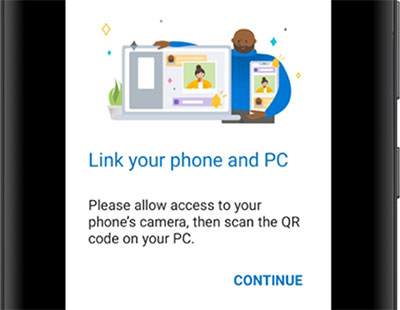
- On your PC, select "Link your phone" and follow the on-screen instructions.
- Use a QR code or PIN to pair your phone with the computer.
- Grant the required permissions on your phone (notifications, access, etc.).
- Once connected, you can access messages, photos, apps, and calls from your PC.
FAQs about OnePlus Screen Mirroring
Q1. Why can't my OnePlus find my PC or TV?
This usually happens when the devices are not on the same Wi-Fi network or the receiving device does not support Miracast/wireless display.
Q2. Is there a delay when screen mirroring OnePlus?
A slight delay may occur, especially with wireless casting, depending on network speed and device compatibility.
Q3. Why is there no sound when mirroring?
Some casting methods or devices do not support audio transmission, or the audio output may still be set to the phone.
Q4. Is screen mirroring safe?
Yes, it is generally safe when using trusted devices and secure networks, especially with built-in casting features.
Q5. Can I mirror a OnePlus phone to multiple devices at the same time?
Most built-in casting features only allow one device at a time, though some third-party apps like Ditto may support multiple displays simultaneously.
Q6. Does screen mirroring drain battery quickly?
Yes, prolonged mirroring consumes more power, so it’s advisable to keep the phone charged or connected to a power source during use.
Q7. What is the smoothest way to mirror OnePlus to a PC?
The smoothest way to mirror a OnePlus phone to a PC is using Screen Mirror, which can mirror your OnePlus/Android or even iPhone/iPad to both PC and Mac with or without USB. It provides lag-free performance, making it ideal for streaming videos, apps, and especially various games. For a seamless mirroring experience, you should definitely give it a try.
Related Articles:
How to Hard/Factory Reset OnePlus with Minimum Effort? 4 Options
5 Simple Approaches to Recover Data from a Broken OnePlus Phone
OnePlus GIF Recovery: 4 Smart Strategies to Recover GIFs from OnePlus
How to Bypass FRP on OnePlus Nord/Ace/15/13/11/10/9/8? 4 Ways
