
Phone Link App Not Working? Symptoms & 10 Proven Techniques
TL;DR:
In short, when standard fixes fail to fix Phone Link app not working, a dedicated tool offers a more dependable way to manage your Android device from a PC.
- Consider using MobiKin Assistant for Android for a stable connection that bypasses common app conflicts and background restrictions.
- This product provides comprehensive management of messages, calls, files, and apps, along with full backup and restore capabilities, ensuring uninterrupted access to your phone's content.
"I recently upgraded to Windows 11 on my home PC from Windows 10. But Microsoft Phone Link pops up the message, 'This UWP process group is suspending processes to improve system performance'". -- from Reddit
When the Phone Link app not working occurs, users may experience lost notifications, interrupted file transfers, or an inability to manage messages and calls from their PC, disrupting both productivity and daily phone management.
This article explores the common reasons behind these issues and provides 10 basic fixes to restore the connection, along with guidance on a more stable replacement for uninterrupted device management.
Part 1: What Are the Signs That Phone Link Doesn't Work
When using Phone Link to connect your phone and PC, you may occasionally encounter issues that prevent it from working as expected. Recognizing the common warning signs early can help you quickly identify problems and take the right steps to restore a stable connection:
- Devices fail to connect to PC or reconnect.
- "Can't connect to your device" or a similar errors appear.
- Messages, photos, or notifications don't sync.
- Notifications don't show on the PC.
- Calls or Bluetooth features don't work.
- Specific features (messages, apps, screen mirroring) fail.
- Phone screen or app streaming won't load.
- Devices aren't recognized under the same Microsoft account.
- Need to repeatedly unlink and relink devices.
- App won't open, freezes, or shows a blank screen.
- Frequent disconnects or unstable connections.
- Background permissions, battery settings, or network restrictions interrupt functionality.
You Might Also Need: 7 Best Microsoft Phone Link Alternatives [Easier Control]
Part 2: How to Fix Phone Link App Not Working in 10 Quick Ways
Fix 1: Allow data sharing across linked devices
Requirements:
- Make sure both your phone and PC are signed in to the same Microsoft account.
- Keep both devices connected to the same Wi-Fi network for stable syncing.
- Ensure required permissions (notifications, background activity) are enabled, since these support data transfer between devices.
How-tos:
- On your Windows PC, open Settings from the Start menu.
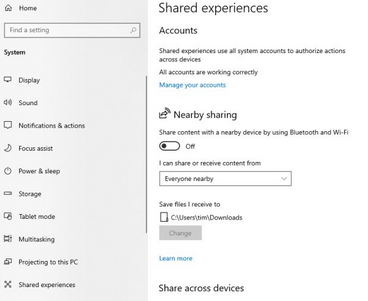
- Go to System > Shared experiences.
- Turn on "Share across devices" (or a similar option like Nearby sharing/cross-device sharing).
- If you see a "Fix now" option under Accounts, click it and follow the prompts to ensure your Microsoft account is properly connected.
Fix 2: Ensure your phone is allowed to run in the background
Before that, ensure the Link to Windows app is not restricted by battery settings. Set battery usage to Unrestricted/Allow background activity so it won't be closed automatically.
- Press Windows + X and open Search, then type Apps & features.
- Open Apps & features in Settings.
- Find Phone Link in the app list.
- Click the three-dot menu next to it and select Advanced options.
- Scroll to Background apps permissions.
- Set it to "Always".
Fix 3: Ensure Bluetooth is enabled
- On your Windows PC, go to Settings > Bluetooth & devices.
- Turn Bluetooth ON (if it's already on, turn it off, wait a few seconds, then turn it back on to refresh it).
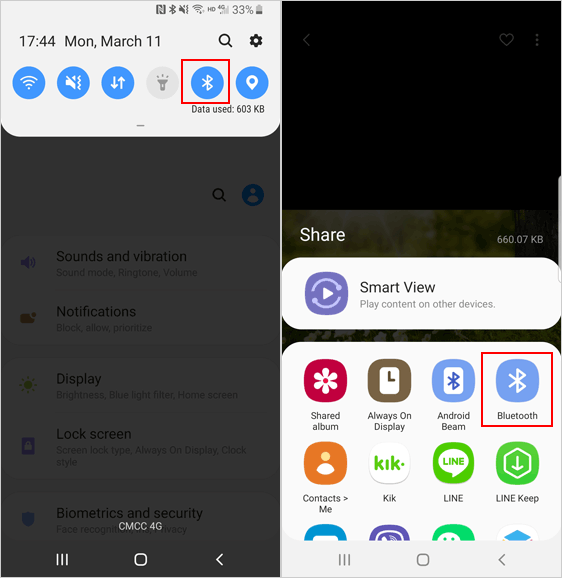
- On your phone, open Settings > Bluetooth (or use Quick Settings on Android) and make sure Bluetooth is turned on.
- If connection issues persist, toggle Bluetooth off and on again on both devices, then try pairing them again.
Fix 4: Enable the types of content you wish to access in Phone Link
- Open Phone Link on your Windows PC.
- Click Settings (gear icon).
- Go to the Features tab.
- Turn on the toggles for the content you want to access, such as Notifications, Messages, Calls, and Photos.
- Select each feature to customize permissions or options if needed (e.g., which notifications to show). (Learn more about Bluetooth file transfers)
On your phone (important)
1. When prompted, allow permissions for content like contacts, messages, and notifications. 2. If you skipped this during setup, go to your phone's settings and enable these permissions manually, or the content won't appear in Phone Link.
Fix 5: Disable battery saver mode
On your phone:
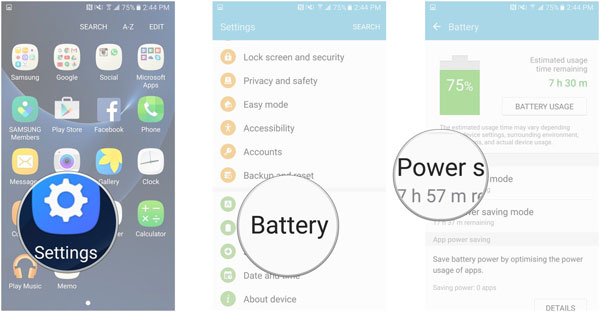
- Open Settings > Battery.
- Turn off Battery Saver/Power Saving mode.
- Also disable battery optimization for the Link to Windows app to prevent it from being restricted.
On your PC:
- Press Windows + A to open the Quick Settings panel.
- Find the Battery saver icon and click it to turn it OFF.
- Alternatively, go to Settings > System > Power & battery.
- Expand Battery saver, then click "Turn off now."
Fix 6: Update Microsoft Phone Link
- Open the Microsoft Store on your PC.
- Click Library (bottom-left corner).
- Select Get updates to check for available updates.
- If Phone Link appears in the list, click Update or choose Update all.
- Wait for the update to finish, then reopen the app.
If updating Phone Link doesn't resolve the issue, uninstalling and reinstalling the app can fix corrupted files or settings. Go to Settings > Apps & features, find Phone Link, and select Uninstall, then restart your PC. After that, reinstall the app from the Microsoft Store, sign in, and grant the necessary permissions to restore full functionality.
Fix 7: Disable third-party anti-virus apps
- Locate your antivirus app icon in the system tray (bottom-right corner of the taskbar).
- Right-click the icon and look for an option like Disable, Pause protection, or Turn off shields.
- Temporarily disable the antivirus and check if Phone Link functions properly.
Note: 1. Only temporarily disable the antivirus; don't leave your PC unprotected. 2. If Phone Link works after disabling the antivirus, add it to the antivirus exclusion/whitelist to prevent future conflicts. 3. Ensure your Windows Defender or built-in firewall is still active to maintain basic protection.
Fix 8: Repair or reset Phone Link
- Open Settings by pressing Windows + I.
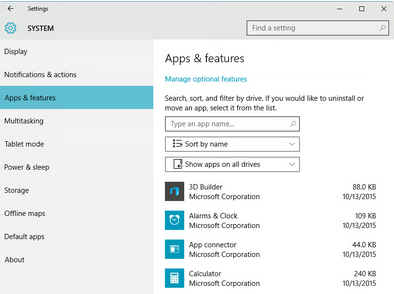
- Go to Apps > Apps & features.
- Scroll to find Phone Link in the list.
- Click the three-dot menu next to it and select Advanced options.
- Under Reset, first click Repair - this attempts to fix problems without deleting your data.
- If issues persist, click Reset - this will clear the app's data and restore default settings.
Fix 9: Run Windows Store app troubleshooter
To fix Phone Link not working, run the Windows Store Apps troubleshooter to detect and repair issues. Go to Settings > System > Troubleshoot > Other troubleshooters, find Windows Store Apps, and click Run, then follow the on-screen instructions. After it finishes, reopen Phone Link to see if your phone connects and syncs properly.
Fix 10: Update Windows
To fix Phone Link not working, make sure your Windows system is up to date. Go to Settings > Windows Update and click Check for updates, then install any available updates. After updating, restart your PC and reopen Phone Link to ensure all features work properly.
Part 3: Phone Link Still Doesn't Work? Try the Best Alternative
If Phone Link still doesn't work after trying all fixes, you can try a reliable alternative. MobiKin Assistant for Android (Windows/Mac) lets you connect your phone (8,000+ Android devices supported) to your PC to manage messages, calls, photos, and other files seamlessly. It offers a stable and user-friendly way to access your phone's content without the connection issues that sometimes affect Phone Link.
MobiKin Assistant for Android - Main Features:
- Device Management: Manage contacts, messages, calls, media files, and apps from PC.
- File Transfer: Transfer files in batches without interruptions.
- Backup & Restore: Back up and restore data anytime.
- SMS & Calls: Send and manage messages and call logs from PC.
- App Management: Install, uninstall, or export apps easily.
- No Background Limits: Works despite battery saver or antivirus restrictions.
- Stable Connection: Syncs and controls the device reliably without a Microsoft account.


So, how does the best Phone Link alternative work?
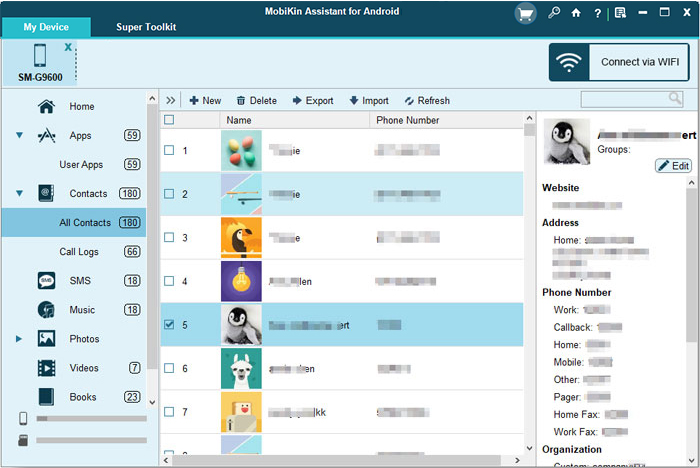
Quick Guide: Launch MobiKin Assistant for Android and connect your device to the PC via USB, enabling USB debugging if prompted. Follow the on-screen instructions to let the program recognize your phone, then enter the main interface. From there, select the folders with your desired files or use the Super Toolkit to back up, transfer, restore, and manage your Android device easily.
Video Tutorial:
In Conclusion
If troubleshooting the Phone Link app doesn't resolve the issues, switching to a more reliable solution can save time and prevent repeated frustrations. MobiKin Assistant for Android offers a robust alternative, providing seamless device management, stable syncing, and efficient backups. It surpasses the Phone Link app in several ways:
- Reliable connection: Works even if Phone Link fails or background restrictions exist.
- Comprehensive management: Access and manage messages, calls, files, and apps directly from your PC.
- Full backup and restore: Allows easy backup, transfer, and restoration of all Android data without interruptions.
Related Articles:
Android Remote Control: 5 Ways to Remotely Control Android Phone
10 Best iPhone Manager Software to Transfer and Manage iOS Files
6 Methods to Remotely Control iPhone 17/16/15/14/13/12/11 from Computer
How to Recover Data from Phone That Won't Turn on? Solved with 4 Solutions
