
3 Trusted Ways to Back Up Samsung Gallery to Google Drive 2026
"Hi, is there a way to back up photos to Google Drive? I was thinking of switching to Google, but I like the fact OneDrive is linked to my gallery, and another is not required; thanks in advance." -- from Samsung Community
Today, protecting your memorable photos is more important than ever. With the constant use of Samsung phones for capturing memories, it is crucial to have a reliable method for safeguarding your images. This is where the need to back up Samsung Gallery to Google Drive becomes invaluable. By leveraging photo protection, automatic sync, and easy data restore, you can ensure that your photos are secure, accessible, and well-organized.
Well, this guide will delve into three effective methods to make the backup, ensuring your Gallery files are preserved at all times.
- Part 1: How to Back Up Samsung Gallery to Google Drive by Uploading It
- Part 2: How to Back Up Galaxy Gallery to Google Drive via Share Option
- Part 3: How to Get Samsung Gallery Sync to Google Drive via Google Drive for PC
- FAQs about Samsung Gallery Backup on Google
- Part 4: How to Back Up Samsung Gallery to Computer without Google Drive
Check out the video below for a visual explanation.
Part 1: How to Back Up Samsung Gallery to Google Drive by Uploading It
You can upload Samsung photos directly to Google Drive for backup. This method is common for all Android phones, making it easy to save pictures and videos. Follow these steps to transfer Gallery photos to Google Drive:
- From your Samsung home screen, navigate to Google Drive.
- Sign in to your account by entering your username and password.
- Once you're logged into Google Drive, tap the "Plus" icon and select "Upload."
- Go to your "Gallery" and select the photos you want to upload by tapping each image until you see a blue checkmark next to it.
- Tap the "Tick" option to upload the selected photos to your Drive. (Google Drive won't work?)
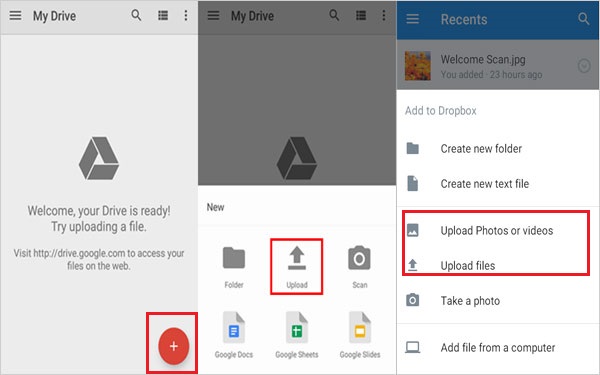
How do I back up my whole Gallery on my Samsung to Google Drive? After tapping the "Upload" icon, open your Samsung Gallery app and go to the folder or album containing the photos you want to upload. To upload all photos in the folder or album, tap the "Select All" option.
You Might Also Need: If you need to transfer images from Samsung to Samsung, get into this detailed tutorial to get it done effectively.
Part 2: How to Back Up Galaxy Gallery to Google Drive via Share Option
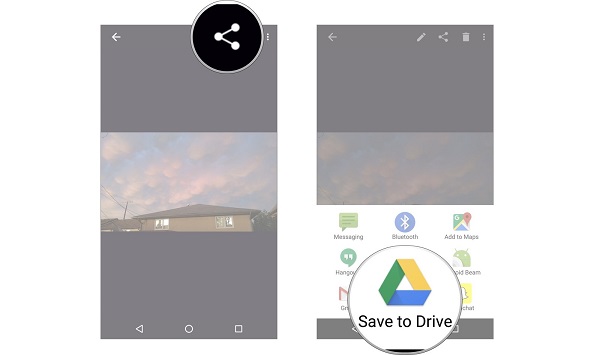
The "Share" option in Google Drive allows you to share files and folders with others, giving them access to view, comment on, or edit the shared items. To back up Samsung photos to Google Drive directly:
- Locate the images slated for upload either in your phone's files or directly in the Samsung Gallery. (What if the gallery doesn't show all pics?)
- Tap the "SHARE" option positioned at the screen's top.
- From the array of choices in the ensuing menu, opt for "Save to Drive."
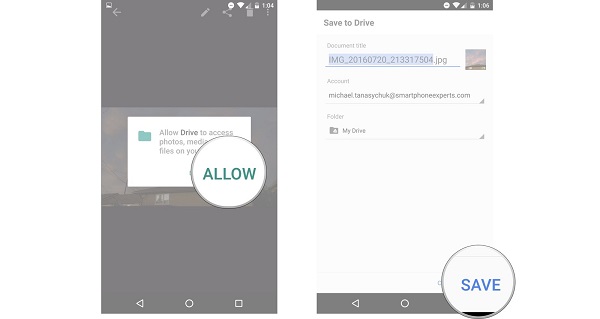
- Verify the Google Drive account designated for photo backup, then tap the box beneath "Folder" to select the desired storage location.
- Optionally, create a new folder in Samsung by tapping the icon located at the top-right corner.
- Tap "SAVE" at the screen's lower-right corner and await the completion of the upload process to Google Drive.
Part 3: How to Get Samsung Gallery Sync to Google Drive via Google Drive for PC
Google Drive for Desktop is a handy tool that integrates with your computer, allowing easy file management and backup to Google Drive. It can back up your Samsung Gallery photos and videos by syncing folders from your computer to the cloud.
How to bulk upload photos from Android gallery to Google Drive using Google Drive for PC?
- Connect your Samsung device to your computer using a data cable and locate the folder containing your photos.
- Download and install "Google Drive for desktop" on your computer, then sign in with your Google account.
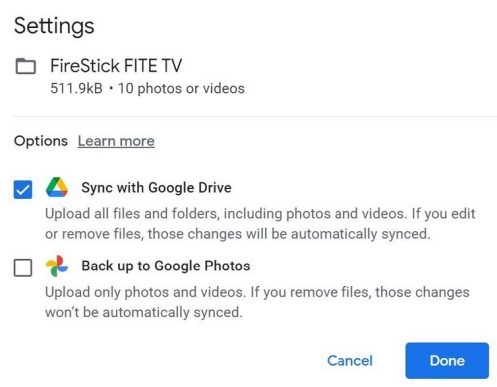
- In Google Drive for desktop, under "My Computer," select "Add Folder" and choose the folder with your Samsung photos.
- Adjust the resolution and size settings as needed.
- Choose "Sync with Google Drive" in the pop-up menu and click "Done".
- Click the "Save" button to apply changes and automatically sync your Samsung photos to Google Drive.
Further Exploration:
FAQs about Samsung Gallery Backup on Google
Q1. How to obtain more Google Drive storage for free?
- Opt for "High quality" in Google Photos for unlimited photo storage.
- Complete the Google Security Checkup for possible storage rewards.
- Look out for promotional offers in Google One.
- Check if your educational or business account offers additional storage.
- Manage your existing storage by deleting unnecessary files and emails.
Q2. How to back up Samsung Gallery to Google Photos/Google One?
Back up Samsung Gallery to Google Photos:
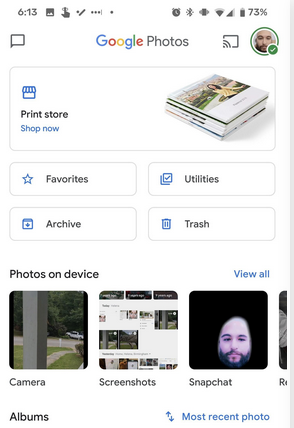
- Open the Google Photos app on your Galaxy phone or tablet.
- Sign in to your Google Account.
- Tap your profile picture or initial in the top right corner.
- Select "Photos Settings" and then choose "Backup".
- Toggle "Backup" on, and afterward, check the backup on Google Photos.
Back up Samsung Gallery to Google One:
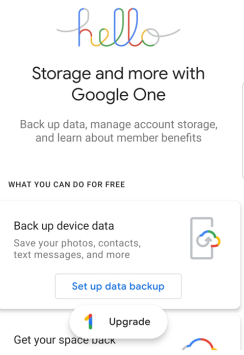
- Go to "Settings > Accounts and backup".
- Find Google Drive and select "Back up data".
- Turn on the backup and select "Back up now".
Q3. How to download Photos from Google Drive to Samsung Gallery?
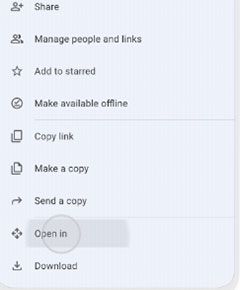
- Log in to your Google account for Google Drive on your device.
- Navigate to the photos you want to download.
- Select the photos, tap the three-dot menu, and choose "Download".
- Open the "My Files" app and go to the "Downloads" folder.
- Move the downloaded photos to the "DCIM" or "Pictures" folder.
Q4. Does Google Drive automatically back up Samsung Gallery photos?
No, Google Drive does not automatically back up Gallery photos by default. You usually need to upload files manually or use a third-party sync method.
Q5. What is the difference between Google Drive and Google Photos for backups?
Google Drive stores files like documents, images, and videos manually, while Google Photos is designed specifically for automatic photo and video backup and organization.
Q6. Is it better to use Google Drive or Google Photos for Samsung Gallery backup?
Google Photos is generally better for automatic photo backup, while Google Drive is more suitable for manual storage and file organization.
Q7. Can I access Samsung Gallery backups from Google Drive on other devices?
Yes, you can log into your Google account on any device and access uploaded photos and videos stored in Google Drive.
Q9. Why are my Samsung Gallery photos not showing in Google Drive?
This usually happens because photos were not uploaded manually or backup sync is not enabled, since Drive does not auto-sync Gallery images.
10. Is Google Drive a safe place to store Samsung Gallery photos?
Yes, Google Drive uses secure cloud storage with encryption to protect your files from unauthorized access or data loss.
Part 4: How to Back Up Samsung Gallery to Computer without Google Drive
Backing up Samsung gallery to your computer is a straightforward process with multiple options available. However, it's important to note that Google's free storage space is limited, and managing the content in it can be challenging for beginners.
Therefore, when it comes to ease and convenience, keeping a copy of the gallery using your computer is undoubtedly more recommendable. In light of this, it is highly recommended that you explore MobiKin Backup Manager for Android (Windows and Mac), also referred to as MobiKin Android Backup & Restore, which is a specialized backup tool designed specifically for Android phones.
Key Highlights of MobiKin Android Backup & Restore:
- Back up Samsung gallery to PC/Mac without worrying about running out of storage.
- Restore what you want with one tap accordingly.
- Secure Android phone calls, SMS, contacts, media files, apps, etc.
- Let you connect your mobile phone to a computer with USB or Wi-Fi.
- Apply to almost all Android phones/tablets, including Samsung Galaxy S26/S25/S24/S23/S22/S21/S20/Note/Tab, etc.
- Privacy-focused and easy to handle.


How to back up Samsung Gallery to a computer via MobiKin Android Backup & Restore?
Firstly, launch the software on your computer after downloading and installing it. Connect your Galaxy phone to the computer using a USB cable.
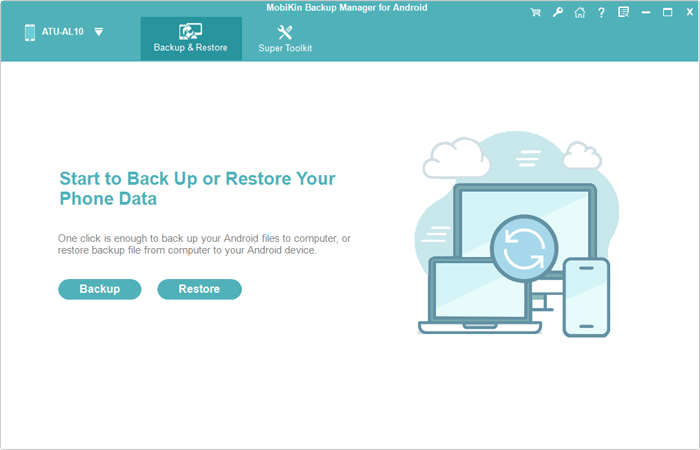
Secondly, if needed, enable USB debugging on your device to ensure it is recognized. Once connected, the screen will show options like "Backup" and "Restore". Just select "Backup".
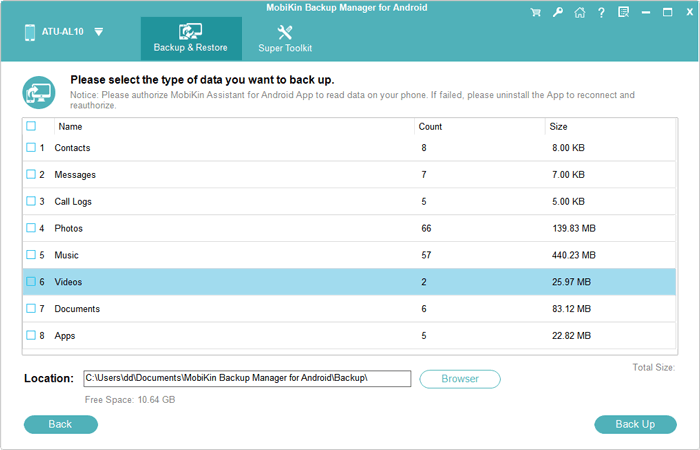
Thirdly, choose the types of data like "Photos" to back up. Specify a location on your computer for storing the backup. Lastly, click "Back Up" to save the Samsung data to your computer.
Video Guide:
Closing Part
By the end of this passage, you have had a clear understanding of how to back up your Samsung Gallery to Google Drive, along with insights into an even better solution for securing your precious photos.
To be sure, we can't deny the usefulness of Google Drive. But for users who want to break free space and have a more convenient way to manage their gallery backup needs, MobiKin Backup Manager for Android is definitely a better idea. Finally, any queries? Please let us know below.
Related Articles:
How to Recover Permanently Deleted Files from Google Drive? 7 Options
Top 4 Means to Move Photos/Pictures from Google Drive to Google Photos
Is Google Drive Secure? Answer, Exploration, FAQs, & Alternative
5 Means to Delete Photos from Samsung Galaxy S26/S25/S24/S23/A32
