
How to Recover Deleted Music Files from OnePlus Phone in 5 Simple Ways
"I just did an important interview, which I recorded by the OnePlus recorder. Unluckily, I did click the delete button. Do you know where the location of this cache file could be and if it can be recovered?" -- from Reddit
Many OnePlus users occasionally face the frustration of losing important tracks, especially after unintentionally deleting songs while managing your their library, factory reset, or cleaning storage.
This article shows you how to recover deleted music files from OnePlus phone efficiently. We will explore 5 practical methods to restore lost audio, ranging from built-in tools to professional recovery software.
- Way 1: Recover Deleted Audio Files in OnePlus Local Backup
- Way 2: Find Recently Deleted Music Files in OnePlus via Google Files
- Way 3: Restore Permanently Deleted Music Files via Recova: Restore Deleted File
- Way 4: Recover Deleted Music in OnePlus Using Cloud Storage
- Way 5: Recover Deleted Music Files from OnePlus Phone Expertly (With No Backup)
Way 1: Recover Deleted Audio Files in OnePlus via Local Backup
Recovering music files can be straightforward if a prior backup exists on your OnePlus device. Local Backup stores copies of your data directly on the phone or SD card, allowing you to restore files without an internet connection. Accessing the backup through the system's settings can quickly retrieve lost tracks. However, only files included in the most recent backup can be recovered, so any music added afterward may be lost.
How-to Guide:
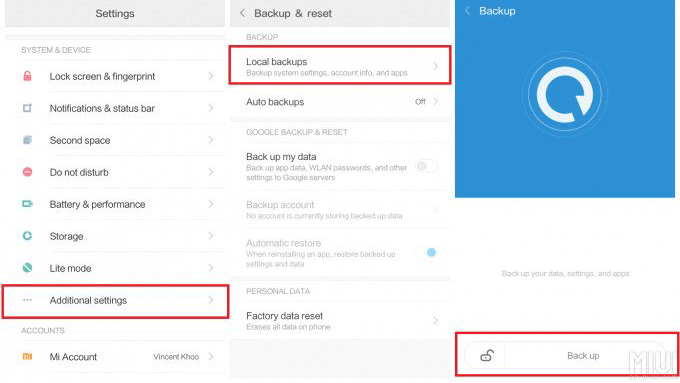
- Open Settings - Go to your OnePlus phone's Settings.
- Go to Backup & Restore - Scroll down and tap System > Backup & Restore (or Additional Settings > Backup & Restore, depending on your OxygenOS version).
- Access Local Backups - Select Local backup to see all backups stored on your device or SD card.
- Choose Relevant Backup - Find a backup that was created before your music files were deleted.
- Restore Backup - Tap Restore and select the music files or the entire backup to recover your deleted audio.
- Wait for Completion - Allow the phone to complete the restore process. After this, check your Music app or File Manager to ensure the deleted files have been recovered.
Note: OnePlus Clone Phone is the new name for the former OnePlus Switch app, designed primarily for transferring data between devices. Unlike its predecessor, Clone Phone cannot recover deleted music files from a OnePlus phone, as it focuses only on the migration of existing data. Users looking to restore lost audio will need to use other methods, since this app does not offer file recovery functionality.
Way 2: Find Recently Deleted Music Files in OnePlus via Google Files
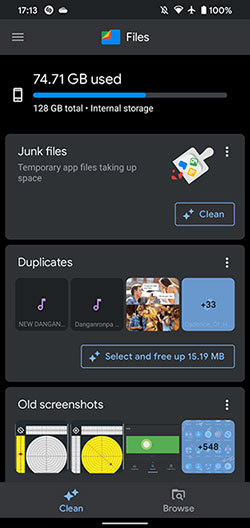
Deleted files sometimes linger in temporary storage, making recovery possible without external tools. Files by Google includes a Trash folder where music removed within the last 30 days can be restored. Simply navigating to this folder and selecting the desired tracks brings them back to the device. The process is fast and intuitive, though it cannot help with files permanently deleted beyond the 30-day window.
How-to Guide:
- Open Files by Google - Launch the Files by Google app on your OnePlus 13/12/11/CE 4/3/Lite 5G/Ace 3/2.
- Access Trash - Tap the hamburger menu (three horizontal lines) at the top-left corner and select Trash.
- Locate Deleted Music - Navigate to the Music (or relevant Calls/Audio) section where your deleted audio files were stored.
- Select Files to Recover - Tap the files you want to restore.
- Restore Files - Tap Restore, then confirm by tapping Restore x files (where "x" is the number of files selected).
- Check Recovered Music - The restored audio files will now appear in Files by Google, ready for playback or transfer.
Way 3: Restore Permanently Deleted Music Files via Recova: Restore Deleted File
When files are permanently erased, more advanced scanning may be needed. Recova: Restore Deleted File can scan SD cards or connected drives for lost music, even after standard deletion. Deep Scan mode increases the chance of finding files that were overwritten or hidden in the file system. Users should save recovered music to a separate location to avoid overwriting other lost data during restoration.
How-to Guide:
- Install and Launch the App - Download and open Recova: Restore Deleted File on your OnePlus phone or connect your phone to a PC if the app requires it.
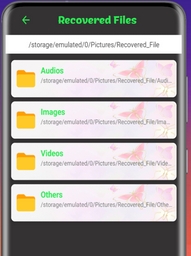
- Select File Type - Choose Audios as the type of files you want to recover.
- Choose Location to Scan - Specify the storage location (internal memory or SD card) where the deleted music files were stored.
- Start Scan - Tap Scan to allow the app to search for deleted music files. For better results, enable Deep Scan if available.
- Preview Found Files - Once scanning is complete, browse the list of recoverable music files and preview them if the app allows.
- Select and Recover - Select the desired music files and tap Recover to restore them.
- Choose a safe location (different from the original folder) to avoid overwriting other data.
Way 4: Recover Deleted Music in OnePlus Using Cloud Storage
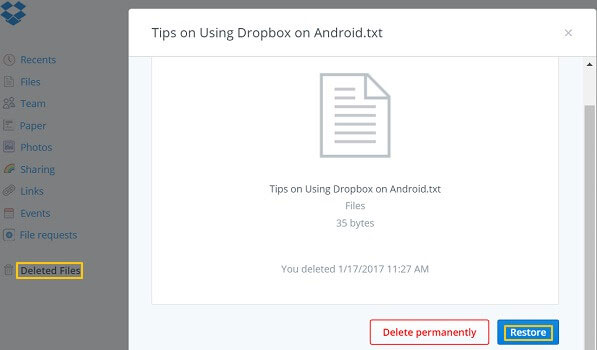
Cloud-based storage provides another convenient option for music recovery. Dropbox can keep deleted files in its Trash for a limited period, making it possible to recover synced tracks easily. Logging in to the account and restoring files from the Trash ensures they return to both the cloud and the OnePlus device. Reliance on prior uploads or automatic syncing is necessary, so unsynced files cannot be recovered through this method.
How-to Guide:
- Open the Dropbox App or Website - Launch the Dropbox app on your OnePlus phone, or go to the Dropbox website on a computer.
- Sign In - Log in with the account where your music files were previously uploaded or synced.
- Access Deleted Files/Trash - In the app, tap the Files tab, then look for Deleted files or Trash. On the website, click Deleted files from the sidebar.
- Locate Your Music Files - Browse the list of recently deleted files to find your lost music tracks.
- Select Files to Restore - Check the boxes next to the music files you want to recover.
- Restore Files - Tap or click Restore to recover the deleted music to your Dropbox account.
- Download to Your Phone - Once restored, download the recovered music files from Dropbox back to your OnePlus device for local access.
You May Also Like: Dropbox vs Google Drive vs OneDrive- Which is Better?
Way 5: Recover Deleted Music Files from OnePlus Phone Expertly (With No Backup)
Professional recovery software offers the most thorough solution when other methods fail. MobiKin Doctor for Android (Windows and Mac) can scan internal memory and external SD cards to recover deleted music files that are no longer accessible through simple backups or cloud storage.
It allows selective recovery, previewing files before restoring them to the device. While it may require installation on a PC and a connection via USB, the success rate for permanently lost files is higher than other recovery methods. So, what are the core characteristics of this program?
|
Feature
|
Description
|
|
Multi-file Recovery |
Recovers music, photos, videos, documents, apps, contacts, etc. |
|
Internal & SD Card |
Works on both phone storage and SD cards. |
|
Quick & Deep Scan |
Offers fast or thorough scans; preview files before recovery. |
|
Selective Recovery |
Choose which files to restore; it keeps original formats. |
|
Wide Compatibility |
Supports most Android devices and versions, including OnePlus 13/12/11R/CE 4/3/Lite 5G/Ace 3/2, etc. |
|
High Security |
No data is leaked; scanning and recovery are safe. |
|
High Success Rate |
Effectively recovers lost files if they are not overwritten. |
How-to Guide:
- Launch the program that you have installed and connect your device to your computer using a USB cable.
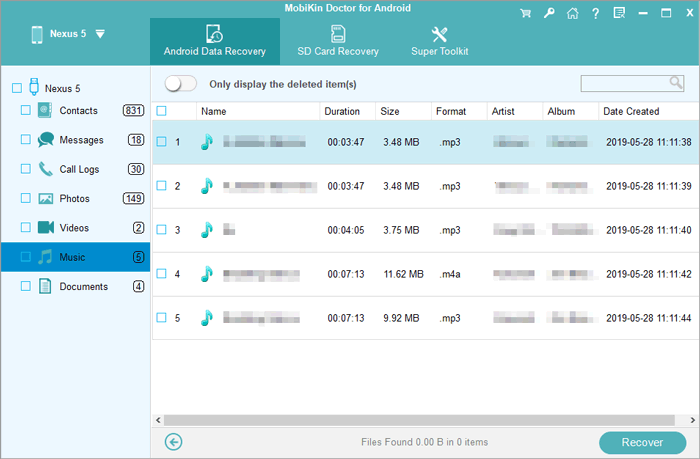
- Once the software detects the connected OnePlus, you will see the following screenshot of the program interface.
- Please ensure that USB debugging is enabled on your OnePlus device as prompted, so that the program can access the device without any issues.
- Choose the "Music" category and click the "Next" button.
- The program will then initiate a scan of your device, locate all the lost music files, and present them in the subsequent window.
- If you are unable to find what you are looking for in the scanned information, please root your phone for a more thorough scan.
- Choose the music files that you have lost and wish to recover and click the "Recover" button to save them to your computer.


Video Instructions:
Completion
While several recovery options exist, MobiKin Doctor for Android provides the most reliable and comprehensive solution compared to Local Backup, Files by Google, Recova: Restore Deleted File, and Cloud Storage (e.g., Dropbox). Here's why MobiKin Doctor for Android is better:
- It scans both internal storage and SD cards, offering a higher success rate for recovering permanently deleted music.
- Allows selective recovery with file preview, ensuring you restore only the needed songs without overwriting other data.
- Provides secure recovery without risk of data leakage, supporting a wide range of OnePlus devices and Android versions.
Related Articles:
6 Best Methods to Transfer Music from Android to Android Quickly
5 Simple Approaches to Recover Data from a Broken OnePlus Phone
Locked Out of OnePlus? 6 Options to Unlock OnePlus Phone without Password
3 Methods to Recover Deleted Music from iPhone with/without Computer
