
How to Restore Deleted Contacts on OnePlus? 5 Ingenious Methods
TL;DR:
Contacts on a OnePlus phone can disappear due to various reasons, but most can be recovered by acting quickly through Google services, OnePlus Cloud, or even a third-party tool like MobiKin Doctor for Android (when no backup exists).
The key is to check the right recovery method - such as Google Contacts Trash, Undo Changes, or cloud backups - before the 30-day window closes or backups are overwritten. To prevent future loss, keep automatic sync enabled and perform manual backups before major system updates.
Contacts disappearing from a OnePlus phone can happen for several reasons, such as a software update, bug, or unexpected reboot caused contacts to disappear, leaving users unsure where their saved numbers went. This article explains how to restore deleted contacts on OnePlus in 5 practical ways, covering options from Google services and cloud backups to device-based solutions.
- #1: How to Restore Deleted Contacts on OnePlus without Backup [Expert]
- #2: How to Get Deleted Contacts Back in OnePlus Using OnePlus Cloud
- #3: How to Restore Permanently Deleted Contacts from OnePlus via Google Backup
- #4: How to Retrieve Deleted Contacts on OnePlus via Google Contacts Trash
- #5: How to Recover Deleted Contacts on OnePlus with Undo Changes
- FAQs about Restoring Deleted Contacts on OnePlus
#1: How to Restore Deleted Contacts on OnePlus without Backup [Expert]
MobiKin Doctor for Android (Windows/Mac) helps users recover lost or deleted data from Android devices, including OnePlus phones. It can restore deleted contacts on a OnePlus without a backup by scanning the device's internal storage and retrieving recoverable data directly, making it useful when Google backup or OnePlus Cloud are unavailable.
In more difficult cases, the tool scans deeply to detect traces of deleted contact info that normal apps cannot see, providing a stronger option when standard recovery methods fail.
Core Functions of MobiKin Doctor for Android:
- Restore OnePlus contacts without backup - Directly scans internal storage or SIM card, no backup needed.
- Flexibe operation - Works on both rooted and unrooted devices.
- Multiple data types - Recovers contacts, SMS, call logs, photos, videos, audio, and documents from SD card/internal storage.
- Two scan modes - Quick Scan for recent loss, Deep Scan for thorough recovery.
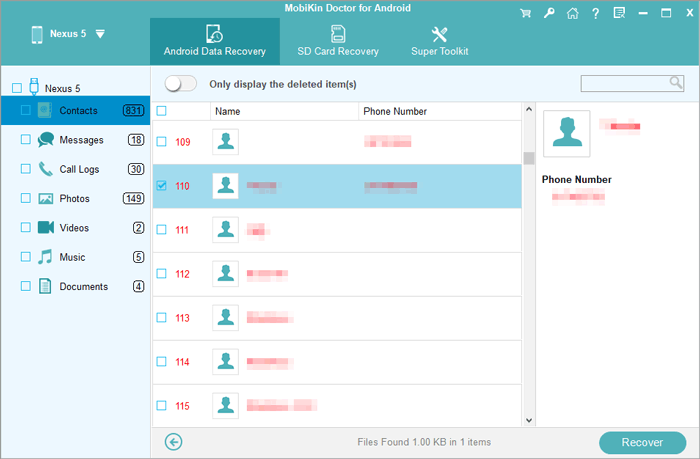
- Preview before recovery - See found files; deleted items marked in red.
- Backup & export - Save data to computer in HTML, XML, or VCF.
- Wide compatibility - Supports 8,000+ Android devices including OnePlus 15/14/13/12/11/10/9/8/7/Nord 6/5/4/3/2, etc.


User Manual:
Step 1: Root your OnePlus device to give the program the necessary access for a complete scan. Next, enable USB debugging on your phone for automatic delection.
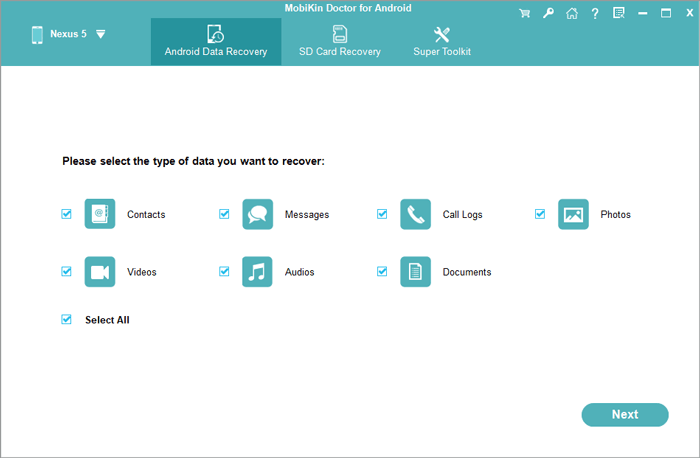
Step 2: Install and open the tool on your computer, connect your OnePlus device via USB, and once detected, follow the on-screen instructions to select the "Contacts" tab and click "Next" to begin scanning.
Step 3: When the scan finishes, all deleted contacts will appear in the right-hand window. Select the ones you wish to recover and click the "Recover" button to restore them to your computer.
Video Tutorial:
You Might Also Enjoy: Fix OnePlus Phone Not Connecting to PC/Computer in 11 Ways
#2: How to Get Deleted Contacts Back in OnePlus Using OnePlus Cloud
OnePlus Cloud is a built-in service that backs up and syncs data like contacts, photos, and settings through your OnePlus account. It keeps your information stored online so you can easily restore it when needed.
You can get deleted contacts back in OnePlus using OnePlus Cloud by restoring a previous backup that contains your contact list. Once restored, the contacts will sync back to your device automatically.
User Manual:
- Connect your OnePlus phone to a stable Wi-Fi network.
- Open Settings on your OnePlus device.
- Tap your OnePlus Account and sign in if necessary.
- Select Cloud Service or OnePlus Cloud.
- Check whether Contacts Sync is enabled.
- Locate the Backup & Restore section.
- Choose a backup created before the contacts were deleted.
- Select Contacts from the list of recoverable data.
- Tap Restore Contacts and wait for the process to complete.
- Open the Contacts app to verify that the deleted contacts have been restored.
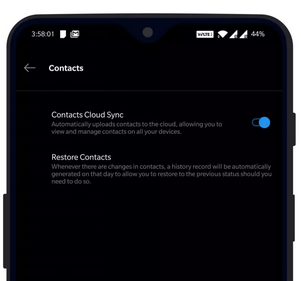
Tips: 1. Make sure you are logged into the same OnePlus account that was used to create the backup. 2. If the contacts do not appear immediately, manually sync your OnePlus Cloud account and refresh the Contacts app. 3. Regularly enabling cloud synchronization can help prevent permanent contact loss in the future.
Explore More: How to Transfer Contacts from OnePlus to OnePlus? Top 4 Picks
#3: How to Restore Permanently Deleted Contacts from OnePlus via Google Backup
If your deleted contacts were previously synced with your Google account, you can often restore them from a Google backup or contact history. Google allows users to restore backed-up contacts to an Android device, including OnePlus phones.
User Manual:
- Open Settings on your OnePlus phone.
- Tap Google > All Services.
- Select Backup & Restore > Restore contacts.
- Tap From Account and choose the Google account that contains the lost contacts.
- Select the device backup you want to restore from.
- Choose whether to restore contacts from Device Storage and/or SIM Card.
- Tap Restore.
- Wait until the message "Contacts restored" appears.
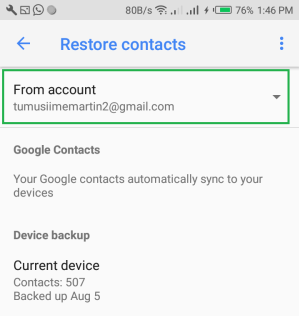
Tips: Before starting the restoration, make sure you are signed in to the same Google account that was used to back up your contacts. If multiple Google accounts are added to your OnePlus phone, verify which account contains the backup to avoid restoring incomplete contact data.
#4: How to Retrieve Deleted Contacts on OnePlus via Google Contacts Trash
If the contacts on your OnePlus phone were deleted within the last 30 days, Google Contacts may still have them in the Trash. You can rescue your lost items from within.
User Manual:
- Visit Google Contacts on a computer or mobile browser.
- Sign in with the Google account linked to your OnePlus phone.
- Open Trash/Bin from the left panel.
- Select the contacts you want to recover.
- Click Recover.
- Sync your Google account on the OnePlus device to download the restored contacts. (Deleted contacts remain in Trash for up to 30 days before permanent removal.)
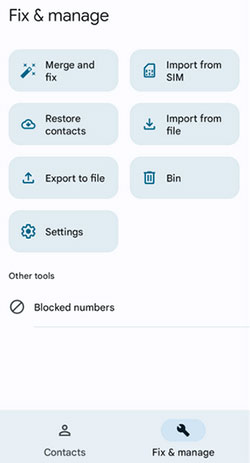
Tips: Google Contacts Trash retains deleted contacts for only 30 days, so it's best to check and recover them as soon as possible. After restoring the contacts, manually sync your Google account or restart the Contacts app if the recovered entries do not appear immediately on your OnePlus device.
#5: How to Recover Deleted Contacts on OnePlus with Undo Changes
If multiple contacts disappeared due to accidental deletion or syncing issues, you can roll back your contact list to an earlier state.
User Manual:
- Open Google Contacts in a web browser.
- Click Settings > Undo Changes.
- Choose a restore point (e.g., 10 minutes ago, yesterday, or one week ago).
- Confirm the restoration.
- Allow your OnePlus phone to sync with Google again. (Google supports undoing contact changes made within the past 30 days.)
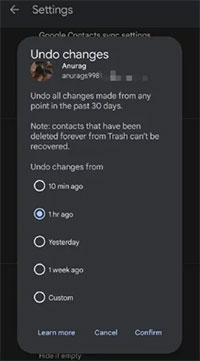
Tips: The "Undo Changes" feature restores your entire contact list to a previous state, not just selected contacts. Before proceeding, review any recent contact additions or edits, as they may be reverted along with the deleted contacts you are trying to recover.
FAQs about Restoring Deleted Contacts on OnePlus
Q1. How long do deleted contacts stay in Google Contacts Trash?
Deleted contacts remain in Google Contacts Trash for up to 30 days. During this period, you can recover them easily. After 30 days, they are typically removed from the Trash permanently.
Q2. How do I know if my contacts were synced with Google?
Go to Settings > Google > Manage your Google Account and check your sync settings. If Contacts Sync was enabled before the deletion, your contacts may be recoverable through Google services.
Q3. Will restoring a Google backup erase my current contacts?
Not necessarily. Restoring contacts from Google Backup usually merges the restored contacts with your existing contact list. However, it's a good idea to back up current contacts before making major changes.
Q4. Can I recover contacts after a factory reset on my OnePlus phone?
Yes, if the contacts were backed up beforehand. You can restore them from Google Backup, OnePlus Cloud, or another backup source during or after device setup.
Q5. How can I restore contacts stored on a SIM card?
Open the Contacts app and use the Import feature. Select "Import from SIM Card" and choose the contacts you want to save to your phone or Google account.
Q6. Why aren't my restored contacts showing up on my OnePlus phone?
This can happen due to syncing delays or display settings. Try manually syncing your Google account, refreshing the Contacts app, or checking whether the correct contact account is selected for display.
Q7. Does OnePlus Cloud back up contacts automatically?
It can, provided cloud synchronization is enabled. You should verify that Contacts Sync is turned on in your OnePlus account settings to ensure contacts are backed up regularly.
Q8. How can I prevent contact loss on my OnePlus device in the future?
Enable automatic backups and contact synchronization. Regularly syncing contacts with your Google account or OnePlus Cloud and exporting a backup file periodically can provide extra protection against accidental deletion.
The Bottom Line
All in all, restoring lost contacts on a OnePlus device often comes down to checking the right backup source at the right time. Whether the issue comes from sync errors or system glitches, most users can recover their contact list without advanced tools if they follow the correct method. The key is acting quickly before backups are overwritten or deleted permanently.
Additional Tips: Keep Google Contacts sync turned on and perform a manual backup before major updates or system changes. This simple habit reduces the risk of contact loss and makes recovery almost immediate if anything goes wrong.
Related Articles:
4 Most Popular OnePlus Contacts Erasers 2026 [Expert Guidance]
OnePlus Screen Mirroring: 4 Easy Ways to Mirror OnePlus to PC/TV
How to Transfer WhatsApp from iPhone to OnePlus? 4 Established Ways
Locked Out of OnePlus? 6 Options to Unlock OnePlus Phone without Password
