
5 Easy Solutions to Recover Deleted Text Messages from OPPO
Text messages on an OPPO phone can hold delivery addresses, confirmation codes, or final conversations. When deleted by accident or a system glitch, recovery is still possible. This passage focuses on how to recover deleted text messages from OPPO in 5 tested ways. Why bother? Because text messages can serve as proof in legal disputes, harassment cases, contracts, or insurance claims. Below are practical methods for OPPO users.
- Way 1: How to Recover Deleted SMS in OPPO via Notification History
- Way 2: How to Recover Fully Deleted Text Messages on OPPO via HeyTap Cloud
- Way 3: How to Find Recently Deleted on OPPO Using Google Messages
- Way 4: How to Retrieve Deleted Text Messages from OPPO via Google One
- Way 5: How to Recover Deleted Text Messages from OPPO Skillfully [without Backup]
Way 1: How to Recover Deleted SMS in OPPO via Notification History
Requirements:
- The Notification History feature must be enabled before the message is deleted, because it only records notifications after activation.
- The SMS must have appeared as a notification preview on the screen.
- The notification log typically stores records for a limited time (often about 24 hours).
User Guide:
- Open the Settings app on your OPPO phone.
- Tap Notifications & Status Bar (or Notifications, depending on ColorOS version).
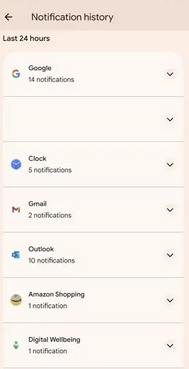
- Select Notification History and turn on "Use Notification History."
- After enabling it, go back to the Notification History page to view previously received notifications.
- If the deleted SMS had appeared as a notification earlier, you can read the message preview from the notification log and identify the sender or part of the text.
Where is the recycle bin in an OPPO phone? On an OPPO phone running ColorOS, there isn't a single universal Recycle Bin for all files. Instead, some apps have their own trash folders - for example, deleted photos go to the Recently Deleted folder in the Photos/Gallery app. Similarly, certain apps like File Manager may include their own recycle or trash sections, but messages and many other data types do not have a centralized recycle bin.
Way 2: How to Recover Fully Deleted Text Messages on OPPO via HeyTap Cloud
Requirements:
- You must have signed in to an OPPO/HeyTap account on the device.
- SMS cloud backup must have been enabled before the messages were deleted.
- There must be an available cloud backup created earlier than the deletion time.
User Guide:
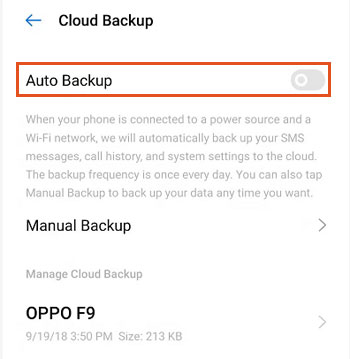
- Open the Settings app on your OPPO phone and tap HeyTap Cloud under your OPPO account.
- Sign in with your HeyTap account and enter the Cloud Backup section.
- Check whether an earlier SMS backup is available in the cloud.
- Tap the backup record that contains your text messages.
- Choose Restore and select Messages/SMS from the data list.
- Confirm the action and wait for the system to restore the deleted text messages to your OPPO phone.
Note: Deleted chats stored in the Trash folder remain there for about 30 days before being permanently removed, giving users time to restore accidentally deleted messages.
Way 3: How to Find Recently Deleted on OPPO Using Google Messages
Requirements:
- The OPPO phone must be using the Google Messages app as the default SMS app.
- The deleted messages must still be within the temporary trash retention period (if the feature is available).
- Messages must not have been permanently removed from the app yet.
User Guide:
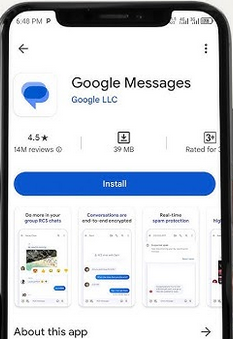
- Install and open the Google Messages app on your OPPO phone.
- Tap your profile picture in the top-right corner of the screen.
- Select the Trash option from the menu.
- Browse the list of conversations that were recently deleted.
- Tap the conversation you want to recover and press the Restore (counter-clockwise arrow) icon.
- The selected messages will return to your main inbox.
Way 4: How to Retrieve Deleted Text Messages from OPPO via Google One
Requirements:
- The phone must be logged in to a Google account with device backup enabled.
- SMS backup must be included in the Google One backup settings.
- The backup must have been created before the messages were deleted, and restoring usually requires resetting the phone to restore that backup.
User Guide:
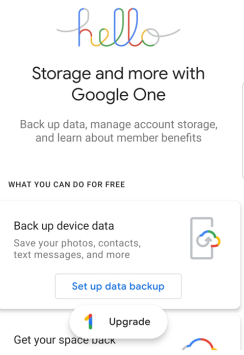
- Open the Settings app on your OPPO phone and go to Google > Backup (or System > Backup) to confirm that Backup by Google One is enabled and that SMS messages are included in the backup.
- Check the last backup date to ensure it was created before the text messages were deleted.
- Go to Settings > System > Reset options > Erase all data (Factory reset) and confirm the reset.
- After the phone restarts, begin the initial setup process and connect to Wi-Fi.
- When prompted, sign in with the same Google account used for the backup.
- Choose Restore from Google One backup and select SMS & MMS messages to restore the deleted texts to your OPPO device.
Way 5: How to Recover Deleted Text Messages from OPPO Skillfully [without Backup]
Requirements:
- A Windows or Mac computer is required to run the recovery program.
- The OPPO phone must be connected via USB with USB debugging enabled.
- The messages should not have been overwritten by new data, since deleted SMS remain in the device database only temporarily.
- Have MobiKin Doctor for Android (Windows/Mac) installed on your PC Windows/macOS.
|
MobiKin Doctor for Android - Feature Category
|
Specific Feature (Shortened)
|
OPPO SMS Recovery Relevance
|
|
Core Recovery
|
Recover deleted SMS without backup |
Directly scans OPPO internal storage |
|
Selective Preview
|
Preview & select specific messages |
Deleted items highlighted for easy choice |
|
Data Type Support
|
SMS, contacts, call logs, media |
Can recover SMS alone or with other data |
|
OPPO Compatibility
|
Supports 8,000+ Android devices |
Works with Find series (Find X8/X7/X6, Find N foldables), Reno series (Reno 15/14/13), A series (A5 - A96), F series (F29 Pro), and K series (K9 - K12), etc. |
|
File Export
|
Export to convenient formats on PC/Mac |
Saves recovered OPPO SMS for reading/printing |
|
Scan Modes
|
Internal memory or SD card scan |
SMS recovery requires internal memory scan |
|
Additional Utility
|
Backup existing data to computer |
Also safeguards current OPPO files |
|
Safety & Privacy
|
Read-only, no data modification |
Safe for recovering OPPO SMS without damage |
How can you recover deleted texts on OPPO with MobiKin Doctor for Android? Adhere to these steps:
- Initially, please ensure that your OPPO phone is rooted if you have not yet completed this process.
- Install and open the software and connect your OPPO device to the computer.
- Follow the on-screen instructions to ensure that the connected OPPO is recognized.
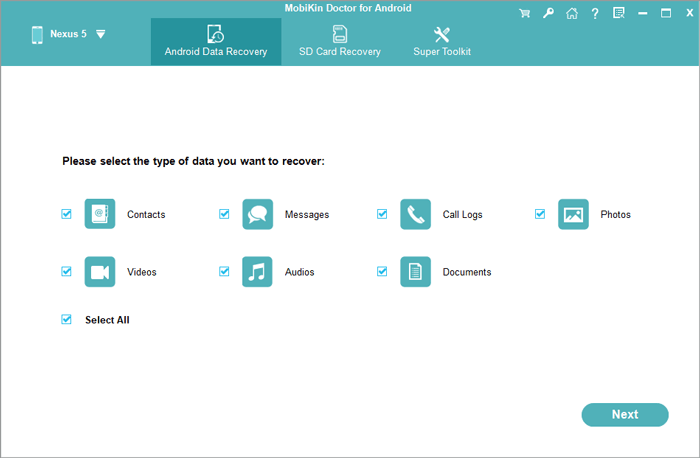
- Once the OPPO is successfully recognized, you will see the following interface:
- In the main interface, please select the "Messages" category and click "Next" to initiate a scan for files.
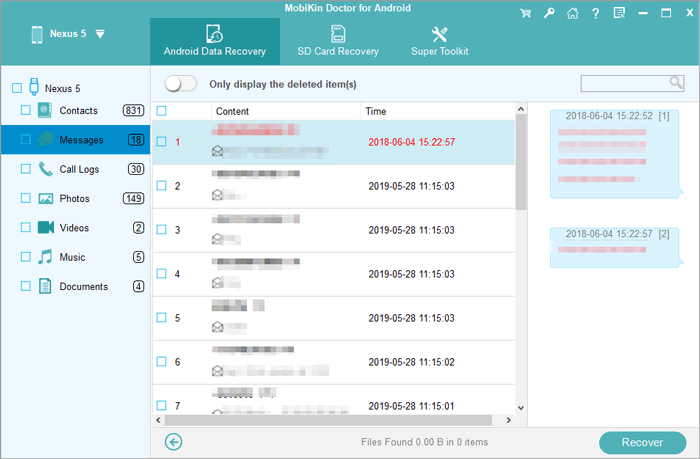
- After the scan is complete, you will be able to find and preview all the deleted messages on your device.
- Select the messages you wish to recover and click the "Recover" button to restore the deleted messages from your OPPO phone.
- Following the recovery process, the deleted messages will be restored in HTML format, allowing you to easily view them on your PC.


Video Directions:
Closing Remarks
You are not trying to save every old text. You are after the one message that proves something, protects you, or brings back a voice you miss. No software guarantees success every time. But without trying, that message is already gone. Act quickly, keep the OPPO phone powered off, and pick a method that reads without altering data. The message you need may still be there.
Related Articles:
5 Feasible Solutions to Recover Deleted WhatsApp Messages on OPPO
How to Transfer Data from OPPO to OPPO? 5 Easy Ways You Should Never Miss
How to Recover Text Messages after Factory Reset Android? 5 Tactics
12 Best Android SMS Managers You'd Better Know [Latest Review]
