
Top 5 Ways: How to Retrieve Deleted Text Messages on itel Phone
Itel devices do not always provide a built-in recycle bin for deleted SMS, recovery becomes the only way to restore valuable or time-sensitive information. This situation leads many users to search for practical solutions when messages disappear unexpectedly. In this article, we will look at 5 trusted methods on how to retrieve deleted text messages on itel, helping users understand the most realistic options available.
- Part 1: Retrieve Deleted Text Messages on itel Phone Expertly
- Part 2: Recover Permanently Deleted Text Messages via Google Messages
- Part 3: Get Deleted SMS Messages Back on itel via Google Drive
- Part 4: Find Deleted Messages on itel via Mobile Carrier
- Part 5: Retrieve Deleted Messages on itel by Asking Senders/Recipients
- FAQs about Retrieving Deleted Text Messages on itel
Part 1: Retrieve Deleted Text Messages on itel Phone Expertly
It is often used as a recovery utility when SMS disappear unexpectedly, and MobiKin Doctor for Android (Windows/Mac) can scan an Itel device for leftover message fragments stored in internal memory. It works by connecting the phone to a computer and performing a deep scan to locate deleted text records that are not yet overwritten.
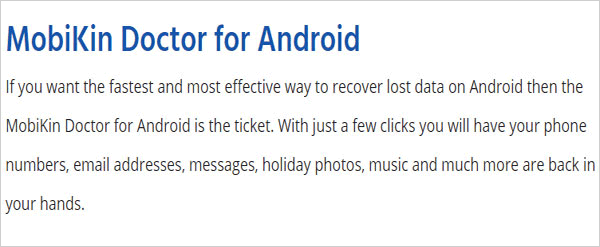
It can recover deleted texts, contacts, and call logs directly from Android internal storage with a high success rate, while also supporting SIM card recovery and restoring lost photos, videos, and other media from SD cards. The tool lets users preview files before restoring them, works with nearly all Android brands including various itel S, City, P, and A series, and is designed to be simple to use and safe.
Free and secure download:


How-to Guide: How to recover deleted text messages from an itel phone via MobiKin Doctor for Android?
- Upon initiating the program, there is no requirement to press any buttons on the device after physical connection.
- It will automatically detect the phone that is connected to the computer.
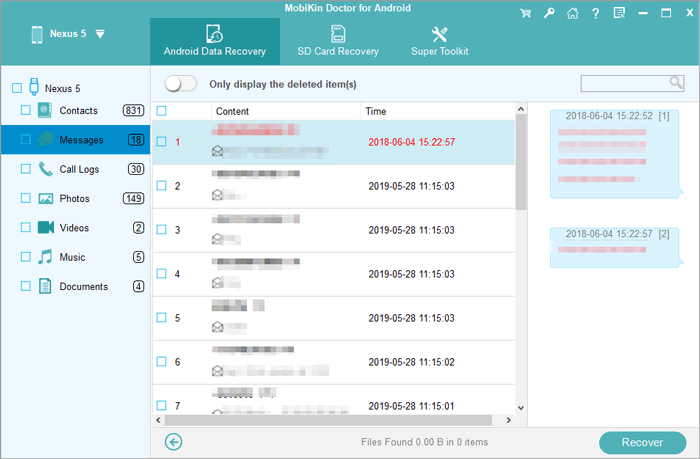
- If your itel phone has been rooted and USB debugging is activated, the program will conduct a comprehensive scan of your Android's internal memory, showcasing all lost and existing messages within the application.
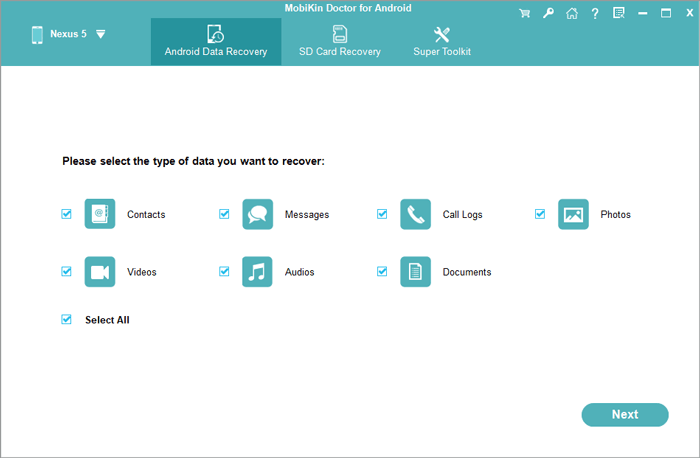
- Afterward, you will have the opportunity to choose the files you wish to recover (in this instance, it relates to "Messages").
- Next, click on "Next" and select a scan mode for either a quick or deep scan.
- Examine the retrieved text messages on your itel device and pinpoint the ones you wish to restore.
- Lastly, click the "Recover" button and designate a location to save the recovered SMS locally.
Video Guide:
You May Also Enjoy: 3 Most Convenient Ways to Manage Itel Phone Contacts on Computer
Part 2: Recover Permanently Deleted Text Messages via Google Messages
Messages handled through Google Messages may still be recoverable if they were archived instead of deleted or if a trash feature is available on the device. Conversations that appear missing can sometimes be found in hidden folders within the app interface. When backup is enabled, the app also relies on Google's cloud system to restore SMS during device setup. Without these conditions, direct recovery inside the app is usually not possible.
How-to Guide:
Option 1: Using Google Messages
- Open the Google Messages app on your phone and tap your profile icon next to the search bar to access more options.
- From the menu, select Archived to view all hidden conversations.
- Press and hold the messages you want to restore, then tap Unarchive located in the upper-right corner to move them back to your main inbox.
Option 1: Using Google Messages Web
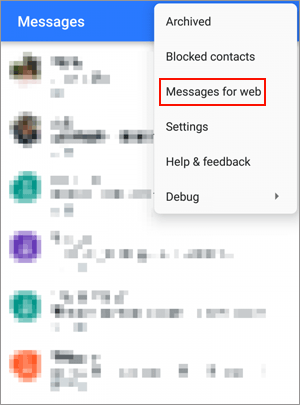
- Go to Google Messages Web on your computer and follow the on-screen instructions to pair your phone with the browser.
- Once connected, click the menu icon in the top-right corner and select Archived to view archived conversations.
- Find the message you want to recover, click Unarchive next to it, and then select Done to confirm and complete the process.
People Also Ask: itel FRP Bypass: 4 Feasible Methods to Bypass FRP on itel Easily
Part 3: Get Deleted SMS Messages Back on itel via Google Drive
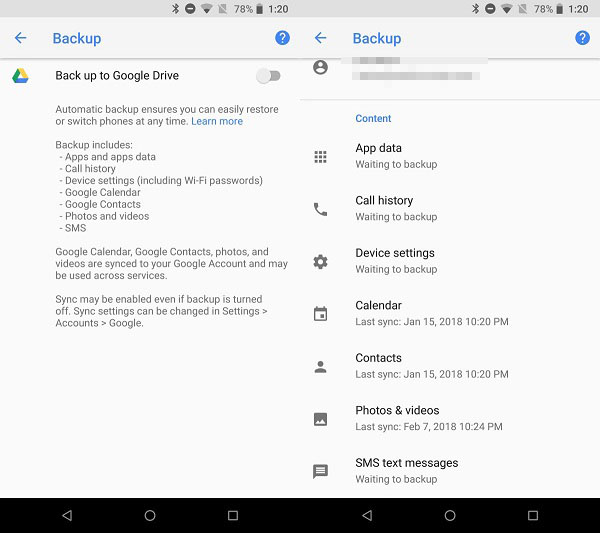
Cloud storage linked to Google Drive can hold SMS data when backup settings are turned on in advance. Restoration typically happens during a factory reset, where the system retrieves saved messages during the initial setup process. This method depends heavily on whether the backup was created before the deletion occurred. If no backup exists, Google Drive cannot independently retrieve lost messages.
How-to Guide:
- Open Settings on your Itel phone and check Google > Backup to confirm that your SMS were included in a Google Drive backup.
- If a backup exists, you must first factory reset your phone because Android only restores SMS during initial setup, not directly from Google Drive.
- After reset, turn on the Itel device and follow the setup process until you reach the Google account sign-in screen.
- Sign in with the same Google account that was used for the backup.
- When prompted, select Restore from Google backup and choose the most recent backup that contains your SMS messages.
- Wait for the restoration process to complete - your messages will reappear once the phone finishes syncing.
Part 4: Find Deleted Messages on itel via Mobile Carrier
Information stored by a mobile carrier may provide partial access to deleted SMS details, mostly in the form of logs such as numbers, timestamps, and usage history. Some providers may assist users after identity verification, though full message content is rarely preserved for long periods.
Policies differ widely, so availability depends on the network operator's data retention rules. As a result, this option is more useful for tracking communication than fully restoring conversations.
How-to Guide:
- Contact your mobile carrier's customer support and request assistance for SMS recovery or message history linked to your Itel number.
- Verify your identity and account ownership (phone number, ID, or account details) before they check any records.
- Ask for SMS logs or message records, noting that most carriers only provide metadata (number, date, time) and not full message content.
- Check your carrier's official app or web portal (if available) for "Usage History" or message records.
- Understand that full deleted SMS recovery is not guaranteed, as carriers usually have limited retention of message data.

Part 5: Retrieve Deleted Messages on itel by Asking Senders/Recipients
Messages that were lost can sometimes be recovered simply by Asking Senders/Recipients, especially when the other party still has the conversation saved. They may resend the SMS or provide screenshots that recreate the missing content. This approach requires no technical tools and works instantly when cooperation is possible. Its effectiveness relies entirely on whether the other person still retains the original messages.
- Contact the sender or recipient of the deleted SMS on your Itel phone and ask them to resend the original message or conversation.
- If they cannot forward it directly, request a screenshot of the chat so you can recover the content visually.
- Ask them to copy and paste the message text into a new SMS or chat for you.
- Check whether the conversation exists in other messaging apps (like WhatsApp or Messenger) and have them resend it from there.
- Once received, save or back up the recovered information to avoid losing it again in the future.
FAQs about Retrieving Deleted Text Messages on itel
Q1: Are archived messages the same as deleted messages?
A: No. Archived messages are hidden conversations and can be restored anytime from the Archived folder.
Q2: Will factory reset help recover deleted messages?
A: Only if a Google backup exists before the messages were deleted.
Q3: How can I prevent losing SMS in the future?
A: Enable Google Backup or use SMS backup apps regularly to save your messages automatically.
Q4: Do deleted messages stay on the phone somewhere hidden?
A: Not in a readable form. Once deleted, they are marked as free space and may be overwritten by new data for all users.
Q5: How long do carriers keep SMS records?
A: It varies by provider, but most carriers store limited logs for a short period and usually not full message content.
The End
Deleted SMS on an Itel phone are not always gone forever, but recovery depends heavily on timing, backup availability, and the method used. With the the most efficient tool - MobiKin Doctor for Android, you can still regain access to important conversations from your itel phone.
Lastly, a side note here - Turn on Google Backup for SMS immediately and check it regularly - once a backup is created before deletion, restoring messages becomes far easier and far more reliable.
Related Articles:
5 Popular Options to Transfer Files from itel to PC via WiFi
How to Transfer Data from iPhone to itel: 4 Simple Ways
5 Easy & Secure Solutions to Connect itel to MacBook Easily
[4 Ways] How to Recover Deleted Text Messages on iPhone without Computer?
