
How to Recover Deleted Photos on Google Pixel? 4 Best Practices
TL;DR:
Before selecting a recovery method, users should consider their photo loss situation, available backups, and the possibility of overwriting deleted data to choose the most suitable approach. The following section explains effective ways to recover deleted photos on Google Pixel.
Why Choose MobiKin Doctor for Android?
- Recover without backup: Retrieve permanently deleted photos from Google Pixel even when no backup is available.
- Deep scan and selective recovery: Scan device storage thoroughly, preview found files, and restore only the photos you need.
Before choosing a recovery solution, it is important to understand which method fits different photo loss situations. The following section will introduce the main ways to recover deleted photos on Google Pixel in detail, including their application scenarios and expected success rates.
|
Recovery Method
|
Best Application Scenarios
|
Success Rate
|
|
Recover recently deleted photos still stored in Trash/Bin. |
High - Works well if photos are within the retention period. |
|
|
Restore photos that were backed up and synced with Google Photos. |
High - Effective when backups are available. |
|
|
Seek help for account, sync, or unexpected photo loss issues. |
Low to Medium - Depends on the case and available backups. |
|
|
Recover permanently deleted photos without backup by scanning Pixel storage directly. |
Highest - Offers a higher recovery possibility for lost photos not found in Trash or backups. |
Tips to Retrieve Deleted Photos from Google Pixel with a High Success Rate:
- Trash - Google Photos → Trash → Restore (60 days if backed up, 30 if not).
- Cloud Backup - Reset phone or set up new device → restore from backup.
- Recovery App - Try MobiKin Doctor for Android for deep scan.
- Pro Service - Expensive last resort for dead or damaged phones.
- Option 1: Retrieve Deleted Photos on Google Pixel by Checking Gallery Trash
- Option 2: Recover Permanently Deleted Photos from Pixel via Google Photos
- Option 3: Recover Permanently Deleted Photos on Google via Google Support
- Option 4: Recover Deleted Photos on Google Pixel without Backup
- FAQs about Recovering Deleted Photos on Google Pixel
- Conclusion - Best Practices after Photo Recovery from Pixel
Option 1: Retrieve Deleted Photos on Google Pixel by Checking Gallery Trash
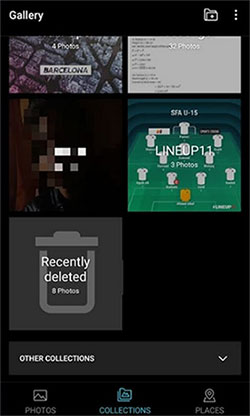
If you recently deleted photos on your Google Pixel, they may still be available in the Trash/Bin folder of the Google Photos app. Deleted photos are usually kept temporarily before being permanently removed. Here's how:
- Open the Google Photos app on your Google Pixel.
- Tap Collections at the bottom of the screen.
- Select Trash (or Bin).
- Browse the deleted photos and select the images you want to restore.
- Tap Restore.
- Check your Google Photos library or the original album to confirm the photos have been recovered.
Note:
- Backed-up photos remain in Trash for up to 60 days.
- Photos that were not backed up are generally available for 30 days before permanent deletion.
You Might Also Like: Top 4 Picks: Mirror Pixel Phone to PC/TV without Difficulty
Option 2: Recover Permanently Deleted Photos from Pixel via Google Photos
If the photos are no longer stored on your device but were previously backed up to Google Photos, you can restore them by accessing your cloud library. This method works if the photos were successfully synced before deletion. Here's how:
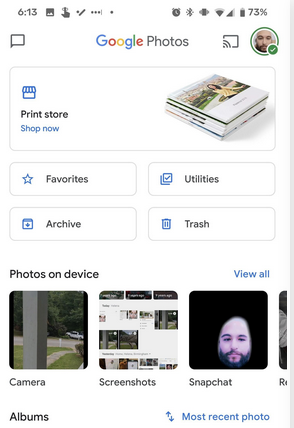
- Open the Google Photos app on your Pixel.
- Make sure you are signed in with the same Google account used for photo backup.
- Tap Camera or use the search function to find the missing images.
- Check whether the deleted photos are still available in your Google Photos library.
- Select the photos you want to restore.
- Tap the three-dot menu and choose Download or Save to device.
- Wait for the photos to be downloaded back to your Pixel.
Alternative steps using a computer:
- Visit Google Photos on a browser.
- Sign in with your Google account.
- Locate the missing photos.
- Select the images and download them to your computer.
- Transfer them back to your Google Pixel.
Note:
- This method only works if Google Photos backup was enabled before the photos were deleted.
- If the photos were permanently deleted from Google Photos Trash and had no backup elsewhere, this method may not work.
More to Explore: How to Transfer Messages from Samsung to Google Pixel? 4 Options
Option 3: Recover Permanently Deleted Photos on Google via Google Support
When deleted photos cannot be found in Google Photos Trash or backups, you can contact Google Support to check whether there are any available recovery options. Google may be able to help in certain situations, especially if the deletion was caused by account issues, syncing problems, or unexpected data loss. Here's how:
- Visit the Google Support website.
- Sign in with the Google account connected to your Pixel device.
- Select Google Photos as the affected service.
- Choose a related issue, such as:
Missing photos
Deleted photos
Backup and sync problems - Follow the available troubleshooting instructions.
- Contact Google Support through available options, such as chat or email (depending on availability).
- Provide necessary details, including:
Your Google account information
Approximate deletion date
Device model (Google Pixel)
Description of the missing photos.

Note:
- Google Support cannot guarantee recovery of permanently deleted photos.
- If photos were permanently removed from Trash and no backup exists, recovery may not be possible through Google services.
Option 4: Recover Deleted Photos on Google Pixel without Backup
When photos are permanently deleted and no backup is available, MobiKin Doctor for Android (Windows/Mac) can scan your Google Pixel storage to look for recoverable images. The success rate depends on whether the deleted data has been overwritten by new files.


Prerequisites:
- Stop using your Pixel immediately after losing photos to prevent new data from overwriting deleted files.
- Avoid installing new apps or taking new pictures before recovery.
- Save recovered photos to another location instead of the original storage whenever possible.
Key Features of MobiKin Doctor for Android:
- Recover Pixel photos - Restore deleted photos without backups.
- Deep scan storage - Find lost files from device memory.
- Recover multiple data types - Restore photos, videos, contacts, and more.
- Preview files - Check data before recovery.
- Support Pixel devices - Work with various Google Pixel models, covering 10 Pro/9/8/7/6/5/4/3, etc.
- Recover from SD cards - Retrieve files from external storage.
- Selective recovery - Restore chosen files only.
- High recovery rate - Increase chances of successful recovery.
- Easy operation - Recover data in simple steps.
- Safe recovery - Protect existing device data.
User Guide:
- Download and install MobiKin Doctor for Android on your computer.
- Launch the program and connect your Google Pixel to the computer using a USB cable.
- Enable USB debugging on your Pixel:
Open Settings.
Go to About phone.
Tap Build number several times to enable Developer Options.
Enable USB debugging under Developer Options. - Allow the program to detect your Pixel device.
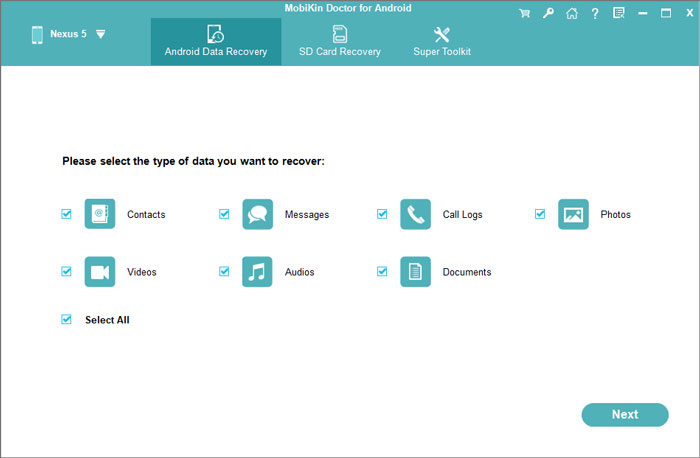
- Select Photos as the file type to scan.
- Click Next to start scanning your device for deleted photos.
- Choose a scanning mode if available:
Quick Scan for faster searching.
Deep Scan for a more comprehensive search. - Preview the found photos in the scan results.
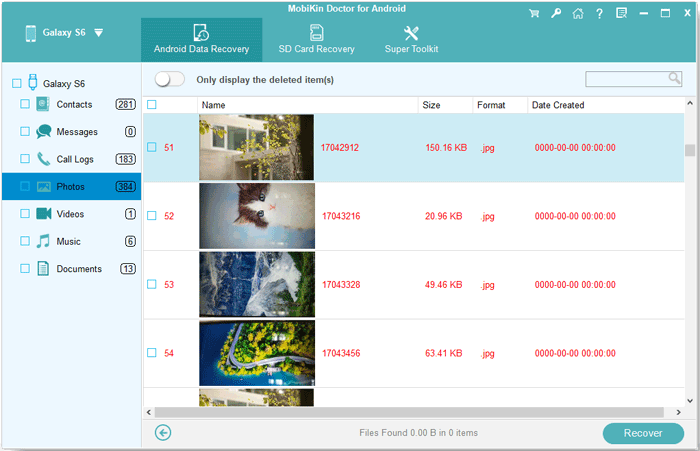
- Select the deleted photos you want to recover.
- Click Recover and save the restored photos to your computer.
Video Guide:
FAQs about Recovering Deleted Photos on Google Pixel
Q1. Where do deleted photos go on Google Pixel?
Deleted photos usually go to the Trash/Bin folder of the app used for deletion. Photos removed through Google Photos are moved to Google Photos Trash, while images deleted through file management apps may appear in the corresponding Trash folder.
Q2. How can I recover deleted photos after emptying Google Photos Trash?
After emptying Google Photos Trash, the photos are usually permanently removed from Google services. You can check other backups, such as Google Drive or other cloud storage platforms, or use professional recovery software to attempt recovery.
Q3. Can deleted photos be recovered after a factory reset on Google Pixel?
Recovering photos after a factory reset is difficult because the reset removes user data and Android devices use encryption. If the photos were backed up before the reset, you can restore them from Google Photos or another backup service.
Q4. Why can't I find my deleted photos in Google Photos Trash?
Your deleted photos may not appear in Trash if they were permanently deleted, the Trash retention period has expired, you are using a different Google account, or the photos were deleted from another app instead of Google Photos.
Q5. How can I prevent losing photos on my Google Pixel again?
To prevent future photo loss, enable Google Photos Backup, regularly sync important images, keep additional backups on a computer or cloud service, and avoid permanently deleting photos unless you are certain they are no longer needed.
Conclusion - Best Practices after Photo Recovery from Pixel
Recovering deleted photos from a Google Pixel is possible with the right methods, but prevention remains the best way to protect important memories. By maintaining regular backups and following proper data management habits, users can minimize the risk of future photo loss.
- Back up regularly - Use Google Photos or Drive for protection.
- Keep local copies - Save photos to a computer or drive.
- Enable auto-sync - Automatically save new photos.
- Manage storage wisely - Avoid unnecessary deletions.
- Prevent data overwriting - Limit new data after loss.
- Use reliable tools - Choose trusted recovery software.
- Organize photos - Sort images to avoid mistakes.
- Update your Pixel - Keep software stable and secure.
- Check backups - Confirm sync settings work.
- Protect your device - Prevent physical damage.
Related Articles:
6 Options to Transfer Photos from Pixel to iPhone 17/16/15/14/13/12/11
How to Transfer Photos from Pixel to Computer? 6 Effortless Ways
Top 4 Best Google Pixel Contacts Erasers [With Trial Experience]
5 Smart Ways for Google Pixel FRP Bypass [Based on Our Tests]
Google Pixel 10 vs iPhone 17: Which One to Pick [Expert Advice]
