
4 Ways: How to Recover Thumbnail Pictures on Android with/without Backup
TL;DR:
In conclusion, recovering deleted thumbnails on Android isn't impossible - this guide shows four practical ways to bring them back.
- For cases where no backup exists, it's strongly recommended to use MobiKin Doctor for Android, which can safely scan and recover thumbnails directly from device storage.
- Acting quickly and avoiding new data saves greatly improves the success rate of recovery.
"My photo is deleted by thumbnail; please recover my photos" -- from Files by Google Help
A deleted photo is not always gone forever. Because thumbnails are smaller files stored in hidden cache folders, the system may not overwrite them as quickly as original photos, giving you a second chance to retrieve a visual record. This piece explains how to recover thumbnail pictures on Android in 4 fabulous ways: checking the Trash, recreating the thumbnail cache, using cloud backup, and running dedicated software.
- Option 1: Recover Photos from Thumbnails in Android Trash
- Option 2: Restore Thumbnail Images on Android by Recreating Thumbnail Cache
- Option 3: See Thumbnail Images in Android from Cloud Backup
- Option 4: Recover Thumbnail Pictures on Android without Backup [Safe]
- FAQs about Recovering Thumbnail Pictures on Android
Option 1: Recover Photos from Thumbnails in Android Trash
When an image is deleted on an Android device, it often lingers in a temporary limbo before permanent removal, and this is precisely where the concept of Android Trash becomes relevant.
Unlike desktop systems, the Android Trash isn't a universal folder but varies by manufacturer or file manager, yet it can hold thumbnail versions of erased pictures for a short period. By accessing this hidden space promptly, users might retrieve those smaller preview images even if the original files are gone. Here's the guide:
- Open your Gallery app.
- Tap Menu, Library, or Collections, depending on the app version.
- Open the Trash, Recycle Bin, or Recently Deleted folder. Deleted photos are often retained for around 30 to 60 days before automatic removal.
- Browse the deleted items and locate the photos associated with the thumbnail previews.
- Select the images you want to recover.
- Tap Restore. The photos will be returned to their original album or folder.

Note: If the Trash folder contains only thumbnail previews and the original images are no longer available, recovery may not be possible through the Gallery app. Thumbnails are merely low-resolution cache files and cannot usually be converted back into full-size photos.
You Might Also Enjoy: How to Recover Photos from iPhone in Recovery Mode? 4 Practical Ways
Option 2: Restore Thumbnail Images on Android by Recreating Thumbnail Cache
When you delete the existing cache files (often found in the DCIM/.thumbnails folder), Android rebuilds them during the next media scan, potentially pulling from residual data of previously deleted photos. Although this won't restore full-resolution originals, the newly generated thumbnails might offer recognizable previews that were thought to be gone, providing a quick, software-only recovery trick. Here's the guide:
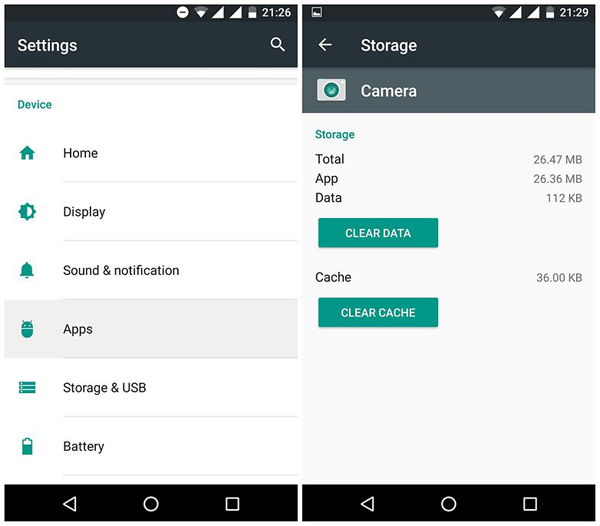
- Open Settings on your Android phone.
- Tap Apps (or Application Manager, depending on your device).
- Locate and select your Gallery app, Photos app, or the app where thumbnails are missing.
- Choose Storage & Cache.
- Tap Clear Cache to remove the existing thumbnail cache files.
- Restart your Android device.
- Open the Gallery app and allow it a few minutes to scan your media files. Android will automatically create a new thumbnail cache for your photos and videos.
Option 3: See Thumbnail Images in Android from Cloud Backup
A more automated safeguard is cloud backup, which excels at preserving thumbnails alongside full images. Services like Google Photos or OneDrive continuously sync picture data, and even if local files vanish, the cloud retains both original and thumbnail versions based on your sync settings.
Restoring from such a backup usually brings back the thumbnails as they were before deletion, offering a seamless way to recover without specialized tools—provided the backup was enabled prior to the loss. Here's the guide:
Method 1: Recover from Google Photos
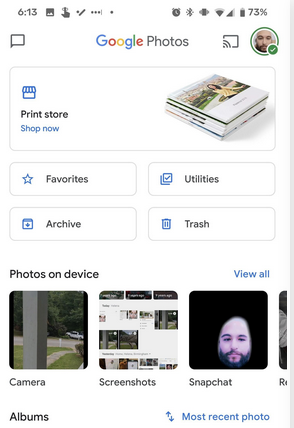
- Open the Google Photos app on your Android device.
- Sign in with the Google account that was used to back up your photos.
- Browse the Photos, Albums, or Search sections to locate the missing images.
- If you recently deleted the images, tap Collections > Trash (or Bin) and check whether they are still available.
- Select the photos you want and tap Restore. Backed-up items typically remain in Trash for up to 60 days before permanent deletion. (How to delete pictures from Google Photos after recovery?)
Method 2: Recover from Other Cloud Services
- Open the cloud storage app you previously used, such as OneDrive, Dropbox, Samsung Cloud, or Xiaomi Cloud.
- Sign in with the account linked to your device.
- Check folders such as Photos, Camera Uploads, Backups, or Albums.
- Locate the missing images and select Download or Restore to save them back to your phone.
Cloud services usually back up the original photos, not just thumbnail files. Therefore, recovering images from a cloud backup is often preferable because it restores the full-resolution version rather than a low-quality thumbnail preview.
Option 4: Recover Thumbnail Pictures on Android without Backup [Safe]
If the images are not in any cloud account or Trash folder, recovery becomes much more difficult. Community discussions indicate that permanently deleted photos are hard to be recovered on modern Android devices due to storage trimming and data overwriting. In such cases, your best chance is to use a reputable Android recovery tool - MobiKin Doctor for Android (Windows/Mac) as soon as possible and avoid saving new data to the device.
|
MobiKin Doctor for Android - Main Features
|
Further Description
|
|
Photo & Media Recovery |
Recovers deleted photos, videos, and audio. |
|
Thumbnail Image Recovery Support |
Finds cached thumbnails and image fragments via deep scan. |
|
Contacts & Messages Recovery |
Restores contacts, SMS, and call logs. |
|
SD Card Recovery Mode |
Recovers files from external SD cards. |
|
Deep & Quick Scan |
Offers two scan modes for flexible recovery. |
|
Preview Before Recovery |
Lets you preview files before restoring. |
|
Selective Recovery |
Allows recovery of chosen files only. |
|
Data Backup to PC |
Exports Android data to computer. |
|
Wide Device Support |
Works with major Android brands. |
How to recover lost thumbnail on Android using MobiKin Doctor for Android?
- Download and install MobiKin Doctor for Android on your computer, then launch the program.
- Connect your Android phone via USB and enable USB debugging when prompted.
- The software will detect your device and prepare it for scanning.
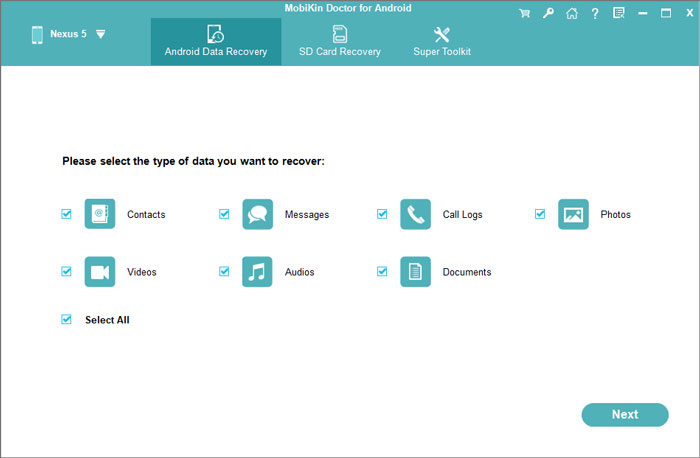
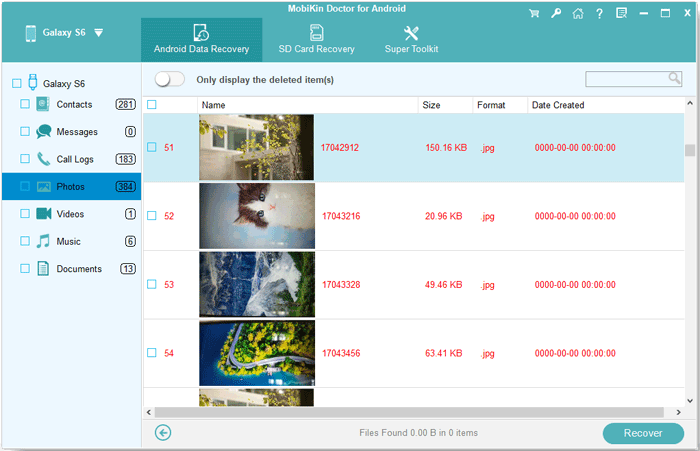
- Select Photos (and other data types if needed), then choose to scan your lost files.
- Start the scanning process. The tool will search internal storage and SD card for deleted images, including cached thumbnail data and image fragments.
- Preview the results. Look through recoverable images - some may appear as low-resolution thumbnail previews.
- Select the thumbnail-related images or photos you want to restore, then click Recover to save them to your computer.


Video Guide:
FAQs about Recovering Thumbnail Pictures on Android
Q1: What exactly are thumbnail pictures on Android, and why do they matter for recovery?
Thumbnails are low-resolution previews stored in hidden folders like DCIM/.thumbnails. They often outlive deleted original photos. Recovering them gives you a smaller, identifiable version when the full image is gone.
Q2: How does recreating the thumbnail cache help recover lost thumbnails, and is it risky?
Deleting the .thumbnails folder forces Android to rebuild its cache from residual data. It's safe and non-destructive. After a reboot, you may see old thumbnails reappear, but success isn't guaranteed.
Q3: Do factory resets or SD card formatting permanently destroy thumbnail pictures?
Not right away. Data lingers until overwritten. Tools like Android Data Recovery can scan raw storage soon after a reset to extract remaining thumbnails. (More about how to recover data after factrory reset Android)
Q4: What's the difference between recovering a thumbnail and recovering the original picture?
Thumbnails are small, pixelated previews (up to 512x512 pixels), good for ID. Original recovery gives full resolution and metadata. Thumbnail recovery is easier and more likely from damaged storage.
Q5: Can I recover thumbnails from an Android phone that won't boot or has a broken screen?
Yes, via computer using ADB, if the storage chip is intact. Without USB debugging pre-enabled, success is very unlikely.
Q6: Why do some recovery apps show thumbnails that I deleted months ago, but not recent ones?
Older thumbnails may survive in untouched storage sectors, while newer ones get overwritten faster. Stop using the phone immediately after deletion to improve odds.
Q7: When should I stop trying DIY methods and use a professional tool like MobiKin Doctor for Android?
If Trash and cache methods fail and thumbnails are critical, switch to a professional tool for deep scans. Skip if the device has seen heavy use since deletion—chances are slim.
Round Off
Think of a thumbnail as a clue, not the whole picture. The four methods form a simple ladder - start with the Trash folder, then move upward only if needed. Even one recovered thumbnail can confirm what was lost, which often matters more than full resolution.
To recover images with a higher success rate, try these actions: Turn on airplane mode immediately after deletion; stop using the camera or file apps - any new data can overwrite the hidden cache folder where thumbnails linger; idle your phone for an hour to boost recovery chances.
Related Articles:
How to Recover Permanently Deleted Photos on iPhone without Backup?
Top 13 Photo Managers for Android to Manage Android Pics with Ease
4 Efficient Ways to Get Pictures off Phone with Broken Screen
How to Transfer Photos from Android to Mac Wirelessly? 6 Options
