
How to Recover Deleted Text Messages from HONOR? 6 Resourceful Ways
Messages stored on an HONOR phone can disappear in different situations, often without warning. These messages may include verification codes, personal conversations, and other valuable records that are difficult to replace once removed.
Because of this, many users look for practical methods to restore their lost data instead of starting from scratch. This topic introduces recover deleted text messages from HONOR in 6 ways, helping users understand different methods that may bring back missing messages when needed.
- Part 1: Find Text Messages from Recycle Bin on Honor Phone
- Part 2: Recover a Deleted SMS from HONOR via Built-in Backup Feature
- Part 3: Recover Deleted Text Messages on Honor Phone via HONOR Cloud
- Part 4: Recover Deleted SMS on Honor from Archived Messages
- Part 5: Recover Deleted Text Messages from HONOR without Backup
- Last Resort - Retrieve Permanently Deleted Text Messages via Carrier (e.g. Verizon Cloud)
Part 1: Find Text Messages from Recycle Bin on Honor Phone
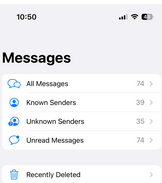
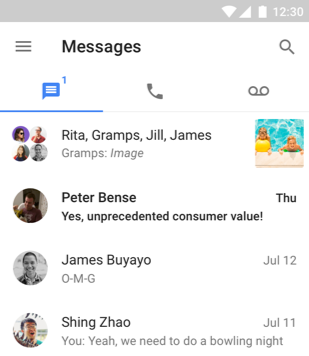
Deleted messages may still remain temporarily in the device's recycle bin, giving users a short window to bring them back. This folder keeps removed SMS for a limited time before they are permanently erased. Opening the trash or deleted items section in the Messages app can reveal conversations that were recently removed. Selecting the desired texts and restoring them will return it to the inbox.
How-to Guide:
- Open the Messages app on your HONOR phone.
- Tap the Menu icon (three dots or three lines) in the upper-right corner.
- Look for the Trash, Recycle Bin, or Recently Deleted folder in the menu.
- Tap the folder to view the recently deleted text messages.
- Select the messages you want to recover.
- Tap Restore or Move to Inbox to return them to your message list.
People Also Like: How to Recover Text Messages after Factory Reset Android? 5 Tactics
Part 2: Recover a Deleted SMS from HONOR via Built-in Backup Feature
Situations where HONOR backup has been created earlier can be handled through the phone's built-in backup feature. This system records message data along with other personal information in a saved backup file. By entering the backup settings and choosing a file dated before the deletion, users can initiate a restoration process. Once the backup is restored, the previously removed text messages may appear again in the message list.
How-to Guide:
- Open Settings on your HONOR phone.
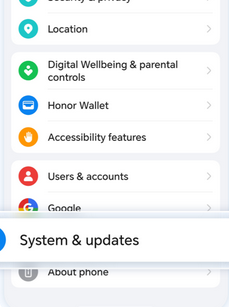
- Scroll down and tap System & Updates, then select Backup & Restore.
- Choose Text Messages (SMS) or the relevant backup file type.
- Browse the available backup files and find the one created before the messages were deleted.
- Tap the selected backup and choose Restore to start the recovery process.
- Confirm the restoration and wait until the system finishes restoring the deleted SMS to your Messages app.
Part 3: Recover Deleted Text Messages on Honor Phone via HONOR Cloud
Cloud synchronization sometimes keeps copies of SMS even after they disappear from the phone, which is where HONOR Cloud becomes helpful. Messages that were included in cloud backups can be downloaded again through the cloud restore option. Accessing the cloud account and selecting the appropriate backup allows users to retrieve stored SMS data. After the restoration finishes, the recovered conversations will return to the messaging app.
How-to Guide:
- Open Settings on your HONOR phone and tap your HONOR ID at the top.
- Select Cloud and then tap Cloud Backup.
- Check the available backup records and choose a backup created before the SMS was deleted.
- Tap Restore Data and select Messages from the list of data types.
- Confirm the restoration and wait for the phone to download the backup from HONOR Cloud.
- Once the process finishes, open the Messages app to check the restored text messages.
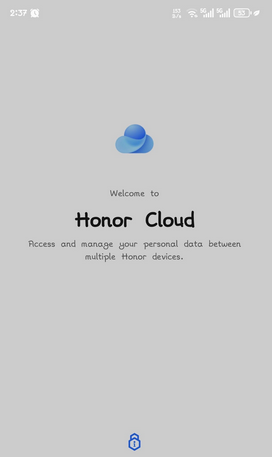
If HONOR Cloud backup was enabled before deletion, you can restore deleted text messages by signing in to your HONOR ID and selecting a previous backup. The system will download the saved data, which may include SMS, and return them to the Messages app after restoration. However, if no backup was created before the messages were deleted, recovery through HONOR Cloud will not be possible.
Part 4: Recover Deleted SMS on Honor from Archived Messages
Some messages are not deleted at all but simply moved away from the main inbox through Archived Messages. This feature hides selected conversations while keeping them stored in a separate folder. Checking the archive section in the messaging application may reveal chats that seemed to have disappeared. Removing the conversation from the archive will immediately place it back into the regular message list.
How-to Guide:
- Open the Google Messages app on your HONOR phone.
- Tap the three-dot menu in the upper-right corner of the screen.
- Select Archived from the dropdown menu to view archived conversations.
- Scroll through the archived chats and locate the message thread you want to recover.
- Press and hold the conversation, then choose Unarchive (or Unfold) to restore it to the main message list.
Part 5: Recover Deleted Text Messages from HONOR without Backup
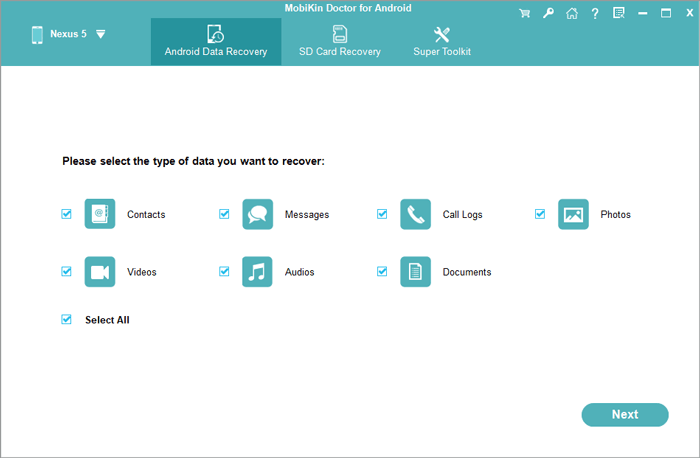
When no backup or cloud copy is available, recovery software such as MobiKin Doctor for Android (Win or Mac) can be considered. The program scans the internal storage of an HONOR device to locate traces of deleted SMS data. Detected messages can be previewed before the recovery process begins. After selecting the needed conversations, they can be restored and saved to a computer for safekeeping.
|
Core Features - MobiKin Doctor for Android
|
Key Details
|
|
Recover SMS without Backup |
Retrieves deleted text messages from HONOR phones even without prior backups. |
|
Preview before Recovery |
Lets users preview and select messages before restoring them. |
|
Multiple Data Types Recovers |
SMS, contacts, call logs, photos, videos, and documents. |
|
Internal & SD Card Scan |
Retrieves data from internal storage or SD cards. |
|
Wide Compatibility |
Works with many Android brands, covering Magic, Number, X, Play, V, Note, and View series ranging from older to the latest models. |
|
Safe Recovery Process |
Read-only scan prevents overwriting existing data. |
|
Export to Computer |
Saves recovered messages to a computer for storage or viewing. |
How-to Guide:
- Initially, download and install the software on your computer, then proceed to launch it.


- Connect your HONOR smartphone to the computer using a USB cable and adhere to the on-screen instructions to ensure the device is recognized by the tool.
- Once the HONOR device is recognized, select "Messages" and click "Next".
- Follow the prompts to scan your phone.
- To conduct a thorough scan of deleted messages, your HONOR may require rooting. (Unsure if your phone is rooted?)
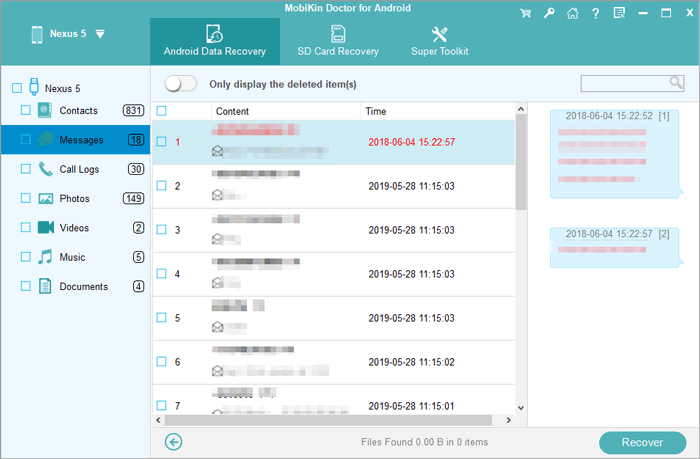
- After the scanning process, review all the text messages shown on the interface and choose the deleted ones you wish to recover.
- Ultimately, click "Recover" to restore them and save the messages to your computer in a readable format.
Video Guide:
Last Resort - Retrieve Permanently Deleted Text Messages via Carrier (e.g. Verizon Cloud)
A phone carrier may keep limited message records or provide cloud backup services for users. For example, Verizon offers Verizon Cloud, which can store SMS and other mobile data linked to your account.
If the messages were previously synced or backed up to Verizon Cloud, they may be restored even after deletion from an HONOR phone. However, this option is usually considered a last resort, since recovery depends on whether the carrier backup feature was enabled before the messages were deleted.
How-to Guide:
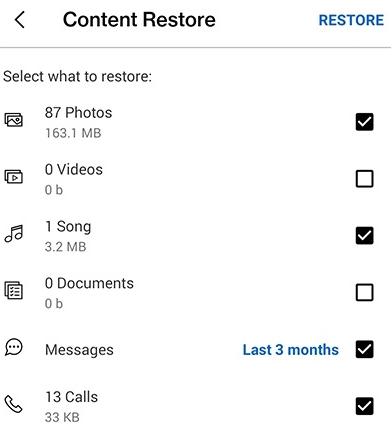
- Open the Verizon Cloud app or visit the Verizon Cloud website and sign in with your carrier account.
- Go to the Messages or Content section to view the data stored in the cloud backup.
- Browse the list of backed-up SMS or text message conversations.
- Select the messages or conversations you want to recover.
- Tap Restore or Download to retrieve the messages back to your phone or device.
- If the messages are not available in the cloud backup, contact your mobile carrier's customer support to check whether message records can be accessed from their server backups.
Related Articles:
4 Stress-relief Methods to Transfer Data from HONOR to HONOR
Top 4 Methods to Delete Text Messages on HONOR Phones [Latest]
Can You Unlock HONOR Phones Proficiently? Try the 4 Easy Means Now
How to Transfer Text Messages from Honor to iPhone: Top 3 Ways
