
4 Ingenious Ways to Retrieve Deleted Text Messages on realme
Imagine scrolling through your realme messages and realizing that a crucial conversation has vanished - deleted by mistake while clearing storage or chats. Panic sets in, but before despair takes over, know this: it's possible to restore lost messages safely without damaging other data.
This guide dives into how to retrieve deleted text messages on realme GT, Number, C, Neo, and Narzo Series using 4 applicable approaches - from hidden backups to clever third-party tools - giving you a lifeline for your lost digital memories.
- Part 1: How to Recover Deleted Text Messages in realme with Google Messages for Web
- Part 2: How to Retrieve Deleted Text Messages on realme Using Google Drive
- Part 3: How to Recover Deleted SMS on realme Phone via Mobile Carrier
- Part 4: How to Retrieve Deleted Text Messages on realme via Professional Tool
Part 1: How to Recover Deleted Text Messages in realme with Google Messages for Web
Requirements or Considerations:
- You must be using Google Messages as your default SMS app.
- The conversation must have been archived, not permanently deleted.
- Your Google Messages app must still be installed and synced.
- You must still have access to the Google account linked to Messages (if backup/sync is enabled).
How to Recover?
- Open Google Messages for Web on a computer > Go to messages.google.com/web and sign in (or reconnect your phone).
- Check if the conversation still appears > Sometimes deleted messages on the phone may still show in the web session if it hasn't refreshed yet.
- Search the conversation list > Use the search bar to look for the contact name, phone number, or keywords from the message.
- Check Archived Chats on Web > Open the menu and select "Archived" to see if the chat was archived instead of deleted.
- Keep the Web tab open if the messages appear > Avoid refreshing or signing out, as this may sync the deletion.
- Screenshot or copy the important messages > Save the content manually, since the Web cannot restore data back to the phone.
- Sync your phone again after saving > Once messages are preserved, you can safely refresh or reconnect.
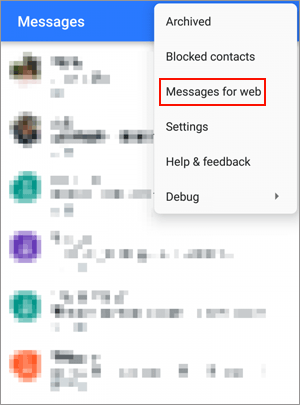
Note: Will Google Messages for Web restore deleted SMS back to my Realme phone? No. The Web version is only a mirror; it does not restore deleted messages to the phone. You must use a backup or recovery tool for full restoration.
Part 2: How to Retrieve Deleted Text Messages on realme Using Google Drive
Requirements or Considerations:
- SMS backup must have been enabled BEFORE deletion.
- The backup must show "SMS Messages" included with a valid date.
- You must remember the Google account used for backup.
- You must be willing to factory reset the realme phone to restore the backup.
- A stable internet connection is required during the restore.
How to Recover?
- Check if SMS Backup Exists > Go to Settings > Google > Backup and confirm "SMS Messages" is listed with a recent backup date.
- Back Up Anything New First > Save your current photos/files elsewhere, because the next step erases the phone.
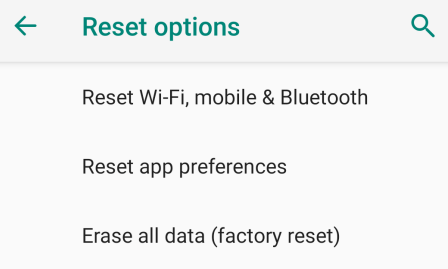
- Factory Reset the realme Phone > Go to Settings > Additional Settings > Backup & Reset/Reset options > Erase all data (Factory reset).
- Restart and Sign In > After reset, sign in with the same Google account used for the backup.
- Select "Restore from Google Backup" during setup > Choose the backup that shows SMS Messages included.
Part 3: How to Recover Deleted SMS on realme Phone via Mobile Carrier
Requirements or Considerations:
- SMS must have been sent through standard carrier texting (not apps like WhatsApp/Telegram).
- Your carrier must store message data or logs (varies by region).
- You must verify your identity with your account details or ID.
- You may need to submit a formal request or legal documentation, depending on the carrier policy.
- The messages should be recent, as some carriers purge old records.
- Some carriers may charge a fee, especially if a formal request or detailed transcript is required.
How to Recover?
- Contact your carrier's customer support (via phone, chat, or store visit) and explain that you want to retrieve deleted SMS messages.
- Provide account verification details such as phone number, name, ID, or PIN so they can access your records.
- Ask whether they store SMS content or only logs - some carriers keep message metadata (date/time/number), while a few may temporarily store message content.
- Request recovery or a transcript (if available) and specify the date range, phone numbers involved, and message type (SMS).
- Check any fees, privacy rules, or legal requirements since some carriers only release data with a formal request or court order.
- Wait for the carrier's response or report, as processing time may vary depending on their policy and your country/region.
Part 4: How to Retrieve Deleted Text Messages on realme via Professional Tool
Requirements or Considerations:
- Your realme phone must be recognized by MobiKin Doctor for Android (Win or Mac) via USB.
- USB debugging must be enabled on the device.
- In most cases, root access is required to scan deleted SMS thoroughly.
- The deleted messages must not have been overwritten by new data.
- You need a Windows or Mac computer to run the software.
What Can MobiKin Doctor for Android Assist You with?
> Recovers deleted SMS/text messages from internal storage on realme.
> Supports multiple data types, including contacts, call logs, photos, videos, and documents.
> Works even without a prior backup by scanning the device memory or SD card.
> Preview before recovery so you can check messages and select only what you want to restore.
> Two scanning modes (quick and deep) to improve recovery success.
> Exports recovered SMS to readable formats.
> Compatible with most Android brands and models, including realme GT, Number, C, Neo, and Narzo Series (various models, e.g., GT 6/6T, 13 Pro+/13, C65/C55, Neo7 Turbo/Neo6, Narzo 70 Pro/60 Pro, etc.)
> User-friendly and secure, with a simple connect-scan-recover process.


How to Recover?
- First, download and install the program on your computer, then launch it.
- Connect your realme phone to the computer using a USB cable and follow the on-screen instructions to have the device recognized by the tool.
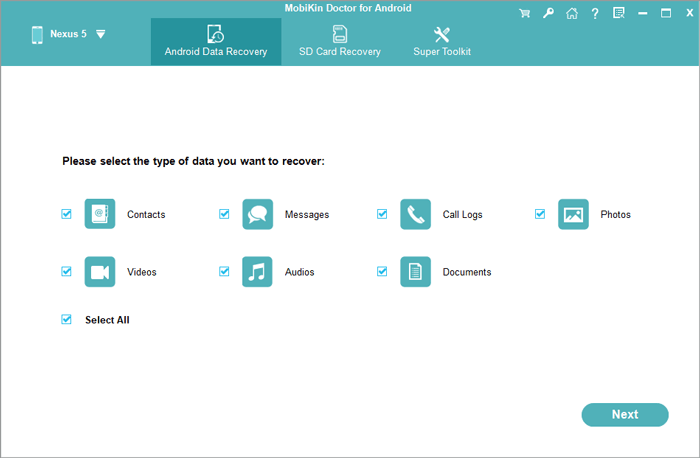
- Once recognized, select "Messages" and click "Next".
- Follow the prompts to scan your phone. For a complete scan of deleted messages, your realme may need to be rooted. (Not sure if your phone is rooted?)
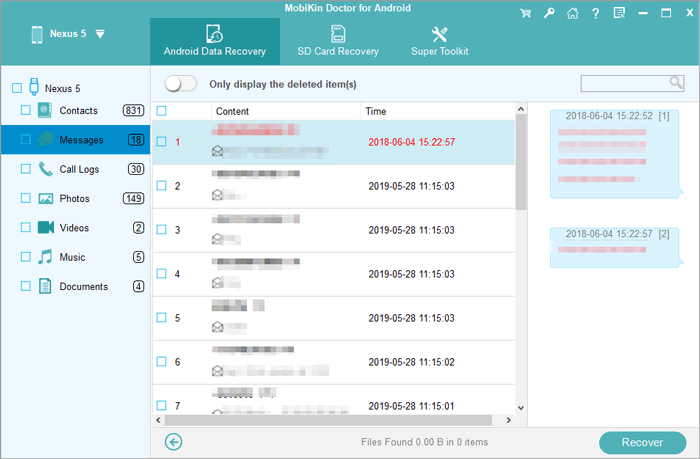
- After scanning, preview all the text messages displayed on the interface and select the deleted ones you want to recover.
- Finally, click "Recover" to restore them and save the messages to your computer in a readable format.
Video Guide:
You May Also Like: Want to recover lost SMS from realme after a factory reset? Here are the 5 smart strategies.
Final Thoughts
After exploring all 7 ways to resurrect lost messages on your realme, one thing becomes clear: not every method is created equal. Some are like patching a leaky bucket - partial, slow, or uncertain. MobiKin Doctor for Android, however, feels more like a digital lifeguard: diving straight into your phone's memory, surfacing deleted texts, and letting you choose exactly what to save. No backups? No problem. No guesswork.
Related Articles:
How to Back Up and Restore realme Phones? 5 Clever Ways You'd Better Know
How to Fix realme Phone Not Connecting to PC? 8 Solutions & 1 Alternative
5 Productive Ways for SIM Card Data Recovery for realme [Tested]
4 Handy Ways to Transfer Data/Files from realme to realme [Latest]
