
9 Easy Fixes for Samsung My Files Not Showing All Files/Folders
TL;DR:
When Samsung My Files is not showing all files, hidden items, category filters, permissions, SD card issues, sync problems, or app glitches may be responsible. Try the 9 fixes below first, and if important files are still missing or inaccessible, consider using MobiKin Doctor for Android to scan and recover recoverable data.
"Whenever I go to a folder in the Default My Files app, none of my files seem to be appearing; it doesn't say 'no items' or anything." -- From Reddit
Why Is Samsung My Files Not Showing All Files?
- Hidden files: Some files or folders may be hidden from My Files.
- Category filters: Categories may not show every file in a folder.
- Permissions: My Files may lack access to certain storage locations.
- Cloud sync: OneDrive or NAS files may not sync properly.
- SD card issues: An unrecognized or faulty SD card can hide its contents.
- Trash: Missing files may have been moved to Trash.
- App glitches: Cache or temporary errors can prevent files from loading.
- Recent updates: Updates may change My Files' display or folder filters.
- File types: Some file types may not appear under the expected category.
Next, we shall walk you through how to fix Samsung My Files not showing all files in various ways. Keep reading for details.
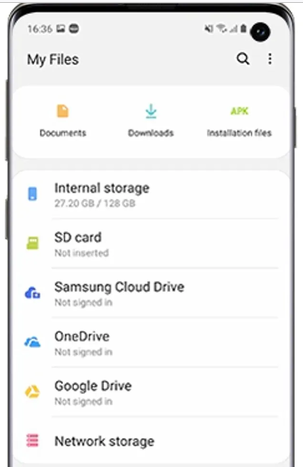
- Part 1: Samsung My Files Not Showing All Files? Try 9 Basic Solutions
> Fix 1: Show Hidden Files
> Fix 2: Search for the Files
> Fix 3: Check App Permissions
> Fix 4: Check the Trash
> Fix 5: Check the SD Card
> Fix 6: Switch to All Folders
> Fix 7: Clear My Files Cache
> Fix 8: Refresh or Sync
> Fix 9: Restart or Update Samsung Phone - Part 2: Recover Missing Files from My Files without a Backup [Trusted]
Part 1: Samsung My Files Not Showing All Files? Try 9 Basic Solutions
> Fix 1: Show Hidden Files
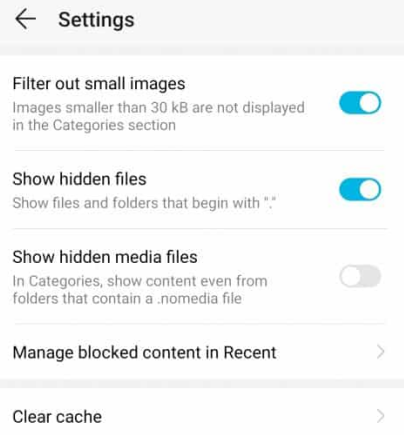
If files were marked as hidden, My Files may not display them in the normal folder view. Open My Files > Settings and enable Show hidden system files (the exact wording may vary by One UI version). The linked video demonstrates this approach.
If My Files shows no files in OneDrive storage, first open OneDrive separately and confirm that the files are still available and the account is properly signed in. Then check the OneDrive connection in My Files and refresh or reconnect the service if necessary. If the files appear normally in OneDrive but remain missing from My Files, updating My Files or restarting the phone may help restore the integration.
You Might Also Enjoy: Files by Google Alternatives: 8 Best File Managers for Android
> Fix 2: Search for the Files
Use the Search icon in My Files and enter the file name, file extension, or a related keyword. If the file appears in search but not under a category such as Documents, it may simply be classified differently; for example, Android's MediaStore/category system does not necessarily place every file in the category you expect.
> Fix 3: Check App Permissions
My Files needs appropriate access to storage and files to display your content correctly.
- Go to Settings > Apps > My Files > Permissions and check whether the necessary file/media permissions are allowed.
- A Samsung Community discussion also reports cases where My Files no longer displayed folders correctly, so checking permissions is worthwhile before trying more advanced fixes.
> Fix 4: Check the Trash
Open My Files > Trash and check whether the missing items were accidentally deleted. If you find them there, select the relevant files and use Restore to return them to their original location.
> Fix 5: Check the SD Card
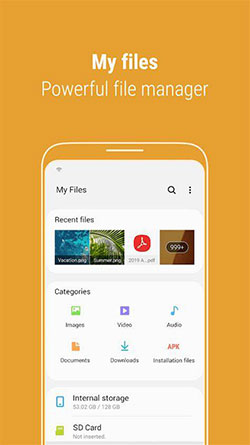
If the missing files are stored on a microSD card, open My Files > SD card and browse the actual folders instead of relying only on categories. You can also remove and reinsert the card, then check whether all folders and files appear again; if another device or computer can read the card, verify the files there as well. (Can I move content from SD card to Android?)
> Fix 6: Switch to All Folders
My Files can show files through categories such as Documents, Images, or Videos, but these category views may not contain every item in a physical folder. For example, an Android Enthusiasts discussion found that the Documents category may include only recognized document types, while browsing Internal storage > Documents can show the complete folder contents.
For newer versions of My Files, especially after an update, also check the folder-view filter:
- Open My Files.
- Enter the affected storage location.
- Look for the filter that may say Essentials.
- Tap it and select All, if that option is available.
- Browse the folder again to see whether the missing files and subfolders appear.
A 2026 Samsung Members discussion reports that an update could reset the directory view to Essentials, hiding deeper folder structures, while switching the view to All restored the complete folder tree.
> Fix 7: Clear My Files Cache
A corrupted temporary cache can sometimes interfere with how My Files loads folder information.
- Go to Settings > Apps > My Files > Storage and tap Clear cache.
- Reopen My Files and check the affected folder.
If the problem continues, you can also try Force stop before opening the app again. For network storage, however, clearing the cache alone may not resolve a directory-indexing problem.
> Fix 8: Refresh or Sync
If the missing files are stored on OneDrive, NAS, or another network location, the problem may be related to synchronization rather than the files actually being gone. Samsung Members users have reported that using Sync from the three-dot menu can refresh the contents of a network folder; another reported solution was clearing the Network Storage Manager data and then adding the external storage again.
- For OneDrive specifically, check the OneDrive storage directly to confirm that the files still exist and that the Samsung account/OneDrive connection is working properly.
- If the files are visible in OneDrive but absent from My Files, the issue is more likely with the My Files integration or synchronization.
> Fix 9: Restart or Update Samsung Phone
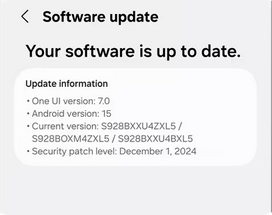
Restart your Samsung phone after trying the fixes above, especially after changing permissions, clearing the cache, or reconnecting storage. Then check Settings > Software update and Galaxy Store for available updates for the phone and My Files.
This is particularly relevant if the problem started immediately after a My Files update. A recent Samsung Members report describes missing NAS files and folders appearing after a My Files update, with the discussion identifying the folder-view filter and synchronization as possible workarounds.
Part 2: Recover Missing Files from My Files with a Backup [Trusted]
When My Files fails to display certain files or folders, MobiKin Doctor for Android (Windows/Mac) can scan the Android device for missing data without requiring a previous backup. It can locate recoverable files that are no longer visible through My Files and lets you preview available data before recovery. This can be useful when important files have disappeared from the normal folder view but have not yet been overwritten.
NOTE: After data loss, stop using your phone or limit its use as much as possible to reduce the risk of deleted data being overwritten by new content, which may improve the chances of successful recovery. We support using these tools only for legitimate purposes and do not encourage any unauthorized use.
Main Features of MobiKin Doctor for Android:
- Recover Missing Files: Recover deleted or missing photos, videos, contacts, messages, documents, etc., without backup.
- No Backup Required: Recover data directly without a previous backup.
- Fix My Files Issues: Recover files missing from Samsung My Files.
- Preview Data: Preview recoverable files before restoring them.
- Wide Android Support: Support Samsung and many other Android devices.
- SD Card Recovery: Recover lost files from various SD cards.
- Deep Scan: Search deeper for files that quick scans miss.
- Selective Recovery: Choose specific files to recover to a computer.
- Highly Secure: Won't collect users' private data.
Free and Secure Download:


User Guide:
Step 1: Set up connection - Download, install, and open MobiKin Doctor for Android on your computer. Connect your Samsung phone via USB and enable USB debugging if prompted.
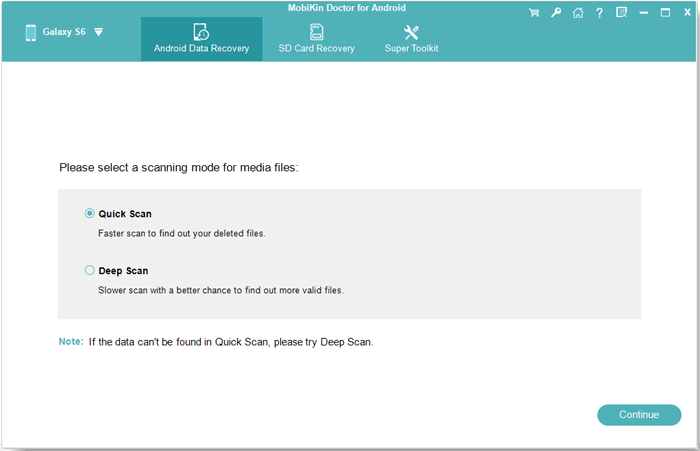
Step 2: Scan for files - Once the device is recognized, choose the file types you want to restore, select a scan mode to scan your desired files, Or follow guidance to root your Samsung Galaxy if deeper access is needed.
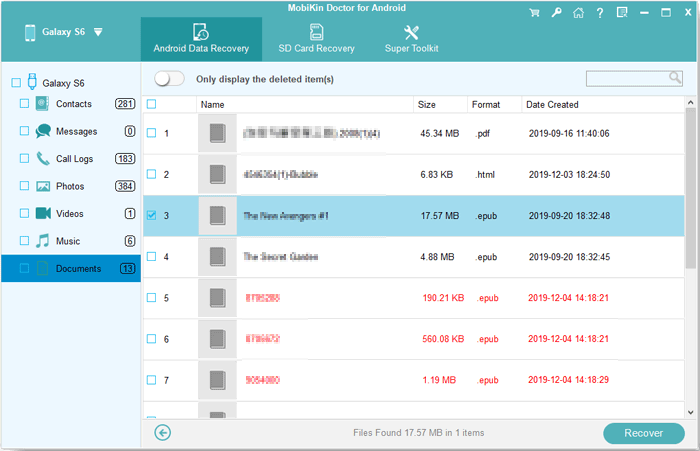
Step 3: Recover content - Preview the detected files, mark the ones you want, and click "Recover" to save them to your computer.
Video Tutorial:
In Closing
When Samsung My Files is not showing all files, the cause may be hidden files, incorrect folder settings, storage issues, app glitches, or inaccessible data. The 9 methods above can help you check the most common causes and restore access to missing files. If the files were accidentally deleted or have become inaccessible, MobiKin Doctor for Android can also help scan and recover lost data from compatible Samsung devices.
Related Articles:
7 Best Methods to Clean/Delete Junk Files on Android Phone
Top 8 My File Manager Alternatives for iPhone Backup & Transfer
Where Do the Deleted Files Go in Android? Answers & 7 Recovery Methods
How to Find Hidden Photos on iPhone? 6 Lesser-Known Tips for You
