
7 Best DigDeep Image Recovery Alternatives You Should Never Miss
TL;DR:
DigDeep only recovers photos, but many Android users also lose videos, contacts, messages, or documents and therefore need a more comprehensive solution.
- MobiKin Doctor for Android handles photos, videos, contacts, messages, and documents in a single recovery process.
- Its computer-based scanning method provides deeper access to lost data than most phone-only alternatives.
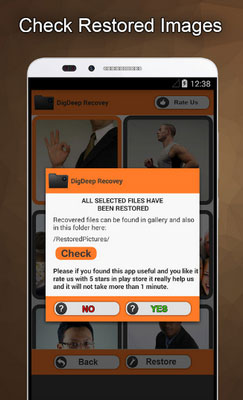
DigDeep mainly focuses on recovering deleted images, which can be useful when you only need to retrieve lost photos from an Android phone. However, some users need to restore videos, contacts, messages, or documents as well, so looking for a DigDeep Image Recovery alternative may make more sense in such cases.
This article introduces several recovery tools that cover different data types and recovery needs, helping you compare their strengths before making a choice.
#1: Top DigDeep Image Recovery Alternative - Doctor for Android
For Android users seeking a stronger alternative to DigDeep Image Recovery, MobiKin Doctor for Android (Windows/Mac) offers a more computer-based recovery approach with support for retrieving deleted photos, videos, contacts, messages, and other files.
It can scan an Android phone or SD card for recoverable data and lets users preview found items before recovery. Compared with a basic image-recovery app, its broader data coverage makes it a qualified DigDeep Image Recovery alternative when more than photos need to be restored.
Main Features of MobiKin Doctor for Android:
> Deleted Photo Recovery: Recovers photos and serves as a DigDeep alternative.
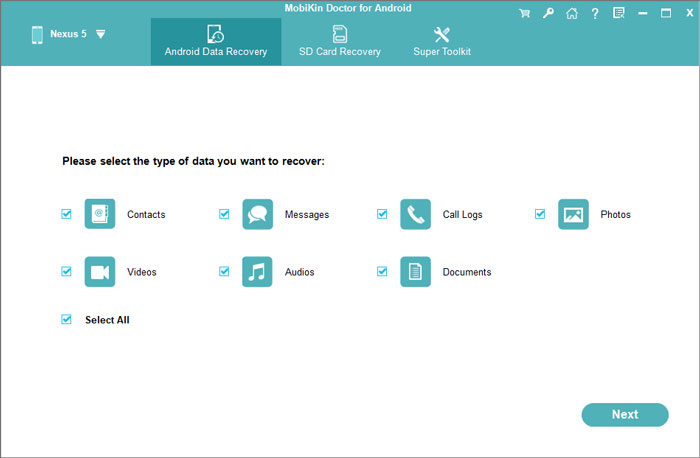
> Multi-File Recovery: Restores contacts, messages, videos, music, and documents.
> SD Card Recovery: Recovers lost data from SD cards.
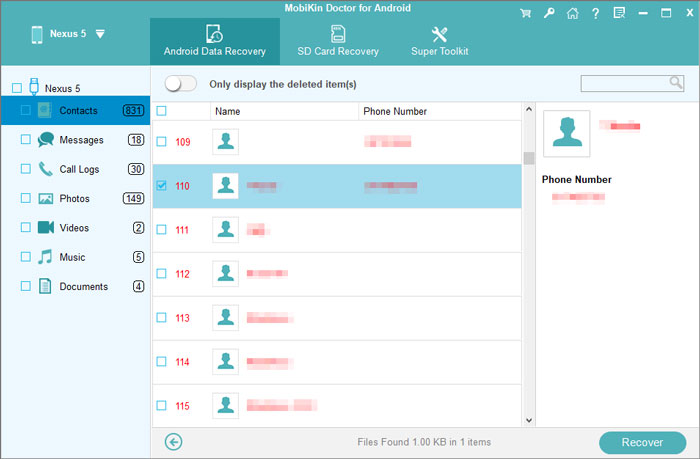
> File Preview: Previews files before recovery.
> Deep Scanning: Performs thorough scans for lost data.
> Selective Recovery: Restores only selected files.
> Wide Compatibility: Supports many (8,000+) Android devices.
> PC-Based Recovery: Recovers data through a computer.
> Quality Preservation: Retains recovered files in their original quality.


Now, free download this qualified tool to recover lost/deleted files from your Android phone or tablet:
- Use a USB cable to connect your Android phone to the computer.
- Open the program, and it should detect the connected device automatically and display its main interface.
- Choose the option for recovering deleted data and click "Next".
- A scan will then begin to search for lost files. If the desired data cannot be found, follow the on-screen guidance to root your device and perform a deeper scan.
- After scanning finishes, the recoverable files will appear as thumbnails.
- Select the files you want to restore, then click "Recover" to save them in their original quality.
Video Guide:
Pros:
- Recovers deleted photos, videos, contacts, messages, and other Android data.
- Supports recovery from Android phones and SD cards.
- Allows users to preview recoverable files before restoring them.
- Offers a broader recovery scope than photo-only apps.
- Can serve as a strong DigDeep Image Recovery alternative.
My Personal Take:
- I like its wider recovery coverage, especially when I need to restore photos along with contacts, messages, videos, or other Android data.
- The downside is that it requires a computer, so it is less convenient than phone-based recovery apps for quick photo restoration.
Click to Explore: 5 Desirable Ways to Recover Photos after Factory Reset on Android Phone
#2: DiskDigger photo recovery
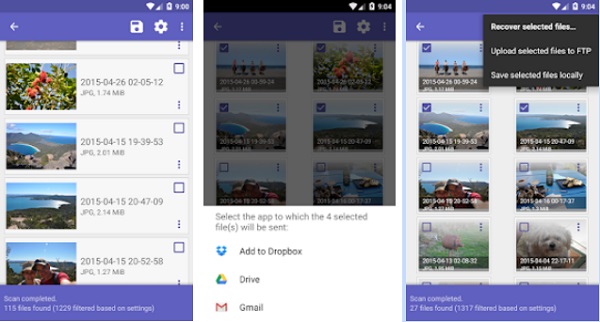
A convenient choice for recovering lost pictures directly from an Android phone is DiskDigger photo recovery, which can search internal storage for deleted images. Rooted devices can generally receive a deeper scan, while non-rooted phones have more limited recovery capabilities. Its photo-focused design and simple operation make it a qualified DigDeep Image Recovery alternative for users who mainly need to retrieve deleted pictures.
Pros:
- Recovers deleted photos and images from Android devices.
- Offers basic scanning without root access.
- Provides deeper scanning on rooted devices.
- Lets users preview recoverable images.
- Supports saving recovered photos to different locations.
- Simple interface makes it easy to use.
My Personal Take:
- Its simple interface and photo-focused recovery make it handy when I only want to search for deleted pictures.
- The drawback is that deeper scanning works better with root access, while non-rooted devices may have more limited results.
You Might Also Need: How to Recover Photos from iPhone in Recovery Mode? 4 Practical Ways
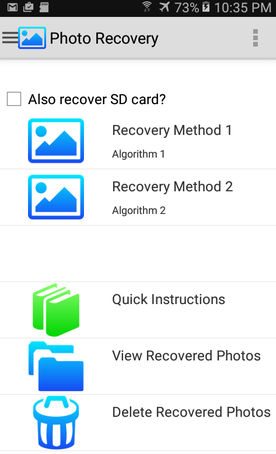
#3: Photo Recovery
For quick photo restoration without connecting the phone to a computer, Photo Recovery provides a straightforward way to look for deleted images stored on the device. Depending on the phone and storage conditions, it can locate recoverable pictures and help save them to another location. This focus on deleted-photo retrieval gives it a practical place among DigDeep Image Recovery alternatives.
Pros:
- Focuses mainly on recovering deleted photos.
- Works directly on Android phones.
- Provides a simple recovery process.
- Reduces the need for a computer connection.
- Useful for users who only need image recovery.
- Can be used as a straightforward DigDeep Image Recovery alternative.
My Personal Take:
- I appreciate its straightforward approach because I can attempt photo recovery directly from an Android phone without using a PC.
- Its weakness is the narrower recovery scope, as it is mainly suited to photos rather than a wide range of file types.
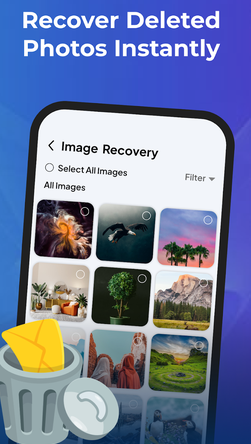
#4: Data Recovery - Photo & Video
Users who want to recover both pictures and videos may consider Data Recovery - Photo & Video as another option. The app centers on scanning phone storage for recoverable media, which can be useful when accidentally deleted photos are not limited to a single album. With its wider media coverage, it can serve as a qualified DigDeep Image Recovery alternative for basic photo and video recovery needs.
Pros:
- Recovers both photos and videos.
- Scans Android storage for deleted media.
- Convenient for recovering different types of multimedia files.
- Works directly from the phone.
- Suitable for users who want a simple recovery method.
- Offers wider media coverage than a photo-only recovery tool.
My Personal Take:
- Having both photo and video recovery in one app is useful when deleted media includes more than just pictures.
- On the negative side, its results can depend heavily on the device's storage condition and whether deleted files have already been overwritten.
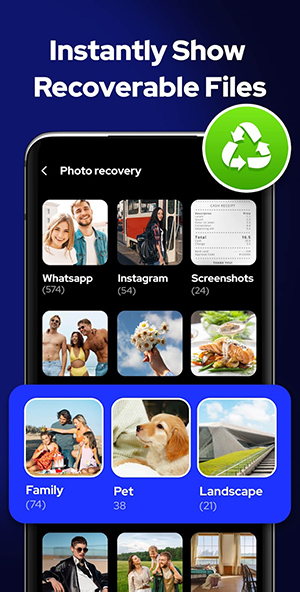
#5: File Recovery - Photo Recovery
Another Android option for locating deleted pictures is File Recovery - Photo Recovery, which concentrates on finding recoverable images from device storage. Its simple recovery workflow can suit users who prefer handling the process directly on their phones rather than using desktop software. As a result, it can work as a DigDeep Image Recovery alternative when the main goal is restoring recently deleted photos.
Pros:
- Focuses on finding deleted photos.
- Provides an easy-to-follow recovery process.
- Works directly on Android devices.
- Useful for recovering accidentally deleted images.
- Does not require a desktop program for basic recovery.
- Can be considered a DigDeep Image Recovery alternative.
My Personal Take:
- I find it convenient for basic photo recovery because the process can be handled directly on the phone.
- The limitation is that its main focus is image recovery, so it may not be the best pick when I need to restore many different types of files.
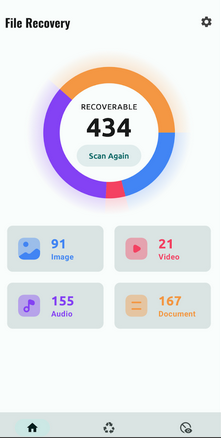
#6: File Recovery - Restore Files
For users looking beyond image files, File Recovery - Restore Files can be useful for searching for different types of deleted data on an Android device. Its broader file-recovery focus may help when photos are stored alongside videos, documents, or other files that also need attention. This wider scope makes it a reasonable DigDeep Image Recovery alternative for recovering more than just pictures.
Pros:
- Supports recovery of different types of deleted files.
- Goes beyond photos to cover other file categories.
- Provides a convenient phone-based recovery option.
- Useful when several file types have been deleted.
- Offers a broader purpose than image-only recovery apps.
- Can be useful as a DigDeep Image Recovery alternative.
My Personal Take:
- Its broader file-recovery focus is a plus when I need to look for photos, videos, documents, or other deleted items.
- However, the wider scope can make it less specialized for users who only want a dedicated photo-recovery tool.
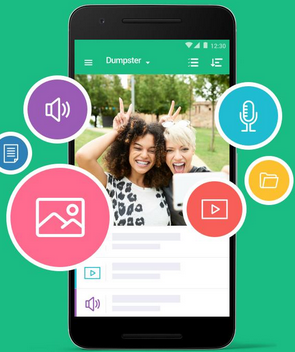
#7: Dumpster
A recycle-bin style solution comes from Dumpster, which can keep deleted files available for restoration instead of requiring a full recovery scan in every situation. It is particularly useful when files are deleted after Dumpster has been installed and can restore supported items from its own storage area.
Although its approach differs from DigDeep Image Recovery, it remains a practical alternative for preventing accidental photo loss and restoring deleted files.
Pros:
- Works as a recycle-bin style solution for Android.
- Helps restore files that have been moved to its storage area.
- Supports recovery of deleted photos and other files.
- Reduces the risk of permanent loss from accidental deletion.
- Provides a convenient restoration process.
- Useful for preventing data loss before recovery is needed.
My Personal Take:
- I like its recycle-bin approach because it can make restoring accidentally deleted files much easier when they were already protected by the app.
- The main drawback is that it works best as a preventive safety net rather than a solution for files deleted before Dumpster was installed.
Concluding Thoughts
The right recovery tool depends on what was deleted, how long ago it disappeared, and the condition of the phone's storage. Keep in mind that results can vary depending on the device, storage condition, and whether deleted data has been overwritten. A good recovery option may improve the chances of finding lost files, but no tool can promise that every deleted item will return.
Related Articles:
How to Save Instagram Photos on Android Phone in 5 Popular Ways
Ultimate Guide: 3 Easy Means to Save WhatsApp Photos on Android
How to Transfer Photos from Phone to Laptop without USB? (Android/iOS)
Google Drive vs Google Photos: What Are the Differences? [Answered]
