
How to Recover Call History from OnePlus Phone? [Method Comparison]
TL;DR:
- Four Recovery Methods: This page outlines how to restore OnePlus call history using the built-in Backup & Restore function, SMS Backup & Restore, Clone Phone, or MobiKin Doctor for Android.
- Backup vs. No Backup: The first three methods rely on existing backups or supported data transfers, while MobiKin Doctor can scan for recoverable deleted call logs without a backup.
- Compatibility and Recovery Tips: The guide covers OnePlus Number, Nord, and Ace series models, explains each method's steps and limitations, and offers tips to improve recovery chances.
NOTE: Before trying any recovery method, make sure you legally own the OnePlus phone or have explicit permission to retrieve its call history.
"I'm using a mobile phone (OnePlus 15, with OxygenOS 16), and I'd like to have my old call logs history retrieved. Are there any other options that can help me with this issue?" -- from support.google.com
Resetting a OnePlus phone, experiencing system errors, or encountering storage problems can result in missing call records. If you're wondering how to recover call history from OnePlus, this page covers four tested ways, including their comparison, using the built-in Backup & Restore function, SMS Backup & Restore, Clone Phone, and MobiKin Doctor for Android. Read on to find out which method fits your situation.
- Part 1: Restore Call History from OnePlus via Backup & Restore Function
- Part 2: Recover Deleted Call History from OnePlus via SMS Backup & Restore
- Part 3: Retrieve Lost Call History from OnePlus with OnePlus Clone Phone
- Part 4: Recover Lost Call History from OnePlus Conveniently [No Backup Required]
- Conclusion - A Quick Comparison
Part 1: Restore Call History from OnePlus via Backup & Restore Function
According to the official OnePlus Android manual, this built-in feature supports restoring call logs directly to the phone's internal storage. But before that, you have to take a backup of the calls. (The following is the test we conducted on OnePlus 13 5G).
How to Recover?
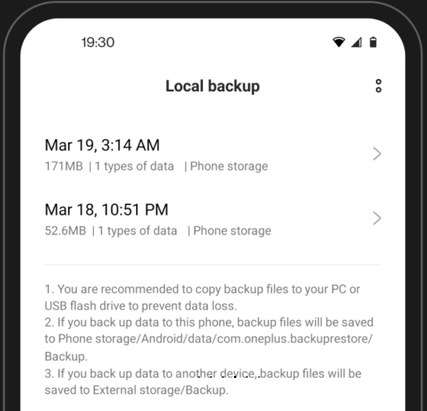
- Go to Settings > System settings > Back up & migrate > Local backup.
- On some OxygenOS versions, the path may be Settings > Additional settings > Back up and reset > Back up & migrate > Local backup.
- Check the backup records displayed on the Local backup screen. Select the backup created before your call history was deleted, if your interface allows you to select a record.
- Follow the available restore or recovery option and select Call logs if the interface offers individual data selection. Start the restoration and wait for it to finish.
- Open the Phone app and check Recents to see whether your previous call history has returned.
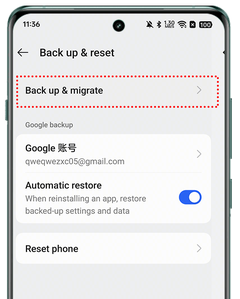
Important: OnePlus documents the Local Backup feature as supporting call logs, but the exact restoration interface varies by OxygenOS version. If you cannot find a restore option, do not create a new backup over your existing files. OnePlus warns that local backup data can be erased by a factory reset or certain data-wiping operations.
Part 2: Recover Deleted Call History from OnePlus via SMS Backup & Restore
You can use SMS Backup & Restore to recover deleted call history on a OnePlus phone, provided you created a backup before losing the records.
How to Recover?
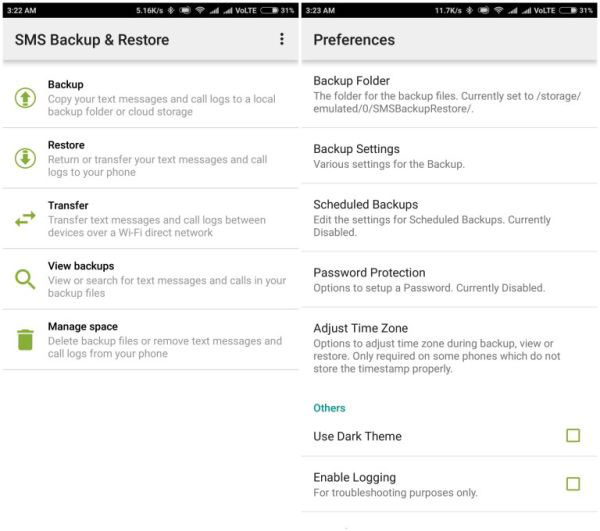
- Launch the SMS Backup & Restore app on your OnePlus phone (Assuming you own a OnePlus 15). If you haven't installed it yet, download it from the official Google Play Store.
- On the app's main screen, tap Restore. Browse the available backup files and select the backup containing the call history you want to recover. The backup is typically stored as an XML file, either in local storage or in a supported cloud location.
- If the app displays separate options for SMS messages and call logs, select Call logs and deselect any data you don't want to restore. Follow the on-screen instructions to continue.
- Android may ask you to temporarily set SMS Backup & Restore as the default SMS app to complete the restoration process. Tap OK or Yes if prompted, and grant the necessary permissions. Once the restoration finishes, follow the app's instructions to return to your preferred messaging app.
- Open your OnePlus Phone app and navigate to Recents. Check whether the missing call records have reappeared.
Part 3: Retrieve Lost Call History from OnePlus with OnePlus Clone Phone
OnePlus Clone Phone, formerly known as OnePlus Switch, supports backing up and restoring call history alongside contacts, SMS, and other data. If you created a backup before losing your call records, you may be able to retrieve them without using a third-party recovery tool. The exact options depend on your OnePlus model and OxygenOS version.
How to Recover?
- Open OnePlus Clone Phone. Launch the app on your OnePlus phone.
- Access Backup & Restore. Look for the backup and restore option. If unavailable, check Settings > Additional settings > Back up and reset > Back up & restore > Local backup.
- Select an Existing Backup. Choose a backup created before your call history was lost.
- Choose Call Logs. Select Call logs or Call history from the available data categories, if supported.
- Start Restoration. Tap Restore or Restore Now and wait for the process to finish.
- Verify the Recovered Records. Open the Phone app and check the Recents tab.
Part 4: Recover Lost Call History from OnePlus Conveniently [No Backup Required]
When OnePlus call logs disappear without a backup, MobiKin Doctor for Android (Windows/Mac) can scan the phone for recoverable records and help retrieve them, along with contacts, text messages, photos, and videos. Its preview feature lets you check the available data before choosing what to recover.
A USB connection links the phone to your computer, while USB debugging and root access may be needed for deeper scans. The software officially states that it won't track users' private information, though recovery success depends on the device's condition and whether the deleted data remains recoverable.
NOTE: After losing data, minimize the use of your OnePlus phone to reduce the risk of deleted records being overwritten by new data, which may improve the chances of successful recovery. This tool work for 8,000+ Android devices, covering OnePlus Number, Nord, and Ace series models, including the OnePlus 14/13/12, Nord 5, Ace 3.
Safe Download (No ads, no bundles, & no background uploads):


How to Recover?
1. Connect Your Android Phone: Download and install the program on your computer, then connect your OnePlus phone. Follow the on-screen instructions to enable USB debugging and root your device if required for internal memory scanning.
NOTE: The MobiKin Assistant for Android app, available from the official MobiKin website, helps establish a connection between your Android phone and computer. It does not collect your private data. To maintain a stable connection, keep the app running normally on your phone throughout the process. Avoid performing other operations on the device or sending the app to the background while the connection is being established.
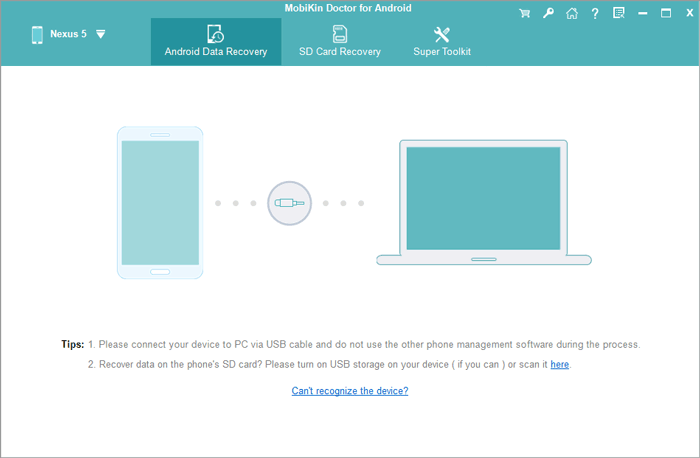
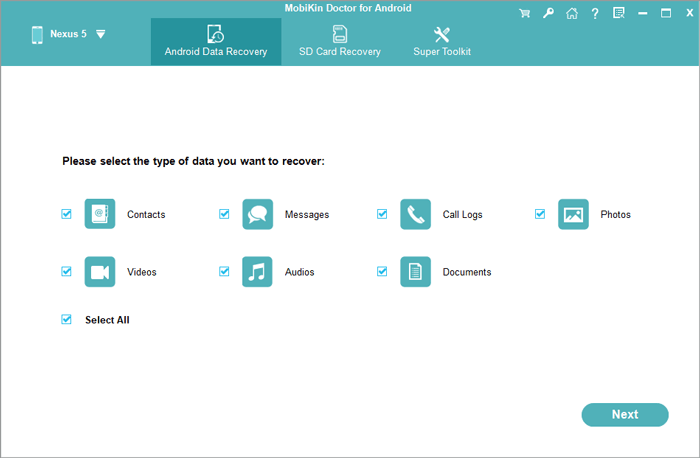
2. Select Call Logs: Once the software detects your OnePlus, choose Call Logs from the available data types and click Next to proceed.
3. Scan Your Phone: Allow the program to scan your OnePlus device's internal storage for recoverable call history. Keep the phone connected and follow any prompts that appear.
4. Preview and Select Records: Review the scanned call logs and select the deleted call records you want to retrieve.
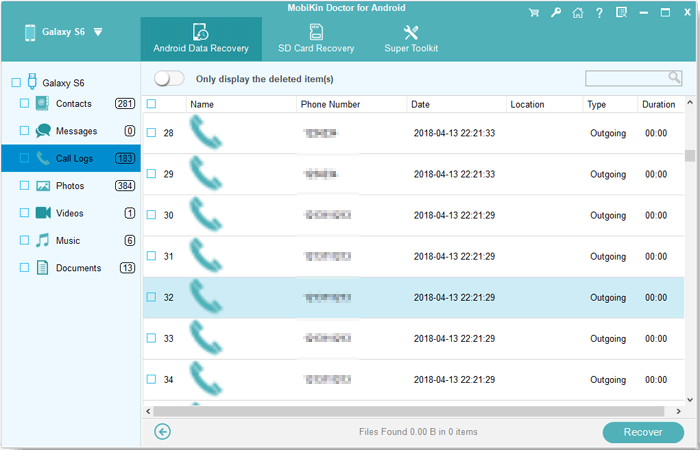
5. Recover Call History: Click Recover, then choose a destination folder on your computer to save the recovered call logs.
Video Guide:
Conclusion - A Quick Comparison
In short: If you have a suitable backup, start with OnePlus's built-in function or SMS Backup & Restore. Clone Phone is worth considering when transferring data between devices. If no backup exists, MobiKin Doctor for Android is an alternative to try, although recovery of permanently deleted call logs is not guaranteed.
|
Method
|
Good Points
|
Limitations
|
|
OnePlus Built-in Backup & Restore
|
Uses local backups without third-party recovery software. |
Requires an existing backup containing the lost call logs. |
|
SMS Backup & Restore
|
Restores call logs from XML backups stored locally or in supported cloud services. |
Cannot retrieve records that were never backed up. |
|
OnePlus Clone Phone
|
Supports call-log transfers and other data migration between compatible phones. |
May not offer restoration of existing local backups on every model. |
|
MobiKin Doctor for Android
|
Scans OnePlus phones for recoverable call history, even without a backup. |
Recovery success depends on data availability; root access may be required. |
Related Articles:
How to Transfer Call Logs from Android to Android? 5 Productive Ways
Android Call Log Manager: Manage Call History on Android Efficiently
Hot Tips to Restore Call History Backup from Google Drive [2026]
How to Recover Deleted WhatsApp Messages in OnePlus? 4 Approaches
