
Move to iOS WhatsApp Stuck at 99 Percent? Causes & 10 Fixes
TL;DR:
The frustration of a stalled transfer is understandable, but with the right preparation and troubleshooting, you can complete the migration successfully. Consider using Social App Transfer as a reliable alternative if the official tool continues to fail. This software allows you to move WhatsApp data directly between Android and iPhone without resetting your device, and it supports large backups with a high success rate.
"I've tried several times but the last screen still shows WhatsApp data transfer 99% or 54% but when it's still stuck at 1 minute left; any suggestions?" -- from facebook.com
* How long does Move to iOS take for WhatsApp?
Transferring WhatsApp via Move to iOS usually takes between 20 minutes and 1 hour, depending on the size of your chat history and media files. In some cases, large backups can extend the process to 90 minutes or more.
The phrase move to iOS WhatsApp stuck at 99 percent captures a moment of frustration that many users encounter when migrating their chats to a new iPhone. The 99% stall raises anxiety that chats, photos, or business records might be lost forever, and read on to find clear troubleshooting guides rather than vague advice here to regain confidence in the process.
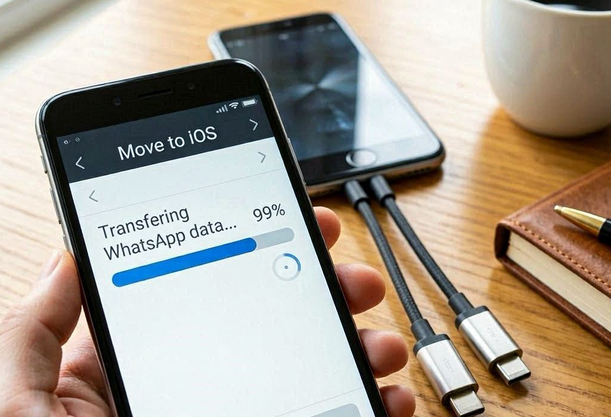
Part 1: Why Is My Move to iOS Transfer Stuck at 99%
A Move to iOS transfer freezing at 99% often signals hidden obstacles that go beyond the usual suspects. To help you troubleshoot effectively, here are additional reasons that can cause the process to stall.
- Large WhatsApp data: If your chat history and media are huge, the app struggles to prepare and transfer files.
- Weak Wi-Fi connection: Slow or unstable networks cause interruptions, especially near the final stage.
- Outdated apps/OS: Android must be on 5.0+, iPhone on iOS 15.5+, and WhatsApp updated to the latest versions.
- Background apps: VPNs or other running apps interfere with the transfer process.
- System bugs: Cached memory errors often freeze the process at 99%. A restart clears them.
- Insufficient iPhone storage: If your iPhone doesn't have enough free space to accommodate the transferred WhatsApp data, the process halts near completion.
- Corrupted WhatsApp backup: Damaged or incomplete backup files on Android can cause the transfer to freeze when Move to iOS tries to restore them.
- Firewall or router restrictions: Some Wi-Fi routers block peer-to-peer connections, which Move to iOS relies on, leading to a stuck transfer.
You Might Also Need: TunesKit WhatsApp Transfer Review 2026: Is It Worth a Go?
Part 2: 10 Solutions to Move to iOS WhatsApp Stuck at 99 Percent
Solution 1: Keep devices unlocked
Keeping both phones unlocked throughout the transfer prevents interruptions caused by lock screens or idle timers. If either device locks, the connection may drop, forcing the process to freeze at 99%.
Solution 2: Stable Wi-Fi connection
- Avoid public hotspots, which often throttle peer-to-peer connections.
- Restart your router or switch to a stronger network before starting.
- Place both devices close to the router to minimize signal loss.
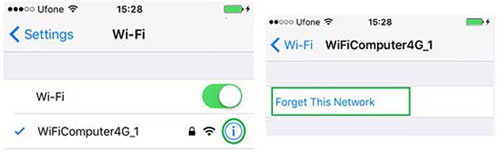
Solution 3: Restart both devices
Restarting clears temporary glitches and refreshes system memory. This simple step often resolves hidden bugs that cause the transfer to stall, giving the process a clean slate to run smoothly.
More to Explore: How to Transfer WhatsApp from iPhone to OnePlus? 4 Established Ways
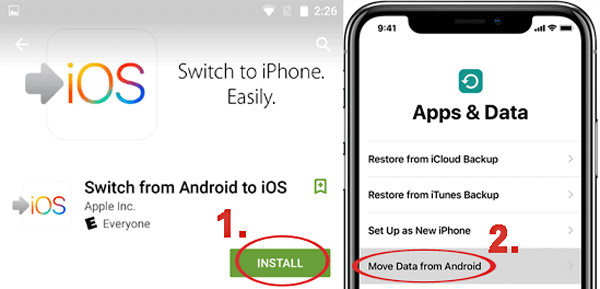
Solution 4: Retry transfer after reset
If the initial setup gets corrupted, a reset may be necessary.
- Reset the iPhone to factory settings.
- Reinstall Move to iOS on Android.
- Retry the transfer from scratch for a fresh attempt.
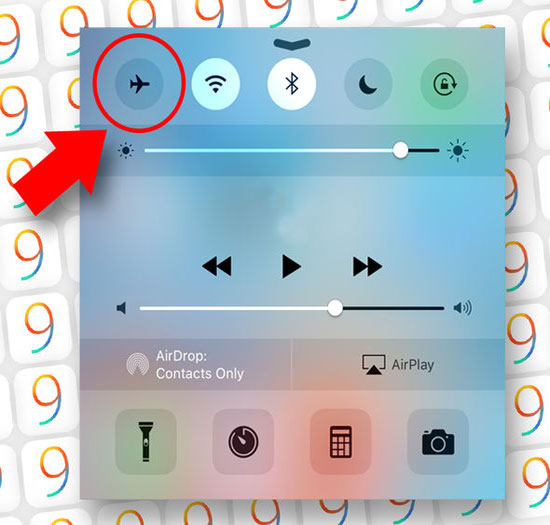
Solution 5: Enable Airplane Mode
Turning on Airplane Mode while keeping Wi-Fi enabled prevents mobile data or Bluetooth from interfering. This isolates the transfer to Wi-Fi only, reducing conflicts and improving stability.
Solution 6: Close background apps
Background apps like VPNs, messengers, or downloads consume bandwidth and CPU resources. Closing them ensures Move to iOS gets priority, reducing the chance of lag or interruptions during the transfer.
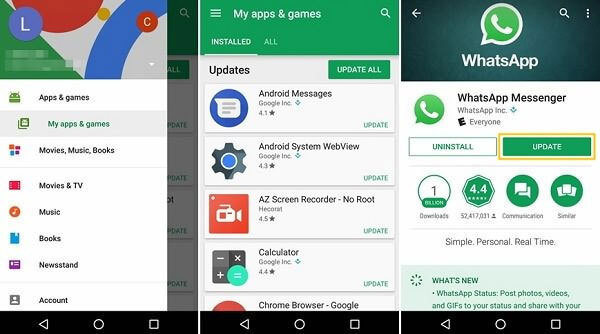
Solution 7: Update OS and WhatsApp
Outdated versions often cause compatibility issues.
- Android should run 5.0 or later, while iPhone must be on iOS 15.5+.
- WhatsApp should be updated to the latest release to ensure smooth migration.
- Updates also patch known bugs that may cause freezes.
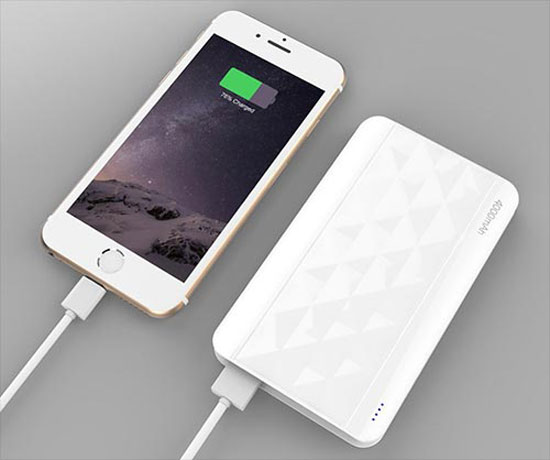
Solution 8: Charge devices above 50%
Low battery can interrupt the transfer mid-process, especially if the phone shuts down unexpectedly. Keeping both devices charged above 50% and plugged in ensures they remain powered throughout the migration.
Solution 9: Clear WhatsApp cache/data
Clearing cache and temporary files on Android helps prevent corrupted data from blocking the transfer. This step is especially useful if WhatsApp has been running for a long time without cleanup, as it removes unnecessary files that may interfere.
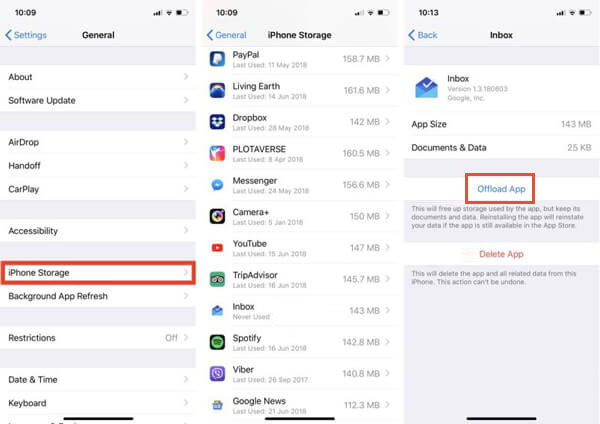
Solution 10: Check storage space
Insufficient storage on the iPhone can halt the transfer at 99%.
- Go to Settings > General > iPhone Storage to verify available space.
- Delete unused apps, old photos, or large files to free up capacity.
- Ensure enough room exists for both WhatsApp data and system operations.
Part 3: Use a Stable Move to iOS Alternative [Always Work]
When switching WhatsApp between Android and iPhone, a dependable tool is essential to avoid interruptions. Social App Transfer provides that reliability by enabling direct transfer of chats, media, and attachments across platforms in just a few steps. Its ability to handle large backups smoothly makes it a strong Move to iOS alternative, especially for users frustrated by transfers stuck at 99%.
Social App Transfer - Core Functions:
- Cross-platform transfer: Move WhatsApp chats between Android and iPhone.
- WhatsApp Business support: Transfer business chats and files.
- Backup to computer: Save WhatsApp/LINE data to PC or Mac.
- Restore from Google Drive: Import backups directly to devices.
- Preview before export: Check chats and media before exporting.
- Flexible export formats: Export conversations as HTML, PDF, or XLS.
- No reset required: Transfer without wiping your phone.
- High success rate: Reliable transfers even with large data.
- Multi-device support: Works with wider Android/iOS versions.
- LINE data management: Backup and transfer LINE chats too.
User Guide:
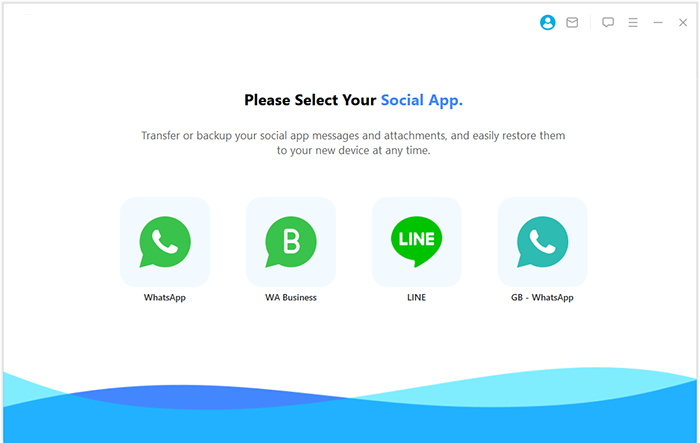
01: Launch Social App Transfer
- Download and install Social App Transfer on your PC.
- Launch the application on the same computer.
- In the left sidebar, select the WhatsApp icon.


02: Connect and Configure Devices
- Connect Android and iPhone via USB cables.
- Enable USB debugging on both devices.
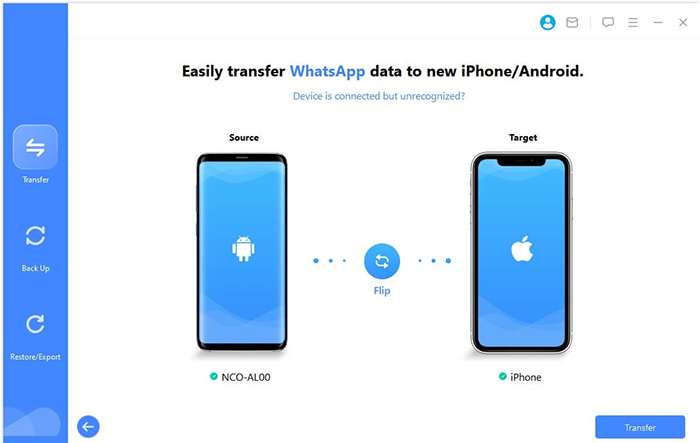
- Verify source and target devices; click Flip if the iPhone isn't set as the target.
03: Begin WhatsApp Transfer
- Click Transfer in the lower right corner.
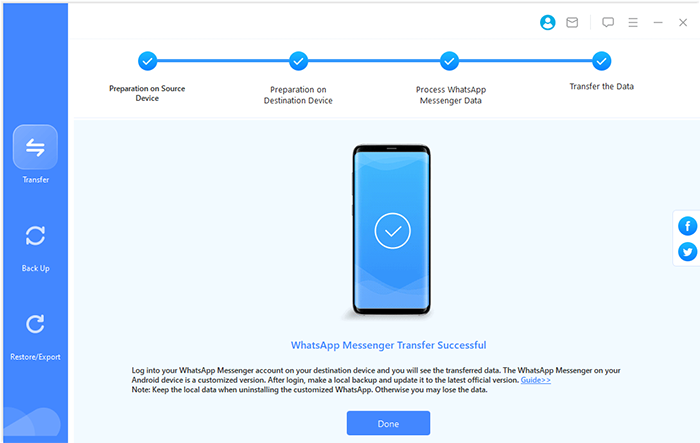
- The program will scan WhatsApp data.
- Data will be copied to the iPhone within a short period.
Round Off
Upon understanding why the transfer halts and applying practical fixes, you can move forward without fear of losing valuable conversations. Ending the journey with a successful migration brings relief and restores trust in the transition to a new device.
When starting the transfer, free up storage on your iPhone and ensure both devices remain unlocked and connected to stable Wi-Fi. These small steps dramatically reduce the risk of hitting the dreaded 99% freeze.
Related Articles:
Tips & Tricks to Remove Swipe Screen to Unlock Android Phone
How to Fix WhatsApp Issues on Android Phone? 10 Smart Strategies
WhatsApp Message Not Delivered? Causes and 8 Easy Fixes You Should Try
How to Recover Deleted WhatsApp Videos in 7 Ways [Android & iPhone]
